


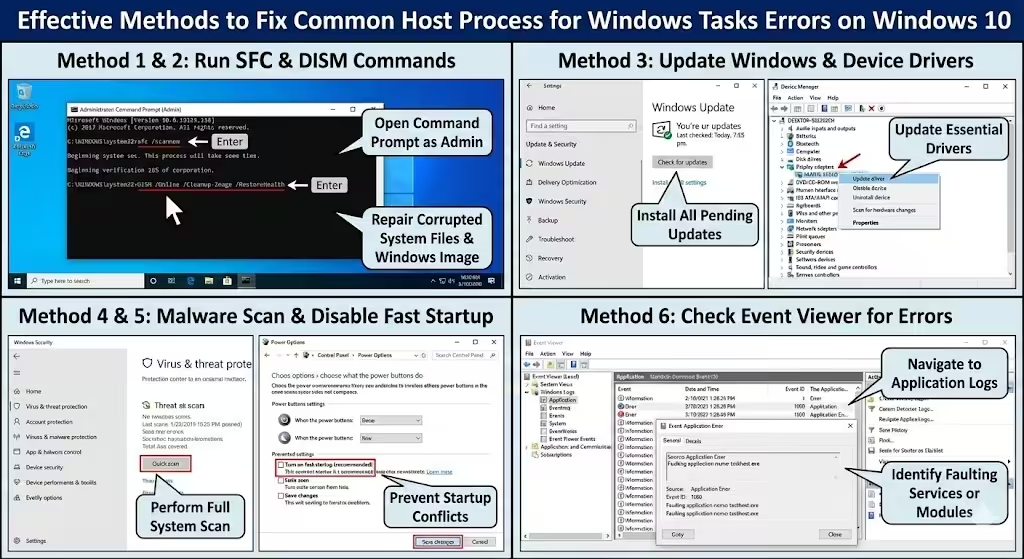
Effective Methods to Fix Common Host Process for Windows Tasks Errors on Windows 10
The error message “Host Process for Windows Tasks has stopped working” is a common issue faced by Windows 10 users. It often appears suddenly, may cause system slowdowns, high CPU usage, or random crashes, and can be frustrating because it does not always clearly explain the root cause. Fortunately, this problem is usually fixable with the right approach.
This guide provides a complete and practical explanation of what the Host Process for Windows Tasks is, why related errors occur, and how you can fix them safely and effectively on Windows 10.
What Is Host Process for Windows Tasks?
Host Process for Windows Tasks, also known as taskhost.exe, is a legitimate Windows system process. Its main role is to host and manage system services that are implemented as Dynamic Link Libraries (DLLs). Instead of running these services independently, Windows uses taskhost.exe to load and execute them efficiently.
Because this process is closely tied to core system functions, any corruption, conflict, or misconfiguration related to it can result in noticeable system issues. Errors related to taskhost.exe do not usually indicate malware, but they should not be ignored.
Common Symptoms of Host Process Errors
Users experiencing Host Process for Windows Tasks errors may notice one or more of the following symptoms:
- A pop-up message stating that the Host Process has stopped working
- High CPU or memory usage in Task Manager
- Slow system performance or freezing
- Delayed shutdown or restart
- Random application crashes
Understanding these symptoms can help you determine how severe the issue is and which solution may be most appropriate.
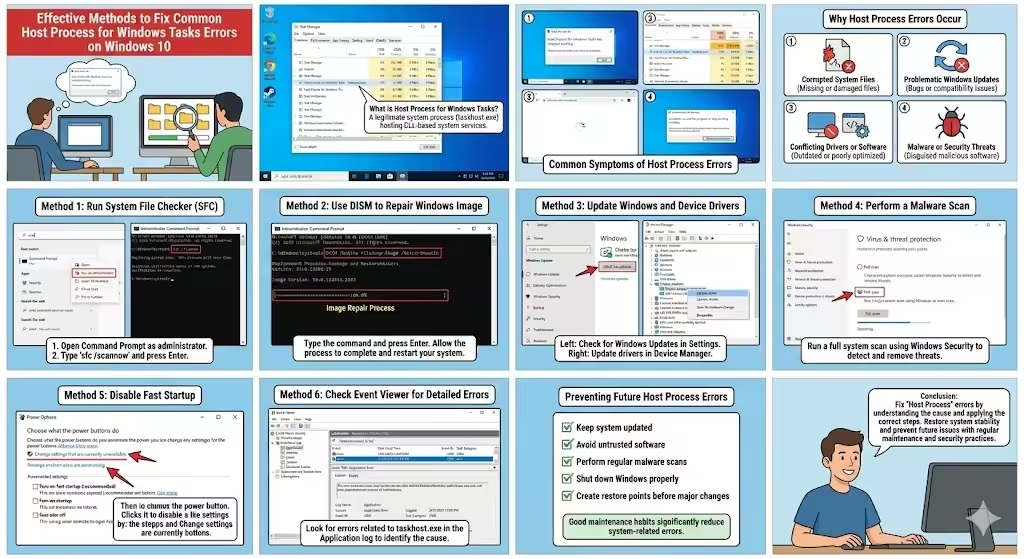
Why Host Process for Windows Tasks Errors Occur
Several factors can cause this error to appear. Identifying the underlying reason is important for applying the correct fix.
Corrupted System Files
Missing or damaged system files can prevent taskhost.exe from functioning properly. This often happens after improper shutdowns, disk errors, or failed updates.
Problematic Windows Updates
Some Windows updates may introduce bugs or compatibility issues that affect system processes, including Host Process for Windows Tasks.
Conflicting Drivers or Software
Outdated drivers or poorly optimized third-party software can interfere with system processes and cause unexpected crashes.
Malware or Security Threats
Although taskhost.exe itself is a legitimate process, malware can disguise itself using similar names or exploit system vulnerabilities, leading to instability.
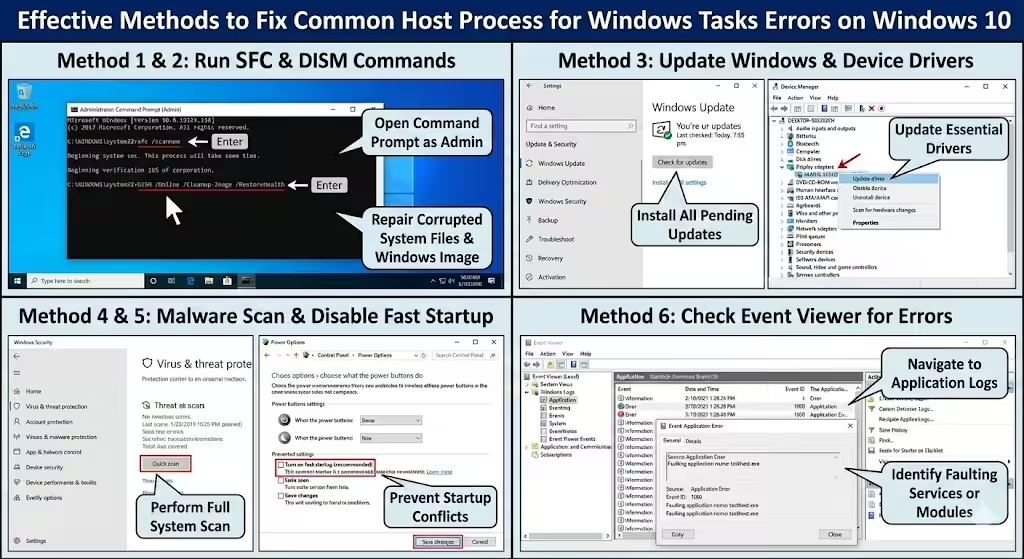
Method 1: Run System File Checker (SFC)
System File Checker is a built-in Windows tool designed to scan and repair corrupted system files.
How to Run SFC
- Press Windows + S, type cmd
- Right-click Command Prompt and select Run as administrator
- Enter the command:
sfc /scannow - Press Enter and wait for the scan to complete
Once finished, restart your computer and check whether the error persists.
Method 2: Use DISM to Repair Windows Image
If SFC does not resolve the issue, the Deployment Image Servicing and Management (DISM) tool can repair deeper system image problems.
Steps to Run DISM
- Open Command Prompt as administrator
- Type the following command and press Enter:
DISM /Online /Cleanup-Image /RestoreHealth - Allow the process to complete
- Restart your system
DISM often resolves errors caused by corrupted Windows components.
Method 3: Update Windows and Device Drivers
Keeping Windows and drivers up to date is essential for system stability.
Update Windows
- Open Settings
- Go to Update & Security
- Click Check for updates
- Install any available updates
Update Drivers
Outdated drivers, especially graphics and chipset drivers, can trigger Host Process errors. Use Device Manager or manufacturer tools to update them.
Method 4: Perform a Malware Scan
Running a full system scan helps ensure that no malicious software is interfering with system processes.
- Use Windows Security for a full scan
- Consider scanning in Safe Mode if the issue persists
- Remove any detected threats and restart the system
Method 5: Disable Fast Startup
Fast Startup can sometimes cause system conflicts by loading outdated system states.
How to Disable Fast Startup
- Open Control Panel
- Select Power Options
- Click Choose what the power buttons do
- Select Change settings that are currently unavailable
- Uncheck Turn on fast startup
- Save changes and restart
Method 6: Check Event Viewer for Detailed Errors
Event Viewer can provide additional information about what causes Host Process failures.
Using Event Viewer
- Press Windows + X and select Event Viewer
- Navigate to Windows Logs > Application
- Look for errors related to taskhost.exe
This information can help pinpoint problematic services or drivers.
Preventing Future Host Process Errors
- Keep your system updated
- Avoid installing untrusted software
- Perform regular malware scans
- Shut down Windows properly
- Create restore points before major changes
Good maintenance habits significantly reduce system-related errors.
Conclusion
Host Process for Windows Tasks errors on Windows 10 can be alarming, but they are rarely permanent or dangerous when handled correctly. By understanding what taskhost.exe does and applying the appropriate troubleshooting steps, you can restore system stability and performance. With regular updates, proper security practices, and careful system management, you can prevent this issue from recurring and ensure a smoother Windows experience.