


Troubleshooting CompatTelRunner.exe Process Using Too Much CPU on Windows 10
If you have ever opened Task Manager on Windows 10 and noticed a process called CompatTelRunner.exe consuming a large amount of CPU or disk resources, you are not alone. Many users have reported that this process can slow down their computer significantly, especially during startup or while running background tasks.
In this guide, we will explain what CompatTelRunner.exe is, why it causes high CPU usage, and how you can fix the issue effectively.
What Is CompatTelRunner.exe?
CompatTelRunner.exe stands for Compatibility Telemetry Runner. It is a process included with Windows 10 that collects diagnostic and usage data and helps Microsoft improve the operating system. The main purpose of CompatTelRunner.exe is to analyze application compatibility and send telemetry data back to Microsoft.
While this is useful for Microsoft, the process often runs in the background, consuming high amounts of CPU and disk resources. For users, this can result in slow performance, system freezes, or loud fan activity.
Why Does CompatTelRunner.exe Cause High CPU Usage?
There are several reasons why this process may overuse your system resources:
-
Large diagnostic data collection: It scans many files and applications, which can be resource-intensive.
-
Outdated system or drivers: Compatibility scans may take longer on outdated systems.
-
Corrupted system files: Errors in Windows system files can make the process run improperly.
-
Background scheduled tasks: The process is often triggered by scheduled tasks that run automatically.
Understanding these causes will help us apply the right solutions.
Solution 1: Disable CompatTelRunner.exe via Task Scheduler
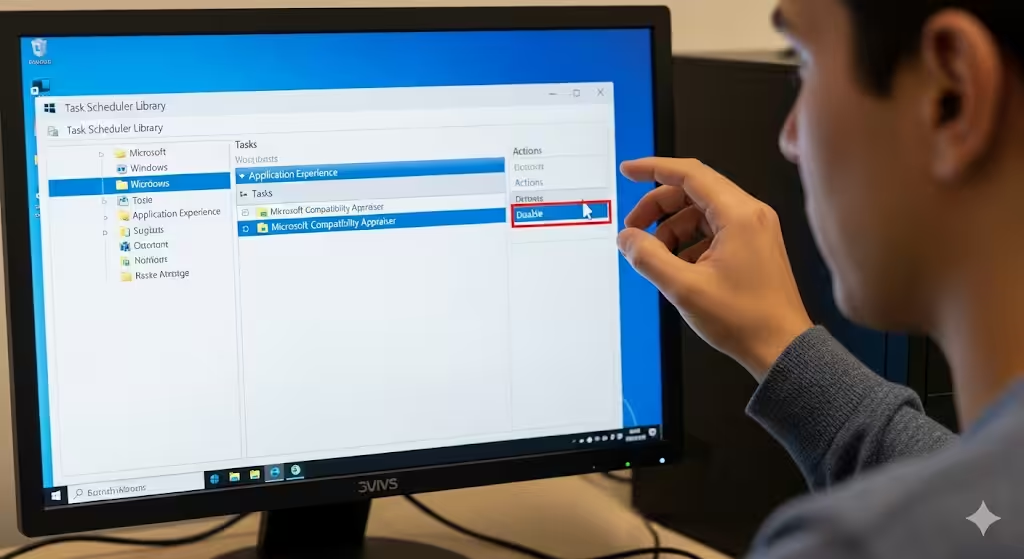
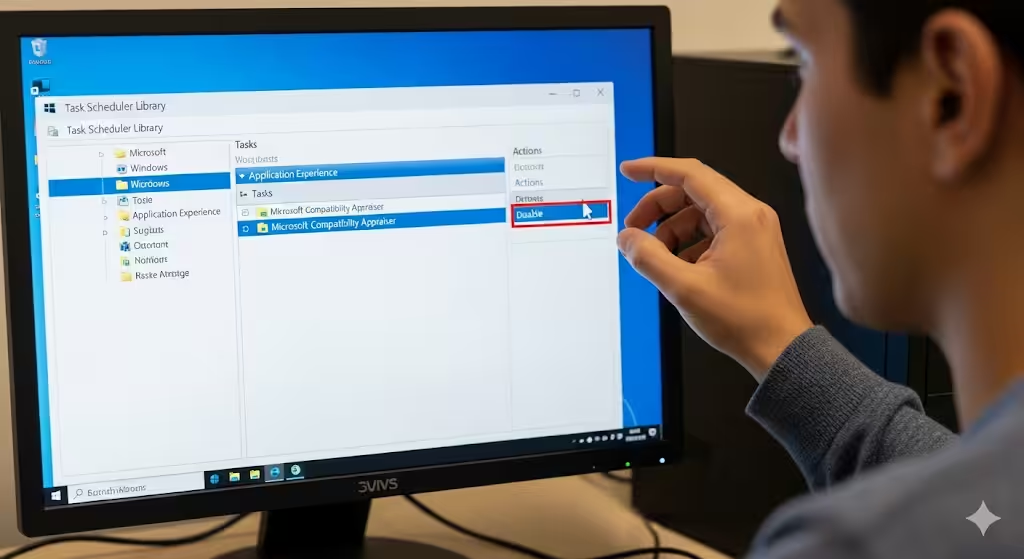
The most common fix is to disable the scheduled task that launches CompatTelRunner.exe.
-
Press Windows + R, type taskschd.msc, and press Enter.
-
In the Task Scheduler window, navigate to:
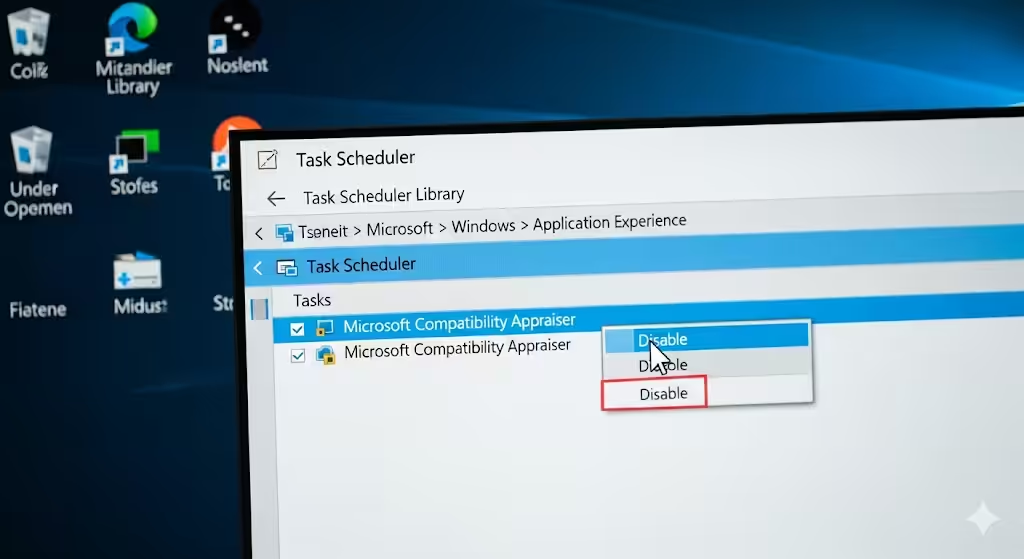
Task Scheduler Library > Microsoft > Windows > Application Experience -
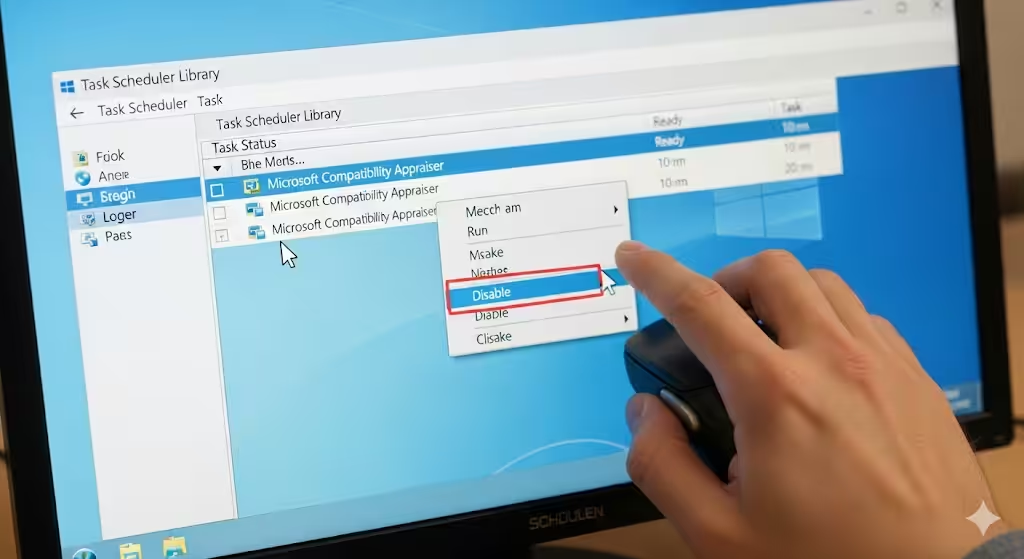
Find the task named Microsoft Compatibility Appraiser.
-
Right-click it and select Disable.
This prevents the process from starting automatically, which should stop the high CPU usage.
Solution 2: Take Ownership of CompatTelRunner.exe and Block It
If disabling the scheduled task is not enough, you can block the executable file itself.
-
Navigate to the following folder:
C:\Windows\System32 -
Locate CompatTelRunner.exe.
-
Right-click it and select Properties.
-
Go to the Security tab, then click Advanced.
-
Change the Owner to your account and give yourself full control.
-
Rename the file (for example, to CompatTelRunner_old.exe).
This ensures Windows cannot run the process again.
Solution 3: Disable Windows Telemetry
Another approach is to stop Windows from collecting telemetry data altogether.
-
Press Windows + R, type services.msc, and press Enter.
-
In the Services window, look for Connected User Experiences and Telemetry.
-
Right-click it, select Properties, then set Startup type to Disabled.
-
Click Apply and OK.
Disabling telemetry reduces background activity, including CompatTelRunner.exe.
Solution 4: Use Group Policy to Turn Off Telemetry
For Windows 10 Pro, Enterprise, and Education editions, you can disable telemetry via Group Policy.
-
Press Windows + R, type gpedit.msc, and press Enter.
-
Navigate to:
Computer Configuration > Administrative Templates > Windows Components > Data Collection and Preview Builds -
Double-click Allow Telemetry.
-
Select Disabled or set it to Basic.
-
Click Apply and OK.
This limits or disables the amount of diagnostic data sent to Microsoft.
Solution 5: Update Windows and Device Drivers
Sometimes CompatTelRunner.exe runs heavily due to outdated system files or drivers.
-
Open Settings > Update & Security > Windows Update.
-
Click Check for updates and install any available updates.
-
Update your device drivers (you can use Device Manager or the manufacturer’s website).
Keeping your system up to date ensures compatibility scans run smoothly, reducing CPU usage.
Solution 6: Run System File Checker and DISM
Corrupt system files can also make CompatTelRunner.exe behave abnormally. Running repair tools can help.
-
Open Command Prompt as Administrator.
-
Type the following command and press Enter:
-
Once the scan is complete, restart your computer.
-
If the issue persists, run the following DISM command:
This will repair system image issues that may be affecting the process.
Solution 7: Use a Third-Party Optimization Tool
If you prefer an easier method, some optimization tools allow you to manage or disable background processes. While not necessary, these tools can help identify high-CPU tasks and disable unnecessary telemetry services.
Be cautious, though—only download tools from reputable developers to avoid security risks.
Should You Remove CompatTelRunner.exe Completely?
Although you can block or disable CompatTelRunner.exe, completely deleting the file is not recommended. It is part of the Windows system and removing it entirely may cause issues with updates or diagnostics. Instead, disabling it through Task Scheduler or Services is the safer method.
Conclusion
CompatTelRunner.exe is a legitimate Windows 10 process, but it often causes high CPU and disk usage, slowing down your computer. By disabling it via Task Scheduler, renaming the executable, or turning off telemetry services, you can reduce its impact and improve system performance.
While it is not harmful malware, this process is unnecessary for most users, so disabling it will not negatively affect your daily tasks. With the solutions provided in this guide, you should be able to regain control of your system’s resources and enjoy a smoother Windows 10 experience.