


Resolved: This Device Doesn’t Have Sufficient Resources to Operate (Code 12 solved)
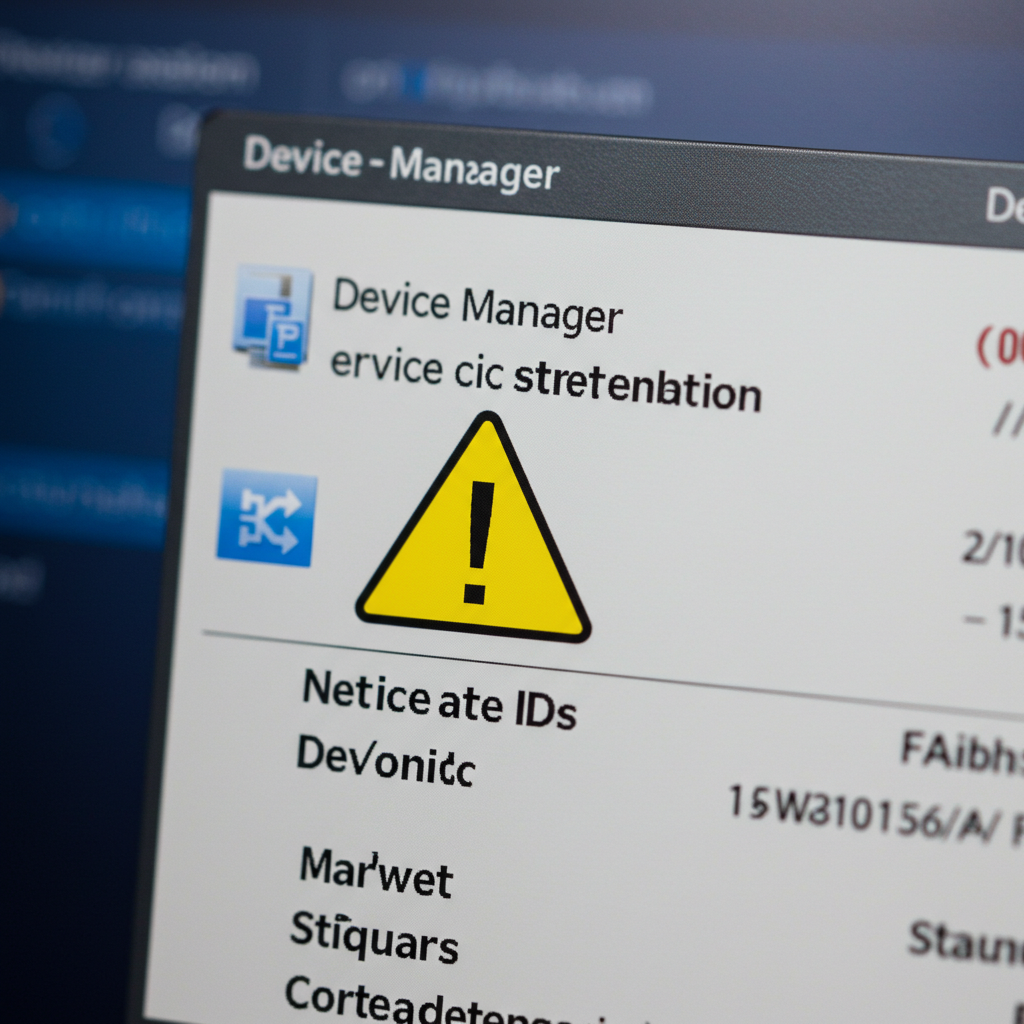
When you plug in a hardware device and Windows displays the error “This device cannot find enough free resources that it can use (Code 12)”, it can be frustrating and confusing. This error typically appears in Device Manager and is often related to hardware conflicts, driver problems, or resource allocation issues.
This guide will walk you through everything you need to know about Code 12, why it happens, and how to fix it step by step.
What Does Code 12 Mean?
Error Code 12 in Windows Device Manager indicates that a hardware device, such as a graphics card, sound card, or network adapter, cannot be started because there are not enough system resources (such as IRQs or memory addresses) to allocate to the device.
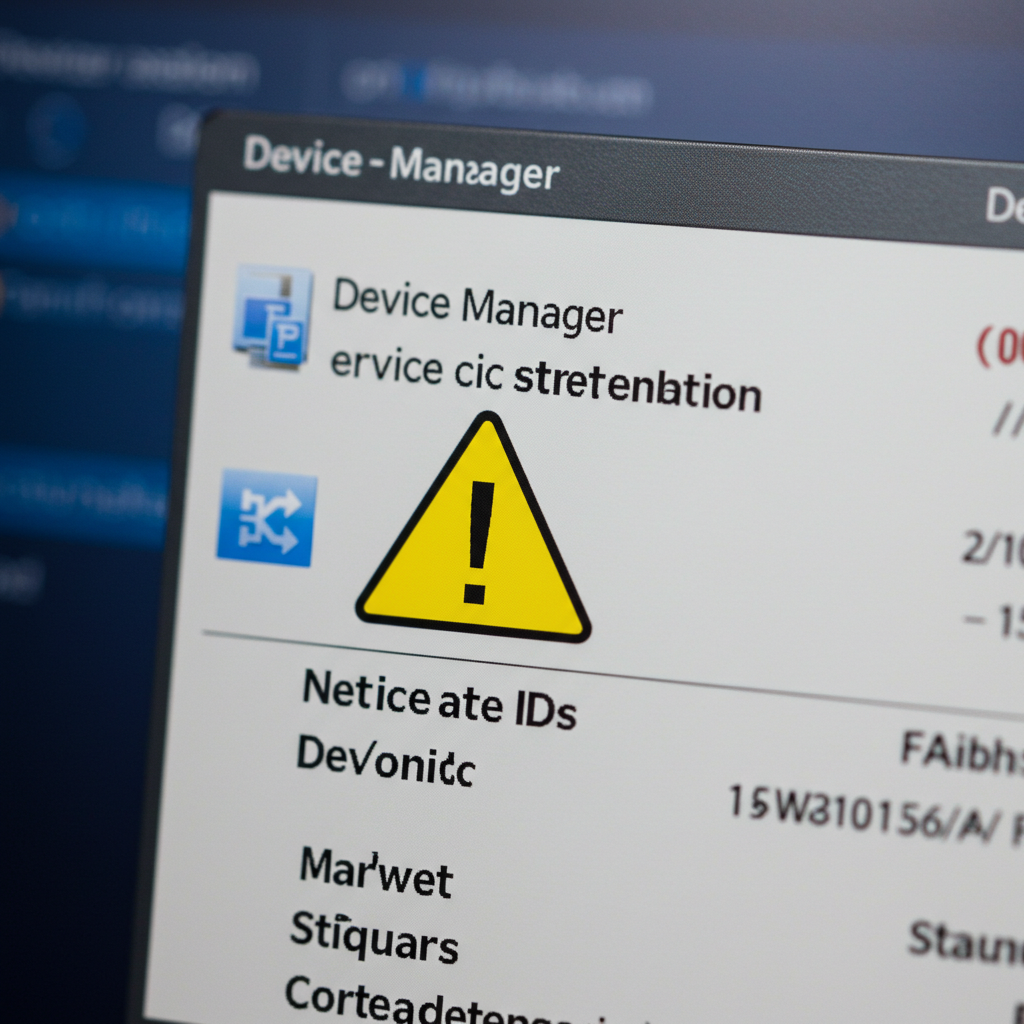
You’ll usually see a yellow exclamation mark next to the device, and when you check its status, it says:
“This device cannot find enough free resources that it can use. (Code 12)”
This does not usually mean the device is faulty—it simply means there’s a conflict with another device, or the system is struggling to allocate resources correctly.
Common Causes of Code 12 Error
-
Conflicts between two or more devices
-
Improper driver installation or update
-
Outdated BIOS or firmware
-
Too many devices sharing the same resources
-
Virtual machines or emulators interfering with hardware
Step-by-Step Solutions to Fix Code 12
1. Restart Your Computer
It might sound simple, but a quick restart can often resolve resource conflicts, especially after hardware changes or driver installations.
How:
-
Save your work and restart your system normally.
-
Check Device Manager again to see if the error persists.
2. Check for Device Conflicts in Device Manager
Use Device Manager to identify and resolve any hardware conflicts.
Steps:
-
Press Windows + X, then select Device Manager.
-
Look for devices with a yellow exclamation mark.
-
Right-click the device and choose Properties.
-
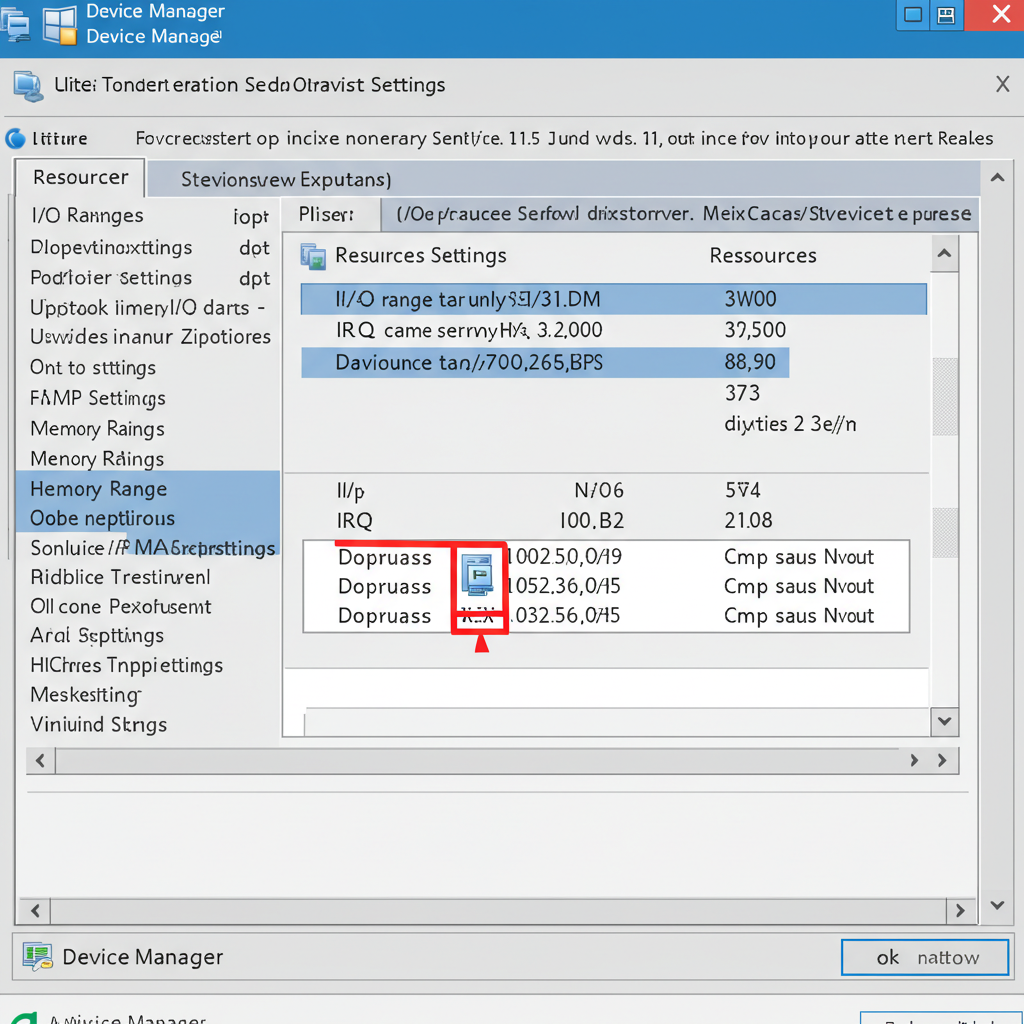
In the Resources tab (if available), look for any conflicts listed at the bottom.
If another device is listed as conflicting, try disabling it temporarily to free up resources.
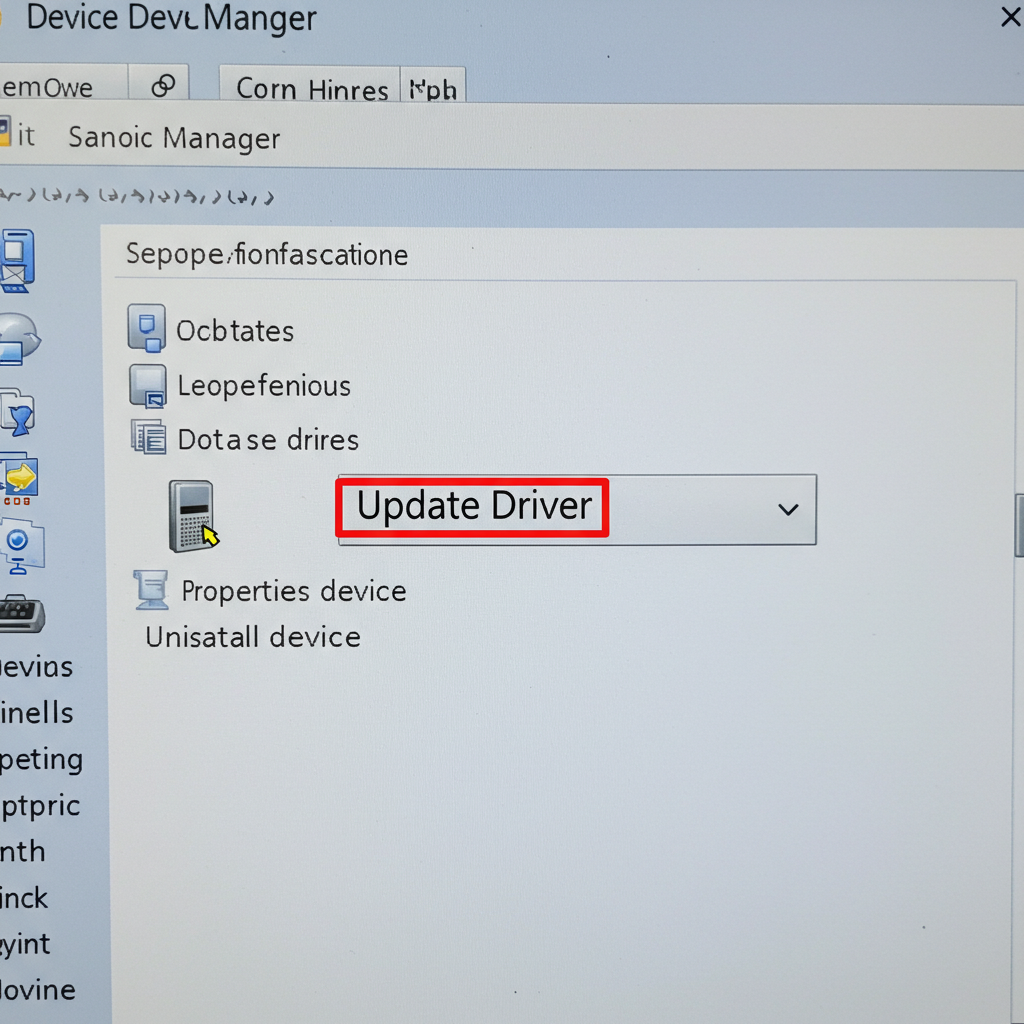
3. Update or Roll Back the Driver
Sometimes, a driver update introduces compatibility issues. Try updating or rolling back the driver to a previous version.
To update:
-
In Device Manager, right-click the problematic device.
-
Select Update driver.
-
Choose Search automatically for drivers.
To roll back:
-
Go to Properties > Driver tab.
-
Click Roll Back Driver (if the option is available).
If that doesn’t work, uninstall the driver entirely and restart the system.
4. Reinstall the Device
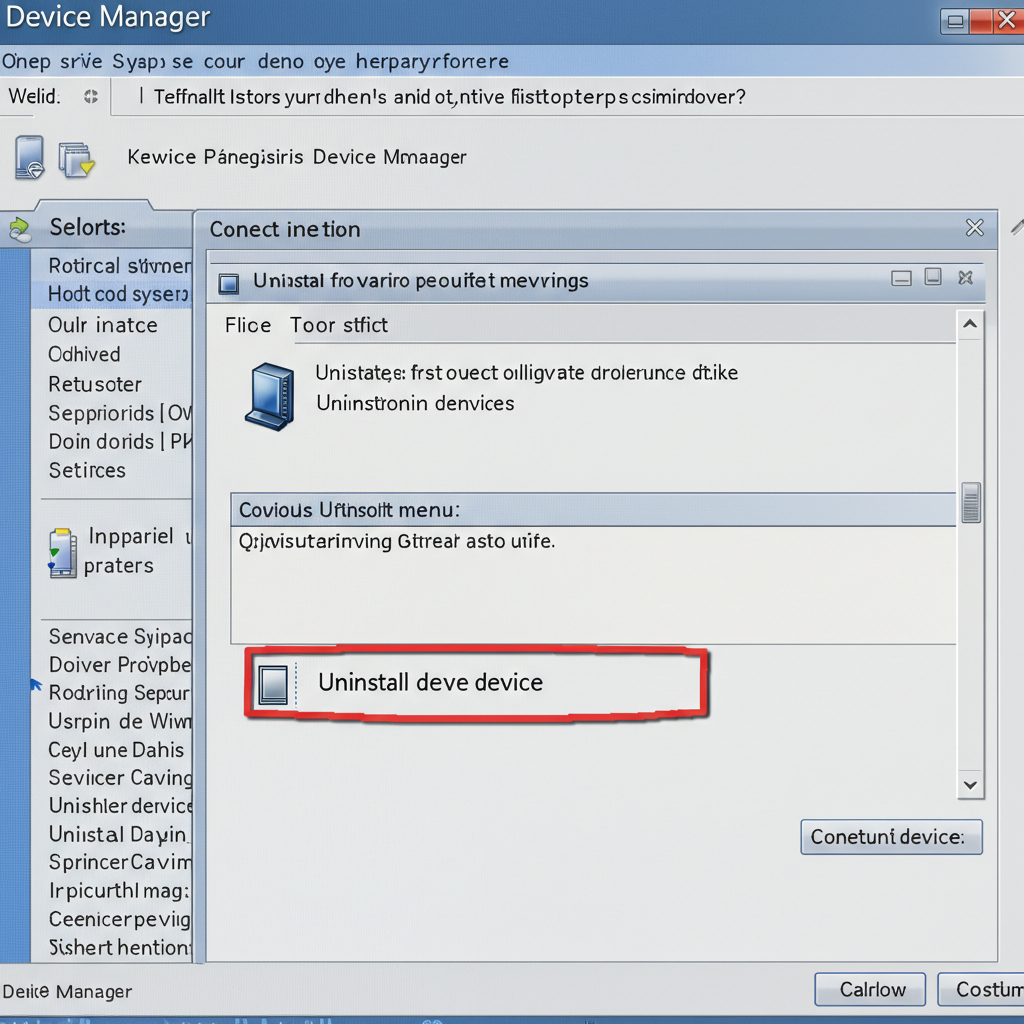
Completely uninstalling and reinstalling the device may resolve resource allocation problems.
How:
-
Open Device Manager.
-
Right-click the affected device and select Uninstall device.
-
Check the box to delete the driver software (if prompted).
-
Restart your computer. Windows will attempt to reinstall the correct driver automatically.
5. Update Your BIOS/UEFI
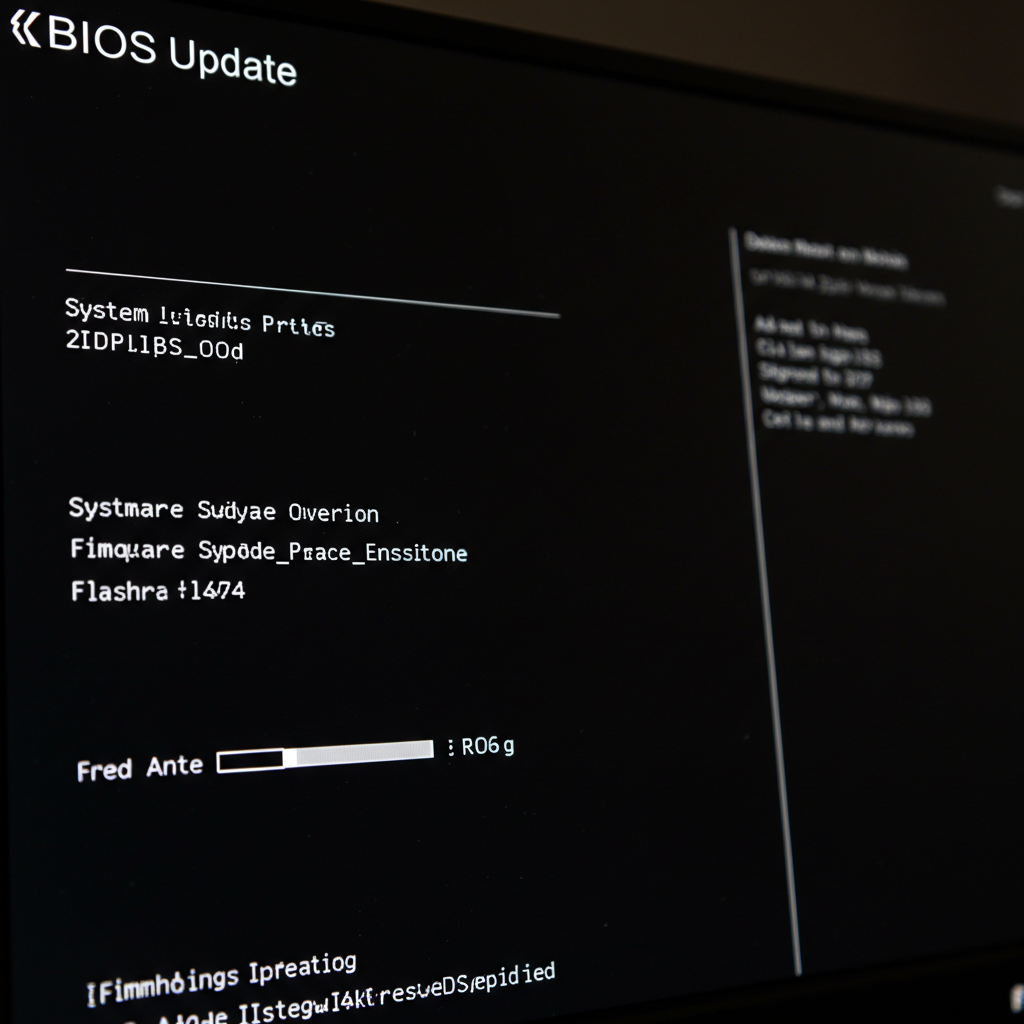
An outdated BIOS can sometimes cause hardware conflicts or prevent Windows from assigning resources correctly.
Caution:
Updating BIOS is a delicate process. Always follow the manufacturer’s instructions closely.
General steps:
-
Identify your motherboard or laptop model.
-
Visit the manufacturer’s website and locate the latest BIOS update.
-
Follow their instructions to update safely.
This can improve hardware compatibility and resolve persistent Code 12 errors.
6. Disable Unused Devices
Free up resources by disabling devices you don’t use.
Example devices to disable:
-
Unused network adapters
-
Unused onboard graphics (if you have a dedicated GPU)
-
Bluetooth (if not needed)
How:
-
Open Device Manager.
-
Right-click the device you want to disable.
-
Choose Disable device.
Be cautious not to disable essential system components.

7. Use a Different PCI Slot (For Desktop PCs)
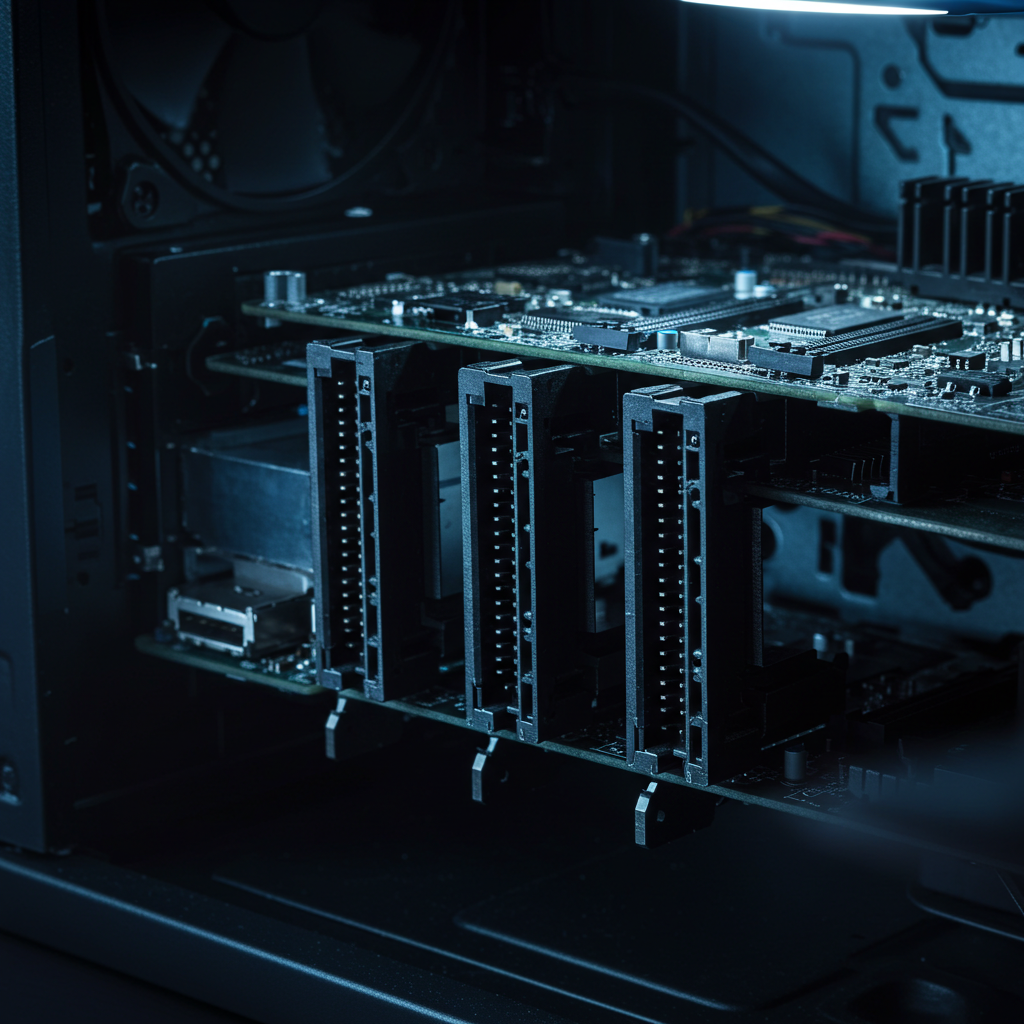
If the problem device is a PCI card (like a graphics card or sound card), try moving it to a different PCI or PCIe slot.
Shifting the card to another slot allows the motherboard to assign different IRQs or memory ranges to the card, resolving resource conflicts.
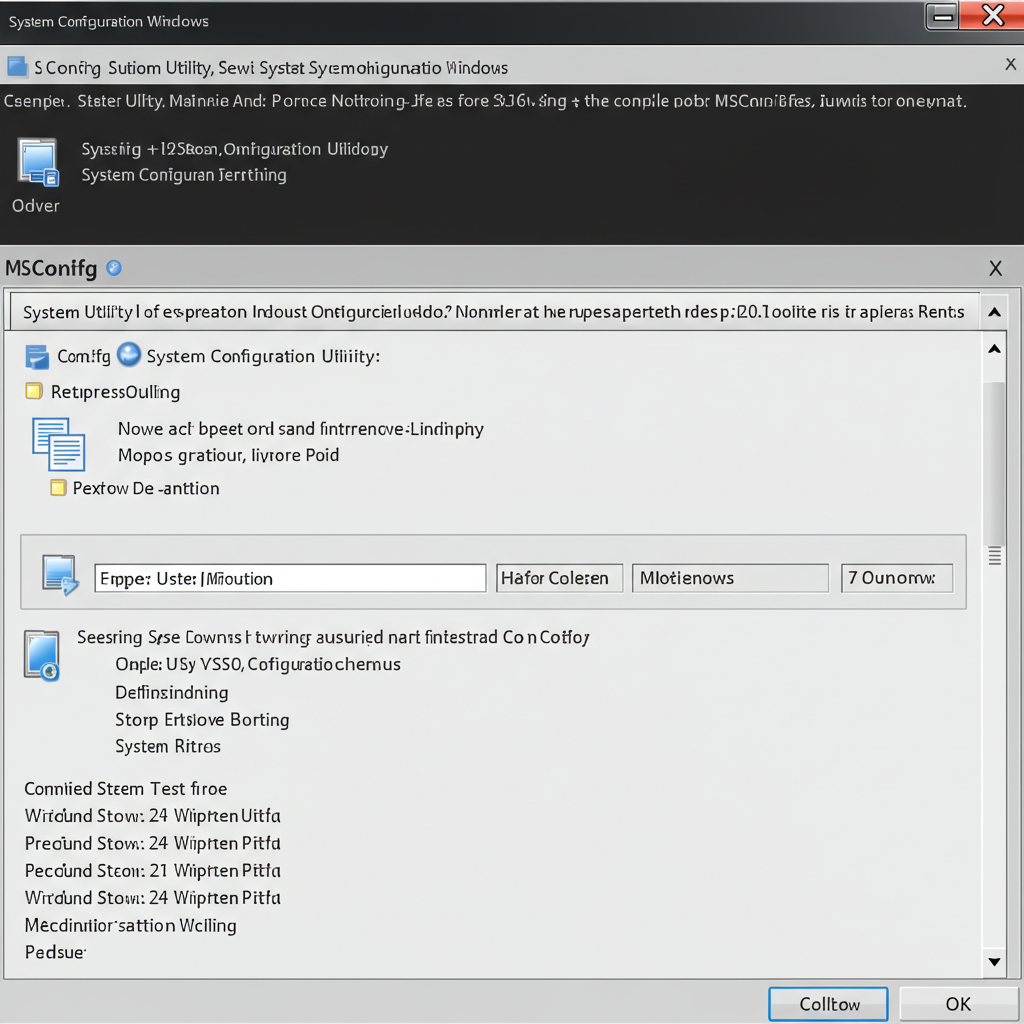
8. Use System Configuration to Limit Startup Devices
Too many services and startup devices may contribute to hardware resource congestion.
How:
-
Press Windows + R, type
msconfig, and hit Enter. -
Go to the Services tab and check Hide all Microsoft services.
-
Disable unnecessary services.
-
Go to the Startup tab and open Task Manager.
-
Disable unnecessary startup programs.
Restart your system afterward and check Device Manager.
9. Try Safe Mode
Boot into Safe Mode to see if the error persists. If the error disappears, it might be caused by a third-party driver or service.
To enter Safe Mode:
-
Press Windows + R, type
msconfig, and press Enter. -
Go to the Boot tab and check Safe boot.
-
Restart your PC.
If the device works in Safe Mode, a background application or service may be conflicting with hardware.

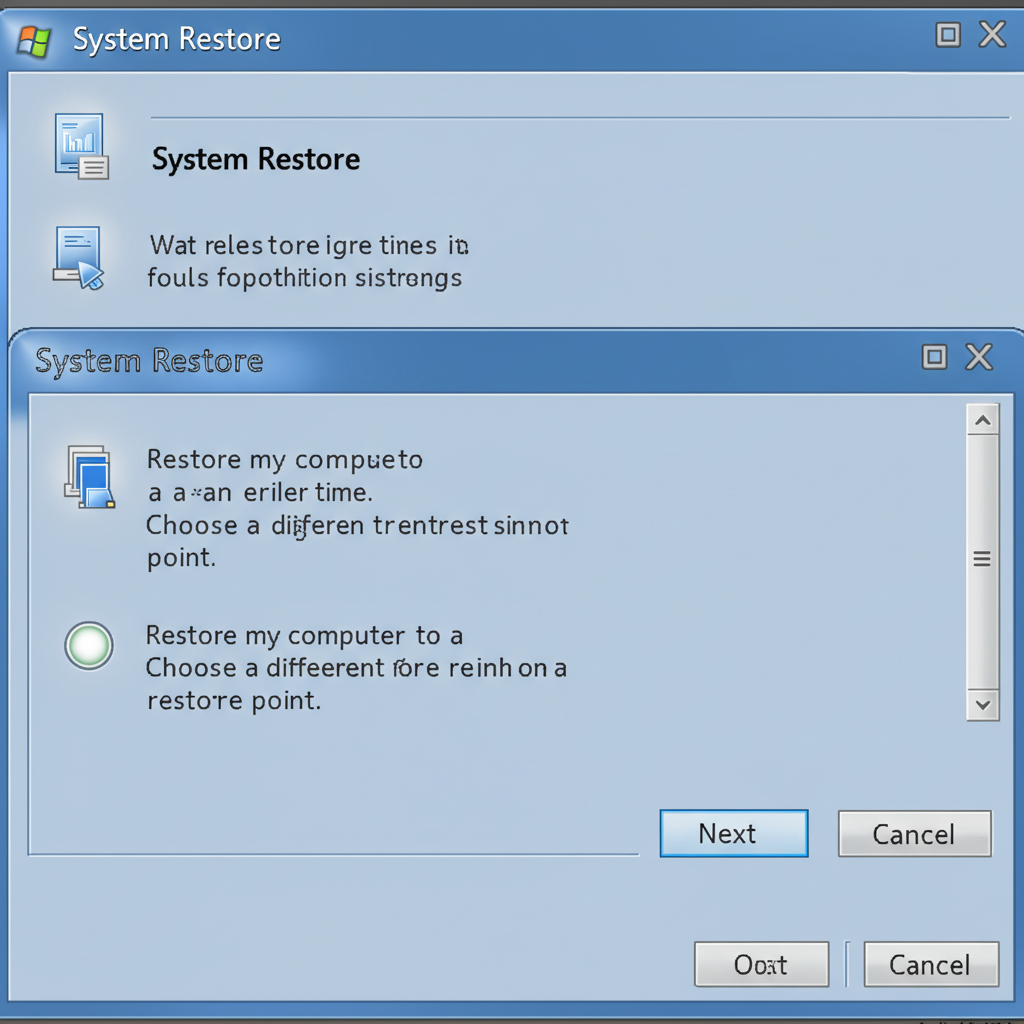
10. Restore Windows to an Earlier Point
If the error appeared recently, restoring your system to an earlier point may undo the changes that caused the conflict.
Steps:
-
Press Windows + R, type
rstrui, and press Enter. -
Follow the wizard to restore your system to a previous restore point.
Final Thoughts
The Code 12 error doesn’t necessarily mean your hardware is broken. Most of the time, it’s a resource conflict or driver issue that can be resolved with careful troubleshooting.
By following the steps above—starting with the simplest solutions and moving toward more advanced fixes—you should be able to resolve the problem and get your device working again.
If all else fails, you may want to contact your hardware or PC manufacturer for support or consider a clean installation of Windows if the issue is persistent across multiple devices.