


How to Fix the “Memory Management” Stop Code Error in Windows 10
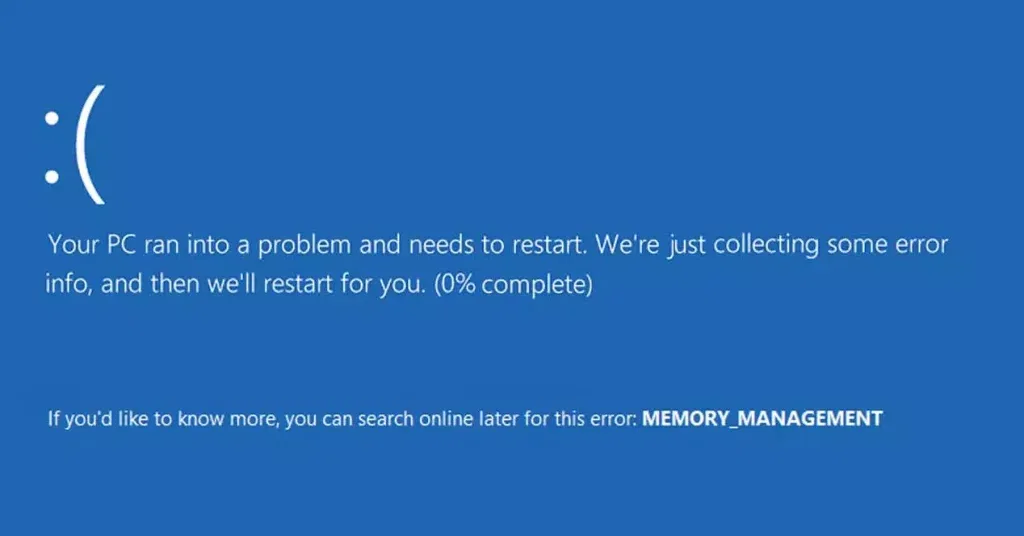
The Memory Management stop code error in Windows 10 is a frustrating Blue Screen of Death (BSOD) issue that causes system crashes and reboots. This error usually indicates a problem with memory handling, including RAM corruption, faulty drivers, or system file corruption. Fortunately, there are multiple ways to fix this issue and restore system stability.
WHAT CAUSES THE MEMORY MANAGEMENT STOP CODE ERROR?
Before diving into solutions, it’s important to understand the most common causes of this error:
- Faulty RAM – Corrupted or failing RAM modules can trigger this issue.
- Corrupt System Files – Damaged Windows files can lead to memory mismanagement.
- Outdated or Incompatible Drivers – Drivers that are not up to date may cause conflicts.
- Hardware Issues – Problems with your SSD, HDD, or other hardware components.
- Overclocking – Overclocked RAM or CPU can cause instability.
- Malware or Viruses – Malicious software can interfere with memory processes.
Now, let’s go through the step-by-step methods to fix the Memory Management Stop Code error.
1. RESTART YOUR COMPUTER
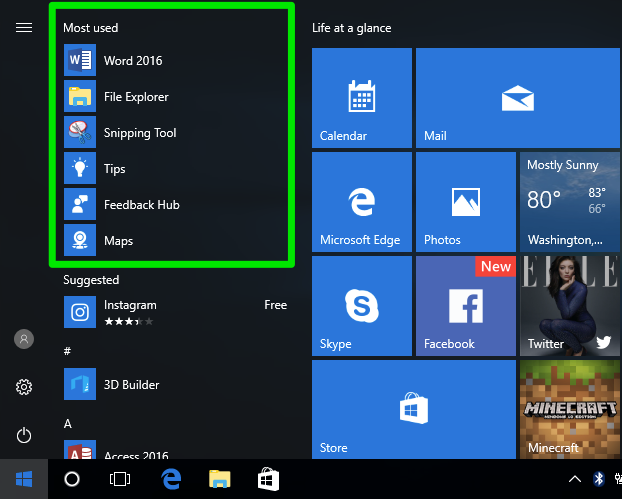
A simple restart can sometimes fix memory-related errors by clearing temporary files and resetting system memory.
Steps to Restart Your Computer:
- Click the Start Menu.
- Select Power > Restart.
- Wait for your computer to reboot and check if the issue persists.
If the error appears again, proceed with the next steps.
2. RUN WINDOWS MEMORY DIAGNOSTIC TOOL
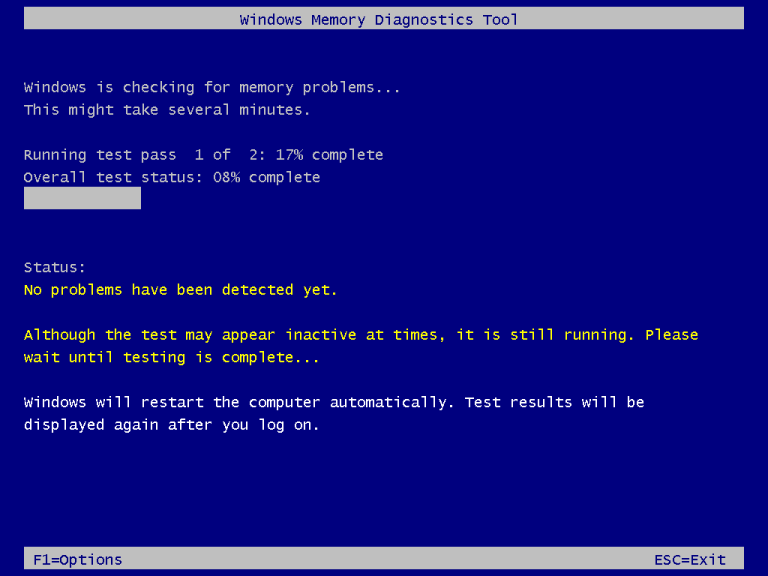
This built-in tool checks for memory-related issues and helps identify faulty RAM.
Steps to Run Memory Diagnostic Tool:
- Press Windows + R, type
mdsched.exe, and press Enter. - Click Restart now and check for problems.
- Your PC will restart and scan for memory issues.
- If errors are found, you may need to replace the faulty RAM.
3. UPDATE YOUR DRIVERS
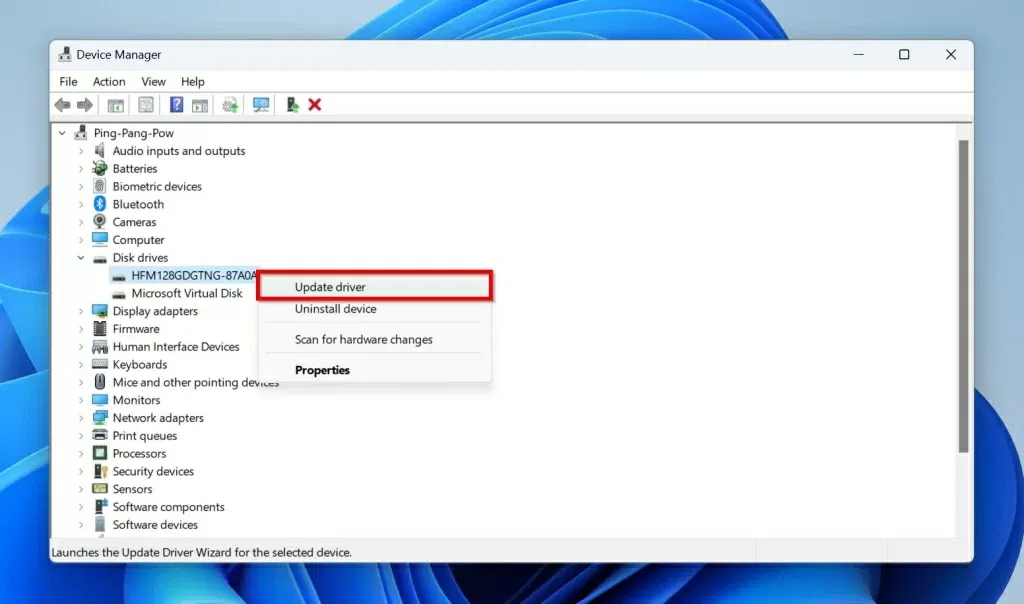
Outdated or incompatible drivers can cause the Memory Management error. Updating them can resolve the issue.
Steps to Update Drivers:
- Press Windows + X and select Device Manager.
- Expand Display adapters, Network adapters, and other critical categories.
- Right-click each driver and select Update driver.
- Choose Search automatically for updated driver software.
- Restart your computer after updating.
For critical updates, visit your PC manufacturer’s website and download the latest drivers.
4. CHECK FOR WINDOWS UPDATES
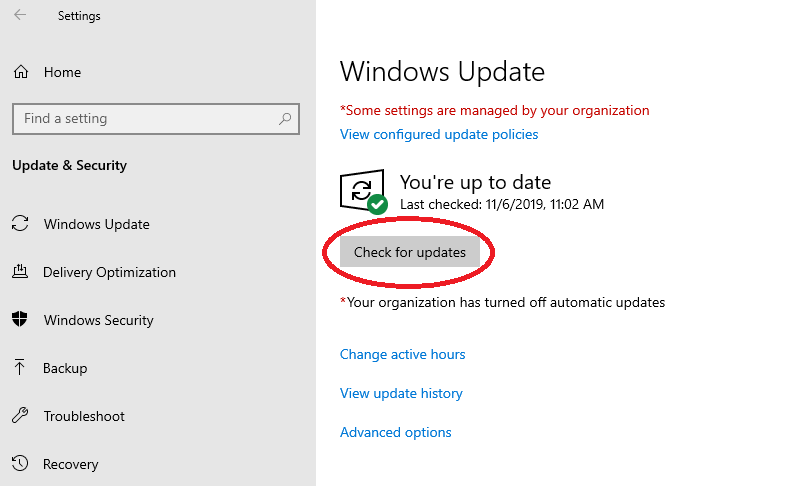
Installing the latest Windows updates can fix bugs and system errors.
Steps to Check for Updates:
- Open Settings (
Windows + I). - Click Update & Security > Windows Update.
- Click Check for updates.
- If updates are available, install them and restart your PC.
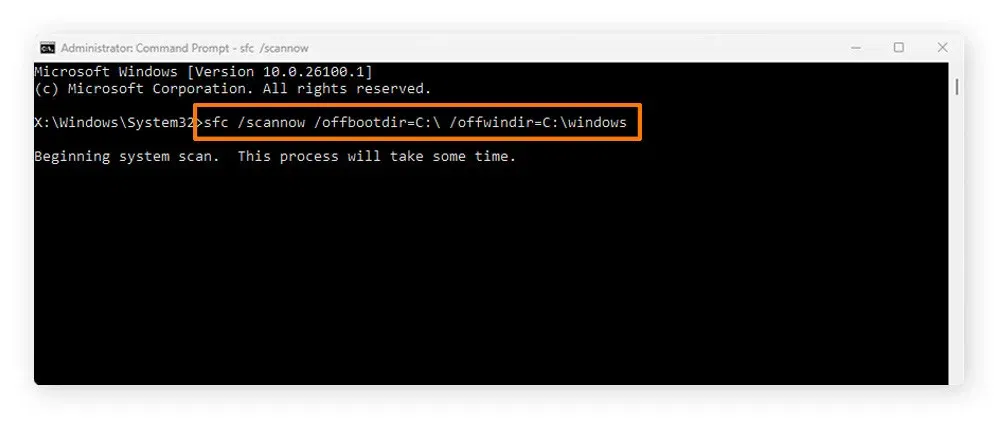
5. RUN SFC AND DISM SCANS
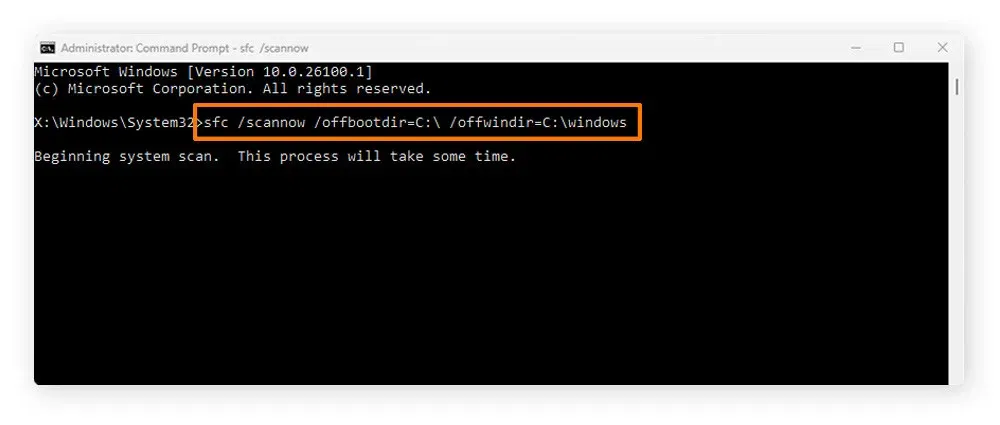
Corrupt system files can cause memory errors. Running SFC (System File Checker) and DISM (Deployment Image Servicing and Management) can repair these files.
Steps to Run SFC Scan:
- Open Command Prompt as administrator.
- Type the following command and press Enter:
sfc /scannow - Wait for the scan to complete and restart your PC.
Steps to Run DISM Scan:
- Open Command Prompt as administrator.
- Type the following commands one by one and press Enter:
DISM /Online /Cleanup-Image /CheckHealth DISM /Online /Cleanup-Image /ScanHealth DISM /Online /Cleanup-Image /RestoreHealth - Restart your PC after the scan.
6. CHECK FOR HARDWARE ISSUES
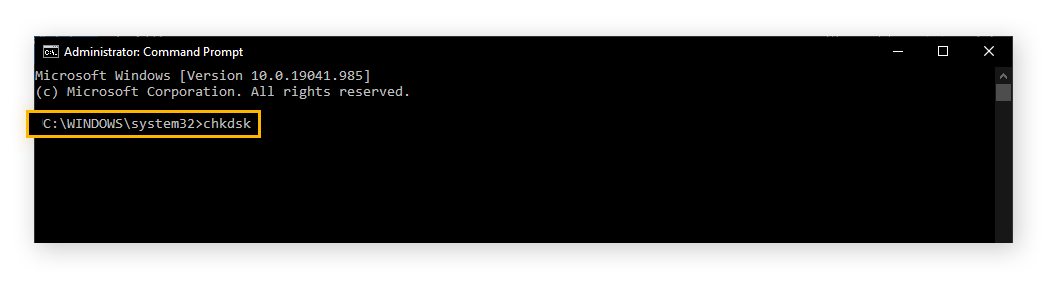
Faulty hardware, including your SSD or HDD, can cause memory-related errors.
Steps to Check Your Hard Drive:
- Open Command Prompt as administrator.
- Type the following command and press Enter:
chkdsk /f /r - Type Y when prompted and restart your PC.
- The system will check and fix hard drive errors.
7. DISABLE OVERCLOCKING

Overclocking your CPU or RAM can cause instability, leading to memory management errors.
Steps to Disable Overclocking:
- Restart your PC and enter the BIOS/UEFI (usually by pressing F2, F10, or DEL during boot).
- Look for Overclocking settings.
- Disable any CPU or RAM overclocking features.
- Save changes and restart your PC.
8. RUN A MALWARE SCAN
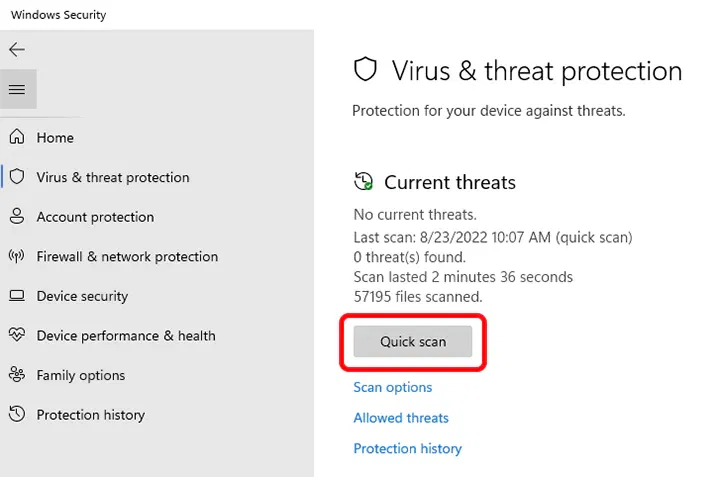
Viruses or malware can interfere with memory processes, causing crashes.
Steps to Scan for Malware:
- Open Windows Security (
Windows + I> Update & Security > Windows Security). - Click Virus & threat protection.
- Click Quick scan.
- If threats are found, follow the prompts to remove them.
- Consider running a full scan for thorough checking.
9. RESET WINDOWS 10
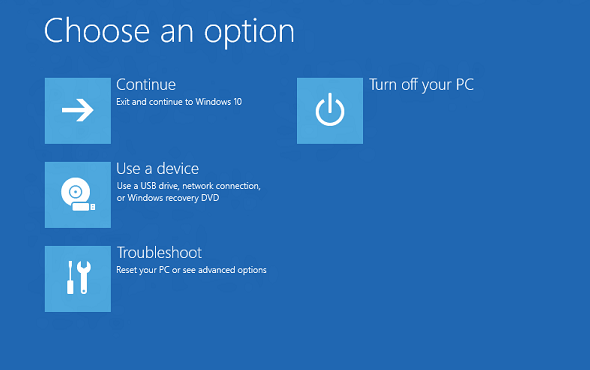
If all else fails, resetting Windows can resolve persistent memory management errors.
Steps to Reset Windows 10:
- Open Settings (
Windows + I). - Click Update & Security > Recovery.
- Under Reset this PC, click Get started.
- Choose Keep my files (to preserve personal files) or Remove everything (for a clean install).
- Follow on-screen instructions to reset Windows.
FINAL THOUGHTS
The Memory Management Stop Code error in Windows 10 can be caused by faulty RAM, outdated drivers, corrupted system files, or hardware issues. By following the troubleshooting steps outlined above, you can diagnose and fix the problem effectively. If the issue persists after trying all solutions, consider seeking professional assistance or replacing defective hardware components.