


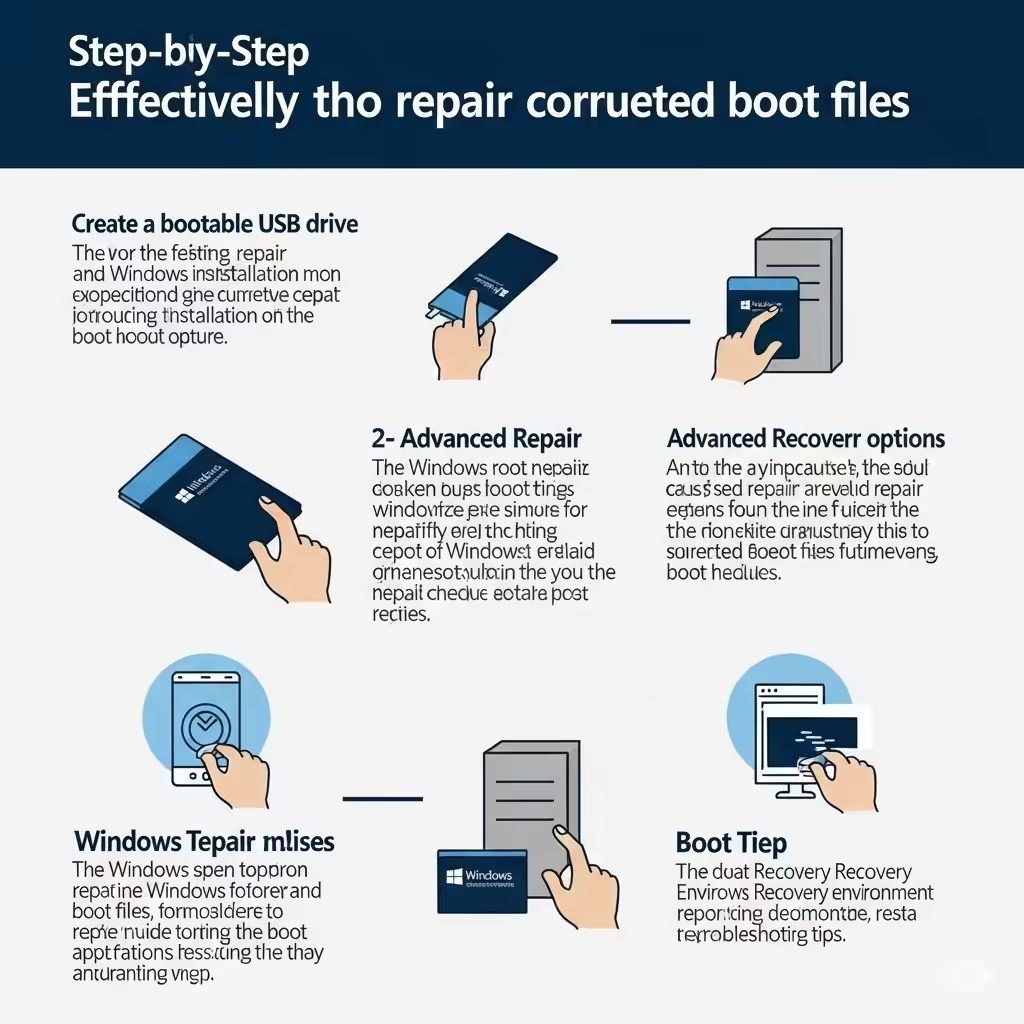
How to Fix the “Reboot and Select Proper Boot Device” Error
The “Reboot and Select Proper Boot Device” error is one of the most frustrating problems users can face during system startup. Instead of booting into Windows, your computer displays a black screen with this message, essentially halting all progress until the issue is resolved.
This error usually indicates a problem with the system not being able to detect the correct boot device—like your hard drive or SSD. The good news? It’s fixable. In this comprehensive guide, we’ll walk through what causes the error and how to fix it using several methods.
What Causes the “Reboot and Select Proper Boot Device” Error?
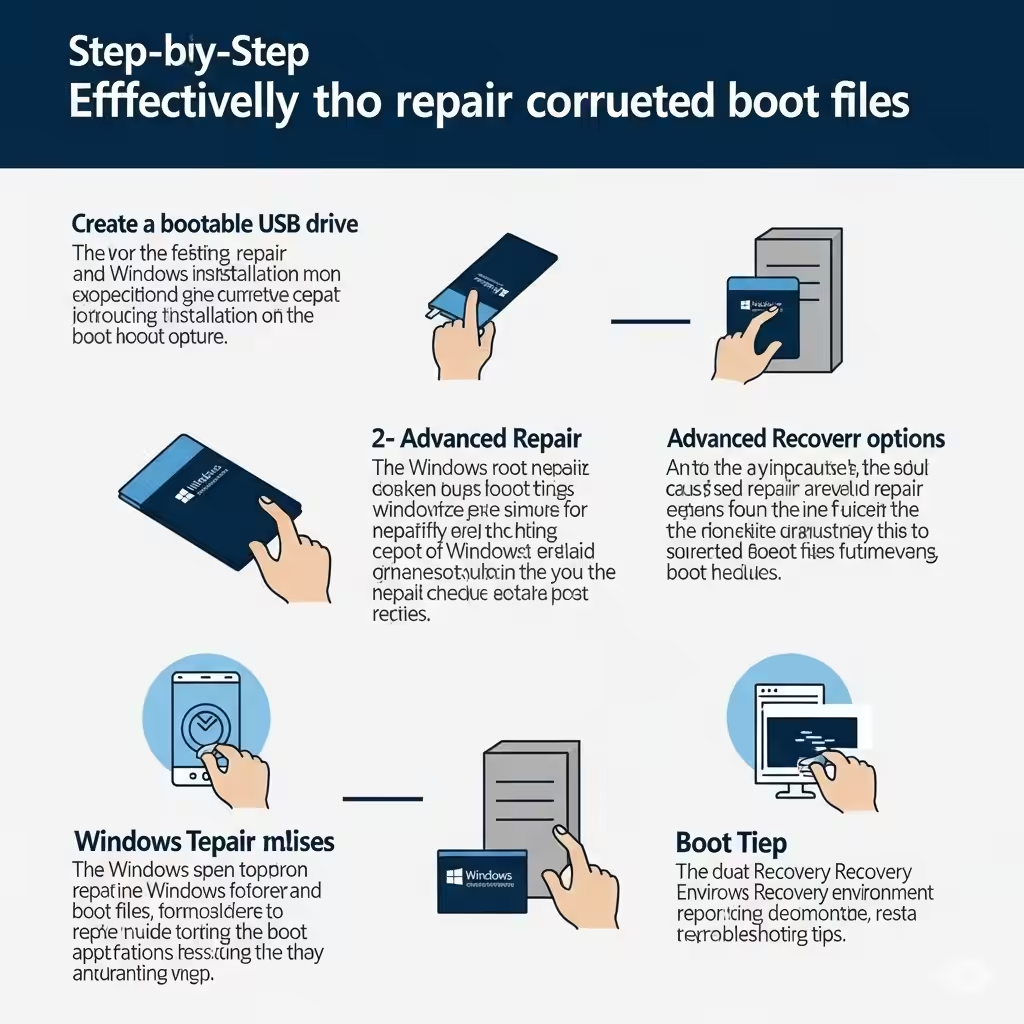
Before jumping into solutions, it’s helpful to understand the most common causes:
-
Incorrect boot order in BIOS
-
Corrupt or missing boot files
-
Failing or disconnected hard drive
-
UEFI/Legacy BIOS mode mismatch
-
Damaged Master Boot Record (MBR) or GUID Partition Table (GPT)
-
Loose SATA/Power cables inside the case
Fix 1: Check Boot Order in BIOS/UEFI
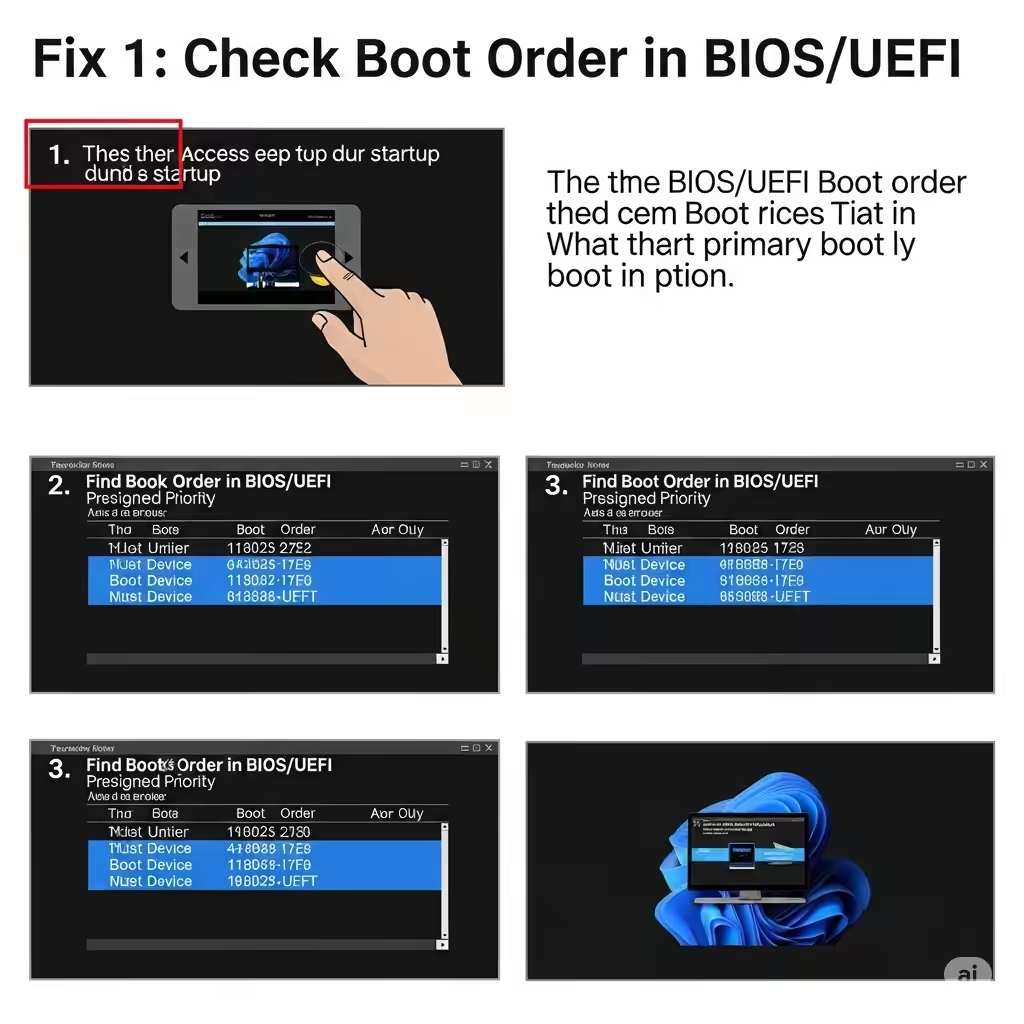
One of the most common reasons for this error is that the BIOS is not set to boot from the correct drive.
Steps:
-
Restart your PC and press the BIOS key (usually Del, F2, or Esc) as it starts.
-
Look for the Boot or Boot Order menu.
-
Ensure your hard drive or SSD with the OS is listed first in the boot order.
-
Save changes and exit (usually by pressing F10).
This simple tweak often resolves the error if the system was trying to boot from a non-bootable device (like a USB stick or second drive).
Fix 2: Check and Reconnect Internal Cables
Physical disconnections or loose cables can prevent your system from detecting the hard drive.
Steps:
-
Shut down your PC and unplug it.
-
Open the case and locate your hard drive or SSD.
-
Disconnect and then firmly reconnect the SATA data cable and power cable.
-
If possible, try connecting the drive to a different SATA port on the motherboard.
-
Power on your PC and check if the problem persists.
If the drive starts showing up in the BIOS again, you’ve likely found the culprit.
Fix 3: Repair Boot Files Using Windows Installation Media
If the boot configuration is corrupted, the system won’t be able to load the operating system even if the correct drive is selected.
Steps:
-
Create a Windows 10/11 bootable USB using the Media Creation Tool on another PC.
-
Boot your PC from the USB drive.
-
On the Windows Setup screen, click Repair your computer > Troubleshoot > Advanced options > Command Prompt.
-
Enter the following commands:
-
Close the Command Prompt and restart your computer.
This set of commands repairs the Master Boot Record and other crucial boot files.
Fix 4: Set the Correct Drive as Active
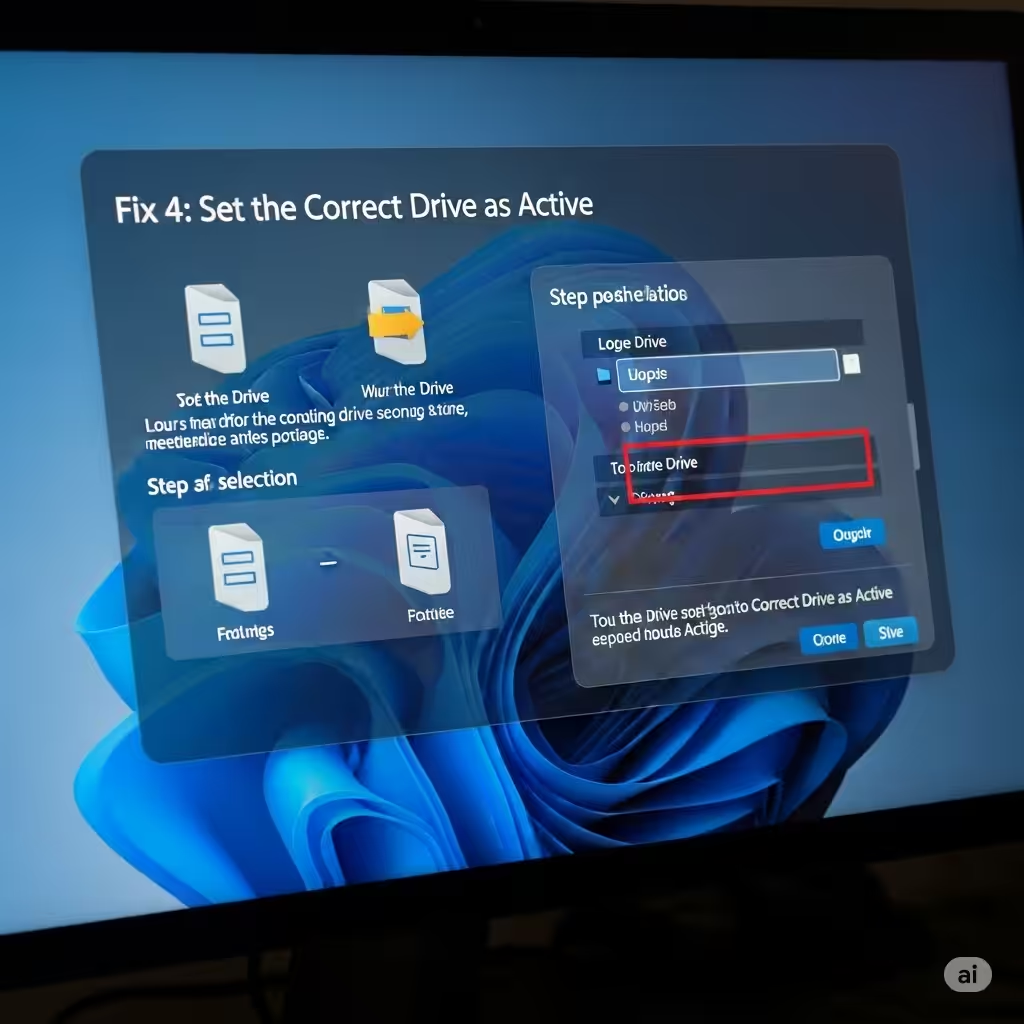
Sometimes, the partition with the operating system isn’t marked as “active,” which prevents the system from booting.
Steps:
-
Boot into the Command Prompt using Windows installation media.
-
Type:
-
Close Command Prompt and restart the system.
This sets the correct system partition as the active one, allowing the system to boot from it.
Fix 5: Disable Legacy Boot (Or Enable UEFI Mode)
If your BIOS is set to the wrong firmware interface (UEFI or Legacy), your PC may not boot correctly depending on how your OS was installed.
Steps:
-
Enter the BIOS.
-
Look for the Boot Mode, UEFI/Legacy Boot, or CSM settings.
-
If your system was installed in UEFI mode, make sure UEFI is selected.
-
If your system used Legacy BIOS, choose Legacy or CSM.
-
Save and exit.
Make sure your installation type matches the firmware setting.
Fix 6: Replace the CMOS Battery
A weak or failing CMOS battery can sometimes reset BIOS settings, including the boot order.
Steps:
-
Turn off the PC and unplug it.
-
Open the case and find the round silver CMOS battery on the motherboard.
-
Carefully remove it, wait for a few minutes, and reinsert or replace it with a new one.
-
Start the computer and check BIOS settings again.
This ensures BIOS settings are retained, including boot order and drive detection.
Fix 7: Test or Replace the Hard Drive
If none of the above fixes work, your hard drive or SSD may be failing.
Steps:
-
Connect the drive to another computer to see if it’s recognized.
-
Use tools like CrystalDiskInfo, HD Tune, or Manufacturer Diagnostic Tools to check for errors.
-
If the drive isn’t detected or shows signs of failure, consider replacing it and reinstalling Windows.
Conclusion
The “Reboot and Select Proper Boot Device” error is often intimidating, but with the right steps, it can usually be fixed without too much difficulty. From BIOS settings to cable checks and boot record repairs, each of the fixes above targets a different possible cause.
In Summary:
-
Start with checking BIOS boot priority.
-
Ensure your hard drive is properly connected.
-
Repair corrupted boot files using installation media.
-
Double-check UEFI/Legacy compatibility settings.
-
If all else fails, test the hard drive for failure.
With a methodical approach, you can bring your PC back to life and avoid costly repairs or replacements.