


“Troubleshooting the ‘This Effect Requires GPU Acceleration’ Error”
If you’ve ever encountered the error message “This effect requires GPU acceleration” while working in applications like Adobe Premiere Pro, After Effects, or similar editing software, you’re not alone. This error prevents you from applying certain video effects or rendering your project properly. The good news is: it’s usually fixable with the right troubleshooting steps.
This guide will walk you through what causes the error and how to fix it, step-by-step, regardless of your level of experience.
What Does “This Effect Requires GPU Acceleration” Mean?
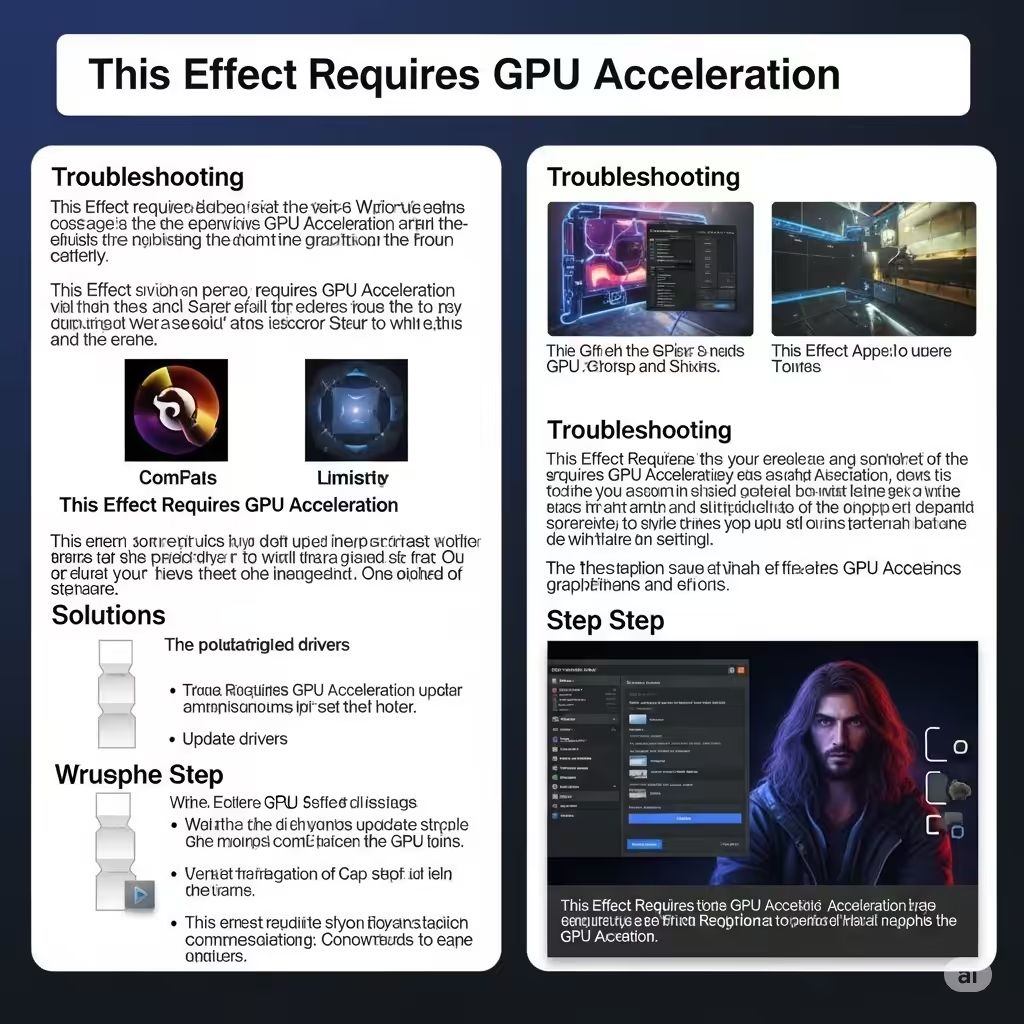
GPU acceleration is a feature that allows your graphics card (GPU) to handle heavy processing tasks instead of relying solely on the CPU. When your software is unable to access GPU acceleration, effects that depend on it—like blurs, color grading, or transitions—fail to work and trigger this message.
This problem is most commonly seen in:
-
Adobe Premiere Pro
-
Adobe After Effects
-
DaVinci Resolve
-
Sony Vegas
-
Other GPU-intensive programs
Common Causes of the Error
Understanding the root causes helps identify the correct fix. Here are the most common reasons this error shows up:
-
GPU acceleration is turned off in your software settings
-
Outdated or incompatible graphics drivers
-
Unsupported or underpowered graphics card
-
GPU settings misconfigured in Windows
-
Corrupted software or project files
-
Running the app on an unsupported system configuration
Now let’s explore how to fix it.
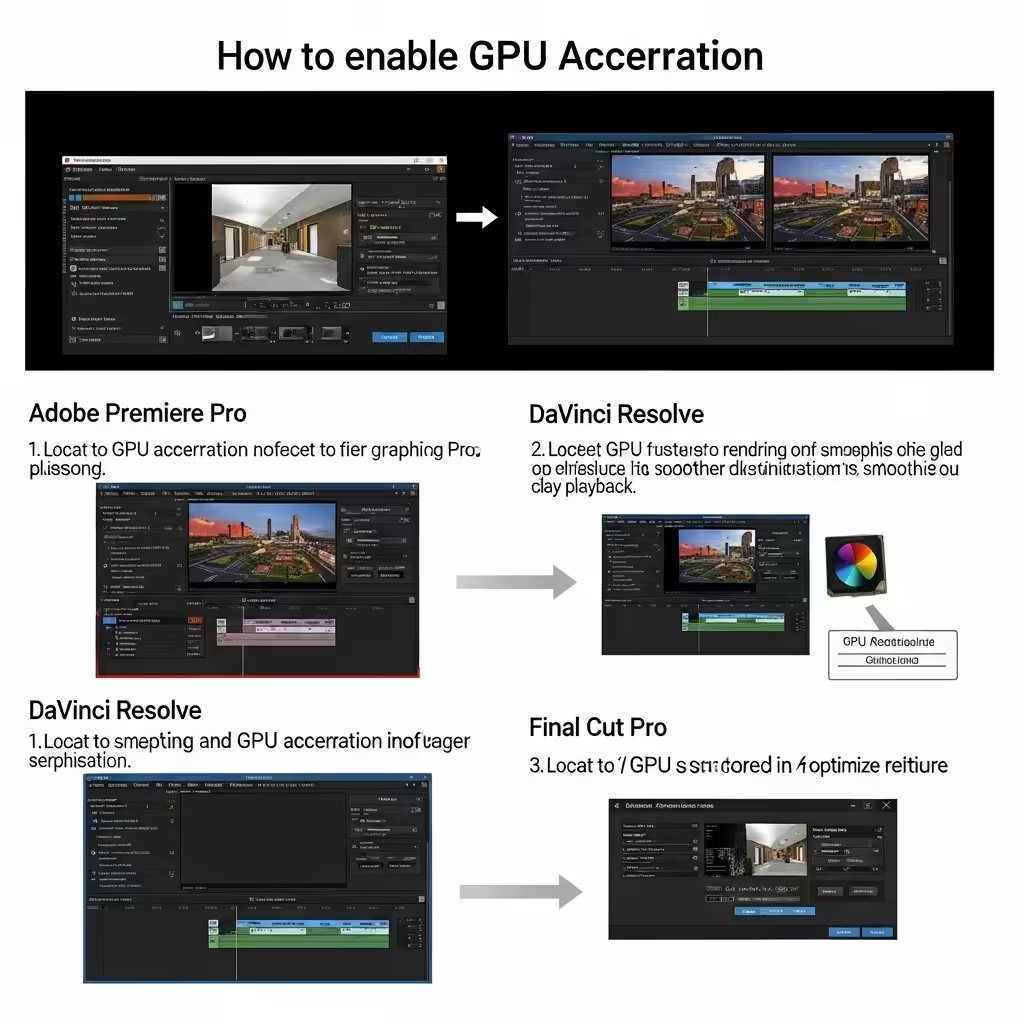
Enable GPU Acceleration in Your Editing Software
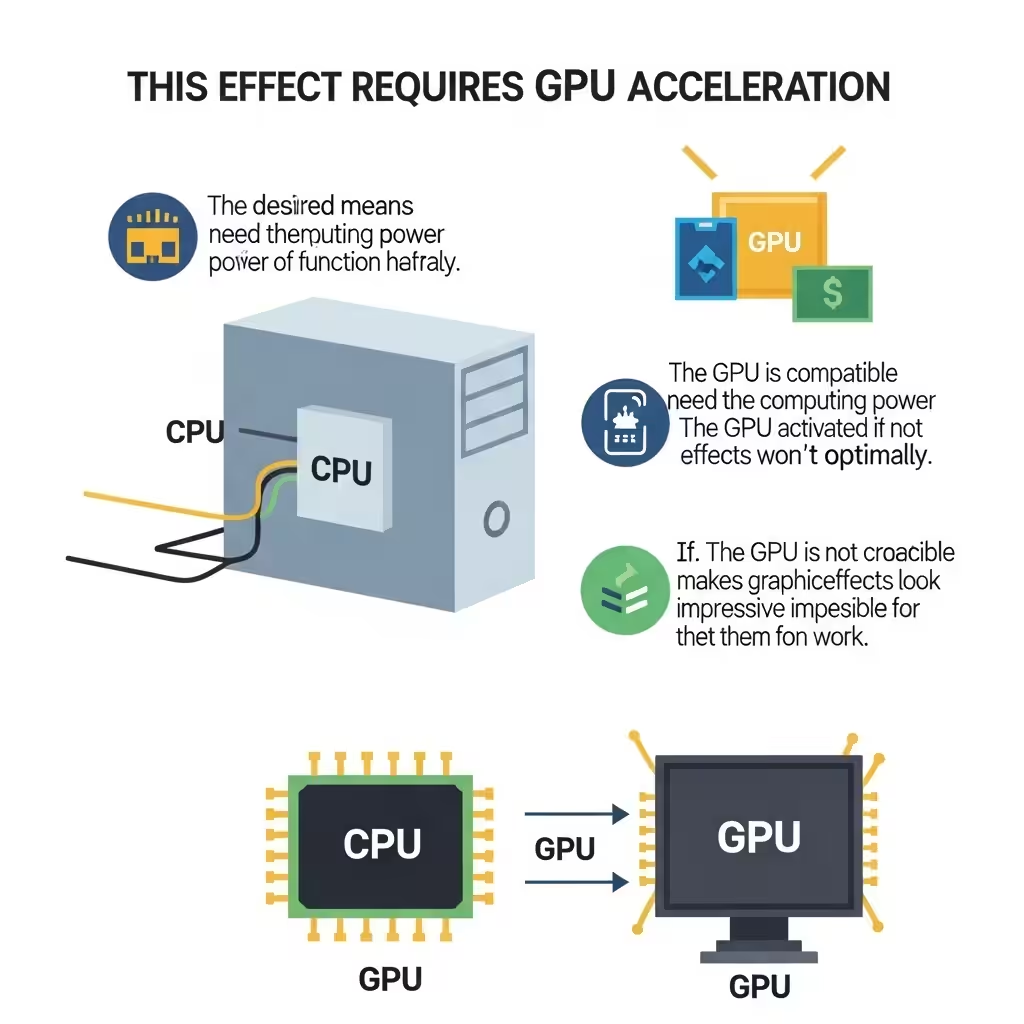
Many programs allow you to choose between software-only rendering or GPU acceleration. If it’s set to “Software Only,” GPU features won’t work.
For Adobe Premiere Pro:
-
Go to File > Project Settings > General
-
Under Renderer, select Mercury Playback Engine GPU Acceleration (CUDA/OpenCL/Metal) depending on your system
-
Click OK
-
Restart Premiere Pro and try applying the effect again
For Adobe After Effects:
-
Go to Edit > Preferences > Previews
-
Make sure GPU Information reflects the correct GPU
-
Restart the program to apply changes
If the GPU option is greyed out, your system or driver may not be compatible yet.
Update Your Graphics Card Drivers
Outdated or corrupted GPU drivers are a common reason for acceleration issues.
How to update GPU drivers:
For NVIDIA users:
-
Select your GPU model
-
Download and install the latest Game Ready or Studio Driver
For AMD users:
-
Go to AMD’s support site
-
Download and install the correct driver for your card
For Intel integrated graphics:
-
Visit Intel’s download center
-
Use the Intel Driver & Support Assistant for automatic updates
After installing drivers, restart your computer.
Check if Your GPU is Compatible
Some older or low-end GPUs don’t support hardware acceleration for video editing software. Make sure your GPU meets the minimum system requirements.
Recommended GPUs for GPU acceleration:
-
NVIDIA GeForce GTX/RTX series (1060 or newer preferred)
-
AMD Radeon RX series
-
Intel Iris Xe (basic acceleration support)
If you’re using integrated graphics like Intel HD, you might not be able to use certain GPU effects.
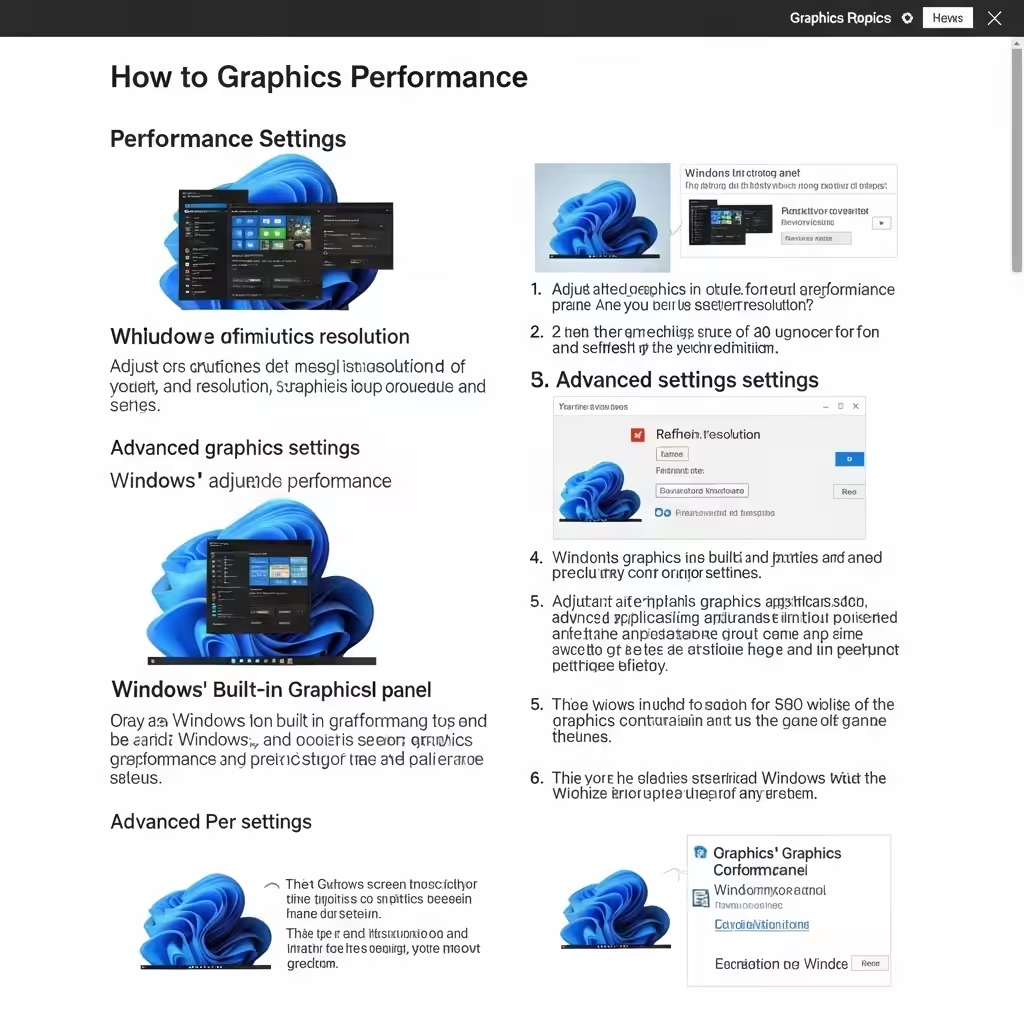
Change Graphics Performance Settings in Windows
Windows 10 and 11 allow you to assign GPU usage preferences to specific apps. If your video editor is set to use the integrated GPU instead of your discrete GPU, that could be the issue.
How to set preferred GPU:
-
Go to Settings > System > Display
-
Scroll down and click Graphics settings
-
Click Browse and add the executable file of your editing software (e.g.,
PremierePro.exe) -
After adding it, click Options
-
Choose High performance (this ensures it uses the discrete GPU)
-
Save and restart your application
Disable GPU Sniffer (for Adobe Apps)
Adobe apps use a background process called GPUSniffer.exe to detect GPU capability. If it crashes or malfunctions, it may disable GPU acceleration.
How to disable GPU sniffer:
-
Navigate to the Adobe installation folder (e.g.,
C:\Program Files\Adobe\Adobe Premiere Pro) -
Locate GPUSniffer.exe
-
Rename it to something like
GPUSniffer_backup.exe -
Restart Premiere Pro
Note: This method is a workaround and may affect stability in some cases. Use it only if other methods fail.
Delete or Reset Preferences and Cache
Corrupted user settings or cache files can prevent GPU acceleration from working properly.
For Adobe Premiere Pro:
-
Hold Alt + Shift (Windows) or Option + Shift (Mac) while launching the app
-
This resets preferences to default
-
Go to Edit > Preferences > Media Cache
-
Clear the media cache database and files
This will help rule out issues caused by corrupted settings.
Reinstall or Repair the Software
If all else fails, the issue may lie in a corrupted installation.
Steps to reinstall:
-
Uninstall the software from Control Panel > Programs
-
Delete any leftover folders in:
-
C:\Program Files\Adobe\ -
%AppData%\Adobe\
-
-
Reinstall the software using the latest installer
Make sure to download from official sources only to avoid malware.
Conclusion
The “This Effect Requires GPU Acceleration” error can disrupt your creative workflow, but in most cases, it can be fixed with a few configuration tweaks or updates. Whether it’s enabling GPU in project settings, updating drivers, or adjusting Windows preferences, following the steps above should help you restore full functionality.
Quick Recap:
-
Enable GPU acceleration in app settings
-
Update GPU drivers
-
Verify your GPU is supported
-
Adjust graphics performance settings in Windows
-
Clear app preferences and cache
If you’re still stuck after trying all fixes, it may be time to consider upgrading your hardware. Many modern effects in editing software are designed with powerful GPUs in mind, and investing in a better graphics card can save you hours of rendering time.