


Resolving Error 0xc00d5212 in Windows Media Player
If you’ve ever tried to play a video file in Windows Media Player and were met with the error code 0xc00d5212, you’re not alone. This error typically appears when trying to play .avi, .mov, or other video formats, often displaying the message:
“Can’t play. This item was encoded in a format that’s not supported. 0xc00d5212.”
It can be frustrating, especially if the same file works on another media player or device. Fortunately, the issue is usually easy to resolve once you understand what causes it.
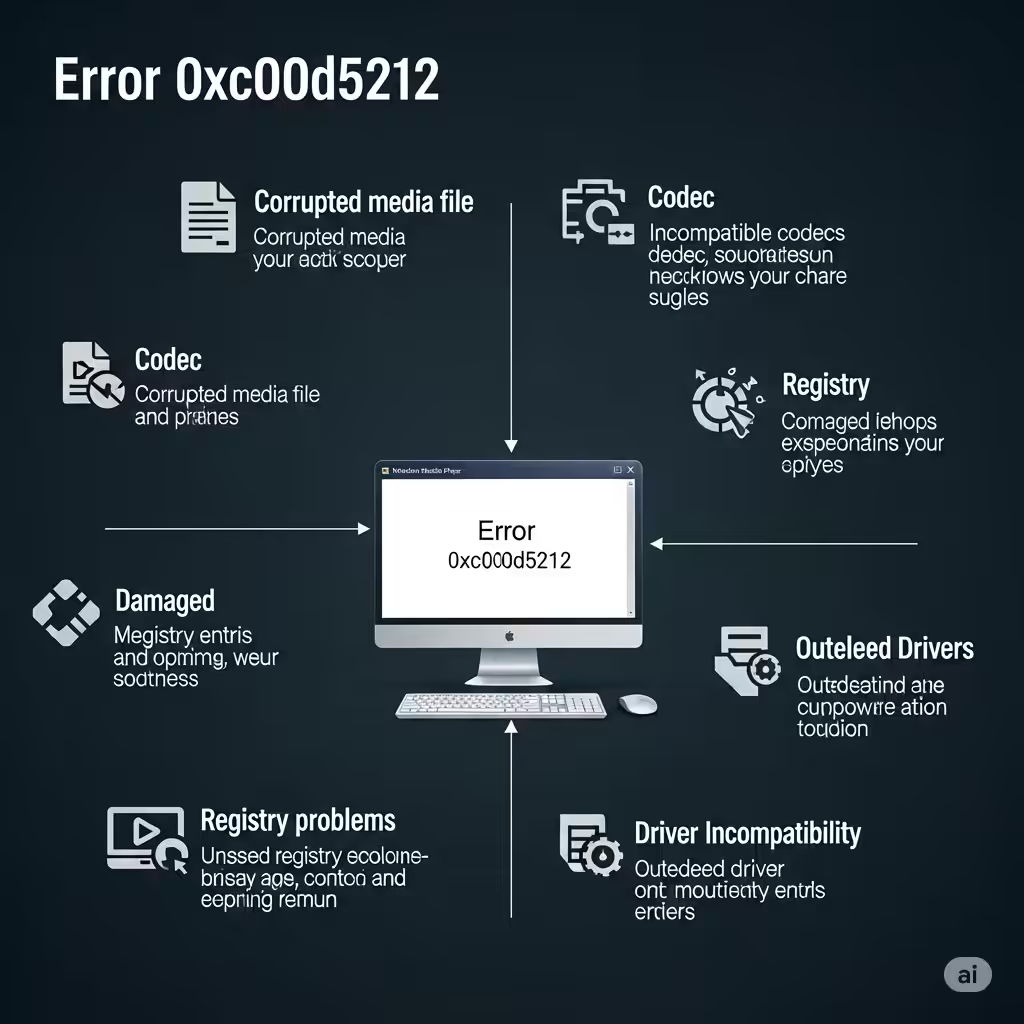
What Causes Error 0xc00d5212?
The 0xc00d5212 error usually relates to a codec or compatibility issue. When Windows Media Player or the built-in Movies & TV app encounters a format it doesn’t recognize or can’t decode, it throws this error.
Common causes include:
-
Missing or outdated video codecs
-
Corrupt or unsupported video files
-
Outdated graphics card drivers
-
Conflicts with third-party software or recent Windows updates
-
Hardware acceleration issues
Now let’s walk through the most effective ways to fix it.
Fix 1: Update Your Graphics Card Drivers
Outdated or incompatible graphics drivers are a leading cause of playback errors. Updating them ensures compatibility with the latest video decoding formats.
How to update:
-
Press Windows + X and select Device Manager
-
Expand the Display adapters section
-
Right-click your GPU (e.g., Intel HD Graphics, NVIDIA, AMD) and click Update driver
-
Choose Search automatically for drivers
-
Let Windows search and install any available updates
-
Restart your PC
Alternatively, visit the manufacturer’s website for your GPU and download the latest driver:
Fix 2: Install Missing Codecs
Windows Media Player doesn’t support all file types natively. If you’re missing necessary codecs, certain videos won’t play.
Recommended: Install K-Lite Codec Pack
-
Visit the K-Lite Codec Pack website
-
Download the Basic or Standard version
-
Run the installer and follow the instructions
-
Restart your computer
After installation, try playing the file again in Windows Media Player. The codec pack adds support for nearly all major video formats.
Fix 3: Convert the Video to a Supported Format
If the video file is encoded using a codec that isn’t supported, you can convert it to a format that Windows Media Player can handle, such as .mp4 (H.264).
Use a free video converter like HandBrake:
-
Download HandBrake
-
Open the program and load your problematic video file
-
Choose MP4 as the output format and use the Fast 1080p30 preset
-
Click Start Encode
-
After conversion, try playing the new file in Windows Media Player
Fix 4: Disable Hardware Acceleration

Hardware acceleration can sometimes interfere with video playback, especially if the graphics driver is unstable or incompatible.
Steps to disable:
-
Open Windows Media Player
-
Press Alt to bring up the menu bar, then go to Tools > Options
-
Switch to the Performance tab
-
Uncheck the box that says Turn on DirectX Video Acceleration for WMV files
-
Click OK, then restart the application
Check if the video now plays without error.
Fix 5: Use a Different Media Player
If the problem persists and you’re looking for a quick workaround, try using a third-party media player that supports a wider range of formats by default.
Recommended options:
-
VLC Media Player – Free, open-source, and supports almost all formats
-
KMPlayer
-
PotPlayer
Most of these players include built-in codecs and can play .avi, .mov, .mkv, and more without requiring additional setup.
Fix 6: Uninstall Conflicting Windows Updates
In rare cases, a recent Windows update may interfere with media playback or codec compatibility.
Steps:
-
Go to Settings > Update & Security > Windows Update
-
Click View update history
-
Choose Uninstall updates
-
Look for any recent updates (especially security or driver-related)
-
Right-click and choose Uninstall
-
Restart your PC and check if the issue is resolved
Only uninstall updates if the error started happening immediately after a recent system patch.
Fix 7: Repair or Reset Windows Media Player
If Windows Media Player itself is misconfigured or corrupted, resetting it may help.
Steps to reset:
-
Press Windows + R, type
optionalfeatures.exe, and press Enter -
Scroll down and uncheck Windows Media Player
-
Click OK and restart your PC
-
Repeat the steps and recheck Windows Media Player to reinstall it
This process resets Media Player to its original settings and reinstalls essential components.
Fix 8: Check for Corrupt Video Files
Sometimes the problem lies not in your software but in the file itself.
Tips to test:
-
Try opening the same video on another computer or media player.
-
Try a different file format or video.
-
Use a video repair tool if the file is partially corrupted.
If the issue is file-specific, repairing or replacing the file may be the only solution.
Conclusion
Error 0xc00d5212 in Windows Media Player can be caused by a variety of system or file issues, but with the right approach, it’s usually easy to fix. Whether the issue stems from missing codecs, outdated drivers, or problematic software settings, the solutions above should help you get back to smooth video playback.
Quick Recap:
-
Update your graphics card drivers
-
Install codec packs like K-Lite
-
Convert unsupported video files to MP4
-
Disable hardware acceleration in WMP
-
Use third-party players like VLC for broader support
-
Reset or reinstall Windows Media Player if needed
With these steps, you’ll have the tools needed to fix error 0xc00d5212 and enjoy your video content without interruption.