


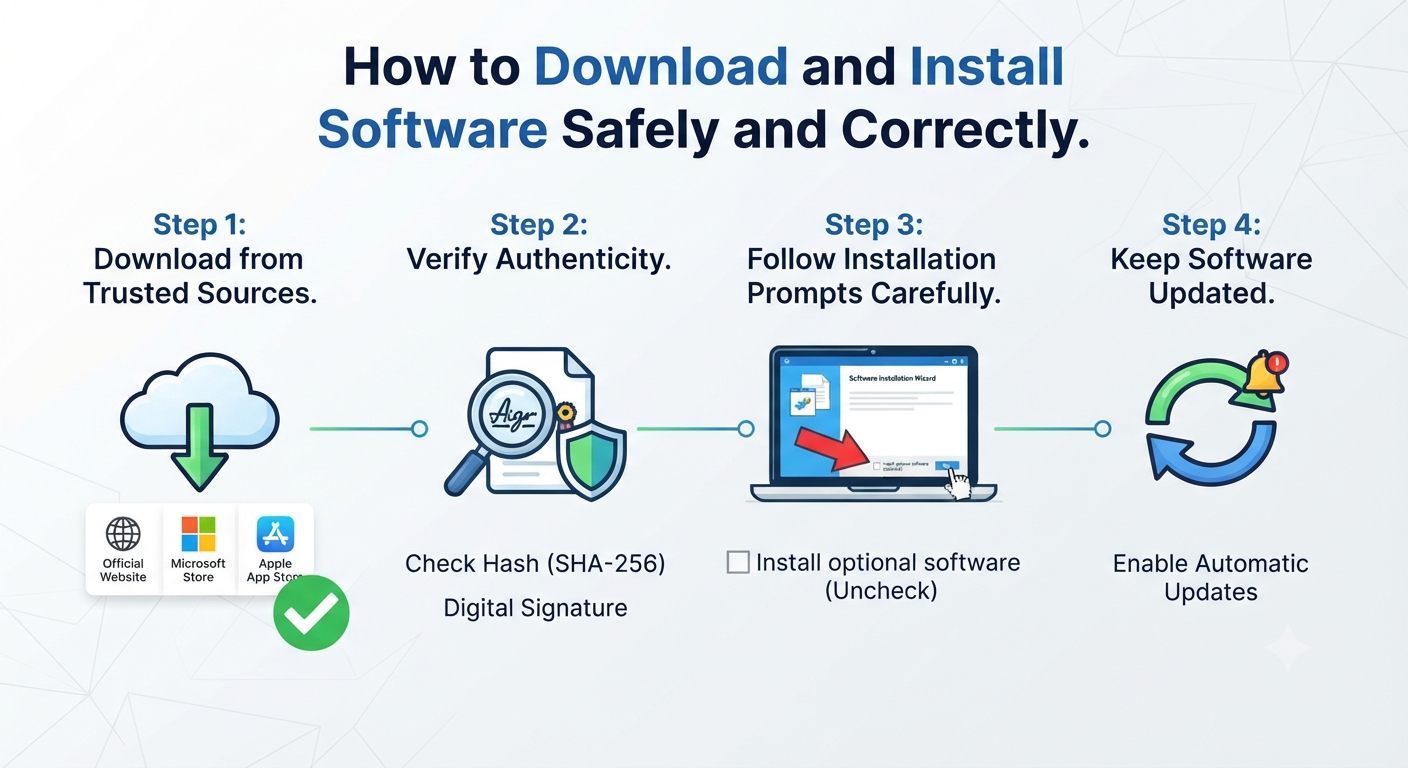
How to Download and Install Software Safely and Correctly
Installing software is one of the most common tasks performed on a computer, whether you’re setting up a new PC, upgrading productivity tools, or trying out a new application. While downloading and installing software may seem straightforward, doing it incorrectly can expose your computer to malware, unwanted programs, security vulnerabilities, or compatibility issues.
Fortunately, following a few best practices can help you download and install software safely and efficiently. This guide walks you through the fool-proof way to download, verify, install, and maintain software on Windows and macOS while minimizing potential risks.
Why Safe Software Installation Matters
Every time you install an application, you are granting it access to your computer’s resources. Downloading software from untrusted sources or ignoring installation prompts can lead to serious problems.
Safe software installation helps you:
- Protect your computer from malware
- Prevent unwanted programs from being installed
- Ensure software compatibility
- Improve system stability
- Receive official updates
- Protect personal and business data
Following a secure installation process reduces the risk of technical issues and cyber threats.
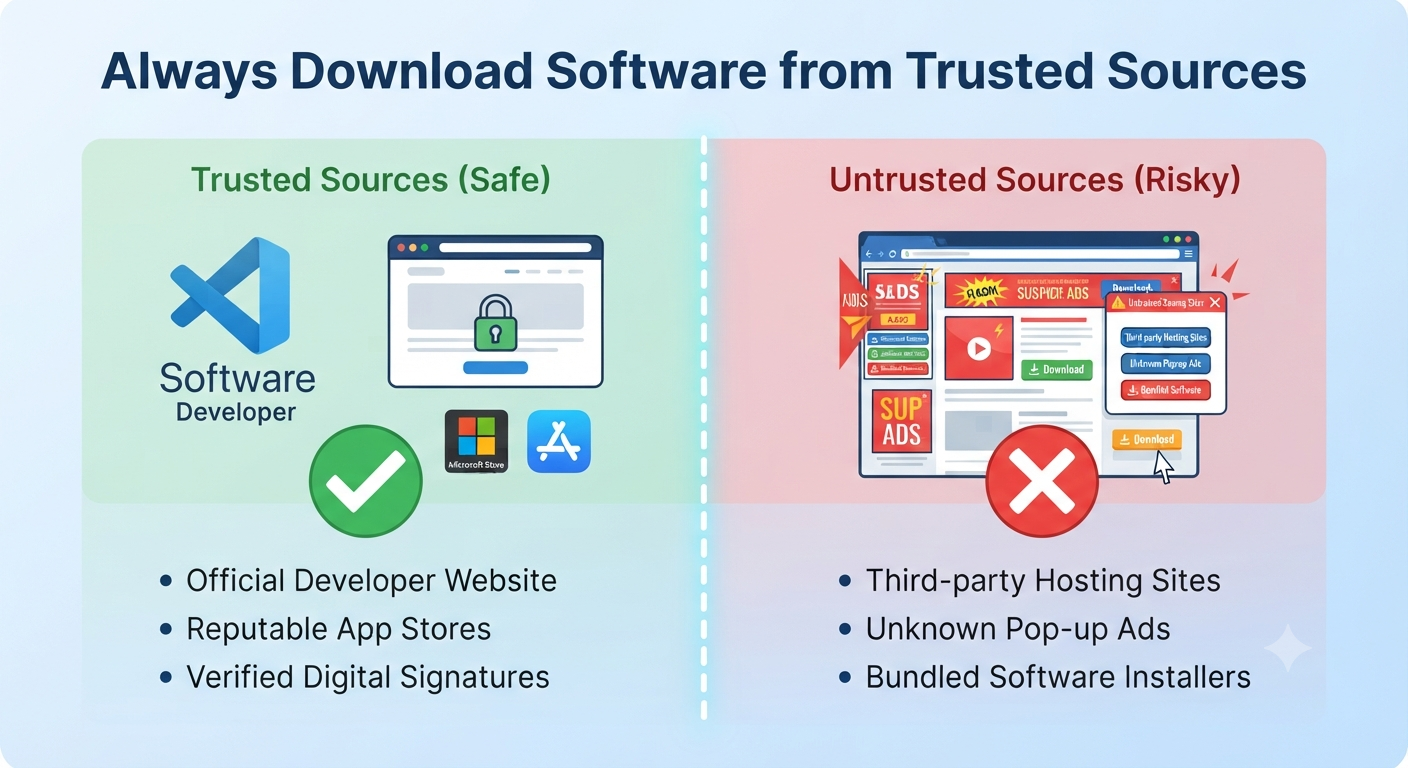
Always Download Software from Trusted Sources
The most important rule is to download software only from reputable sources.
Recommended sources include:
- The developer’s official website
- Microsoft Store
- Apple App Store
- Trusted software repositories
- Official enterprise software portals
Avoid downloading applications from unknown websites that bundle installers with advertisements or additional software.
Check System Requirements Before Downloading
Before installing any application, confirm that your computer meets the minimum system requirements.
Typical requirements include:
- Operating system version
- Processor
- RAM
- Available storage
- Graphics requirements (if applicable)
Installing software on unsupported hardware may result in poor performance or installation failures.
Choose the Correct Software Version
Many applications offer multiple versions.
Examples include:
- Windows
- macOS
- Linux
- 32-bit
- 64-bit
- Home edition
- Professional edition
Downloading the correct version ensures proper compatibility and performance.
How to Check Whether Windows Is 32-Bit or 64-Bit
On Windows:
- Open Settings.
- Select System.
- Click About.
- Review the System type entry.
Modern computers typically use a 64-bit operating system.
Verify the Authenticity of the Download
Some software developers provide methods to verify downloaded files.
Common verification methods include:
- Digital signatures
- SHA-256 checksums
- MD5 hashes
- Code signing certificates
Verifying downloads helps ensure the file has not been modified or corrupted.
Scan the Download Before Opening It
Even when downloading from trusted sources, scanning files with security software is a good practice.
Microsoft Defender and many third-party antivirus programs can automatically check downloaded files for potential threats.
This extra step provides an additional layer of protection.
Close Unnecessary Applications Before Installing
Before running an installer:
- Save your work.
- Close unnecessary programs.
- Exit background applications if recommended.
Doing so reduces the likelihood of installation conflicts and ensures system resources are available.
Run the Installer
Most Windows software uses installer files such as:
- EXE
- MSI
On macOS, common formats include:
- DMG
- PKG
Double-click the downloaded file to begin installation.
Image: Software installation wizard on Windows.
Read Installation Prompts Carefully
Many users repeatedly click Next without reviewing the installation options.
Instead:
- Read each screen carefully.
- Review the license agreement.
- Check installation locations.
- Understand optional settings.
Careful review helps avoid unintended changes.
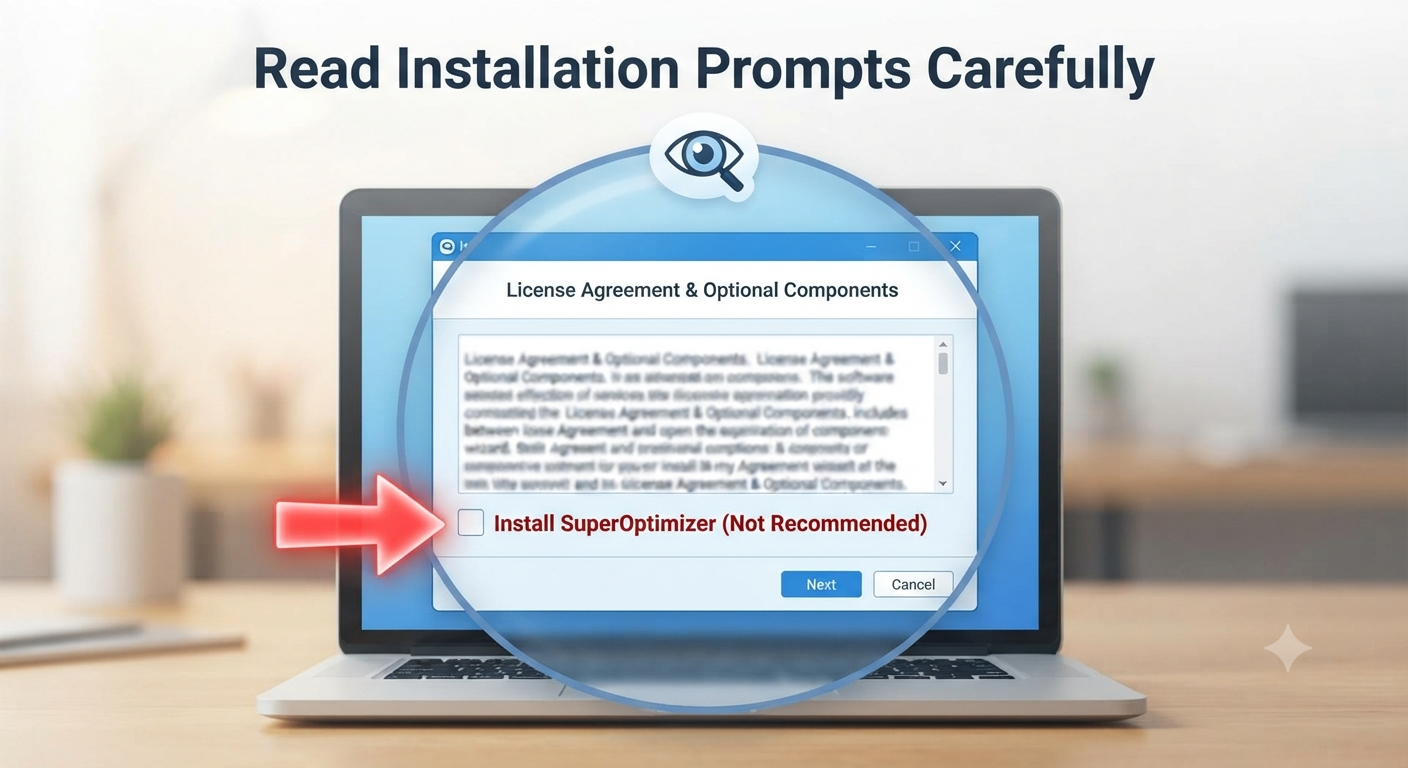
Avoid Installing Unwanted Software
Some installers may offer optional components, such as:
- Browser extensions
- Trial software
- Toolbars
- Additional utilities
If these are unnecessary, deselect them before continuing.
Only install components you recognize and intend to use.
Choose the Installation Type
Many installers offer two installation options.
Typical Installation
This option installs recommended settings and is appropriate for most users.
Custom Installation
Advanced users can customize:
- Installation location
- Installed components
- Shortcuts
- File associations
Custom installation offers greater control over the software setup.
Follow On-Screen Instructions
Continue through the installation wizard by following the prompts.
Depending on the application, you may need to:
- Accept the license agreement
- Select an installation folder
- Create desktop shortcuts
- Configure startup preferences
The installation time varies depending on the application’s size and your computer’s performance.
Restart Your Computer if Necessary
Some software requires a system restart to complete installation.
Examples include:
- Device drivers
- Security software
- System utilities
If prompted, save your work and restart your computer.
Launch the Application
After installation:
- Open the Start menu (Windows) or Applications folder (Mac).
- Locate the software.
- Launch it.
- Complete any initial setup or sign-in process.
Some applications may also prompt you to activate a license or check for updates.
Keep Software Updated
Installing software is only the first step.
Regular updates provide:
- Security patches
- Bug fixes
- Performance improvements
- New features
- Compatibility enhancements
Many applications support automatic updates, which help ensure you always have the latest version.
Uninstall Software You No Longer Need
Unused applications consume storage space and may introduce unnecessary security risks.
On Windows:
- Open Settings.
- Select Apps.
- Choose Installed apps or Apps & features.
- Select the application.
- Click Uninstall.
Removing unused software keeps your system organized and efficient.
Common Installation Problems and Solutions
Installation Fails
Possible causes include:
- Insufficient storage
- Missing administrator permissions
- Corrupted installer
- Unsupported operating system
Download a fresh copy from the official website and verify your system meets the requirements.
Installer Won’t Open
Try:
- Restarting the computer
- Running the installer as an administrator (Windows)
- Verifying the download completed successfully
Software Won’t Launch After Installation
Possible solutions include:
- Install available updates.
- Restart the computer.
- Check compatibility settings.
- Reinstall the application if necessary.
Best Practices for Safe Software Installation
Follow these recommendations every time you install software:
- Download only from trusted sources.
- Keep your operating system updated.
- Use reputable antivirus software.
- Verify file authenticity when possible.
- Avoid pirated or modified software.
- Read installation prompts carefully.
- Remove software you no longer use.
- Back up important data before installing major applications.
These habits significantly reduce the likelihood of installation-related issues.
Frequently Asked Questions
Where is the safest place to download software?
The safest sources are the software developer’s official website, the Microsoft Store for Windows applications, the Apple App Store for macOS software, and other reputable application marketplaces.
Should I disable my antivirus before installing software?
Generally, no. Antivirus software helps protect your system during installation. Only disable it temporarily if the software developer specifically instructs you to do so, and only when installing trusted software from an official source.
Is it safe to install free software?
Yes, provided it comes from a trusted developer or official download source. Always review the installation process carefully and avoid unofficial websites that may bundle unwanted programs.
What should I do if Windows displays a security warning?
Read the warning carefully. Verify that the application comes from a trusted publisher and official source before choosing to continue. If you’re unsure about the software’s authenticity, do not proceed until you have confirmed it is legitimate.
How often should I update installed software?
Install updates as they become available. Keeping software current helps protect against security vulnerabilities, improves stability, and ensures compatibility with your operating system.
Conclusion
Downloading and installing software safely is essential for maintaining a secure, stable, and high-performing computer. By obtaining applications only from trusted sources, verifying compatibility, reviewing installation options carefully, and keeping your software updated, you can avoid many common problems such as malware infections, installation failures, and compatibility issues.