


How to Find the Email Server Settings You Need
Setting up an email account in applications like Microsoft Outlook, Apple Mail, Mozilla Thunderbird, or the Mail app on Windows and macOS is usually a straightforward process. However, there are times when automatic configuration fails, requiring you to enter your email provider’s server settings manually. Whether you’re adding a new email account, migrating to a different device, or troubleshooting connection issues, having the correct email server settings is essential.
This guide explains the server settings you’ll typically need from your email provider, the difference between POP3, IMAP, and SMTP, how to locate the correct configuration details, and common troubleshooting tips to ensure your email works reliably.
Why Email Server Settings Are Important
Email applications communicate with your email provider through mail servers. Without the correct server information, your email client cannot send, receive, or synchronize messages.
Correct server settings help ensure:
- Successful email delivery
- Reliable message synchronization
- Secure communication
- Proper authentication
- Compatibility across multiple devices
Incorrect settings often lead to login failures, synchronization errors, or messages remaining in the Outbox.
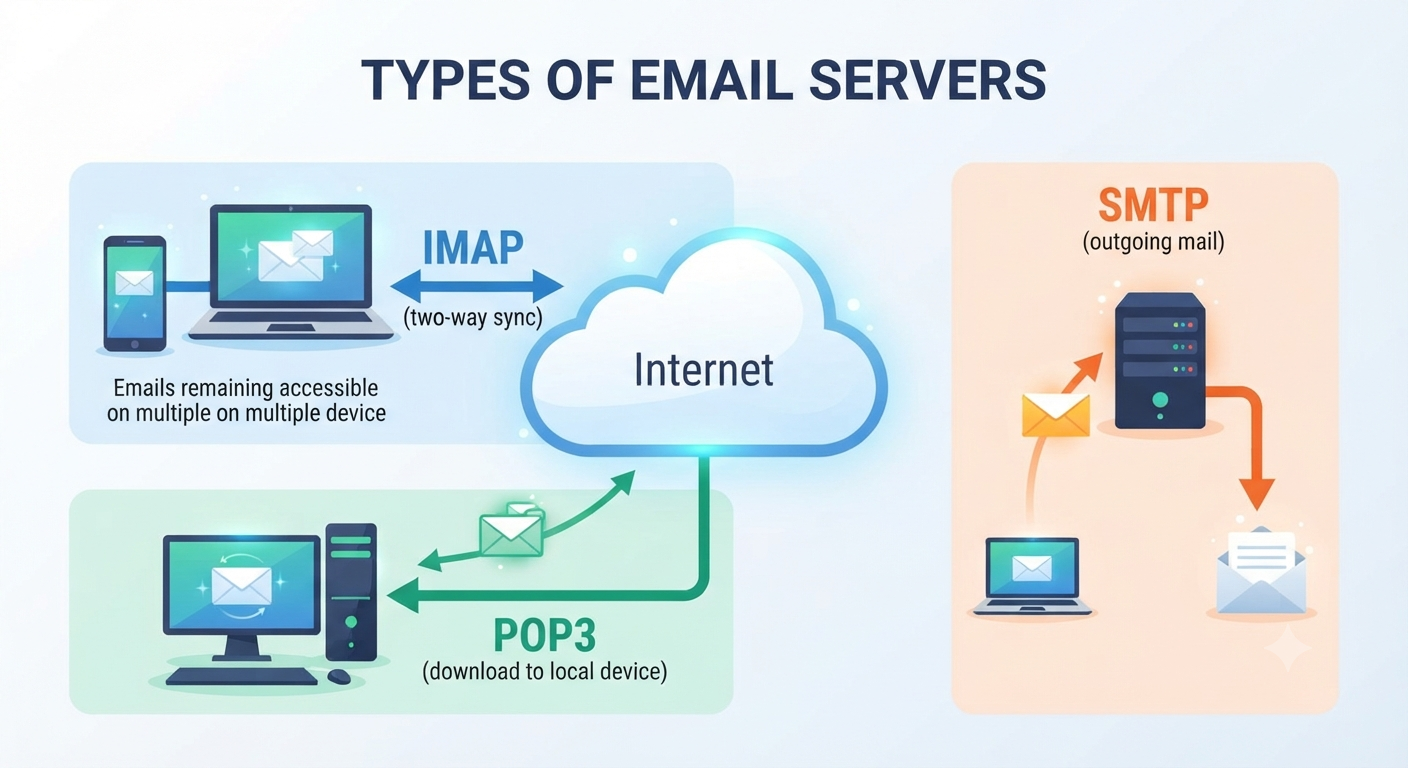
Types of Email Servers
Most email providers use three primary types of mail servers.
These include:
- IMAP
- POP3
- SMTP
Each serves a different purpose in the email communication process.
What Is IMAP?
Internet Message Access Protocol (IMAP) is the most commonly recommended protocol for modern email users.
With IMAP:
- Emails remain on the server.
- Multiple devices stay synchronized.
- Read and unread status is shared.
- Folders remain consistent across devices.
- Changes are reflected everywhere.
For users who access email from multiple devices, IMAP is usually the preferred option.
What Is POP3?
Post Office Protocol version 3 (POP3) downloads emails from the server to your device.
Characteristics include:
- Messages are typically stored locally.
- Less server storage is used.
- Suitable for single-device access.
- Limited synchronization across devices.
While POP3 is still supported by many providers, IMAP is generally recommended for greater flexibility.
What Is SMTP?
Simple Mail Transfer Protocol (SMTP) is responsible for sending outgoing email.
Regardless of whether you use IMAP or POP3 for receiving messages, SMTP is required for sending emails.
SMTP handles:
- Outgoing mail delivery
- Authentication
- Secure message transmission
Without correct SMTP settings, emails cannot be sent successfully.
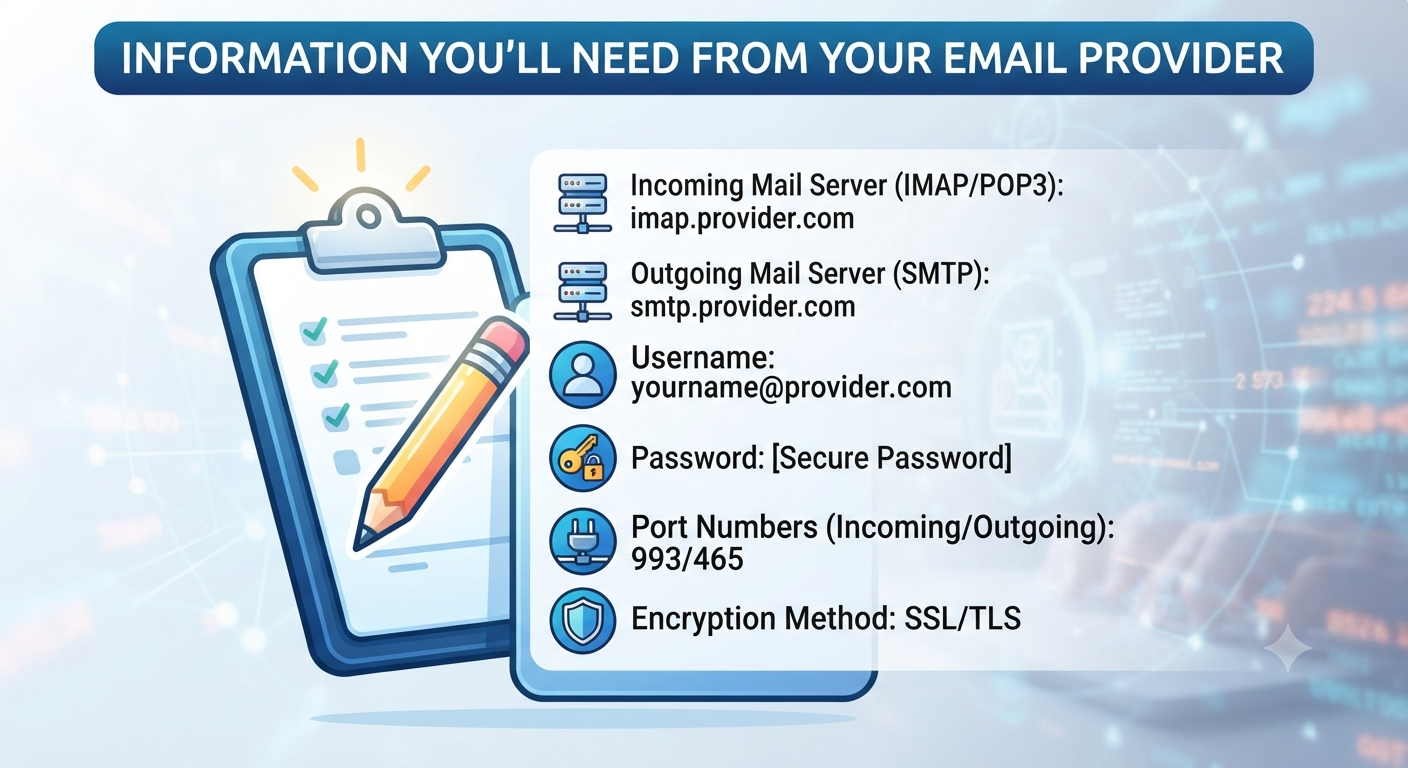
Information You’ll Need from Your Email Provider
Before manually configuring an email client, gather the following information from your email provider.
Incoming Mail Server
Examples include:
- IMAP server address
- POP3 server address
Typical format:
imap.example.comor
pop.example.comOutgoing Mail Server (SMTP)
Typical format:
smtp.example.comUsername
Usually your full email address.
Example:
Password
Use your email account password or, where required, an app-specific password provided by your email service.
Port Numbers
Each server uses a specific communication port.
Common examples include:
| Protocol | Standard Secure Port |
|---|---|
| IMAP | 993 |
| POP3 | 995 |
| SMTP | 465 or 587 |
Always verify the correct port numbers with your email provider, as they may vary.
Encryption Method
Most providers support secure encryption methods such as:
- SSL
- TLS
- STARTTLS
Using encrypted connections helps protect your login credentials and email content.
How to Find Your Email Server Settings
The easiest way to obtain accurate settings is from your email provider’s official support documentation.
Common places to check include:
- Support website
- Help center
- Email setup guides
- Account settings
- Administrator documentation (for business accounts)
Avoid relying on unofficial websites, as outdated information may cause configuration problems.
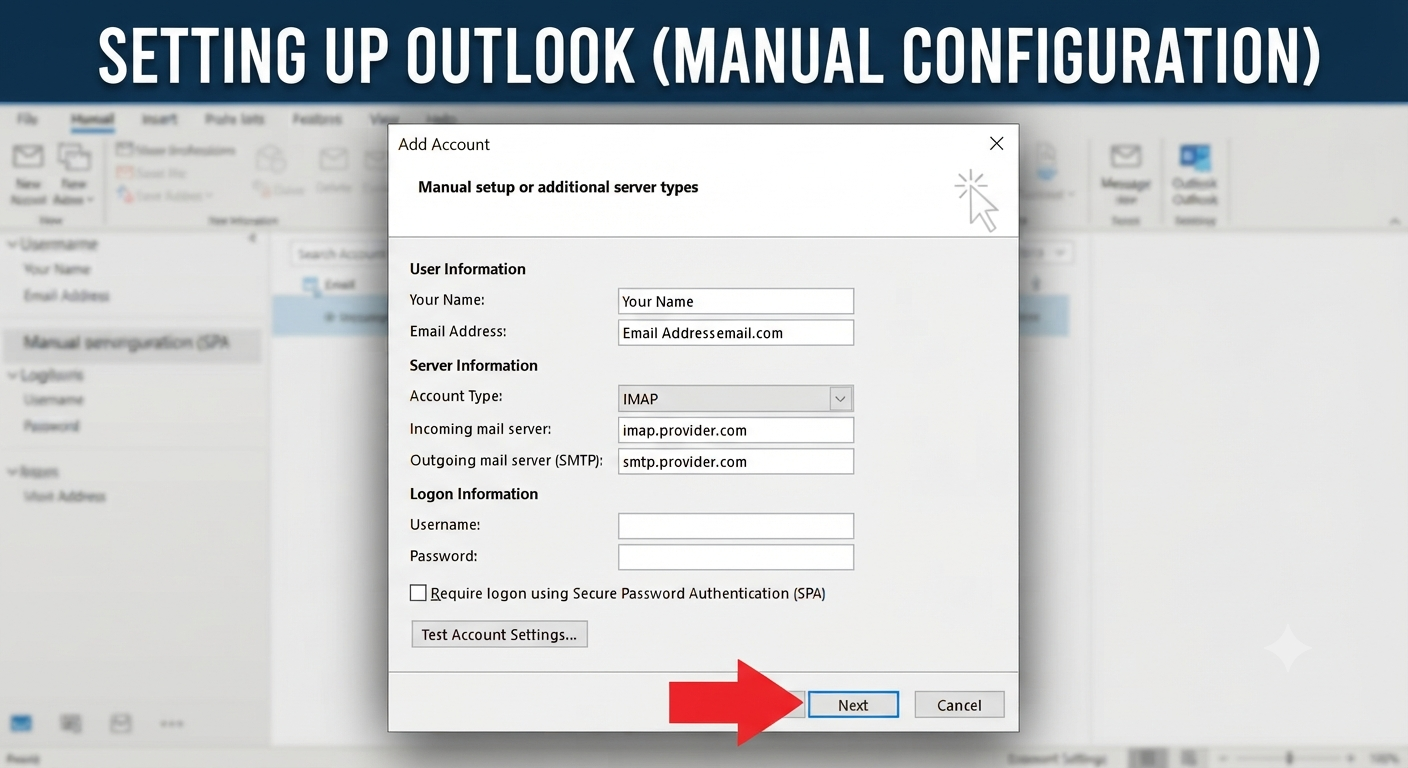
Setting Up an Email Account in Microsoft Outlook
To manually configure Outlook:
- Open Outlook.
- Select File.
- Click Add Account.
- Choose manual setup if automatic detection fails.
- Enter your email address.
- Specify IMAP or POP3.
- Enter incoming and outgoing server information.
- Provide your username and password.
- Complete the setup.
Outlook will test the connection before finishing the configuration.
Image: Microsoft Outlook manual email account setup window.
Setting Up Apple Mail
On macOS:
- Open the Mail app.
- Select Mail > Add Account.
- Choose your account type.
- Enter your email address.
- If automatic setup fails, enter the server settings manually.
- Verify the ports and encryption method.
- Finish the configuration.
Configuring Email on Mobile Devices
Most Android and iPhone email apps support manual account setup.
You’ll typically need:
- Email address
- Password
- Incoming server
- Outgoing server
- Port numbers
- Security type
Many popular providers also support automatic configuration, simplifying the setup process.
Common Email Providers
Popular email services include:
- Outlook.com
- Microsoft 365
- Gmail
- Yahoo Mail
- iCloud Mail
- Zoho Mail
- Proton Mail
Each provider may use different server addresses, authentication methods, and security requirements. Always refer to the provider’s official documentation for the latest settings.
Authentication Requirements
Many providers now require modern authentication methods for improved security.
Examples include:
- OAuth authentication
- Two-factor authentication (2FA)
- App-specific passwords
If you have enabled two-factor authentication on your account, your provider may require you to generate an app-specific password for older email clients that do not support modern authentication.
Common Email Setup Problems
Incorrect Password
Double-check:
- Username
- Password
- Keyboard layout
- Caps Lock
Many login failures result from simple typing errors.
Wrong Server Address
Even a small spelling mistake in the server name can prevent successful connections.
Always copy the exact server names provided by your email provider.
Incorrect Port Number
Using the wrong port may prevent sending or receiving emails.
Verify:
- Incoming server port
- Outgoing SMTP port
- Encryption settings
Firewall or Antivirus Interference
Security software may block email applications.
Temporarily disable email scanning features for testing or add your email client to the allowed list if necessary.
Authentication Errors
If your provider has enabled enhanced security features, verify whether:
- Two-factor authentication is enabled.
- An app-specific password is required.
- OAuth authentication is supported by your email client.
Best Practices for Email Configuration
To maintain a secure and reliable email setup:
- Use IMAP whenever possible.
- Enable SSL or TLS encryption.
- Keep your email application updated.
- Use strong passwords.
- Enable two-factor authentication if supported.
- Regularly back up important emails.
These practices improve both security and accessibility.
Frequently Asked Questions
Should I choose IMAP or POP3?
For most users, IMAP is the recommended option because it keeps emails synchronized across multiple devices and stores messages on the server. POP3 may be suitable if you only use one device and prefer to store emails locally.
Why can’t I send emails even though I can receive them?
This often indicates an issue with the SMTP configuration. Check the outgoing server address, port number, encryption method, and authentication settings to ensure they match your provider’s requirements.
Where can I find my email server settings?
The most reliable source is your email provider’s official support website or help center. Many providers also include configuration information in their account settings or setup guides.
Do I need SSL or TLS?
Yes. Most modern email providers recommend or require SSL or TLS encryption to secure your email communications and protect your login credentials.
What is an app-specific password?
An app-specific password is a unique password generated by some email providers for use with applications that do not support modern authentication methods. It allows secure access without using your primary account password.
Conclusion
Having the correct server settings is essential for successfully configuring an email account in Outlook, Apple Mail, Thunderbird, mobile devices, and other email clients. Whether you’re using IMAP, POP3, or SMTP, accurate server addresses, port numbers, encryption methods, and authentication details ensure that your email is delivered securely and reliably.