


How to Migrate and Upgrade from Windows Server 2008
Windows Server 2008 was once a widely adopted operating system for businesses of all sizes, offering improved security, virtualization capabilities, and centralized management compared to its predecessors. However, as technology has evolved, newer versions of Windows Server have introduced significant enhancements in performance, security, cloud integration, and management tools.
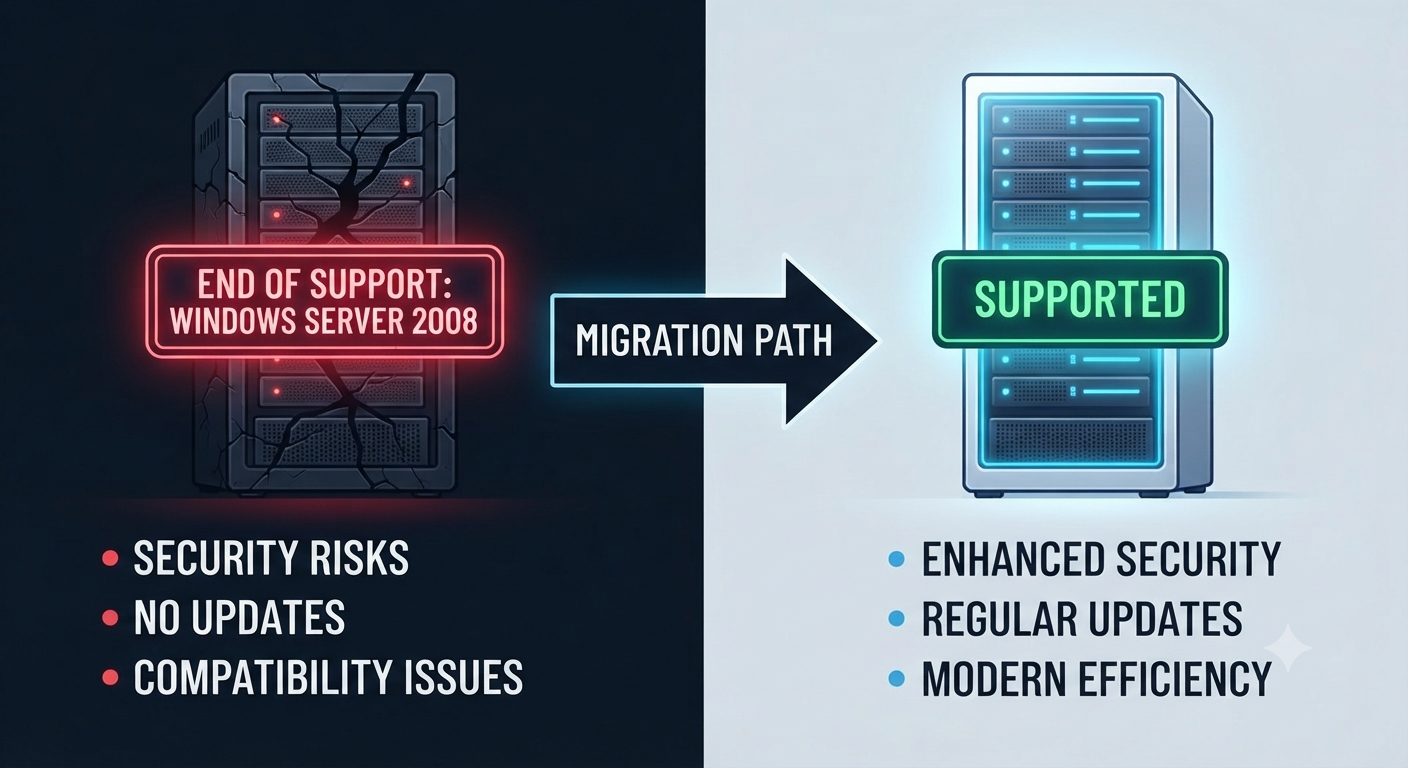
Since Windows Server 2008 and Windows Server 2008 R2 have reached the end of Microsoft’s extended support lifecycle, organizations still using these platforms should plan to migrate or upgrade to a supported version. Doing so helps protect business data, improve system reliability, and ensure compatibility with modern applications and hardware.
This guide explains the migration and upgrade process, planning considerations, supported upgrade paths, and best practices for moving from Windows Server 2008 to a newer Windows Server environment.
Why Upgrade from Windows Server 2008?
Running an unsupported operating system introduces several risks.
Some of the most important reasons to migrate include:
- No regular security updates
- Limited technical support
- Compatibility issues with modern applications
- Increased cybersecurity risks
- Difficulty meeting compliance requirements
- Reduced hardware compatibility
Upgrading allows organizations to benefit from improved security features, better virtualization support, and enhanced management capabilities.
End of Support for Windows Server 2008
Microsoft ended extended support for:
- Windows Server 2008
- Windows Server 2008 R2
After the end-of-support date, these operating systems no longer receive regular security updates, non-security fixes, or technical assistance through standard support channels.
Organizations still running these versions should evaluate a migration strategy as soon as practical to reduce operational and security risks.

Benefits of Migrating to a Newer Windows Server Version
Modern Windows Server releases provide many advantages over Windows Server 2008.
Key improvements include:
- Enhanced security features
- Better virtualization through Hyper-V
- Improved Active Directory capabilities
- Windows Admin Center integration
- Storage enhancements
- Improved networking performance
- Better support for cloud and hybrid environments
- Modern management tools
These improvements help organizations build a more secure and scalable IT infrastructure.
Choose Your Migration Strategy
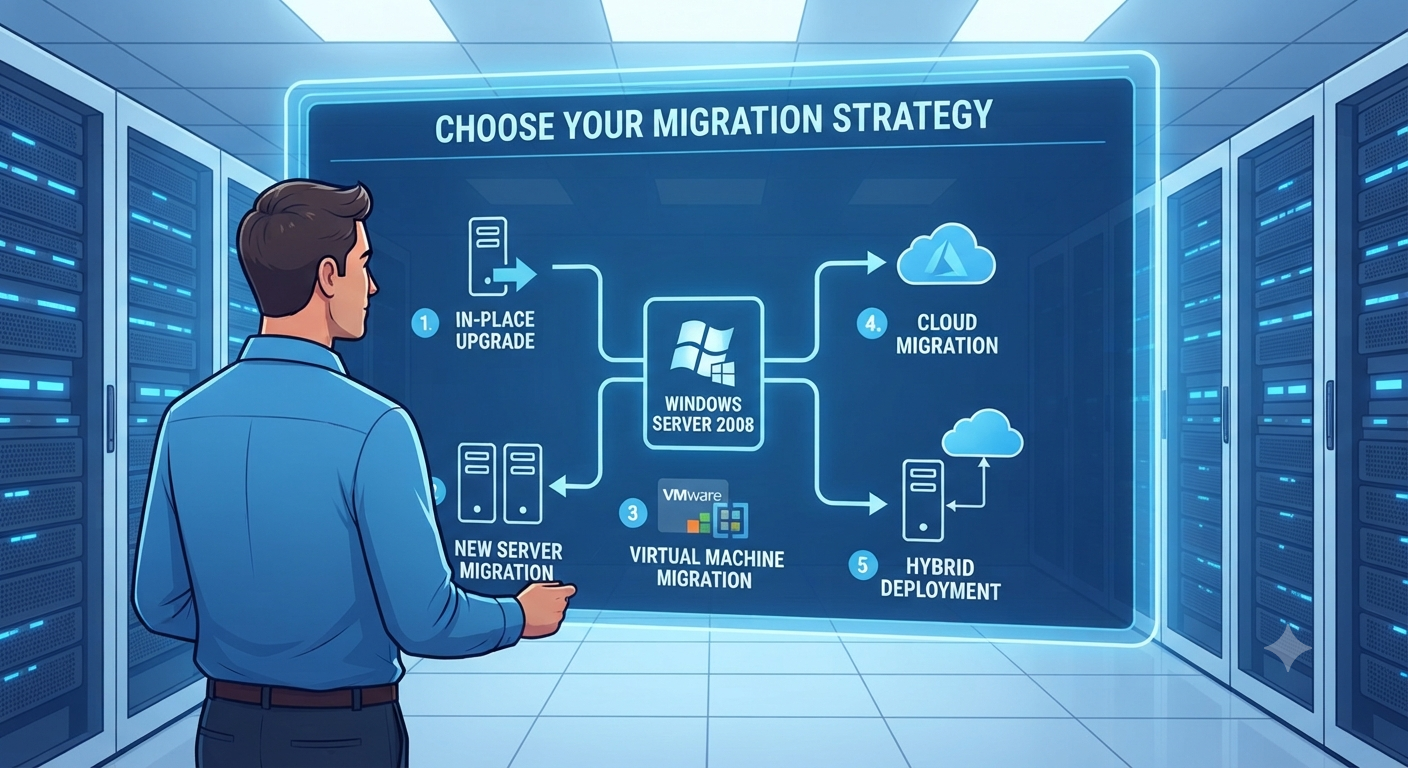
Before beginning the migration, determine the most suitable approach.
Common options include:
- In-place upgrade (where supported)
- Migration to a new server
- Virtual machine migration
- Cloud migration
- Hybrid deployment
The right strategy depends on your existing hardware, applications, and business requirements.
Assess Your Existing Environment
A successful migration begins with a thorough assessment.
Review:
- Server roles
- Installed applications
- Hardware specifications
- Storage capacity
- Network configuration
- Active Directory environment
- DNS settings
- DHCP services
- File shares
- Group Policy Objects
Documenting the existing environment helps identify dependencies and reduces the risk of unexpected issues during migration.
Check Hardware Compatibility
Older servers running Windows Server 2008 may not meet the requirements for modern operating systems.
Verify:
- Processor compatibility
- Available memory
- Storage capacity
- Firmware updates
- Driver availability
If the hardware is outdated, migrating to a new physical server or virtual machine may be a better option than attempting an upgrade.
Review Application Compatibility
Business-critical applications should be evaluated before migration.
Check whether:
- The application supports the target Windows Server version.
- Updated versions are available.
- Database compatibility requirements are met.
- Licensing changes are required.
Testing applications in a non-production environment can help identify compatibility issues before deployment.
Back Up the Entire Server
Always create a complete backup before making significant system changes.
A comprehensive backup should include:
- System state
- User data
- Application data
- Configuration settings
- Active Directory (if applicable)
Verify that backups can be restored successfully before proceeding with the migration.
Understand Upgrade Paths
Not every Windows Server version supports a direct in-place upgrade from Windows Server 2008.
In many cases, organizations may need to perform one or more intermediate upgrades or migrate workloads to a newly installed server running a supported version of Windows Server.
Microsoft publishes detailed documentation outlining supported upgrade paths, edition compatibility, and architecture requirements. Review this information carefully before planning an upgrade.
Prepare Active Directory
If the server functions as a domain controller:
- Check Active Directory health.
- Verify replication.
- Review DNS functionality.
- Confirm Group Policy consistency.
- Ensure FSMO roles are healthy.
Healthy Active Directory replication is essential before introducing new domain controllers or transferring roles.
Migrate File Servers
When migrating file servers:
- Copy shared folders.
- Preserve NTFS permissions.
- Verify share permissions.
- Test user access.
- Update mapped drives if necessary.
Many organizations use migration tools that preserve permissions during the transfer.
Migrate DHCP Services
If the server hosts DHCP:
- Export DHCP configuration.
- Install the DHCP role on the destination server.
- Import the configuration.
- Verify leases.
- Test client connectivity.
Proper planning minimizes network disruption.
Migrate DNS Services
DNS migration should include:
- Zone verification
- Forwarders
- Conditional forwarders
- Reverse lookup zones
- Dynamic update settings
After migration, verify that clients resolve names correctly.
Transfer Active Directory Roles
If applicable, transfer Flexible Single Master Operations (FSMO) roles to the new server.
Typical FSMO roles include:
- Schema Master
- Domain Naming Master
- RID Master
- PDC Emulator
- Infrastructure Master
Role transfers should be verified before retiring the old server.
Move Applications and Databases
Applications often require additional migration steps.
These may involve:
- Database migration
- Configuration exports
- License activation
- Service account updates
- Configuration testing
Follow vendor-specific guidance for business-critical applications.
Test Before Going Live
Never migrate directly into production without testing.
Recommended tests include:
- User authentication
- File access
- Application functionality
- Network connectivity
- Printing
- Remote access
- Backup operations
Address any issues before making the new server the primary production system.
Image: Windows Server migration testing and validation checklist.
Monitor After Migration
Once migration is complete:
- Monitor event logs.
- Review performance.
- Verify scheduled tasks.
- Confirm backup jobs.
- Test disaster recovery procedures.
Early monitoring helps identify issues before they affect users.
Retire the Old Server
After confirming that the new server operates correctly:
- Remove obsolete roles.
- Demote old domain controllers if applicable.
- Archive necessary data.
- Update documentation.
- Securely decommission the server.
Proper retirement helps maintain a clean and secure IT environment.
Best Practices for Windows Server Migration
Successful migrations typically follow these recommendations:
- Plan thoroughly before beginning.
- Maintain verified backups.
- Test applications in advance.
- Document every configuration change.
- Perform migrations during maintenance windows.
- Validate services after migration.
- Keep stakeholders informed throughout the process.
A structured approach reduces downtime and minimizes operational risk.
Common Migration Challenges
Administrators may encounter issues such as:
- Legacy application incompatibility
- Driver limitations
- Authentication problems
- DNS configuration errors
- Storage migration delays
- Network configuration conflicts
Comprehensive testing and detailed planning help address these challenges before they impact production systems.
Frequently Asked Questions
Can I directly upgrade Windows Server 2008 to the latest Windows Server version?
Not always. Direct in-place upgrades depend on the source version, edition, architecture, and the target operating system. Some migration scenarios require installing a newer version on separate hardware or a virtual machine and then migrating roles and data. Consult Microsoft’s official upgrade documentation for supported upgrade paths.
Should I perform an in-place upgrade or a migration?
Many organizations prefer migrating to a new server because it provides a cleaner environment, reduces the risk of carrying over legacy issues, and allows more flexibility when upgrading hardware. An in-place upgrade may be appropriate in supported scenarios but should be evaluated carefully.
How long does a Windows Server migration take?
Migration time varies depending on the server’s roles, data volume, application complexity, and testing requirements. Small environments may complete the process in a few hours, while enterprise migrations can take days or weeks of planning and execution.
Will my applications work after migration?
Many modern applications support current Windows Server versions, but compatibility depends on the software and vendor. Always verify application support and perform testing before migrating production workloads.
What is the biggest risk when migrating from Windows Server 2008?
The greatest risks typically involve inadequate planning, incomplete backups, application compatibility issues, and insufficient testing. A well-documented migration plan and thorough validation significantly reduce these risks.
Conclusion
Migrating from Windows Server 2008 to a supported Windows Server version is a critical step for organizations seeking improved security, reliability, and long-term support. Although the process requires careful planning, compatibility testing, and comprehensive backups, the benefits of modern server technologies far outweigh the effort involved.