


Secure a ZIP File with a Password on Windows 10 (Complete Guide with Images)
Keeping sensitive files secure is more important than ever. Whether you’re sharing confidential work documents, personal photos, financial records, or important backups, adding password protection to a ZIP file helps prevent unauthorized access. Windows 10 allows you to compress files into ZIP archives, but its built-in compression tool does not support password protection. Fortunately, there are several reliable third-party tools that make the process quick and easy.
In this guide, you’ll learn how to password protect a ZIP file on Windows 10 using popular applications like 7-Zip and WinRAR. We’ll also explain why password protection matters, compare available methods, and answer common questions.
Why Password Protect a ZIP File?
Password-protecting a ZIP archive adds an extra layer of security by encrypting the files inside. Without the correct password, no one can access the archive’s contents.
Some common reasons to protect ZIP files include:
- Safeguarding confidential business documents
- Protecting personal photos and videos
- Securing financial statements and tax records
- Sending sensitive files through email
- Preventing unauthorized access on shared computers
- Creating encrypted backups
Modern ZIP encryption uses strong algorithms like AES-256, making it extremely difficult for attackers to crack a properly secured archive.
Can Windows 10 Password Protect ZIP Files Natively?
Unfortunately, no.
Windows 10 includes a built-in ZIP compression feature that allows you to:
- Compress files into ZIP format
- Extract ZIP archives
- View ZIP contents
However, it does not include password protection or encryption.
To create a password-protected ZIP archive, you’ll need third-party software such as:
- 7-Zip (Free)
- WinRAR
- WinZip
- PeaZip
Among these, 7-Zip is one of the best free options available.
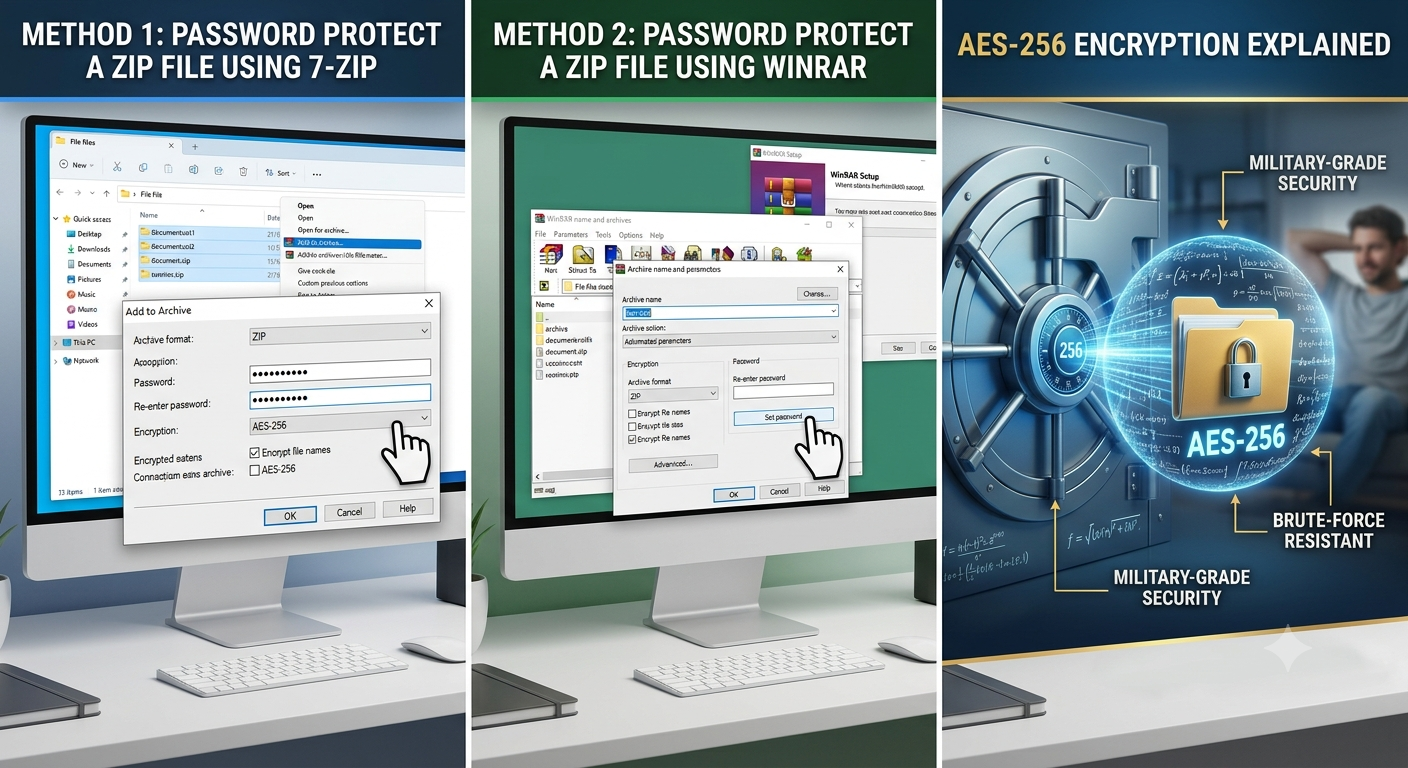
Method 1: Password Protect a ZIP File Using 7-Zip
7-Zip is completely free, lightweight, and supports powerful AES-256 encryption.
Step 1: Download and Install 7-Zip
Visit the official 7-Zip website.
Download the version compatible with your Windows 10 system.
Install the software using the default settings.
Image: 7-Zip installer.
Step 2: Select the Files
Locate the files or folders you want to protect.
Highlight one or multiple items.
Image: Selecting files in File Explorer.
Step 3: Right-Click the Files
Right-click your selected files.
Choose:
7-Zip → Add to archive
Image: 7-Zip context menu.
Step 4: Configure Archive Settings
The “Add to Archive” window appears.
Choose:
- Archive format: ZIP
- Compression level: Normal or Ultra
- Compression method: Deflate
These settings provide good compatibility with most devices.
Image: Archive settings window.
Step 5: Enter a Password
In the Encryption section:
- Enter your password
- Re-enter the password
- Select AES-256 as the encryption method
For maximum privacy, check:
Encrypt file names
This prevents others from seeing the names of files inside the archive.
Image: Password and encryption settings.
Step 6: Create the ZIP File
Click OK.
7-Zip creates the encrypted ZIP archive.
Anyone opening the archive will now be prompted to enter the password.
Image: Password prompt when opening ZIP.
Method 2: Password Protect a ZIP File Using WinRAR
WinRAR is another popular archive manager that supports encrypted ZIP files.
Step 1: Install WinRAR
Download WinRAR from its official website.
Complete the installation.
Image: WinRAR setup screen.
Step 2: Select Files
Highlight the files or folders you wish to compress.
Right-click them.
Choose:
Add to archive
Image: WinRAR context menu.
Step 3: Choose ZIP Format
In the Archive name and parameters window:
Select:
- Archive format: ZIP
You may also adjust compression settings if desired.
Image: Archive options.
Step 4: Set a Password
Click:
Set password
Enter your password.
Enable:
- Encrypt file names (optional but recommended)
Click OK.
Image: Password dialog.
Step 5: Create the Archive
Click OK again.
WinRAR creates the encrypted ZIP archive.
The password is required whenever someone attempts to open it.
Image: Finished ZIP archive.
Method 3: Password Protect Files with WinZip
WinZip offers a user-friendly interface and includes strong encryption.
Steps include:
- Open WinZip.
- Add files.
- Enable Encrypt.
- Enter your password.
- Save the ZIP archive.
WinZip supports AES encryption and integrates nicely with Windows Explorer.
How to Open a Password-Protected ZIP File
Opening an encrypted ZIP archive is simple.
- Double-click the ZIP file.
- Open or extract the contents.
- Enter the password.
- Click OK.
If the password is correct, you’ll gain access to the files.
If it’s incorrect, extraction will fail.
How Strong Should Your Password Be?
A weak password significantly reduces your archive’s security.
A strong password should include:
- At least 12 characters
- Uppercase letters
- Lowercase letters
- Numbers
- Symbols
Example:
P@ssword2025
Avoid using:
- Your birthday
- Simple dictionary words
- Phone numbers
- Family names
- Sequential numbers
Instead, consider using a memorable passphrase with mixed characters.
AES-256 Encryption Explained
AES-256 is currently one of the strongest encryption standards available.
Advantages include:
- Military-grade security
- Extremely difficult to brute-force
- Trusted worldwide
- Used by governments and financial institutions
When creating encrypted ZIP files, always choose AES-256 whenever possible.
Tips for Managing Password-Protected ZIP Files
Keep these best practices in mind:
- Store passwords in a reputable password manager.
- Keep a backup of important encrypted files.
- Use unique passwords for different archives.
- Share passwords through a separate communication channel.
- Test the archive after creating it to confirm it opens correctly.
Common Problems and Solutions
Forgotten Password
Unfortunately, there is no built-in recovery option for encrypted ZIP archives.
If you forget the password, recovering the files can be extremely difficult or impossible, depending on the strength of the encryption and password.
Always store passwords securely.
ZIP Won’t Open
Possible causes include:
- Corrupted archive
- Incorrect password
- Unsupported compression method
- Incomplete download or transfer
Try opening the archive with the same software used to create it.
Password Prompt Doesn’t Appear
This usually happens when:
- The archive isn’t encrypted.
- You’re using Windows Explorer instead of 7-Zip or WinRAR.
- The archive format isn’t fully supported by your extraction tool.
Try opening the archive with the software that created it.
Cannot Extract Files
Ensure:
- The correct password is entered.
- There is enough disk space.
- The archive is not damaged.
If necessary, recreate the archive from the original files.
ZIP vs. 7Z: Which Is Better?
| Feature | ZIP | 7Z |
|---|---|---|
| Compatibility | Excellent | Good |
| Compression | Good | Better |
| AES-256 Support | Yes | Yes |
| File Size | Larger | Smaller |
| Windows Support | Native | Requires 7-Zip |
Choose ZIP if you need maximum compatibility across different operating systems.
Choose 7Z if you want better compression and advanced features.
Best Practices for Secure File Sharing
When sending encrypted ZIP files:
- Never include the password in the same email as the archive.
- Send the password via a different communication method, such as a phone call or messaging app.
- Verify the recipient’s identity before sharing sensitive information.
- Delete temporary copies of the archive after successful delivery if they are no longer needed.
These practices help reduce the risk of unauthorized access.
Frequently Asked Questions
Can Windows 10 create password-protected ZIP files without extra software?
No. Windows 10 can compress and extract ZIP files but cannot add password protection using its built-in tools.
Is 7-Zip free?
Yes. 7-Zip is free, open-source software that supports password protection and AES-256 encryption.
Can I remove the password later?
Yes. Extract the files using the current password, then create a new ZIP archive without encryption.
Can someone crack a password-protected ZIP file?
Weak passwords may be vulnerable to guessing or brute-force attacks. A strong, unique password combined with AES-256 encryption provides significantly better protection.
Can password-protected ZIP files be opened on macOS or Linux?
Yes. Most modern archive utilities on macOS and Linux can open encrypted ZIP files, provided they support the encryption method used and the correct password is entered.
Should I encrypt file names?
If your software offers the option, encrypting file names helps hide the names of the files inside the archive until the correct password is provided, offering an additional layer of privacy.
Conclusion
Password-protecting a ZIP file on Windows 10 is an effective way to keep sensitive information secure. Although Windows’ built-in ZIP feature doesn’t support encryption, free tools like 7-Zip and commercial options such as WinRAR and WinZip make it easy to create encrypted archives in just a few steps.