


How to Disable Notifications in Windows 10
Notifications are an essential part of Windows 10, helping users stay informed about new emails, calendar reminders, software updates, security alerts, and messages from installed applications. While these alerts can improve productivity, they can also become distracting—especially when you’re working, watching videos, gaming, or giving a presentation.
Fortunately, Windows 10 offers several ways to manage or completely disable notifications. You can turn off all notifications, silence alerts from specific apps, enable Focus Assist to suppress interruptions temporarily, or customize how and when notifications appear.
This guide explains the different methods for turning off notifications in Windows 10 and helps you choose the best option based on your needs.
Why Turn Off Notifications?
There are many situations where disabling notifications can improve your computing experience.
Common Reasons
Users often turn off notifications to:
- Reduce distractions while working
- Avoid interruptions during presentations
- Improve concentration
- Prevent pop-up alerts while gaming
- Stop unnecessary application reminders
- Create a cleaner desktop experience
- Reduce notification sounds
Managing notifications helps keep your workflow focused and organized.
Understanding Windows 10 Notifications
Windows 10 displays notifications from various sources.
Common Notification Types
You may receive alerts from:
- Windows Update
- Microsoft Defender
- Email applications
- Calendar reminders
- Microsoft Store
- Messaging apps
- Social media applications
- Third-party software
- System maintenance alerts
These notifications typically appear in the lower-right corner of the screen before being stored in the Notification Center.
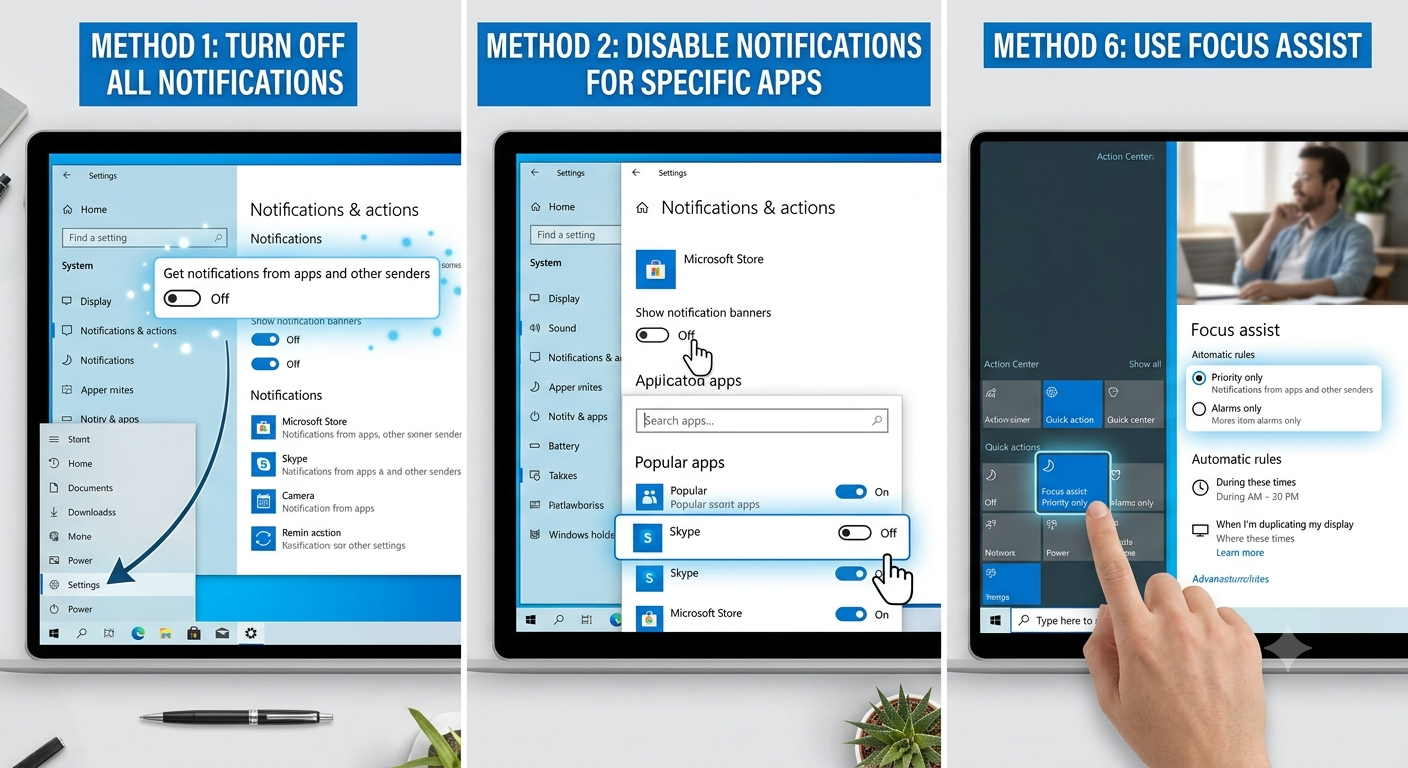
Method 1: Turn Off All Notifications
If you want to disable every notification, Windows makes it easy.
Step 1: Open Settings
Press:
Windows + IOr click:
Start → SettingsStep 2: Open Notification Settings
Go to:
System → Notifications & actionsStep 3: Disable Notifications
Turn off:
Get notifications from apps and other sendersAfter disabling this option, Windows will stop displaying notifications from most applications and system components.
Method 2: Disable Notifications for Specific Apps
Sometimes you only want to silence certain applications while allowing important alerts to continue.
Navigate to
Settings → System → Notifications & actionsScroll down to:
Get notifications from these sendersYou will see a list of installed applications.
Examples include:
- Microsoft Store
- Calendar
- Microsoft Edge
- Teams
- Skype
- OneDrive
Simply turn off the switch beside any application you no longer want to receive notifications from.
Method 3: Turn Off Notification Sounds
Visual notifications may not be a problem, but constant sounds can become annoying.
Open Notification Settings
Navigate to:
Settings → System → Notifications & actionsSelect an application from the sender list.
Disable:
Play a sound when a notification arrivesThe notifications will still appear, but they will do so silently.
Method 4: Disable Notification Banners
Some users prefer notifications to remain in the Notification Center without appearing as pop-up banners.
Open App Notification Settings
Select an application under:
Get notifications from these sendersTurn off:
Show notification bannersNotifications will still be saved in the Action Center for later review.
Method 5: Hide Notifications on the Lock Screen
Notifications displayed on the lock screen may reveal sensitive information.
Go to
Settings → System → Notifications & actionsDisable:
- Show notifications on the lock screen
- Show reminders and incoming VoIP calls on the lock screen
This improves privacy, especially on shared or public computers.
Method 6: Use Focus Assist
Focus Assist temporarily suppresses notifications without permanently disabling them.
Open Settings
Navigate to:
System → Focus AssistChoose one of the following modes.
Off
Notifications work normally.
Priority Only
Only selected notifications are allowed.
Alarms Only
Blocks almost every notification except alarms.
Focus Assist is ideal for uninterrupted work sessions.
Method 7: Automatically Enable Focus Assist
Windows can activate Focus Assist automatically under specific conditions.
Automatic Rules
Enable Focus Assist during:
- Specific times of day
- Screen duplication (presentations)
- Gaming
- Full-screen applications
This prevents interruptions when you need maximum concentration.
Method 8: Turn Off Microsoft Tips and Suggestions
Windows occasionally displays tips and recommendations.
Disable Windows Suggestions
Navigate to:
Settings → System → Notifications & actionsTurn off options such as:
- Get tips, tricks, and suggestions as you use Windows
- Suggest ways I can finish setting up my device
- Show me the Windows welcome experience after updates
These settings reduce promotional notifications from Windows itself.
Method 9: Disable Notification Center Icons
Although you cannot completely remove Notification Center through standard settings, you can reduce activity by disabling unnecessary alerts.
If notifications are disabled, the Notification Center will remain mostly empty.
Method 10: Disable Browser Notifications
Many websites request permission to send notifications.
Microsoft Edge
Open:
Settings → Cookies and site permissions → NotificationsDisable:
Ask before sendingOr remove permissions for individual websites.
Google Chrome
Open:
Settings → Privacy and security → Site Settings → NotificationsBlock unwanted websites from sending notifications.
Browser notifications are separate from Windows notification settings.
Method 11: Turn Off Startup App Notifications
Some applications generate notifications immediately after Windows starts.
Disable Startup Apps
Go to:
Settings → Apps → StartupDisable applications that you do not need to launch automatically.
Fewer startup apps often result in fewer notifications.
Method 12: Disable Microsoft Store Notifications
Microsoft Store frequently alerts users about application updates and promotions.
Navigate to:
Microsoft Store → SettingsTurn off unnecessary notifications if available.
Method 13: Disable Email Notifications
Mail applications can generate frequent alerts.
Windows Mail
Open:
Mail → Settings → NotificationsDisable notifications entirely or customize them by account.
Method 14: Customize Priority Notifications
Instead of disabling everything, you can create a priority list.
Focus Assist Priority List
Add important applications such as:
- Microsoft Outlook
- Calendar
- Microsoft Teams
- Alarm applications
Everything else remains silent while Focus Assist is active.
How to Access Old Notifications
Even after banners disappear, notifications remain available in Notification Center.
Press:
Windows + AOr click the Notification Center icon in the taskbar.
You can review previous notifications before clearing them.
Troubleshooting Notification Problems
Sometimes notifications continue even after being disabled.
Restart Windows
Restarting the computer often applies settings correctly.
Check App-Specific Settings
Some applications manage notifications independently.
Review their internal notification preferences.
Update Windows
Go to:
Settings → Update & Security → Windows UpdateInstall available updates to fix notification-related bugs.
Restart Windows Explorer
If notification settings appear unresponsive, restarting Windows Explorer may resolve the issue.
Advantages of Managing Notifications
Proper notification management offers several benefits.
Improved Productivity
Fewer interruptions help maintain focus.
Better Gaming Experience
Notifications won’t interrupt gameplay.
Cleaner Desktop
Pop-up alerts no longer clutter the screen.
Enhanced Privacy
Sensitive messages remain hidden from the lock screen.
Reduced Stress
Constant notifications can become overwhelming.
Customizing alerts creates a calmer computing environment.
When You Should Leave Notifications Enabled
Not every notification should be disabled.
Some alerts remain valuable.
Examples include:
- Microsoft Defender security warnings
- Windows Update restart reminders
- Calendar appointments
- Alarm notifications
- Backup status alerts
These notifications help maintain system security and productivity.
Frequently Asked Questions
Can I Turn Off Notifications Temporarily?
Yes.
Focus Assist allows temporary notification suppression without changing permanent settings.
Will Notifications Still Be Saved?
If notification banners are disabled but notifications remain enabled, alerts will usually still appear in Notification Center.
Does Turning Off Notifications Improve Performance?
The performance improvement is generally minimal, but reducing background activity may slightly decrease resource usage on older systems.
Can I Turn Notifications Back On Later?
Yes.
Simply return to:
Settings → System → Notifications & actionsRe-enable the desired options.
Best Practices for Notification Management
Disable Only Unnecessary Apps
Keep important system alerts active.
Use Focus Assist During Work
Automatically silence distractions during meetings or presentations.
Review Notification Permissions Regularly
Installed applications may request notification access over time.
Limit Browser Notifications
Only allow trusted websites to send alerts.
Keep Windows Updated
Updates often improve notification reliability and customization options.
Final Thoughts
Notifications can be extremely useful, but too many alerts can interrupt your workflow and reduce productivity. Windows 10 provides a wide range of customization options, allowing you to disable all notifications, silence specific applications, hide notification banners, mute sounds, or use Focus Assist to automatically suppress interruptions during work, gaming, or presentations.