


How to Stop Browser Tabs from Appearing in Windows 10 Alt+Tab
The Alt + Tab keyboard shortcut is one of the most useful productivity features in Windows. It allows users to quickly switch between open applications without minimizing windows or using the taskbar. Starting with later versions of Windows 10, Microsoft expanded this feature by integrating Microsoft Edge tabs into the Alt + Tab interface. While some users appreciate being able to switch directly between browser tabs, others find the feature distracting and prefer the traditional behavior that displays only open application windows.
Fortunately, Windows 10 provides a simple way to disable browser tabs from appearing in the Alt + Tab view. Whether you want a cleaner interface, faster navigation, or a less cluttered task switcher, this guide will show you how to customize Alt + Tab to suit your preferences.
Why Do Browser Tabs Appear in Alt + Tab?
Microsoft introduced the feature to improve multitasking by allowing users to switch not only between applications but also between individual Microsoft Edge tabs.
For example, instead of seeing one Edge window in the Alt + Tab menu, you might see:
- Edge Tab 1
- Edge Tab 2
- Edge Tab 3
- Microsoft Word
- File Explorer
- Settings
This allows quicker access to specific web pages but also increases the number of items shown in the Alt + Tab interface.
Benefits of Disabling Browser Tabs in Alt + Tab
Many users prefer the traditional Alt + Tab experience for several reasons.
Cleaner Task Switching
Only open applications appear, making navigation simpler.
Less Visual Clutter
You won’t have dozens of browser tabs filling the task switcher.
Faster Window Selection
Finding the correct application becomes easier.
Improved Productivity
Users who frequently work with many browser tabs often find the simplified interface more efficient.
Which Browsers Are Affected?
The Alt + Tab integration primarily applies to Microsoft Edge.
Other browsers such as:
- Google Chrome
- Mozilla Firefox
- Opera
- Brave
generally do not display individual tabs in Alt + Tab unless they implement similar Windows integration features.
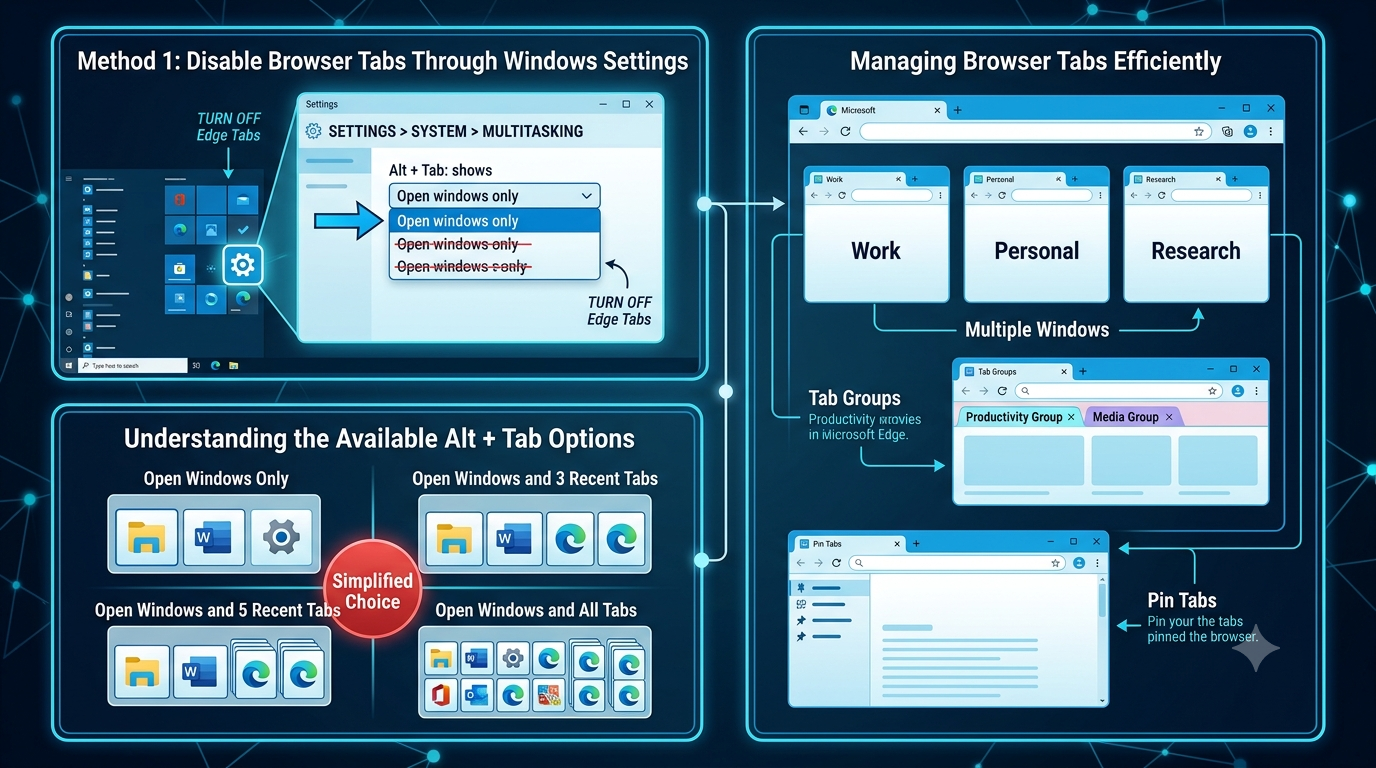
Method 1: Disable Browser Tabs Through Windows Settings
The easiest way to restore the classic Alt + Tab behavior is through the Settings app.
Step 1: Open Settings
Press:
Windows + IOr click:
Start → SettingsStep 2: Navigate to Multitasking Settings
Go to:
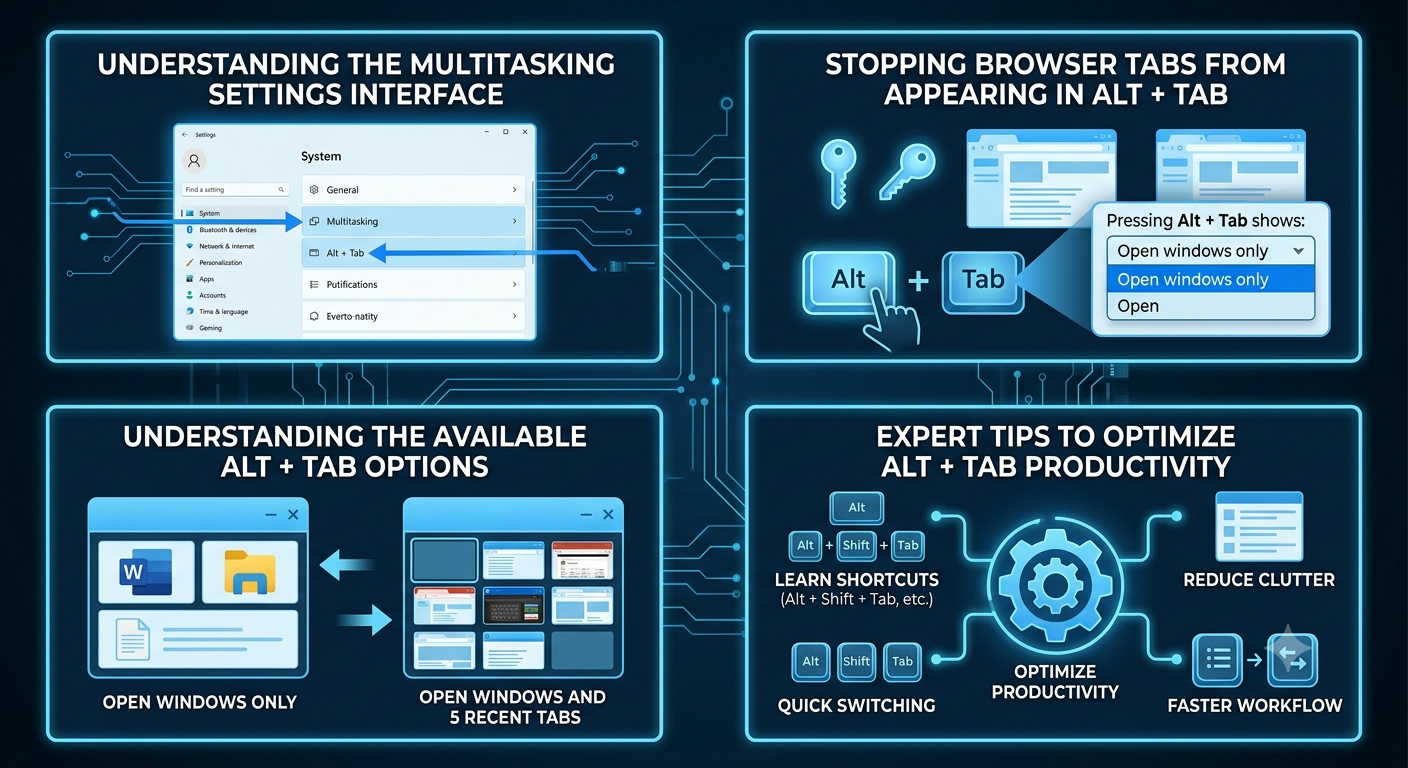
System → MultitaskingScroll until you find the Alt + Tab section.
Step 3: Change the Alt + Tab Setting
Locate the dropdown menu labeled:
Pressing Alt + Tab showsDepending on your Windows version, you may see options such as:
- Open windows and all tabs
- Open windows and 5 most recent tabs
- Open windows and 3 most recent tabs
- Open windows only
Step 4: Select “Open Windows Only”
Choose:
Open windows onlyOnce selected, Alt + Tab will display only application windows.
Microsoft Edge tabs will no longer appear individually.
Method 2: Restart Your Computer
Normally, the change takes effect immediately.
However, if Edge tabs still appear:
- Save your work.
- Restart Windows.
- Test the Alt + Tab shortcut again.
A reboot ensures all system settings are fully applied.
Method 3: Update Windows
If you cannot find the Alt + Tab options, your Windows version may be outdated.
Check for Updates
Open:
Settings → Update & Security → Windows UpdateClick:
Check for updatesInstall any available updates and restart your computer.
Newer Windows 10 releases include expanded Alt + Tab customization options.
Understanding the Available Alt + Tab Options
Windows offers several display modes.
Open Windows Only
Shows:
- File Explorer
- Microsoft Word
- Settings
- Browser windows
No browser tabs appear individually.
Open Windows and 3 Recent Tabs
Displays application windows plus the three most recently used Edge tabs.
This reduces clutter while still providing some browser integration.
Open Windows and 5 Recent Tabs
Displays the five most recent browser tabs.
Suitable for users who regularly multitask between websites.
Open Windows and All Tabs
Every Edge tab becomes a separate Alt + Tab item.
This offers maximum flexibility but can make the interface crowded.
How Alt + Tab Works
When you press:
Alt + TabWindows displays thumbnails of active windows.
Holding Alt while repeatedly pressing Tab cycles through the available items.
Releasing Alt switches to the selected application.
Disabling browser tabs restores the classic behavior familiar to long-time Windows users.
Difference Between Alt + Tab and Task View
Some users confuse these two features.
Alt + Tab
- Quick application switching
- Keyboard shortcut
- Temporary overlay
Task View
Accessed using:
Windows + TabTask View offers:
- Virtual desktops
- Timeline (on supported versions)
- Window management
Changing Alt + Tab settings does not affect Task View.
What Happens After Disabling Browser Tabs?
After selecting Open windows only, Microsoft Edge behaves like most other desktop applications.
Regardless of how many tabs are open, Alt + Tab displays only:
- One Edge window per browser window
Individual tabs remain accessible inside Edge using:
Ctrl + Tabor by clicking the desired tab.
Managing Browser Tabs Efficiently
Even after removing tabs from Alt + Tab, there are several ways to organize browser activity.
Use Multiple Browser Windows
Instead of opening dozens of tabs in one window, separate tasks into multiple windows.
Example:
- Window 1: Work
- Window 2: Personal
- Window 3: Research
Each window appears separately in Alt + Tab.
Use Tab Groups
Microsoft Edge supports tab grouping.
This helps organize related websites without increasing Alt + Tab clutter.
Pin Frequently Used Tabs
Pinned tabs remain accessible while occupying less space within the browser.
Troubleshooting Alt + Tab Settings
Sometimes changes may not work as expected.
Option Missing
Possible causes include:
- Older Windows build
- Managed organizational policies
- Customized Windows installation
Updating Windows usually resolves missing options.
Tabs Still Appear
Try:
- Restarting Edge
- Restarting Windows
- Confirming the correct setting is selected
Settings Keep Resetting
Check whether:
- Group Policy is enforcing settings
- Third-party optimization software is modifying Windows preferences
Can Group Policy Control Alt + Tab?
In managed business environments, administrators may configure multitasking settings using Group Policy or other management tools.
If your computer belongs to a workplace or school, certain personalization settings may be unavailable.
In this case, contact your IT administrator if changes cannot be made.
Additional Productivity Tips for Alt + Tab
Use Alt + Shift + Tab
Cycles through open windows in reverse order.
Use Windows + Tab
Access virtual desktops and Task View.
Use Snap Layouts
Arrange applications side by side for improved multitasking.
Close Unused Applications
Fewer open windows make Alt + Tab easier to navigate.
Related Keyboard Shortcuts
Learning additional shortcuts can improve workflow.
| Shortcut | Function |
|---|---|
| Alt + Tab | Switch between open windows |
| Alt + Shift + Tab | Switch backward |
| Windows + Tab | Open Task View |
| Windows + D | Show desktop |
| Windows + M | Minimize all windows |
| Windows + Left Arrow | Snap window left |
| Windows + Right Arrow | Snap window right |
| Ctrl + Tab | Switch browser tabs |
| Ctrl + Shift + Tab | Switch browser tabs backward |
These shortcuts complement the Alt + Tab feature and help users navigate Windows more efficiently.
Advantages of the Classic Alt + Tab View
Many users prefer the traditional interface because it provides:
- Simpler navigation
- Fewer distractions
- Faster application switching
- Better organization
- Easier multitasking
- Reduced visual clutter
The classic Alt + Tab behavior is particularly useful for users who keep dozens of browser tabs open throughout the day.
Frequently Asked Questions
Does This Setting Affect Google Chrome?
No. The built-in Windows setting primarily controls Microsoft Edge tab integration.
Can I Re-enable Browser Tabs Later?
Yes.
Simply return to:
Settings → System → MultitaskingThen choose one of the options that includes browser tabs.
Will This Affect Browser Performance?
No.
The setting only changes how windows are displayed in the Alt + Tab interface.
Does This Work in Windows 11?
Windows 11 includes similar multitasking options, although the interface and available settings may vary slightly depending on the version.
Final Thoughts
The addition of Microsoft Edge tabs to the Alt + Tab interface offers greater flexibility for some users, but it can also make task switching more crowded—especially for those who work with many open tabs. Fortunately, Windows 10 makes it easy to restore the classic Alt + Tab experience by changing a single multitasking setting.