


Display a Tiles-Only Start Menu in Windows 10
The Windows 10 Start Menu combines two navigation styles into one interface: a traditional alphabetical list of installed applications on the left and Live Tiles on the right. While this hybrid design offers flexibility, not every user enjoys having both sections displayed at the same time. Some users prefer a cleaner, more streamlined Start Menu that focuses entirely on tiles, especially when using a touchscreen device or customizing Windows for quick access to frequently used apps.
Although Windows 10 does not include a single option labeled “Show Only Tiles,” it is possible to configure the Start Menu so that only the tile section is visible. By adjusting a few settings and resizing the Start Menu, you can create a minimalist layout that resembles the Start screen found in earlier versions of Windows.
This guide explains how to display only tiles on the Windows 10 Start Menu, customize tile layouts, and optimize the interface for your workflow.
Why Show Only Tiles on the Start Menu?
Many users choose a tile-only layout for practical and aesthetic reasons.
Benefits of Using Only Tiles
Displaying only tiles can offer several advantages:
- Cleaner Start Menu appearance
- Faster access to favorite applications
- Better touchscreen usability
- Larger icons for easier navigation
- Personalized app organization
- Reduced visual clutter
For users who rely on a handful of frequently used programs, a tile-only layout can improve productivity.
Understanding the Windows 10 Start Menu
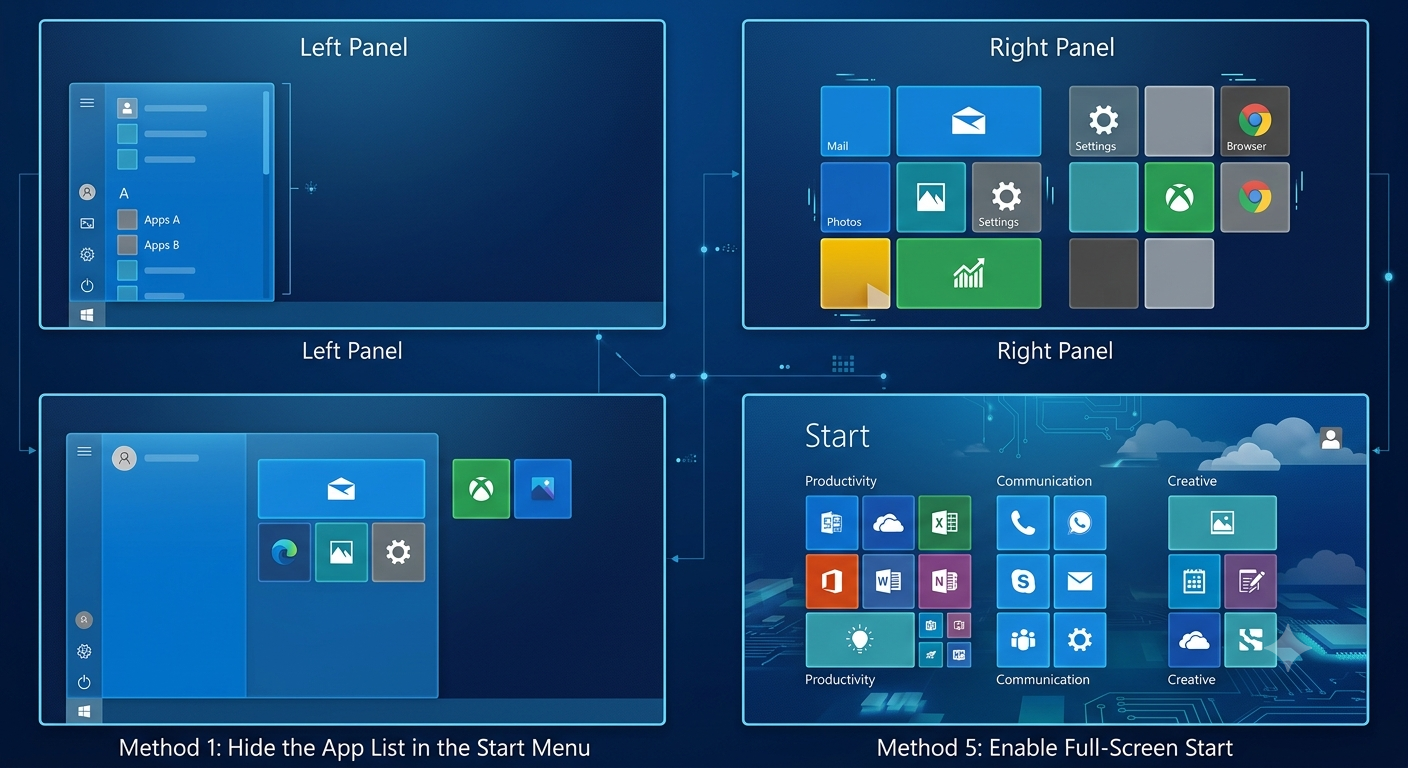
Before making changes, it helps to understand how the Start Menu is organized.
Left Panel
The left side typically contains:
- User account
- Power button
- Settings
- Recently added apps
- Alphabetical app list
Right Panel
The right side displays:
- App tiles
- Live Tiles (if supported)
- Tile groups
- Pinned shortcuts
The goal is to minimize or hide the left panel while keeping the tile section visible.
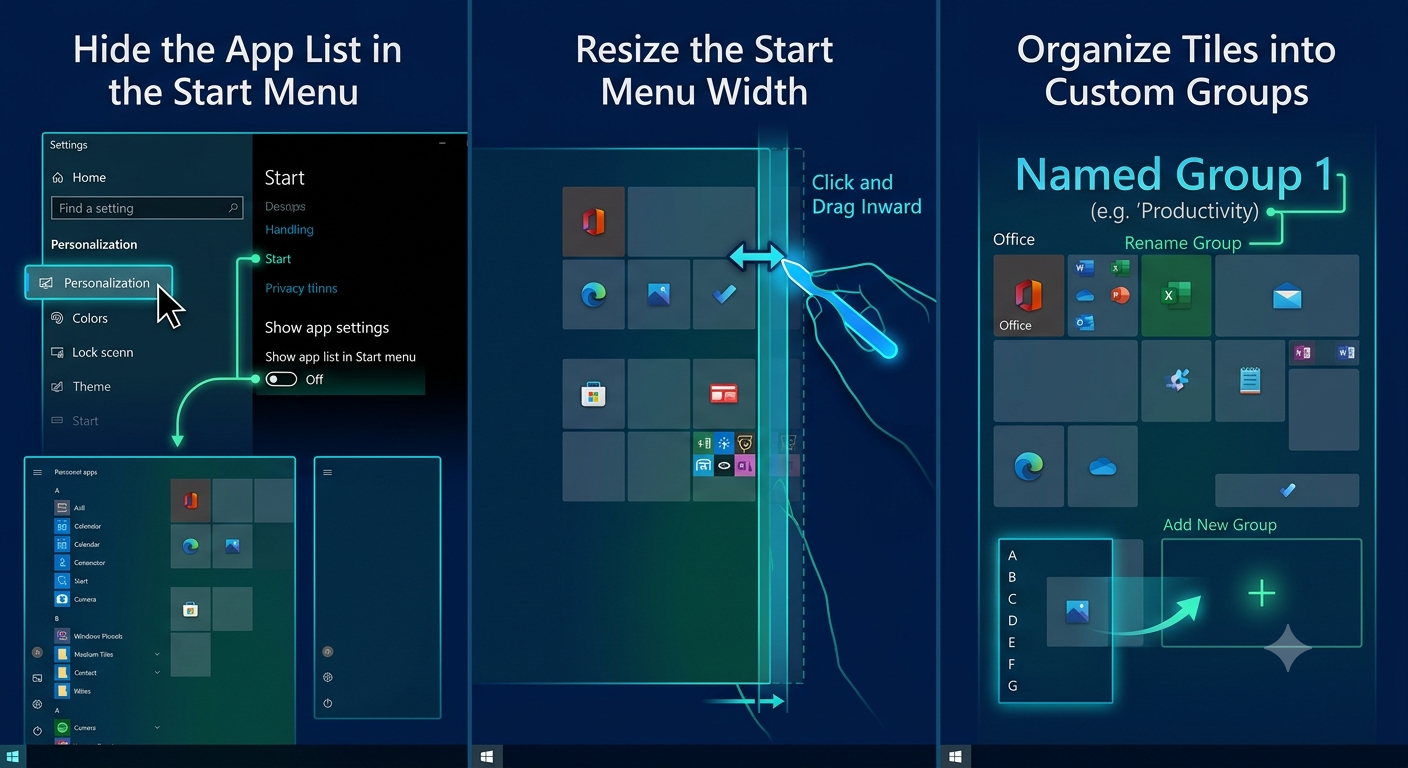
Method 1: Hide the App List in the Start Menu
Windows 10 includes a built-in option to hide the application list.
Step 1: Open Settings
Click:
Start → SettingsOr press:
Windows + IStep 2: Open Personalization
Navigate to:
Personalization → StartStep 3: Turn Off the App List
Locate the option:
Show app list in Start menuTurn it Off.
Once disabled, the alphabetical application list disappears, leaving a much cleaner Start Menu.
Method 2: Disable Recently Added Apps
You can further simplify the Start Menu.
Navigate to
Settings → Personalization → StartDisable:
- Show recently added apps
This removes newly installed application shortcuts from the Start Menu.
Method 3: Hide Most Used Apps
Windows can also hide the frequently used apps section.
Turn off:
Show most used appsDoing so removes another portion of the left panel.
The Start Menu now appears significantly less cluttered.
Method 4: Resize the Start Menu
Even after hiding the app list, the Start Menu may still reserve some space on the left.
Resize the Width
- Open the Start Menu.
- Move the mouse pointer to the right edge.
- When the resize cursor appears, drag the edge inward.
Continue resizing until the tile area fills nearly the entire Start Menu.
This creates the appearance of a tile-only interface.
Method 5: Enable Full-Screen Start
Some users prefer an experience similar to Windows 8.
Enable Full Screen
Navigate to:
Settings → Personalization → StartEnable:
Use Start full screenThe Start Menu now occupies the full display while emphasizing tiles.
This option is especially useful for:
- Tablets
- Touchscreen laptops
- Convertible devices
Method 6: Remove Unnecessary Tiles
A tile-only Start Menu works best when it contains only useful applications.
Unpin Unwanted Tiles
Right-click any tile.
Select:
Unpin from StartRepeat until only essential applications remain.
This creates a clean, organized interface.
Method 7: Create Tile Groups
Windows allows tiles to be grouped logically.
Examples
You might create groups such as:
- Productivity
- Office
- Browsers
- Media
- Games
- Utilities
Grouping applications improves navigation and organization.
Method 8: Rename Tile Groups
Each tile group can have its own label.
To Rename a Group
Move the mouse above a tile group.
Click:
Name groupEnter a descriptive title.
Examples include:
- Work
- Creative Apps
- Communication
- Development
- Entertainment
Named groups make the Start Menu easier to navigate.
Method 9: Resize Individual Tiles
Windows offers multiple tile sizes.
Available Sizes
- Small
- Medium
- Wide
- Large
To Resize
Right-click a tile.
Select:
ResizeChoose the preferred size.
Larger tiles make frequently used apps easier to find.
Method 10: Turn Off Live Tiles
Some applications display constantly updating information.
Examples include:
- Weather
- News
- Calendar
If you prefer static tiles:
Right-click a tile.
Choose:
More → Turn Live Tile OffStatic tiles reduce distractions and may slightly improve performance.
Customizing Tile Layout
An organized tile layout improves efficiency.
Pin Frequently Used Apps
Right-click an application.
Select:
Pin to StartArrange important applications near the top.
Suggested Layout
First row:
- Browser
- File Explorer
Second row:
- Microsoft Office
- Calculator
- Settings
Third row:
- Media apps
- Communication tools
- Utilities
Customize the arrangement to match your workflow.
How to Add New Tiles
Adding tiles is simple.
Method
Locate an application.
Right-click it.
Choose:
Pin to StartThe app immediately appears in the tile area.
How to Remove Tiles
Removing tiles does not uninstall applications.
Right-click the tile.
Select:
Unpin from StartThe program remains installed on the computer.
Can You Remove the Left Side Completely?
Not entirely.
Windows 10 always retains a minimal navigation panel containing items like:
- User account
- Power button
- Settings
However, by disabling:
- App list
- Most used apps
- Recently added apps
and resizing the Start Menu, you can make the interface appear almost entirely tile-based.
Using Tablet Mode
Tablet Mode further emphasizes tiles.
Enable Tablet Mode
On supported devices:
Settings → System → TabletOr use Quick Settings.
Tablet Mode enlarges interface elements for touch interaction.
Backing Up Your Tile Layout
Windows stores tile layouts automatically.
If using Microsoft account synchronization, some personalization settings may sync across compatible devices.
For enterprise environments, administrators can deploy predefined tile layouts using Group Policy or provisioning packages.
Troubleshooting Tile Problems
Occasionally, Start Menu tiles may not behave as expected.
Tiles Not Appearing
Possible solutions include:
- Restart Windows Explorer
- Sign out and back in
- Restart the computer
Tiles Missing Icons
Try rebuilding the icon cache or reinstalling the affected application.
Tiles Won’t Resize
Ensure the application supports tile resizing.
Some desktop applications only allow one tile size.
Resetting the Start Menu
If customization causes issues, resetting the Start Menu can help.
Options Include
- Creating a new user profile
- Running the Start Menu troubleshooter (when available)
- Re-registering Windows apps using PowerShell
Always create a restore point before making advanced system changes.
Tips for Creating an Efficient Tile-Based Start Menu
Keep Only Frequently Used Apps
Avoid pinning every installed program.
Use Logical Groups
Organize tiles according to task or department.
Turn Off Live Tiles
Static tiles create a cleaner appearance.
Resize Important Applications
Make frequently used programs larger.
Remove Unnecessary Shortcuts
Keep the interface simple and uncluttered.
Advantages of a Tile-Only Start Menu
Many users appreciate this layout because it offers:
- Faster navigation
- Better organization
- Larger click targets
- Personalized workspace
- Cleaner appearance
- Improved touchscreen experience
The tile interface can be especially beneficial for users who launch applications visually rather than alphabetically.
Frequently Asked Questions
Can I Completely Remove the Left Panel?
No. Windows 10 always keeps a minimal navigation area.
Will Hiding the App List Uninstall Programs?
No. Applications remain installed and accessible through Search or File Explorer.
Can I Restore the App List Later?
Yes.
Simply return to:
Settings → Personalization → StartEnable:
Show app list in Start menuDoes This Work on Windows 11?
No.
Windows 11 uses a redesigned Start Menu that no longer includes Live Tiles, so this customization is specific to Windows 10.
Final Thoughts
While Windows 10 does not provide a dedicated “Show Only Tiles” option, it offers enough customization features to create a Start Menu that closely resembles a tile-only interface. By hiding the app list, disabling recently added and most-used apps, resizing the Start Menu, organizing tile groups, and removing unnecessary shortcuts, you can build a clean, efficient workspace tailored to your preferences.