


How to Resolve Netio.sys BSOD Issues in Windows 10
Experiencing a Blue Screen of Death (BSOD) on Windows 10 is always frustrating, especially when the error message references Netio.sys. This system file is an essential component of Microsoft Windows Networking, responsible for managing network input and output processes. When it becomes corrupted or conflicts with drivers or applications, your system may crash unexpectedly.
This guide walks you through the most effective methods to fix Netio.sys blue screen errors. Whether the issue appears during startup, while browsing online, or while running certain apps, these solutions can help restore system stability and prevent future crashes.
Understanding the Netio.sys Error
Before jumping into troubleshooting, it helps to understand what this file does. Netio.sys is tied to Windows network drivers and firewall operations, which play a key role in managing both wired and wireless connections. When this file is damaged or interferes with other components, Windows triggers a BSOD to prevent further system corruption.
Common causes include:
-
Outdated or incompatible network drivers
-
Conflicts with antivirus or firewall programs
-
Corrupted system files
-
Faulty RAM
-
Damaged Windows updates
-
Misconfigured network settings
Knowing the source of the issue lets you apply the correct fix more efficiently.
Update Your Network Drivers
Faulty or outdated network drivers are among the most common reasons for Netio.sys crashes. Improper drivers can cause conflicts with the Windows network stack and trigger BSOD errors.
How to update network drivers:
-
Right-click the Start button and select Device Manager.
-
Expand Network adapters.
-
Right-click your main network device (Wi-Fi or Ethernet adapter).
-
Click Update driver → Search automatically for drivers.
-
Restart your PC after installation.
If Windows cannot find updates automatically, you can download newer drivers from your hardware manufacturer’s site such as Intel, Realtek, or Qualcomm.
Remove or Disable Third-Party Antivirus Software
Several third-party antivirus programs are known to conflict with system processes related to Netio.sys. Security applications that deeply integrate with network filtering, such as firewalls or packet inspection modules, can trigger BSOD events.
To check if your antivirus is causing the issue:
-
Temporarily disable real-time protection.
-
Restart your computer.
-
Use your system normally and see if crashes continue.
If disabling it stops the BSODs, uninstall the antivirus completely and rely on Windows Security, which is optimized for Windows 10 and rarely causes conflicts.
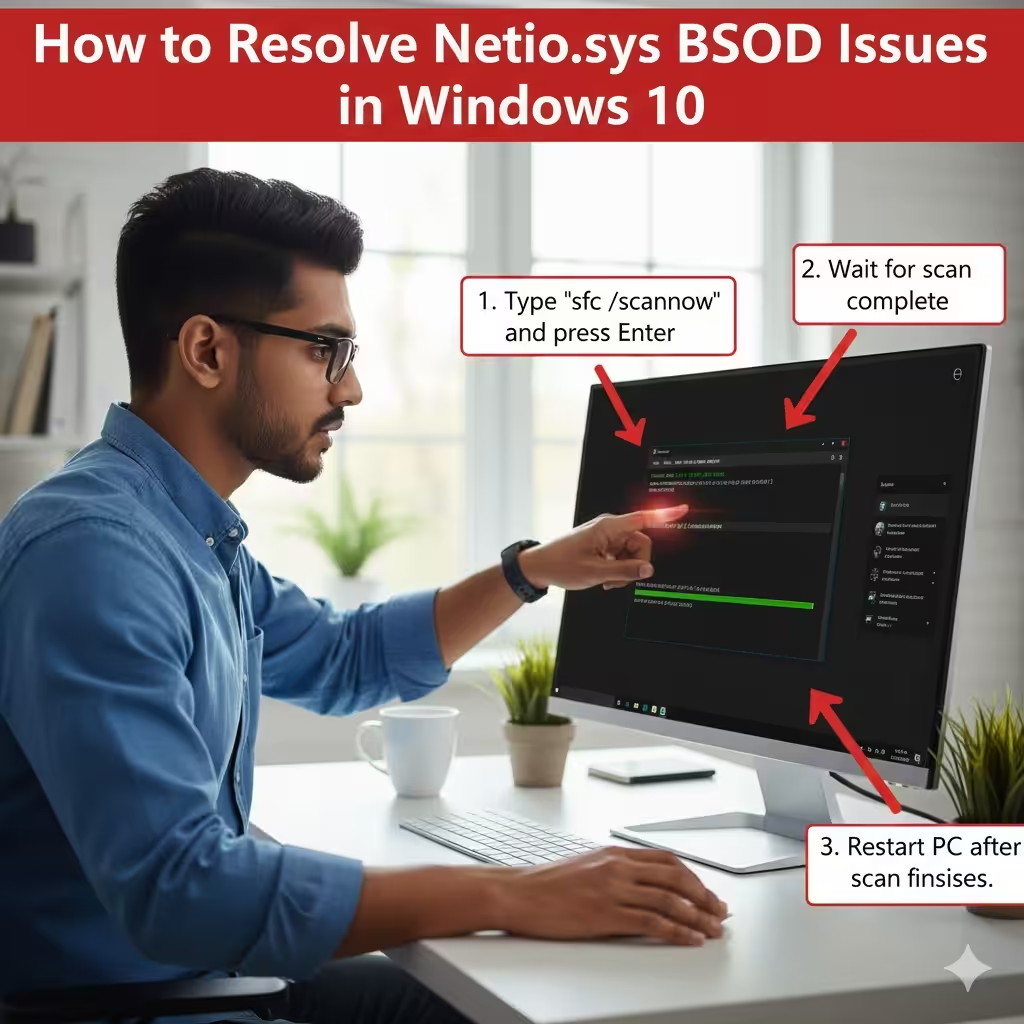
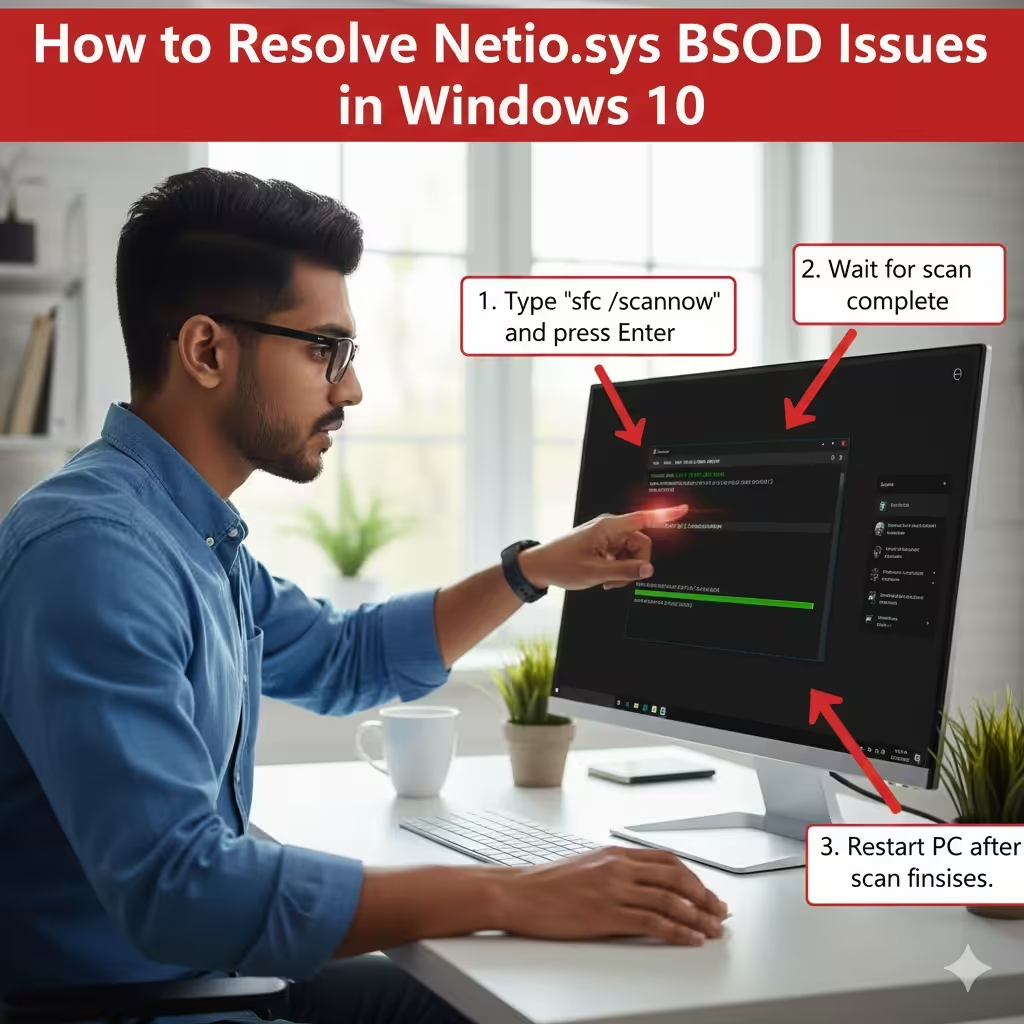
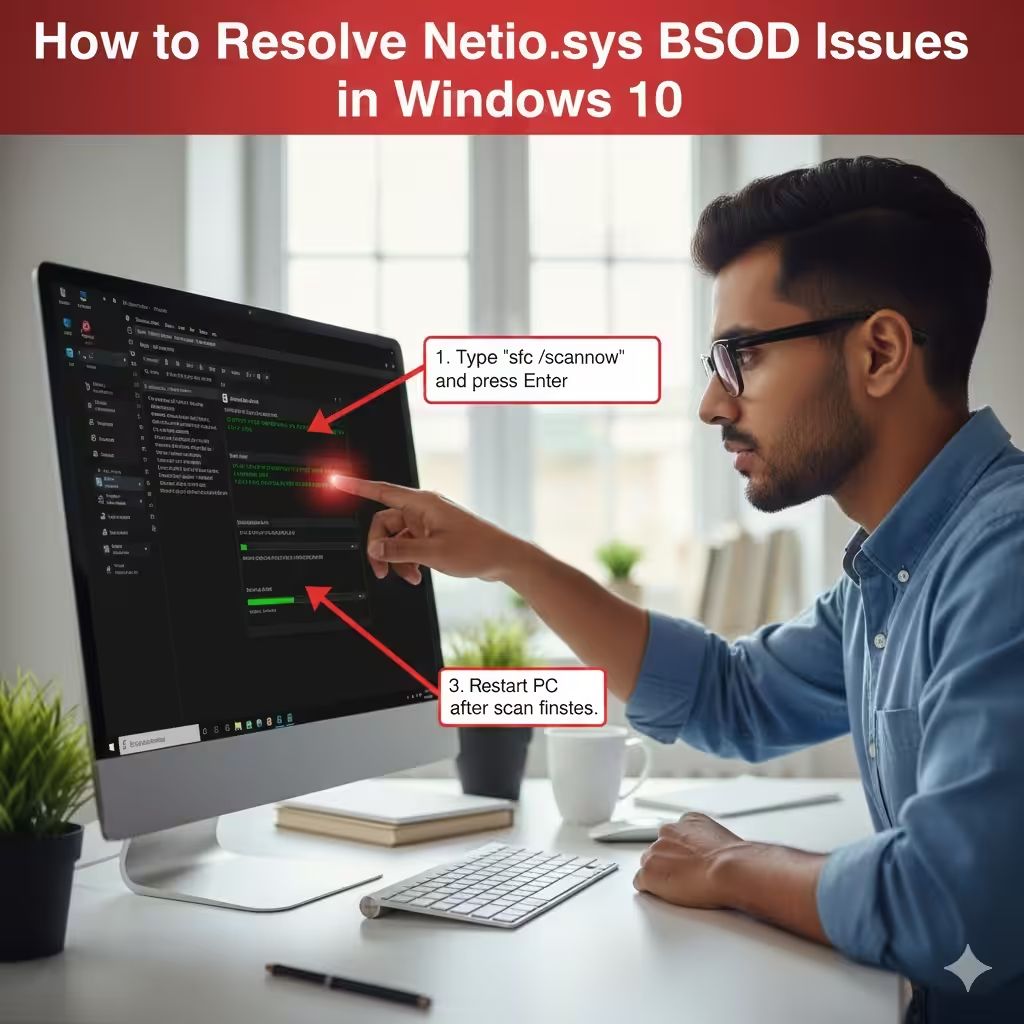
Run System File Checker (SFC) and DISM
Corrupted or missing system files can cause Windows to malfunction, including errors linked to Netio.sys. Running SFC and DISM helps repair these files automatically.
Run SFC
-
Press Win + X → select Windows Terminal (Admin).
-
Type the following:
-
Press Enter and wait for the scan to finish.
-
Restart your PC.
Run DISM
If SFC alone doesn’t fix the issue, try DISM:
This tool repairs the system image and resolves deeper file issues.
Check for Faulty RAM
Memory problems can also result in BSODs linked to system files like Netio.sys. Faulty RAM causes random crashes, application failures, and corrupted data.
Use the built-in memory diagnostic tool:
-
Press Win + R, type mdsched.exe, and press Enter.
-
Select Restart now and check for problems.
-
The system will reboot and run the test.
If memory errors appear, consider replacing your RAM modules.
Reset Windows Network Settings
Incorrect network configurations—including Winsock corruption—can cause collisions that lead to Netio.sys-related BSODs. Resetting these settings often resolves underlying conflicts.
Reset Winsock and TCP/IP
-
Open Windows Terminal (Admin).
-
Run these commands:
-
Restart your PC.
This restores all network components to their default state.
Uninstall Recently Installed Updates or Programs
If the Netio.sys BSOD started after installing a new update or software, the cause may be related to compatibility issues.
To uninstall a Windows update:
-
Open Settings → Update & Security.
-
Click View update history.
-
Select Uninstall updates.
-
Remove the most recent update and restart.
To remove problematic apps:
-
Go to Settings → Apps.
-
Sort by Install date.
-
Uninstall any suspicious or recently added programs.
Perform a Clean Boot
A clean boot helps you determine whether background software or services are causing the error. It starts Windows using only essential components.
How to perform a clean boot:
-
Press Win + R, type msconfig, and hit Enter.
-
On the Services tab, check Hide all Microsoft services.
-
Click Disable all.
-
Go to the Startup tab and open Task Manager.
-
Disable all startup items.
-
Restart your PC.
If the BSOD disappears, re-enable services one by one to find the culprit.
Use System Restore
If all else fails, restoring your system to a point before the error appeared may fix the issue.
To restore Windows:
-
Search Create a restore point.
-
Click System Restore.
-
Select a previous restore point.
-
Follow the steps to restore your PC.
This does not affect personal files but may remove recently installed apps or drivers.
Conclusion
The Netio.sys blue screen error in Windows 10 can stem from a variety of causes, from corrupted system files to incompatible antivirus software or faulty RAM. By following the steps outlined above—updating drivers, scanning for corruption, resetting network settings, and checking hardware—you can usually eliminate the issue and restore system stability.
Regularly updating drivers and avoiding software conflicts can also help prevent the problem from returning. If all troubleshooting methods fail, consider performing a clean installation of Windows 10 to completely reset your system.