


The Ultimate Microsoft Word Cheat Sheet
Microsoft Word is one of the most popular word processing applications in the world. Used by students, professionals, businesses, educators, and writers, Word provides powerful tools for creating, editing, formatting, and sharing documents. Whether you’re drafting a simple letter, creating a professional report, writing a research paper, or designing a business proposal, Microsoft Word offers features that can significantly improve productivity and document quality.
While many users are familiar with basic typing and formatting functions, Microsoft Word includes numerous shortcuts, tools, and advanced features that can save time and make document creation more efficient. Learning these features can help users work smarter and produce polished, professional documents.
This Microsoft Office Word Cheat Sheet covers essential shortcuts, formatting tools, navigation techniques, and productivity tips to help you master Word and get the most out of its capabilities.
What Is Microsoft Word?
Microsoft Word is a word processing application developed by Microsoft and included in Microsoft Office and Microsoft 365.
Word allows users to:
- Create documents
- Edit text
- Format content
- Insert images and tables
- Generate reports
- Collaborate with others
- Export files in multiple formats
Word is commonly used for:
- Letters
- Resumes
- Reports
- Research papers
- Manuals
- Business documents
- Newsletters
Its versatility makes it one of the most widely used productivity applications available.
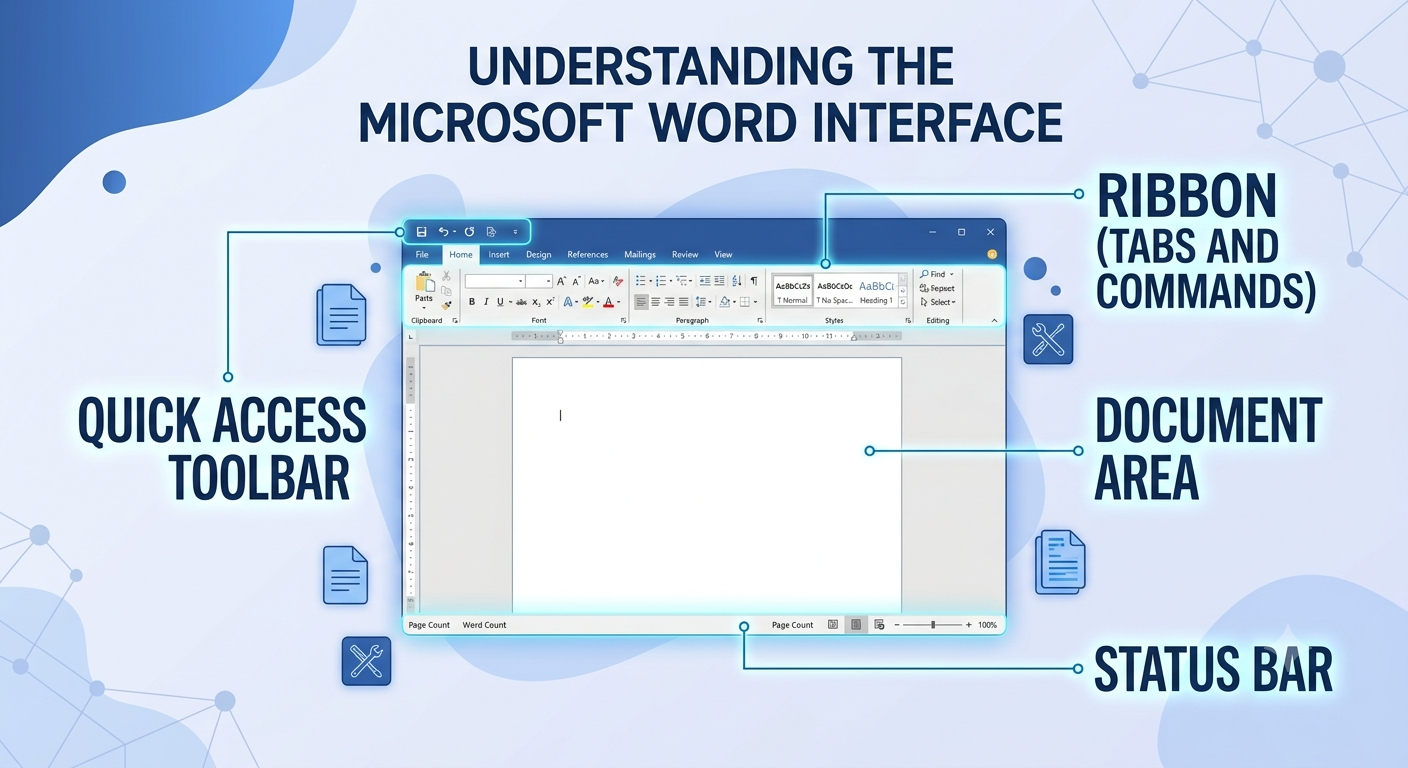
Understanding the Microsoft Word Interface
Before exploring shortcuts and advanced features, it helps to understand the main components of Word.
Ribbon
The Ribbon contains tabs that organize commands into categories.
Common tabs include:
- Home
- Insert
- Design
- Layout
- References
- Review
- View
Document Area
This is the primary workspace where users create and edit content.
Quick Access Toolbar
Located at the top of the window, it provides quick access to commonly used commands such as:
- Save
- Undo
- Redo
Status Bar
The Status Bar displays information such as:
- Page number
- Word count
- Language settings
- Zoom level
Understanding these interface elements makes navigation easier and more efficient.
Essential Microsoft Word Keyboard Shortcuts
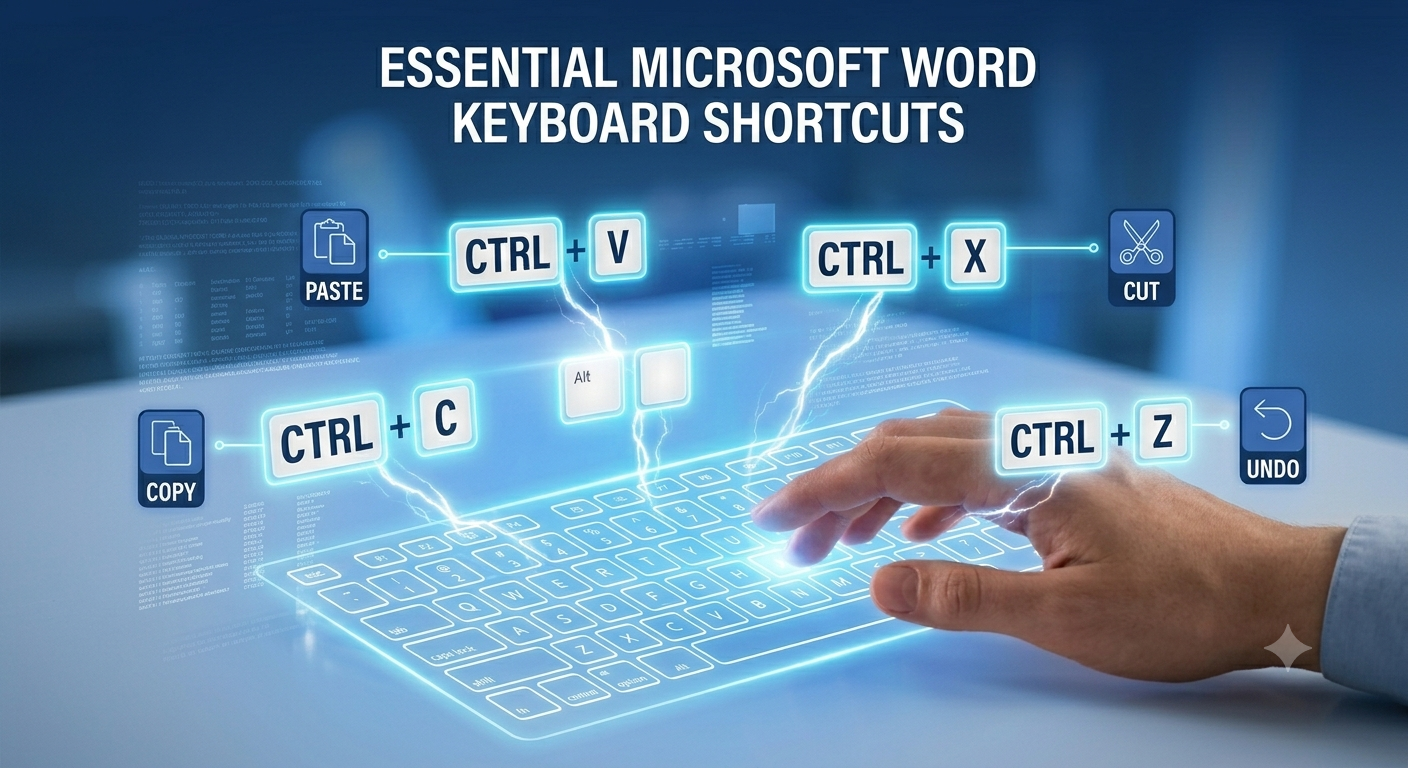
Keyboard shortcuts can dramatically improve productivity.
General File Shortcuts
| Shortcut | Action |
|---|---|
| Ctrl + N | Create new document |
| Ctrl + O | Open document |
| Ctrl + S | Save document |
| F12 | Save As |
| Ctrl + P | Print document |
| Ctrl + W | Close document |
These shortcuts are among the most frequently used commands in Word.
Text Editing Shortcuts
Efficient editing is a critical skill for Word users.
| Shortcut | Action |
|---|---|
| Ctrl + C | Copy |
| Ctrl + X | Cut |
| Ctrl + V | Paste |
| Ctrl + Z | Undo |
| Ctrl + Y | Redo |
| Delete | Delete character |
| Ctrl + Backspace | Delete previous word |
Using these shortcuts can significantly speed up document editing.
Text Formatting Shortcuts
Formatting improves document appearance and readability.
Common Formatting Commands
| Shortcut | Action |
|---|---|
| Ctrl + B | Bold |
| Ctrl + I | Italic |
| Ctrl + U | Underline |
| Ctrl + Shift + D | Double underline |
| Ctrl + Shift + > | Increase font size |
| Ctrl + Shift + < | Decrease font size |
Consistent formatting contributes to professional-looking documents.
Paragraph Formatting Shortcuts
Alignment Commands
| Shortcut | Action |
|---|---|
| Ctrl + L | Align left |
| Ctrl + E | Center text |
| Ctrl + R | Align right |
| Ctrl + J | Justify text |
Line Spacing
| Shortcut | Action |
|---|---|
| Ctrl + 1 | Single spacing |
| Ctrl + 2 | Double spacing |
| Ctrl + 5 | 1.5 line spacing |
These shortcuts are particularly useful when preparing reports and academic papers.
Navigation Shortcuts
Large documents require efficient navigation.
Useful Navigation Commands
| Shortcut | Action |
|---|---|
| Ctrl + Home | Beginning of document |
| Ctrl + End | End of document |
| Ctrl + Left Arrow | Previous word |
| Ctrl + Right Arrow | Next word |
| Page Up | Previous page area |
| Page Down | Next page area |
Quick navigation helps users work more efficiently with lengthy documents.
Selection Shortcuts
Selecting text quickly can save considerable time.
| Shortcut | Action |
|---|---|
| Ctrl + A | Select entire document |
| Shift + Arrow Key | Extend selection |
| Ctrl + Shift + Arrow Key | Select entire words |
| Shift + Home | Select to beginning of line |
| Shift + End | Select to end of line |
These commands simplify editing and formatting tasks.
Using Styles for Consistent Formatting
Styles are one of Word’s most powerful features.
What Are Styles?
Styles are predefined formatting sets that can be applied to text.
Examples:
- Heading 1
- Heading 2
- Title
- Normal
Benefits of Styles
- Consistent formatting
- Faster document creation
- Automatic table of contents generation
- Easier document management
Using styles is highly recommended for long documents.
Creating Headings Properly
Headings improve organization and readability.
Common Heading Structure
Heading 1
Used for major sections.
Heading 2
Used for subsections.
Heading 3
Used for detailed topics.
A proper heading structure also improves navigation through the Navigation Pane.
Creating a Table of Contents
Word can automatically generate a table of contents.
Steps
- Apply heading styles.
- Navigate to:
References → Table of Contents- Select a preferred style.
The table updates automatically when content changes.
Working with Tables
Tables are useful for organizing structured information.
Insert a Table
Navigate to:
Insert → TableCommon Uses
- Financial reports
- Schedules
- Product comparisons
- Data summaries
Tables help present information clearly and professionally.
Using Find and Replace
Find and Replace can save significant editing time.
Find Text
Shortcut:
Ctrl + FReplace Text
Shortcut:
Ctrl + HPractical Examples
- Correct repeated spelling mistakes
- Update company names
- Replace outdated terminology
This feature is essential for editing large documents.
Working with Images
Images enhance visual appeal and understanding.
Insert Images
Navigate to:
Insert → PicturesFormatting Options
- Resize
- Crop
- Rotate
- Apply styles
- Add captions
Proper image placement improves document presentation.
Using Page Breaks
Page breaks control document layout.
Insert a Page Break
Shortcut:
Ctrl + EnterBenefits
- Improved formatting control
- Better report structure
- Cleaner page transitions
Avoid repeatedly pressing Enter to create new pages.
Headers and Footers
Headers and footers provide consistent information throughout a document.
Common Elements
- Page numbers
- Company names
- Document titles
- Dates
Access
Navigate to:
Insert → Header
Insert → Footer
Headers and footers contribute to a professional appearance.
Adding Page Numbers
Page numbering is essential for longer documents.
Steps
- Select:
Insert → Page Number- Choose a position.
Common Locations
- Top of page
- Bottom of page
- Margins
Page numbers improve document navigation.
Using Spell Check and Grammar Tools
Word includes built-in proofreading tools.
Shortcut
F7Capabilities
- Spell checking
- Grammar suggestions
- Writing recommendations
Regular proofreading helps reduce errors.
Track Changes for Collaboration

Track Changes records document edits.
Enable Track Changes
Navigate to:
Review → Track ChangesBenefits
- Monitor revisions
- Review edits
- Accept or reject changes
This feature is widely used in business and academic environments.
Adding Comments
Comments allow users to provide feedback without altering content.
Insert Comment
Shortcut:
Ctrl + Alt + MCommon Uses
- Peer reviews
- Document approvals
- Team collaboration
Comments improve communication during document review.
Protecting Documents
Word provides document protection features.
Options
- Restrict editing
- Password protection
- Read-only mode
Access
Navigate to:
Review → Restrict EditingDocument protection helps secure sensitive information.
Using Templates
Templates save time by providing preformatted documents.
Popular Templates
- Resumes
- Business letters
- Reports
- Meeting agendas
- Newsletters
Templates help maintain consistency and professionalism.
Exporting Documents
Word supports multiple export formats.
Common Formats
- DOCX
- RTF
- TXT
Export as PDF
Navigate to:
File → Save As → PDFPDFs preserve formatting across devices.
Useful Productivity Tips
Learn Keyboard Shortcuts
Shortcuts significantly reduce repetitive actions.
Use Styles Instead of Manual Formatting
Styles improve consistency and simplify updates.
Leverage Templates
Templates reduce setup time.
Use Find and Replace
Efficiently update large documents.
Save Frequently
Regular saves help prevent data loss.
Common Microsoft Word Errors and Solutions
Document Not Responding
Possible solutions:
- Restart Word
- Disable problematic add-ins
- Repair Office installation
Formatting Issues
Use styles and formatting controls to maintain consistency.
Missing Fonts
Install required fonts or replace unavailable fonts.
File Corruption
Use:
File → Open → Open and Repairto attempt recovery.
Best Practices for Professional Documents
Use Clear Headings
Organize content logically.
Maintain Consistent Formatting
Use styles throughout the document.
Proofread Carefully
Review grammar, spelling, and formatting.
Use White Space Effectively
Avoid overcrowded pages.
Keep Layout Professional
Use appropriate fonts, margins, and spacing.
Following these practices improves readability and professionalism.
Applications of Microsoft Word
Business
- Reports
- Contracts
- Proposals
Education
- Essays
- Research papers
- Study guides
Personal Use
- Letters
- Resumes
- Journals
Publishing
- Manuals
- Newsletters
- Books
Word’s flexibility makes it suitable for countless document types.
Final Thoughts
Microsoft Word remains the industry standard for word processing and document creation. Its extensive collection of formatting tools, editing features, collaboration capabilities, and productivity shortcuts makes it an indispensable application for students, professionals, businesses, and organizations worldwide.