


Troubleshooting Error 0x80042405-0xA001A When Using the Media Creation Tool
The Media Creation Tool by Microsoft is a convenient utility that allows users to create a bootable USB drive for installing or repairing Windows. However, many users encounter the frustrating error 0x80042405 – 0xA001A when trying to create a Windows 10 or Windows 11 installation USB. This error often stops the process abruptly with no clear explanation, leaving users confused and stuck.
In this guide, we’ll explore the possible causes behind this error and provide several effective methods to fix it.
What Is Error Code 0x80042405 – 0xA001A?
This error typically appears when using the Media Creation Tool to create installation media on a USB drive. The error message might look something like this:
“There was a problem running this tool. We’re not sure what happened, but we’re unable to run this tool on your PC. If you continue experiencing problems, reference the error code 0x80042405 – 0xA001A.”
It usually points to an issue with the USB drive’s file system, partition structure, or how the Media Creation Tool writes to the device.
Causes of the Error
Some of the most common reasons for encountering this error include:
-
The USB drive is formatted as NTFS instead of FAT32.
-
Media Creation Tool has compatibility issues when run from certain directories or locations.
-
Insufficient permissions or UAC restrictions.
-
The USB drive has hidden partitions or corrupted formatting.
-
Conflict between GPT/MBR partitioning schemes.
Let’s move on to the practical fixes.
Fix 1: Run the Media Creation Tool Directly from the USB Drive
One unusual but highly effective fix is to copy the Media Creation Tool directly to the USB drive, then run it from there.
Steps:
-
Plug in your USB flash drive.
-
Download the MediaCreationTool.exe from the official Microsoft website.
-
Copy the
MediaCreationTool.exefile to the root of the USB drive. -
Right-click on it and select Run as administrator.
-
Follow the steps to create the bootable media.
Running the tool directly from the USB often bypasses permission and path-related issues.
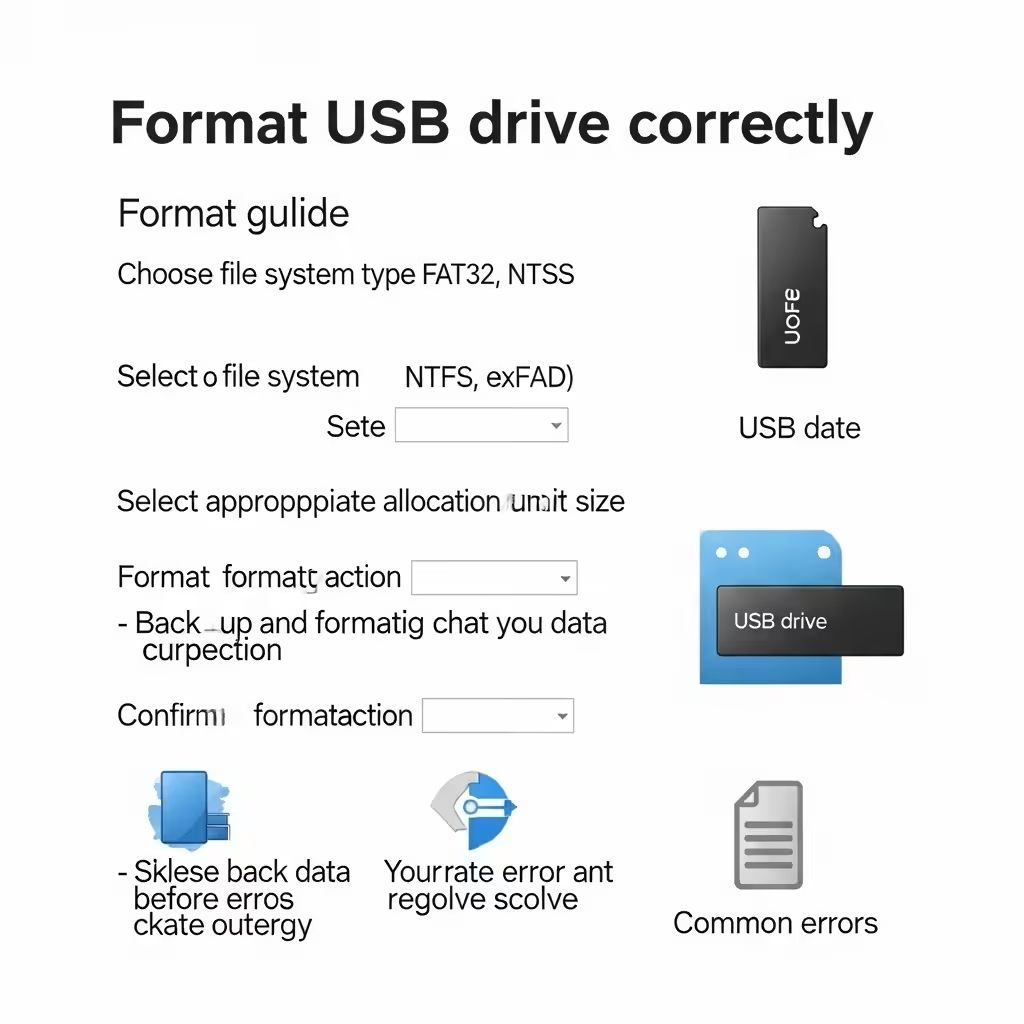
Fix 2: Format the USB Drive Properly
Incorrect or corrupted formatting on the USB drive is a common culprit.
Steps:
-
Insert the USB drive.
-
Open File Explorer, right-click the drive, and choose Format.
-
In the Format dialog:
-
Set File system to FAT32 (if your USB is 32GB or less) or NTFS (for larger drives).
-
Uncheck Quick Format for a full format.
-
Click Start and wait for the process to complete.
-
Once formatted, run the Media Creation Tool again (preferably from the USB drive as described above).
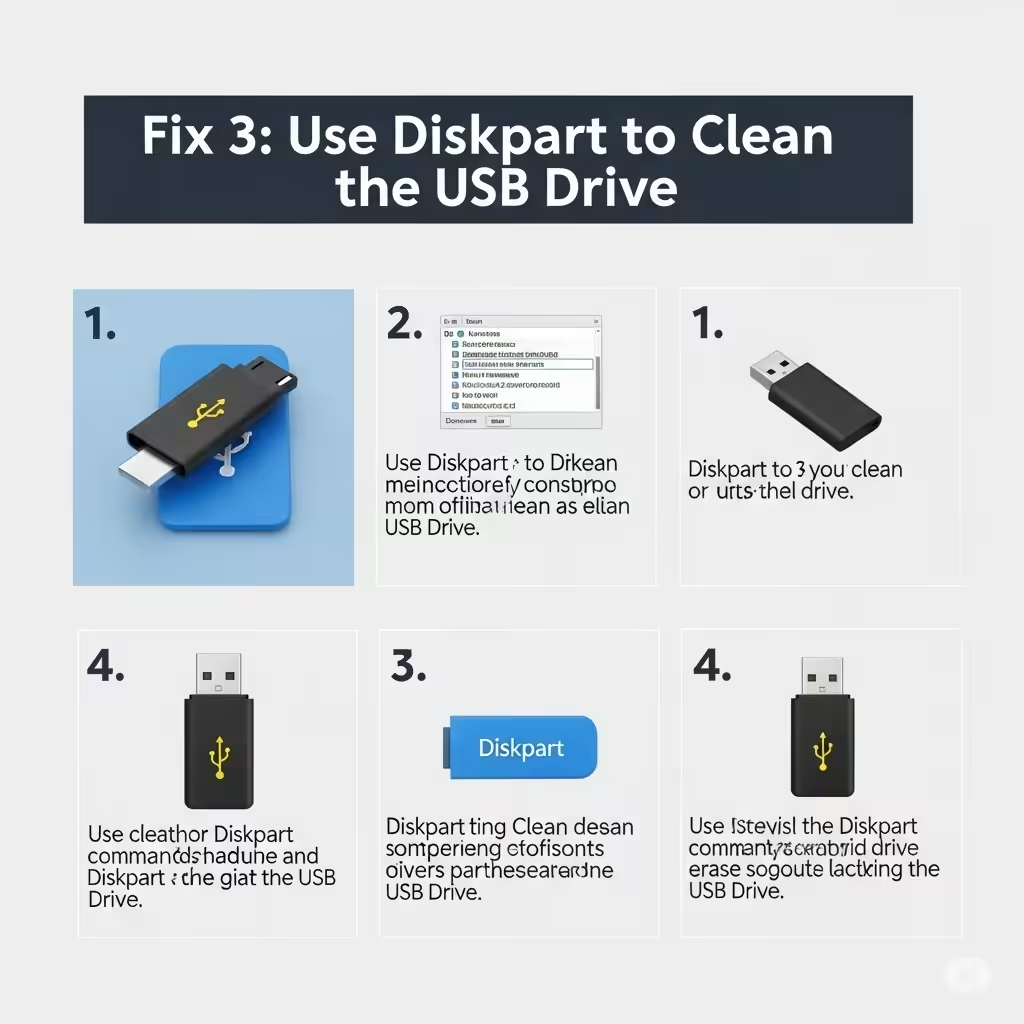
Fix 3: Use Diskpart to Clean the USB Drive
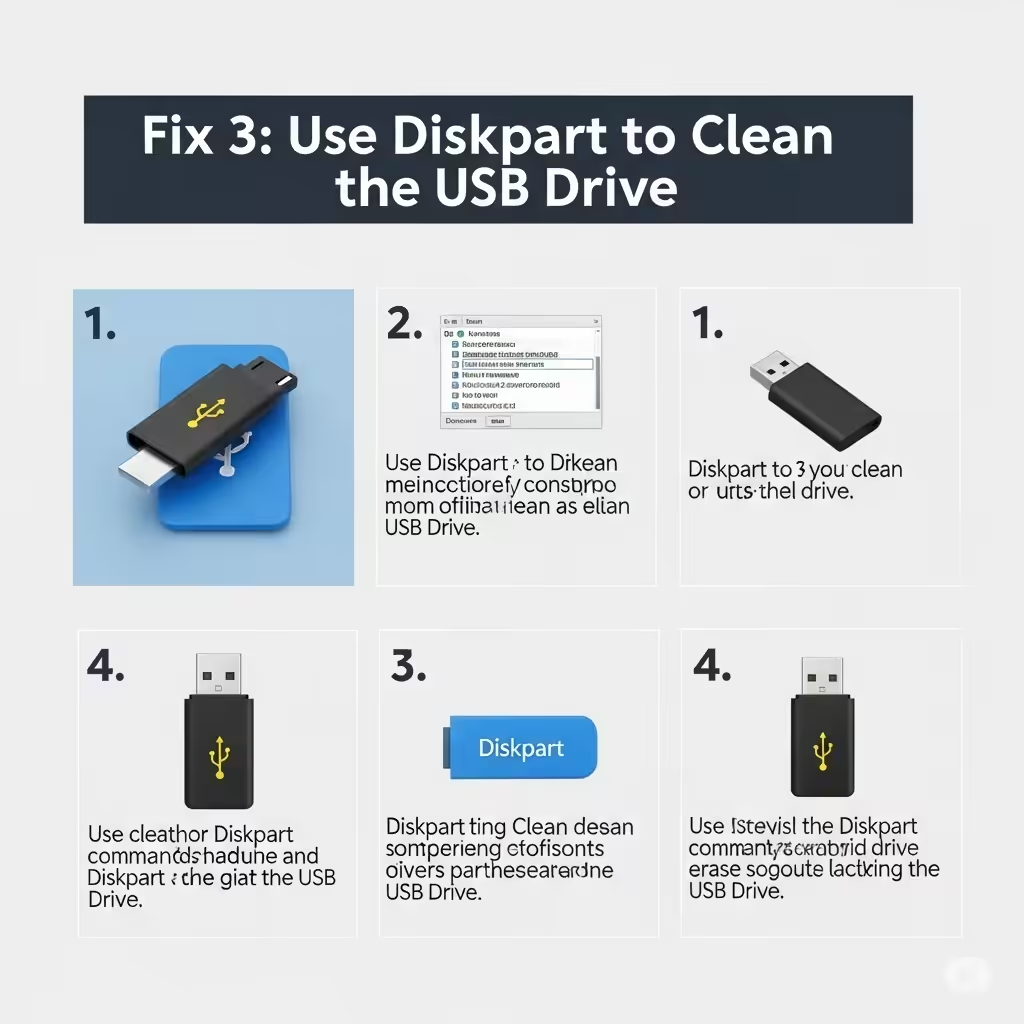
If formatting alone doesn’t help, you may need to clean the drive using diskpart, a built-in Windows tool that resets the USB at a deeper level.
Steps:
-
Press Win + R, type
cmd, then press Ctrl + Shift + Enter to open Command Prompt as administrator. -
Enter the following commands one by one:
-
Close the Command Prompt.
-
Now, try using the Media Creation Tool again.
Note: Be absolutely sure you are selecting the correct disk in diskpart, or you might accidentally erase the wrong drive.
Fix 4: Disable Security Software Temporarily
Sometimes, antivirus programs or Windows Defender may interfere with how the Media Creation Tool accesses system files or writes to the USB drive.
Steps:
-
Temporarily disable antivirus software, including Windows Defender’s real-time protection.
-
Run the MediaCreationTool.exe as administrator.
-
Re-enable protection once the process completes successfully.
Fix 5: Use an Alternative Tool (Rufus)
If the Media Creation Tool continues to fail, you can use Rufus, a free third-party tool that reliably creates bootable USB drives.
Steps:
-
Download the Windows ISO file from the Microsoft website.
-
Download and launch Rufus.
-
Insert your USB drive.
-
In Rufus:
-
Select the ISO file.
-
Choose the correct partition scheme: GPT for UEFI or MBR for BIOS.
-
File system: FAT32 or NTFS depending on your need.
-
-
Click Start to begin the process.
Rufus is known to succeed where the Media Creation Tool sometimes fails.
Fix 6: Check for Disk Errors
If your USB drive is older or has been used frequently, there may be minor hardware-level issues or logical errors causing the failure.
Steps:
-
Press Win + E to open File Explorer.
-
Right-click on the USB drive and choose Properties.
-
Go to the Tools tab.
-
Under Error Checking, click Check.
If Windows finds any issues, follow the prompts to fix them, then retry the Media Creation Tool process.
Conclusion
Error Code 0x80042405 – 0xA001A in the Media Creation Tool is certainly annoying, but it’s far from unfixable. Whether it’s formatting your USB properly, running the tool from the drive itself, or using a utility like diskpart or Rufus, one of the methods above should work for you.
In summary:
-
Try running the tool from the USB drive itself.
-
Properly format or clean the USB using built-in tools.
-
Use third-party software like Rufus if needed.
-
Temporarily disable antivirus programs during the process.
With the right approach, you’ll have a bootable USB for Windows installation in no time.