


Fixing the ‘/fixboot Access is Denied’ Issue on Windows 10
The /fixboot access is denied error is a common problem users face when trying to repair their Windows bootloader using the Bootrec command in Command Prompt. This error usually appears during advanced recovery operations, especially when using recovery media to fix startup issues.
If you’re encountering this issue, don’t panic. There are several methods to fix it, and in this guide, we’ll walk you through each one step-by-step.
What Causes the “/fixboot Access is Denied” Error?
This error generally occurs when you try to run:
The system responds with:
Common causes include:
-
Corrupted or missing boot configuration files
-
Incompatible system partitions (especially with UEFI + GPT)
-
Insufficient permissions in recovery mode
-
Secure Boot interfering with disk access
-
A missing or damaged EFI System Partition (ESP)
Now let’s go over the methods to resolve this.
Method 1: Rebuild the Boot Configuration Data (BCD) Manually
Sometimes, the boot configuration data needs to be manually rebuilt to bypass this error.
Steps:
-
Boot your computer from a Windows 10 installation USB/DVD.
-
Select your language and click Next.
-
Click Repair your computer at the bottom.
-
Go to Troubleshoot > Advanced Options > Command Prompt.
-
In Command Prompt, type the following commands one by one:
Now rebuild the BCD:
If the error appears again, continue to the next solution.
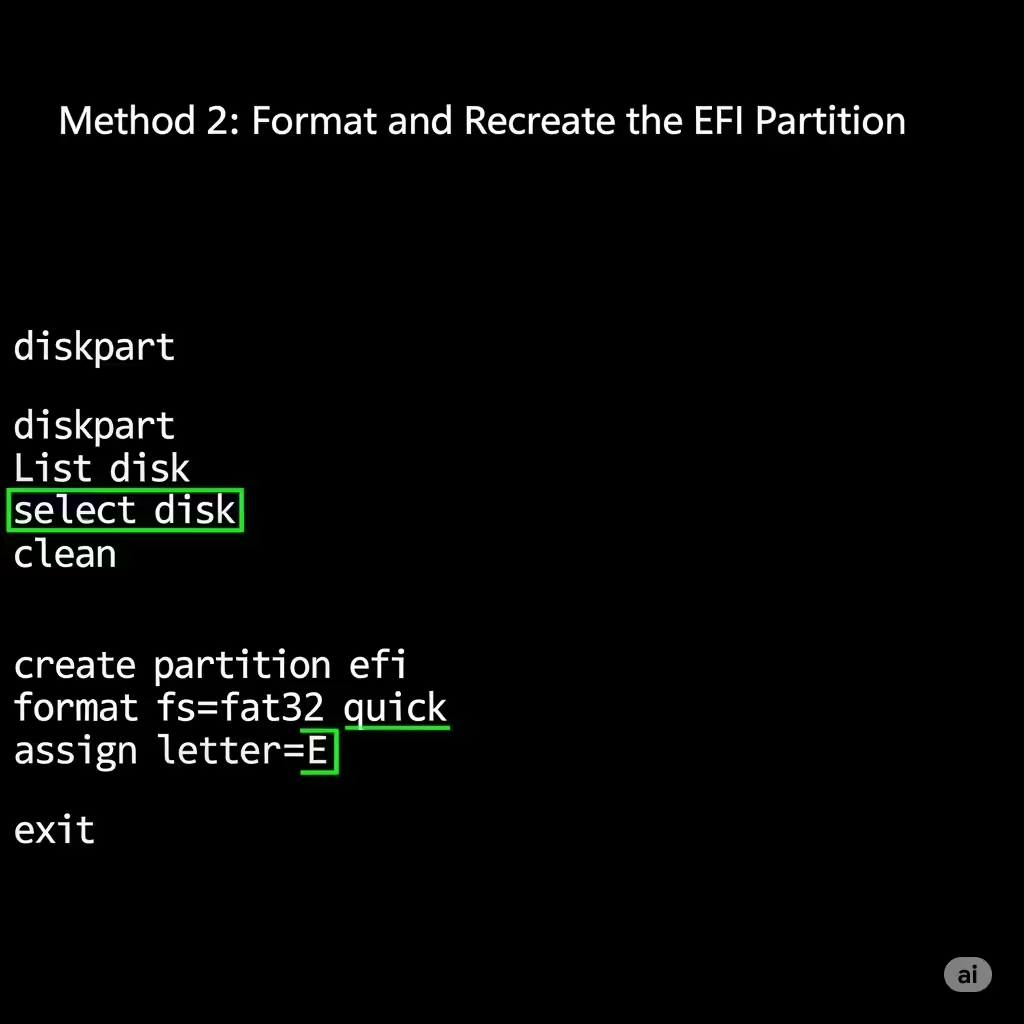
Method 2: Format and Recreate the EFI Partition
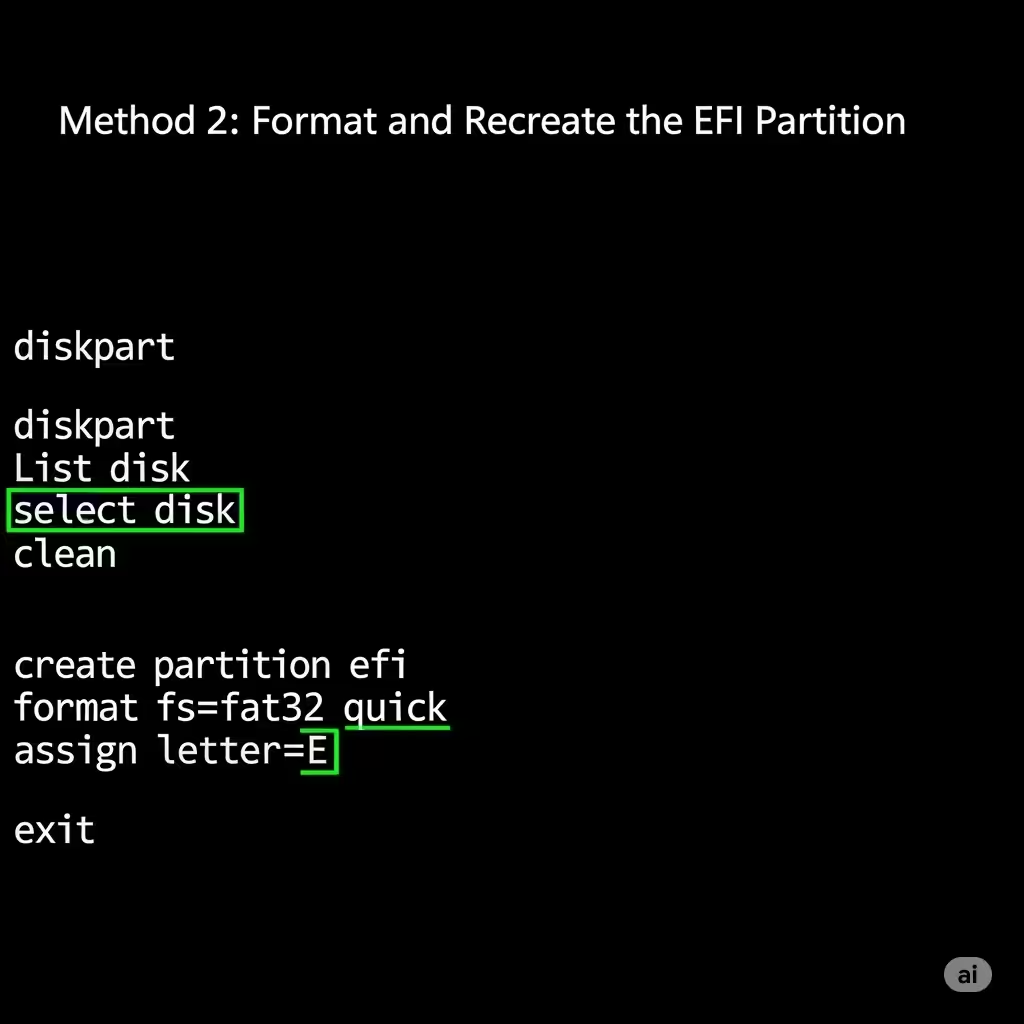
Warning: This step will delete all data from your EFI partition. Proceed only if you’re comfortable doing so and have backups.
Steps:
-
Open Command Prompt from recovery mode as above.
-
Run the following:
Now recreate the bootloader:
This command copies the necessary boot files to the EFI System Partition.
Now restart your PC. The boot issue should be resolved.
Method 3: Disable Secure Boot Temporarily in BIOS
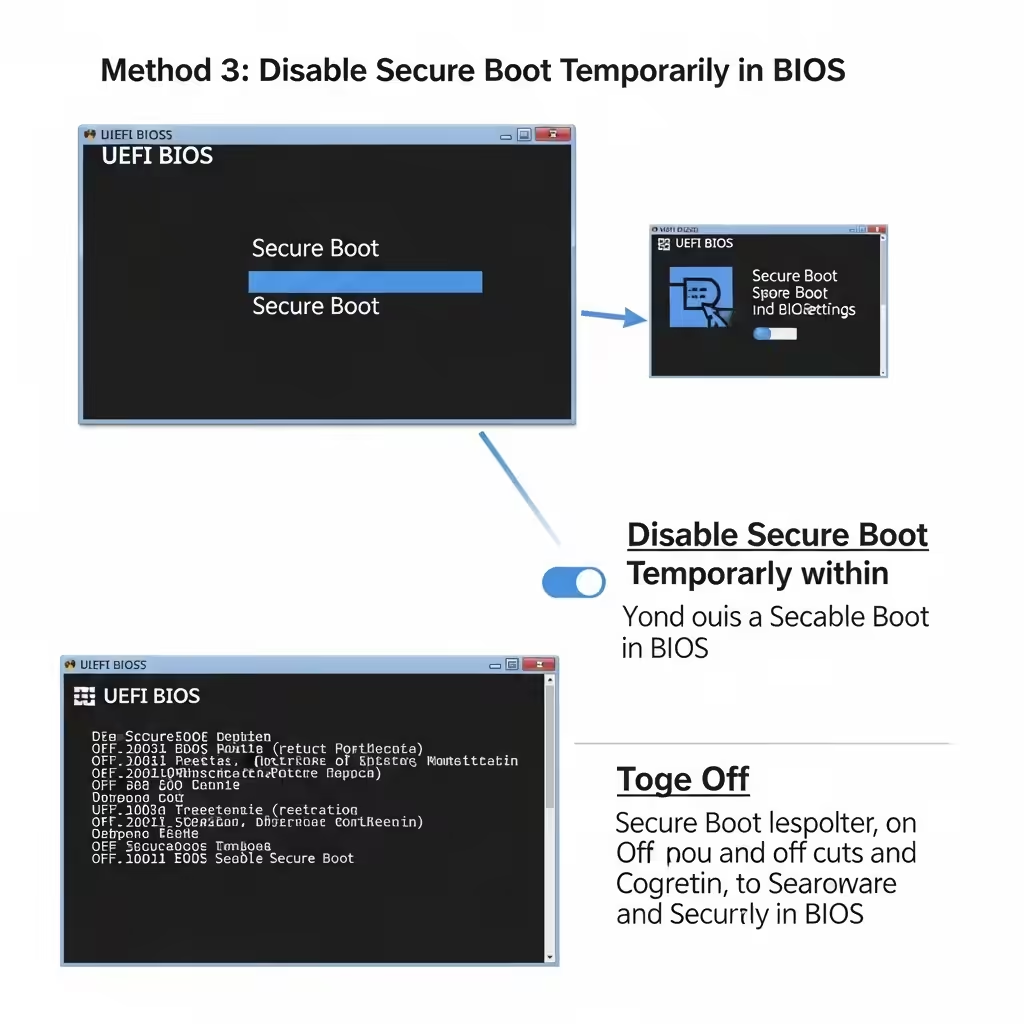
Sometimes, Secure Boot may block certain operations on the system disk. Disabling it temporarily can help bypass the access error.
Steps:
-
Restart your computer and enter the BIOS/UEFI setup (usually by pressing F2, F10, F12, or DEL).
-
Locate the Secure Boot setting.
-
Set it to Disabled.
-
Save changes and exit BIOS.
-
Try running the
/fixbootcommand again from recovery.
After successful repair, you can re-enable Secure Boot for security.
Method 4: Use an Installation Media to Perform Startup Repair
If you’re not comfortable with command-line solutions, you can try a simpler approach using the built-in Startup Repair tool.
Steps:
-
Boot into the Windows installation media.
-
Choose your language and click Next.
-
Click Repair your computer.
-
Go to Troubleshoot > Advanced Options > Startup Repair.
-
Select your Windows installation and let the system scan and repair boot problems automatically.
If Startup Repair fails, it might still give useful logs or suggestions for further troubleshooting.
Method 5: Use Easy Recovery Essentials (Optional Third-Party)
If you’re looking for a more automated fix, tools like Easy Recovery Essentials (from NeoSmart Technologies) can often resolve the issue without manual partition or bootloader commands.
Note:
-
This is a paid tool, but it provides a graphical interface and supports automatic repair.
-
Use only if the manual options don’t work for your scenario.
Additional Tips
-
Always back up important data before performing operations that modify partitions or boot records.
-
Ensure your system uses the right boot mode (UEFI vs Legacy) for your disk partition type (GPT vs MBR).
-
Keep your Windows 10 recovery media handy for emergency repairs.
Summary
The /fixboot access is denied error can be frustrating, especially when you’re trying to repair critical boot issues. Thankfully, it’s usually fixable with the right tools and steps.
Here’s a quick recap of your options:
-
Manually assign the EFI partition and run
bootrecfrom there -
Format and recreate the EFI partition with
bcdboot -
Disable Secure Boot in BIOS temporarily
-
Use Windows’ built-in Startup Repair
-
Try a third-party recovery solution if needed
With patience and careful execution, your system should be back up and running. If you encounter issues at any step or aren’t sure which partition to choose, feel free to ask for further help.