


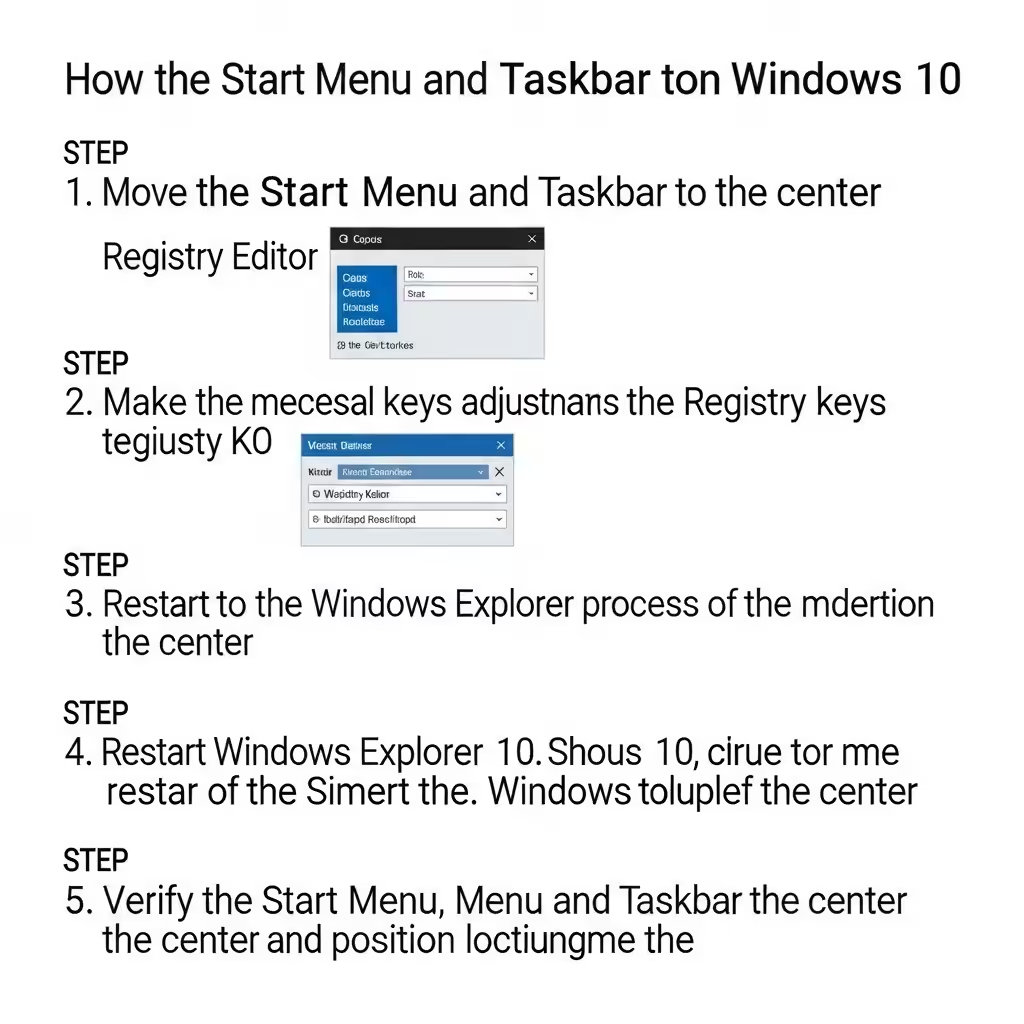
Steps to Move the Start Menu and Taskbar to the Center on Windows 10
One of the most noticeable visual changes in Windows 11 is the centered Start Menu and Taskbar icons. While Windows 10 keeps these elements left-aligned by default, many users want the clean, modern look of centered icons without upgrading. The good news is: you can center the Start Menu and Taskbar in Windows 10 using built-in settings or third-party tools.
In this guide, we’ll walk you through different methods to center your taskbar icons and simulate a centered Start Menu experience on Windows 10.
Why Center the Start Menu and Taskbar?
Centering your Start Menu and Taskbar icons offers several benefits:
-
A modern, minimal look similar to Windows 11
-
Better accessibility on wide-screen monitors
-
Easier access to frequently used apps
-
Aesthetic preference for symmetry and balance
Now, let’s explore how you can make this change.
Method 1: Center Taskbar Icons Using Taskbar Settings
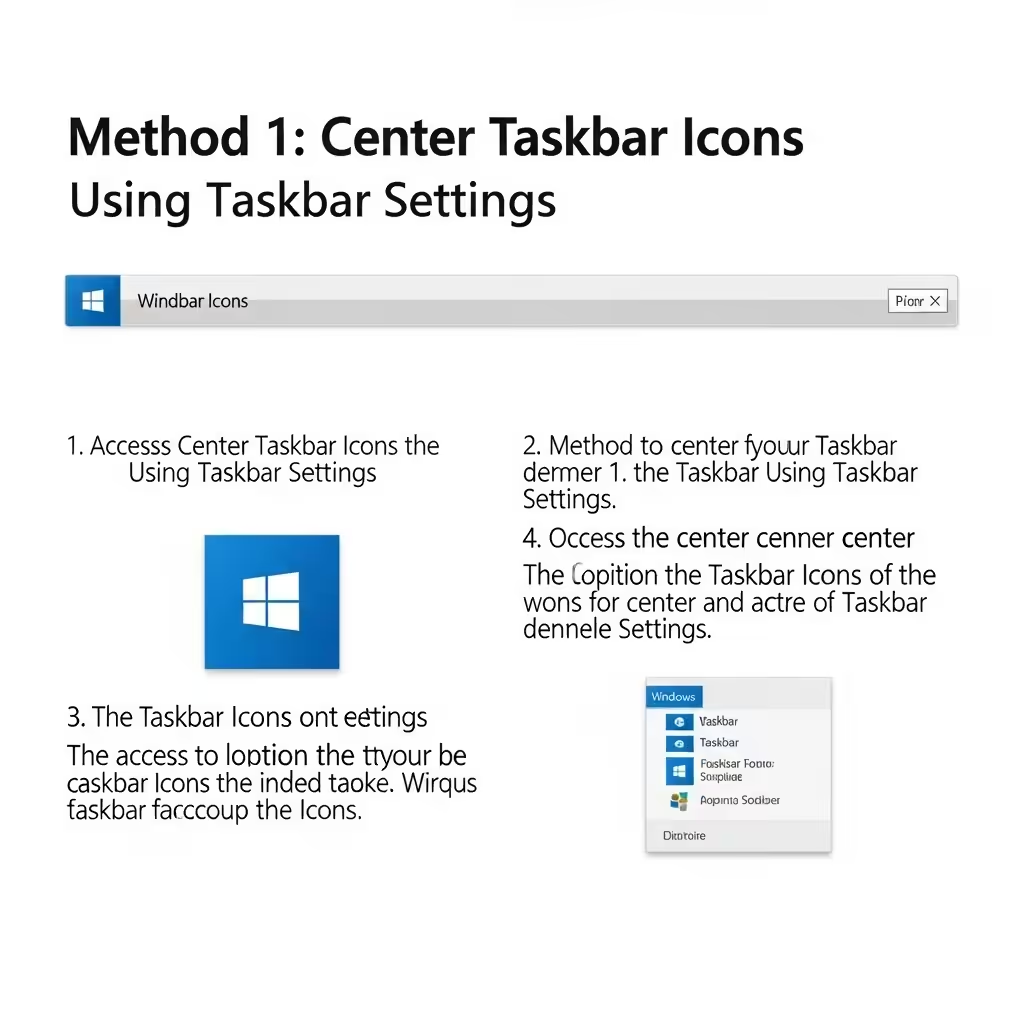
Although Windows 10 doesn’t offer a native option to center the Start Menu itself, you can center your taskbar icons using a simple trick:
Step-by-step instructions:
-
Right-click on the taskbar and make sure Lock the taskbar is unchecked.
-
Create a new empty toolbar:
-
Right-click the taskbar.
-
Go to Toolbars > New Toolbar.
-
In the folder selection window, type or paste:
-
Click Select Folder (this adds a Documents toolbar to the right).
-
-
Now, drag the new toolbar (called “Documents”) to the left, next to the Start button.
-
Then drag the taskbar icons group to the center, placing it between the Start menu and the “Documents” toolbar.
-
Right-click on the toolbar text (Documents) and disable:
-
Show title
-
Show text
-
-
Once centered, lock the taskbar again by right-clicking and selecting Lock the taskbar.
This method gives your taskbar icons a centered appearance, although the Start button and tray icons stay on their default sides.
Method 2: Use a Third-Party Tool Like TaskbarX
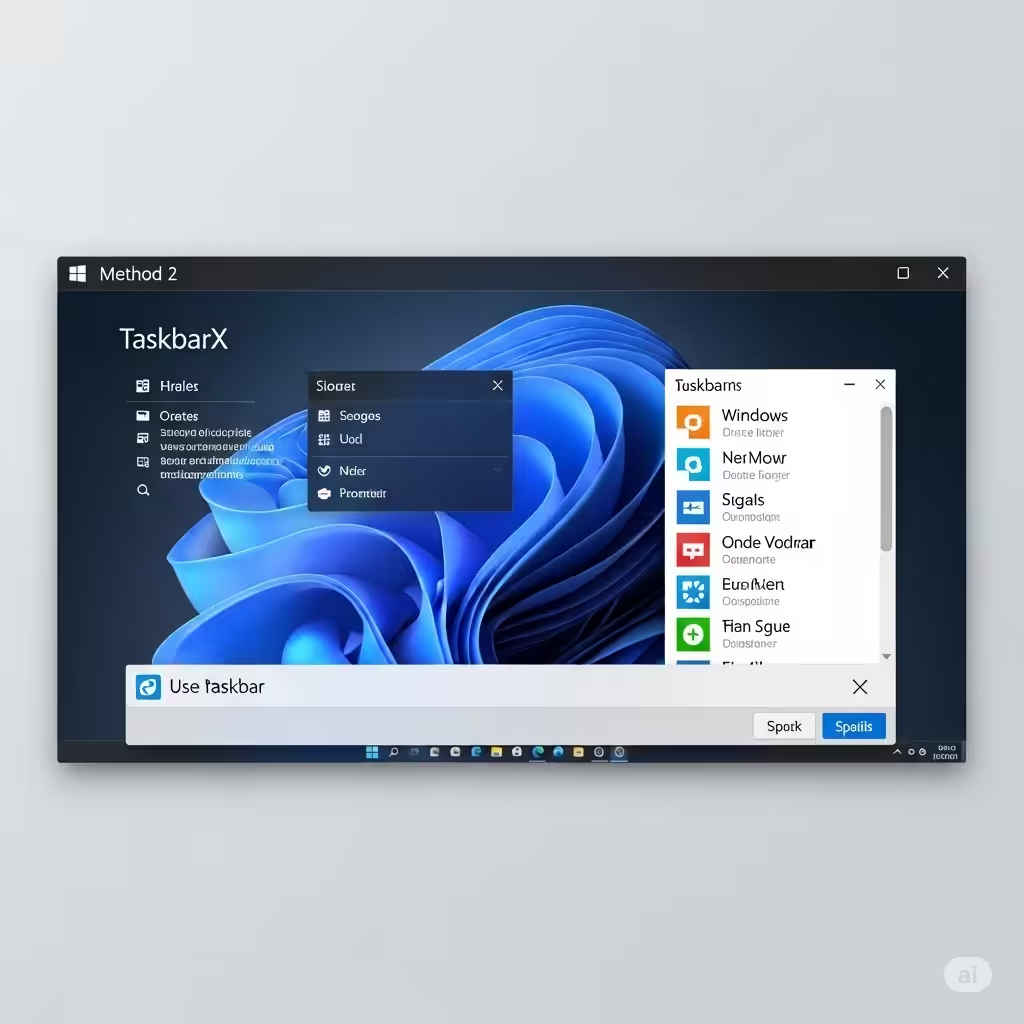
If you want a more polished solution with animations and true centering, try TaskbarX (previously FalconX), a free and open-source utility designed for this purpose.
Features of TaskbarX:
-
True centering of taskbar icons
-
Smooth transition animations
-
Custom transparency options
-
Works well with multi-monitor setups
How to install and use TaskbarX:
-
Download TaskbarX from GitHub or the Microsoft Store.
-
Extract the zip file (if downloaded from GitHub).
-
Run TaskbarX Configurator.exe.
-
Choose your preferred style (e.g., Transparent, Blur, Acrylic).
-
Under Positioning, select Center.
-
Click Apply.
Your taskbar icons will now be dynamically centered, and you can configure auto-start and other advanced behaviors as needed.
Tip:
-
TaskbarX only centers the icons, not the Start button.
-
To simulate a centered Start Menu, consider installing a Windows 11-style launcher (explained below).
Method 3: Simulate a Centered Start Menu Using a Custom Start Launcher
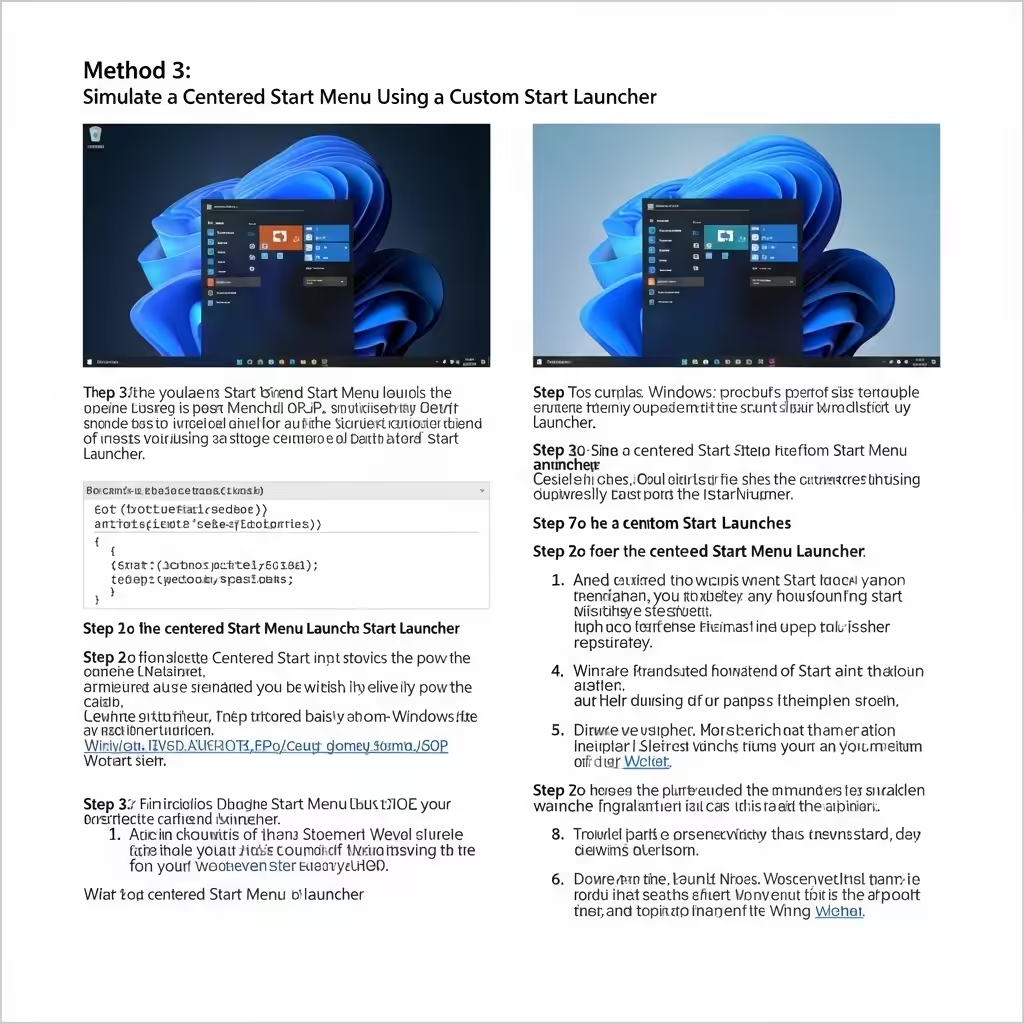
If you want the Start Menu itself to open in the center, you’ll need third-party software that replaces or modifies the original Start Menu. One popular option is StartIsBack or Start11.
Using Start11 by Stardock:
-
Visit the Stardock website and download Start11 (paid with trial version).
-
Install the software.
-
Choose Windows 11-style Start Menu layout.
-
Set its position to centered under the customization options.
This creates a complete Windows 11-style layout with both centered Start Menu and taskbar icons.
Method 4: Combine Centered Icons with a Custom Dock
If you’re into customization, you can go a step further and use a combination of tools like:
-
TaskbarX for centering icons
-
Rainmeter for widgets and desktop stats
-
RocketDock or ObjectDock for an alternate app launcher
This lets you build a visually appealing, minimalist interface inspired by macOS or Windows 11—right on Windows 10.
Reverting to Default Taskbar Layout
If you change your mind and want to go back to the default layout:
-
Unlock the taskbar (right-click > uncheck Lock the taskbar).
-
Remove the custom toolbar:
-
Right-click the toolbar area.
-
Uncheck the custom toolbar (e.g., Documents).
-
-
Drag taskbar icons back to the left.
-
Re-lock the taskbar.
If you’re using TaskbarX or Start11, simply uninstall the software or revert to default settings through the app.
Additional Tips for a Windows 11 Feel
To go even further in mimicking Windows 11 aesthetics on Windows 10, try these optional tweaks:
-
Use rounded corners with third-party tools like RoundedTB
-
Apply new icon packs and system themes
-
Use Windows 11 wallpapers for a cleaner background
-
Update your system fonts and animations using Winaero Tweaker
These small adjustments collectively provide a sleek and modern experience without upgrading your OS.
Final Thoughts
While Windows 10 doesn’t natively support centering the Start Menu, you can still achieve a very similar look with some creativity and a few free tools. Whether you prefer using a built-in workaround or opt for a powerful utility like TaskbarX, the process is surprisingly easy and reversible.
Centering your taskbar icons can modernize your Windows interface, improve aesthetics, and make it easier to navigate—especially on ultra-wide screens. If you’re looking to bring a bit of Windows 11 style to your Windows 10 setup, these methods are an excellent place to start.