


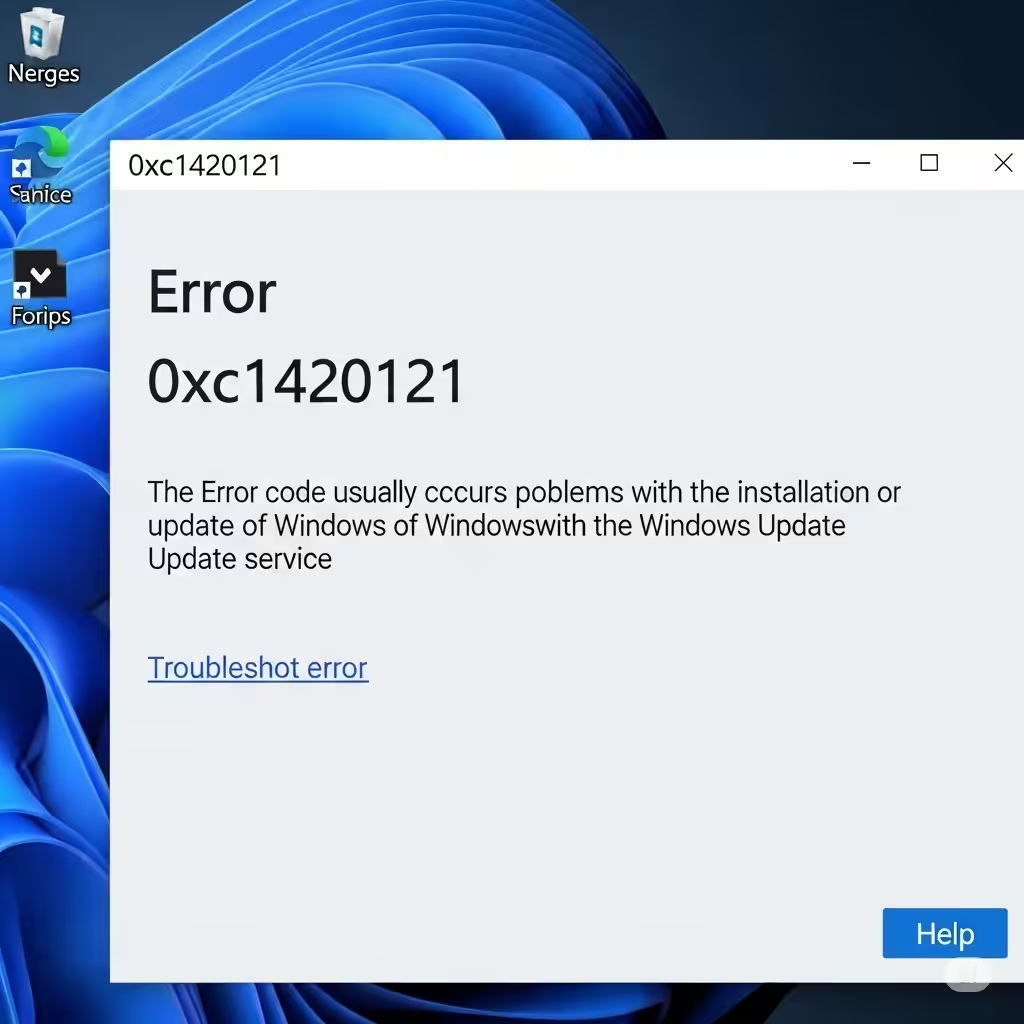
Windows Update Error 0xc1420121: How to Fix It
Windows Update is an essential feature that helps your system stay secure, stable, and feature-rich. However, when the update process fails, it can be incredibly frustrating—especially if you’re greeted with a cryptic message like Error Code: 0xc1420121. This error usually appears when a cumulative or feature update fails to install properly, and it often interrupts the process without giving clear instructions on how to fix it.
In this guide, we’ll help you understand what causes this error and walk you through step-by-step solutions to resolve it effectively.
What Causes Error Code: 0xc1420121?
Before jumping into solutions, let’s take a look at the potential causes behind this error code:
-
Corrupt Windows Update components
-
Damaged system files
-
Software conflicts (especially third-party antivirus programs)
-
A problematic update or rollback
-
Insufficient disk space
-
Incorrect Registry entries
Understanding these factors will help you apply the right fix based on your system’s condition.
Solution 1: Run the Windows Update Troubleshooter
Microsoft includes a built-in tool that can automatically detect and fix update-related issues.
-
Open Settings using
Windows + I. -
Navigate to System > Troubleshoot > Other troubleshooters.
-
Locate Windows Update and click Run next to it.
-
Allow the troubleshooter to complete and follow the on-screen instructions.
If issues are found and resolved, restart your system and try updating again.
Solution 2: Manually Reset Windows Update Components
Sometimes the error is caused by corrupted update components. You can reset them manually:
-
Open Command Prompt as Administrator:
-
Press
Windows + S, typecmd, right-click on Command Prompt, and select Run as administrator.
-
-
Stop the update services by running these commands one by one:
-
Rename the update folders:
-
Restart the services:
-
Close the Command Prompt and restart your computer.
This process gives Windows Update a fresh start, often resolving hidden corruption.
Solution 3: Use the System File Checker and DISM Tools
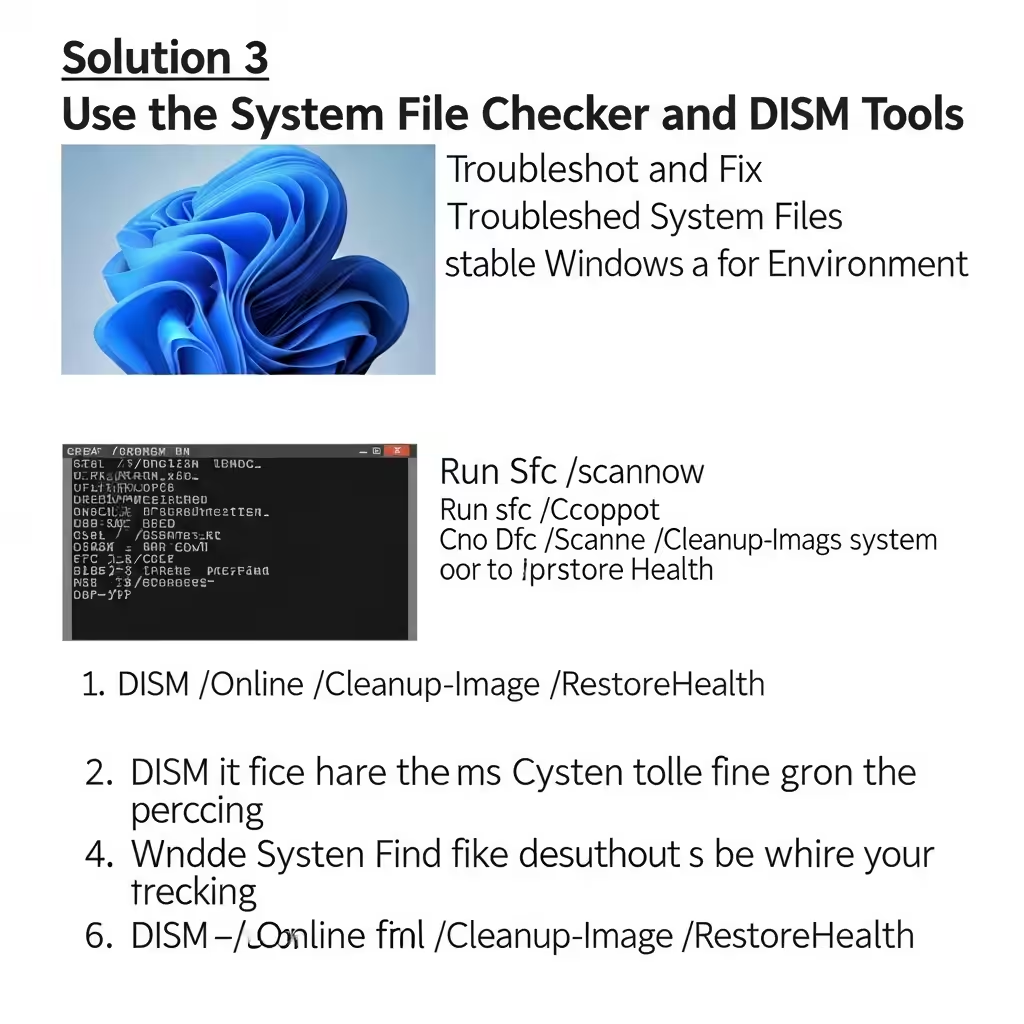
Corrupted system files can prevent updates from installing properly.
-
Open Command Prompt as Administrator.
-
Run the System File Checker:
Wait for the scan to complete. If any issues are found, Windows will attempt to repair them.
-
Then run the DISM tool:
This tool repairs the Windows image and can resolve deeper system corruption.
After both scans finish, restart your system and attempt the update again.
Solution 4: Temporarily Disable Antivirus or Security Software
Third-party antivirus software sometimes interferes with Windows Update by blocking essential services or files.
-
Temporarily disable real-time protection in your antivirus settings.
-
Try running the update again.
If the update succeeds, you may consider switching to a different antivirus program or relying on Windows Defender for compatibility.
Solution 5: Use the Update Assistant Tool
If Windows Update isn’t cooperating, you can use the Windows Update Assistant as an alternative:
-
Visit Microsoft’s Windows 10/11 Download Page.
-
Download the Update Assistant tool.
-
Run it and follow the on-screen instructions to install the latest update.
This bypasses some internal update checks and is often effective for stubborn update errors like 0xc1420121.
Solution 6: Free Up Disk Space
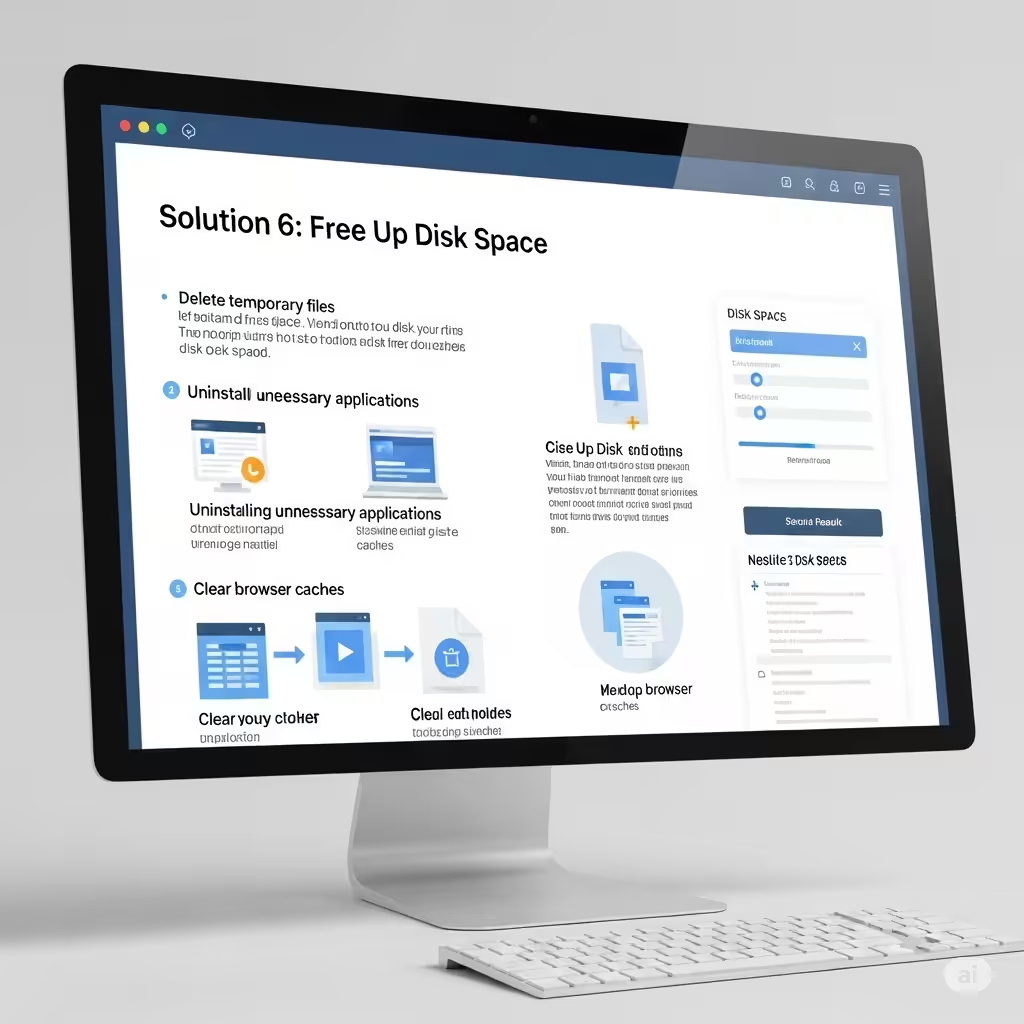
A lack of disk space can sometimes block updates from installing.
-
Press
Windows + Eto open File Explorer. -
Right-click on your system drive (usually C:) and select Properties.
-
Click Disk Cleanup, and remove temporary files, Recycle Bin contents, and old update files.
-
You can also click Clean up system files for deeper cleanup.
Ensure you have at least 20 GB of free space for feature updates.
Solution 7: Check Windows Update Log for Details
You can use the Windows Update log to get more technical information on what caused the error.
-
Press
Windows + Xand select Windows PowerShell (Admin) or Command Prompt (Admin). -
Enter:
-
This will generate a log file on your desktop. Open it and search for 0xc1420121 to find more details.
If the log references a specific file or update, you can search for that update online or manually uninstall/reinstall the related component.
Solution 8: Perform an In-Place Upgrade
If all else fails, an in-place upgrade using the Media Creation Tool can help you reinstall Windows without losing files.
-
Download the Media Creation Tool.
-
Run the tool and select Upgrade this PC now.
-
Follow the on-screen prompts.
-
When asked, choose to keep personal files and apps.
This will replace system files and update your OS while keeping your settings intact.
Final Thoughts

Error code 0xc1420121 can seem mysterious at first, but with the right troubleshooting approach, it’s usually solvable without needing a full reinstall. The key is identifying whether the issue is caused by software conflict, file corruption, or system misconfiguration.
Here’s a quick summary of what to try:
-
Run the built-in Windows Update Troubleshooter.
-
Reset Windows Update components manually.
-
Repair system files using SFC and DISM.
-
Temporarily disable antivirus software.
-
Use the Update Assistant or Media Creation Tool.
-
Check and clear disk space.
-
Dive into the Windows Update log for advanced details.
If the error continues even after trying all these methods, it may be time to consult with Microsoft support or consider a clean installation as a last resort.