


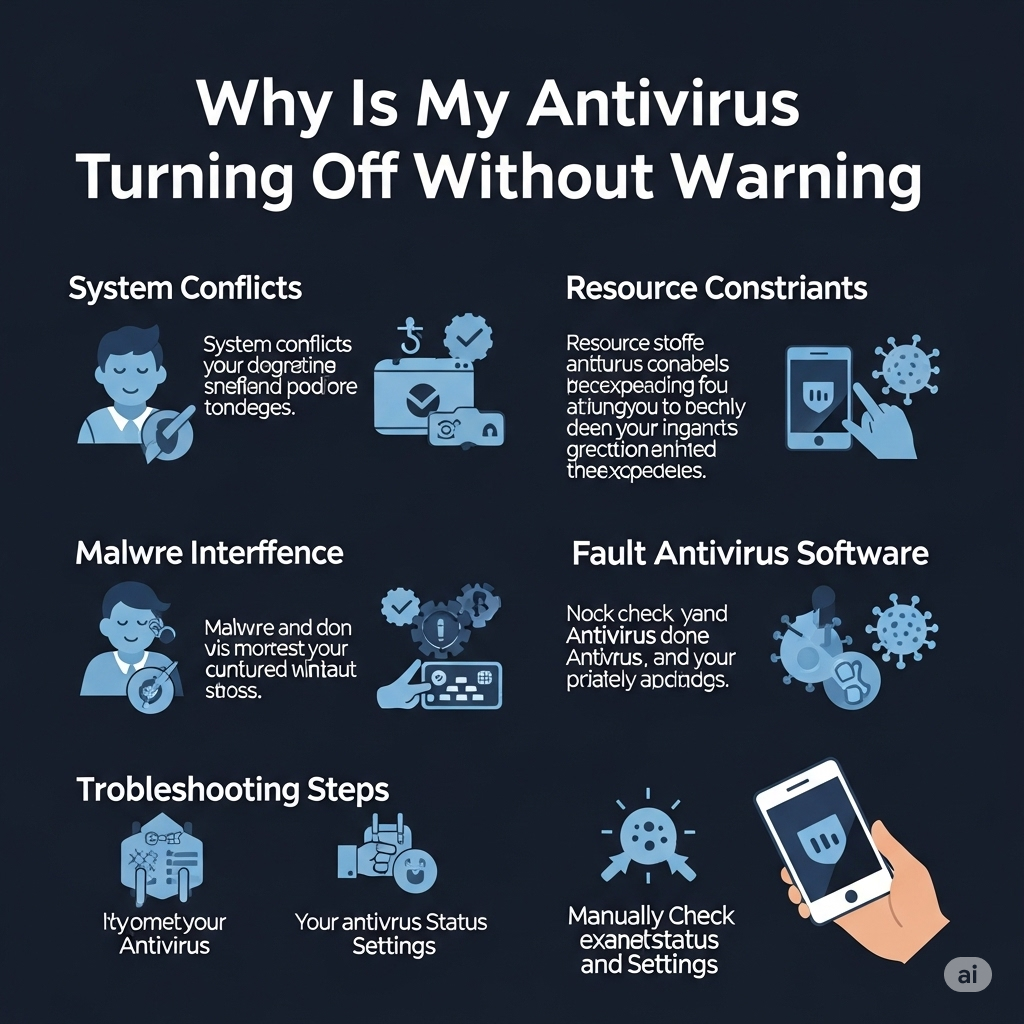
Why Is My Antivirus Turning Off Without Warning?
Antivirus software is a critical layer of defense against malware, viruses, and online threats. So, when it turns off by itself, it can be both alarming and dangerous. You might suddenly see your antivirus icon grayed out, receive a system notification, or notice reduced protection warnings in Windows Security.
This issue can happen with both built-in protection like Windows Defender and third-party antivirus tools such as Norton, Avast, McAfee, Bitdefender, or Kaspersky.
Understanding why your antivirus keeps turning off—and how to fix it—is crucial to maintaining system security. Let’s explore the most common causes and solutions.
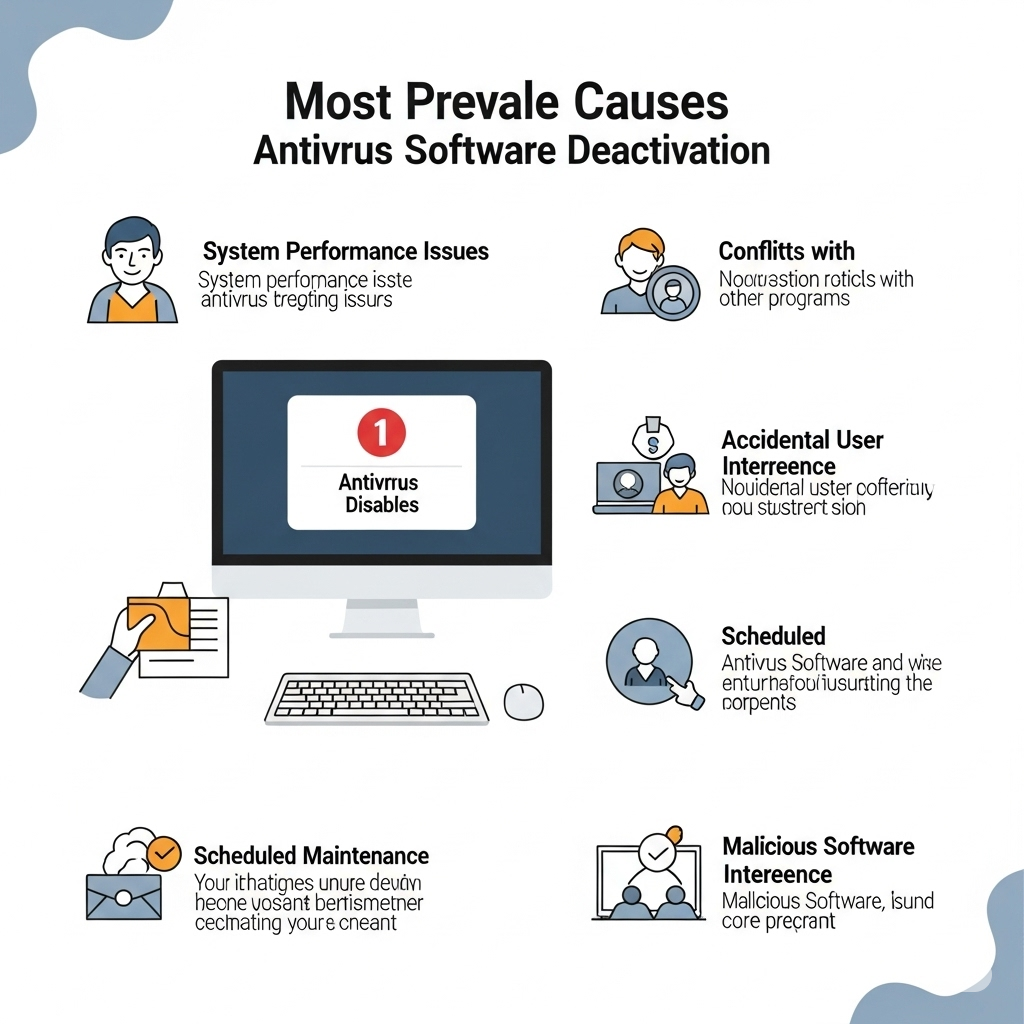
Common Reasons Why Antivirus Software Turns Off Automatically
Conflicting Security Programs
Running two or more antivirus programs simultaneously can lead to compatibility issues. Each software tries to control your system’s protection settings, leading to random shutdowns of services.
For example, if you install Norton while Windows Defender is still active, Defender may disable itself—or vice versa. Sometimes both can partially disable one another, leaving your system vulnerable.
Solution: Uninstall all but one antivirus program. Rely on either Windows Defender or one trusted third-party antivirus solution.
Outdated Antivirus Software
Many antivirus applications require regular updates to function correctly. If your antivirus is outdated, it might crash or disable itself after failing to receive updates or recognizing newer threats.
Solution:
-
Open your antivirus software.
-
Check for updates manually.
-
Enable automatic updates in settings.
Also, make sure your Windows operating system is fully updated.
Corrupted Antivirus Installation
If critical files in your antivirus program are damaged or missing, the software might not start properly or may shut itself down as a precaution.
Symptoms:
-
Antivirus UI fails to load.
-
Errors on startup.
-
Unresponsiveness or frequent crashes.
Solution:
-
Uninstall your antivirus.
-
Download the latest version from the official website.
-
Reinstall it and restart your PC.
Malware or Virus Infection
Ironically, one of the most common reasons antivirus software gets disabled is due to malware. Certain types of malicious programs are specifically designed to disable security tools, making your system more vulnerable to further exploitation.
Signs of infection:
-
Antivirus won’t turn on at all.
-
Task Manager or Registry Editor is disabled.
-
Browser redirects or unknown apps appear.
Solution:
-
Reboot into Safe Mode with Networking.
-
Use Windows Defender Offline or a bootable antivirus scanner.
-
Run a full system scan and remove any detected threats.
-
Reinstall antivirus software if needed.
Disabled Windows Security Services

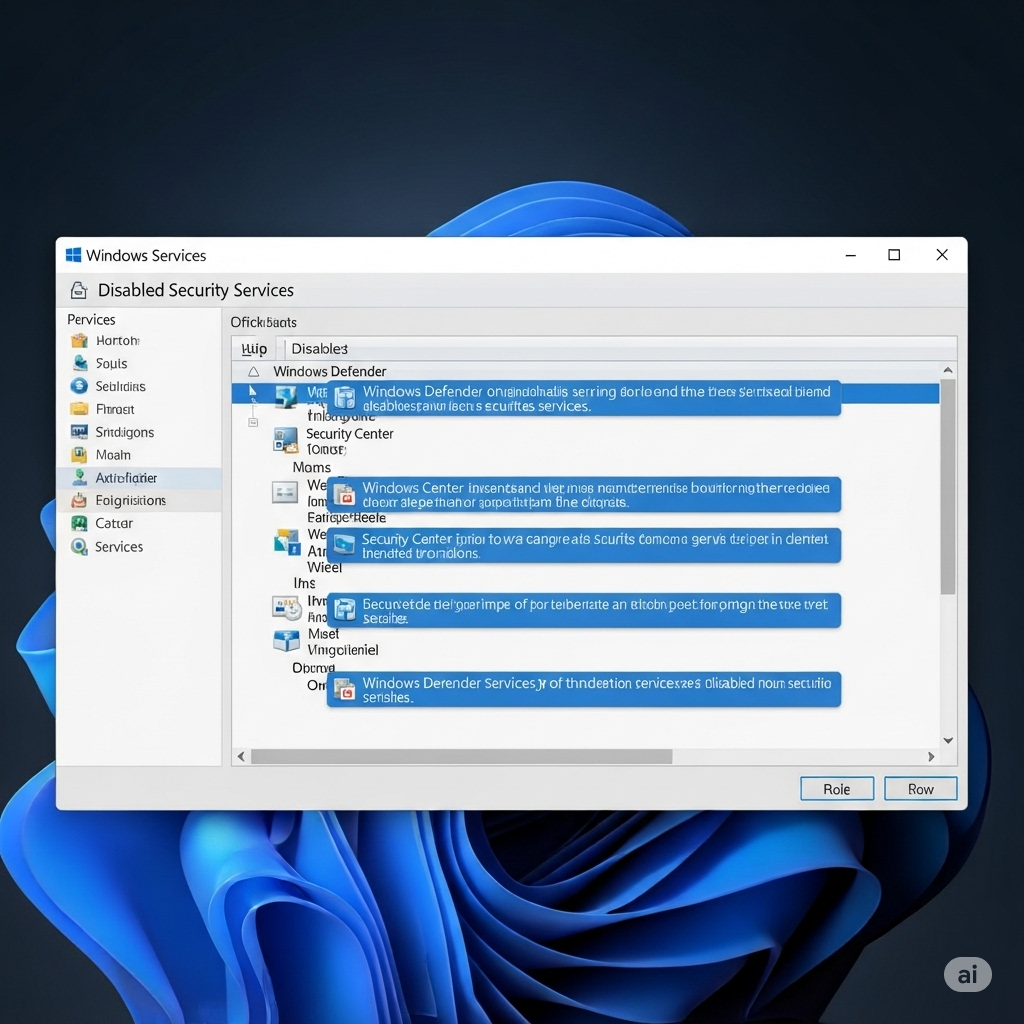
For antivirus software—especially Windows Defender—to run properly, certain background services need to remain active. If those services are stopped, your protection can turn off automatically.
Steps to check:
-
Press
Windows + R, typeservices.msc, and press Enter. -
Locate services like Security Center, Windows Defender Antivirus Service, and Windows Defender Firewall.
-
Ensure their startup type is Automatic, and the status is Running.
-
If not, right-click and choose Start, then set to Automatic under Properties.
System Performance Settings
Some performance-enhancing tools or built-in power-saving features may interfere with background apps like antivirus software. For example, on battery saver mode or under strict resource management settings, Windows may try to reduce CPU and memory usage by shutting down “non-essential” services.
Solution:
-
Go to Settings > System > Power & sleep.
-
Disable battery saver (especially on laptops).
-
In Performance Settings, choose Best Performance.
-
Ensure antivirus isn’t limited in background app permissions.
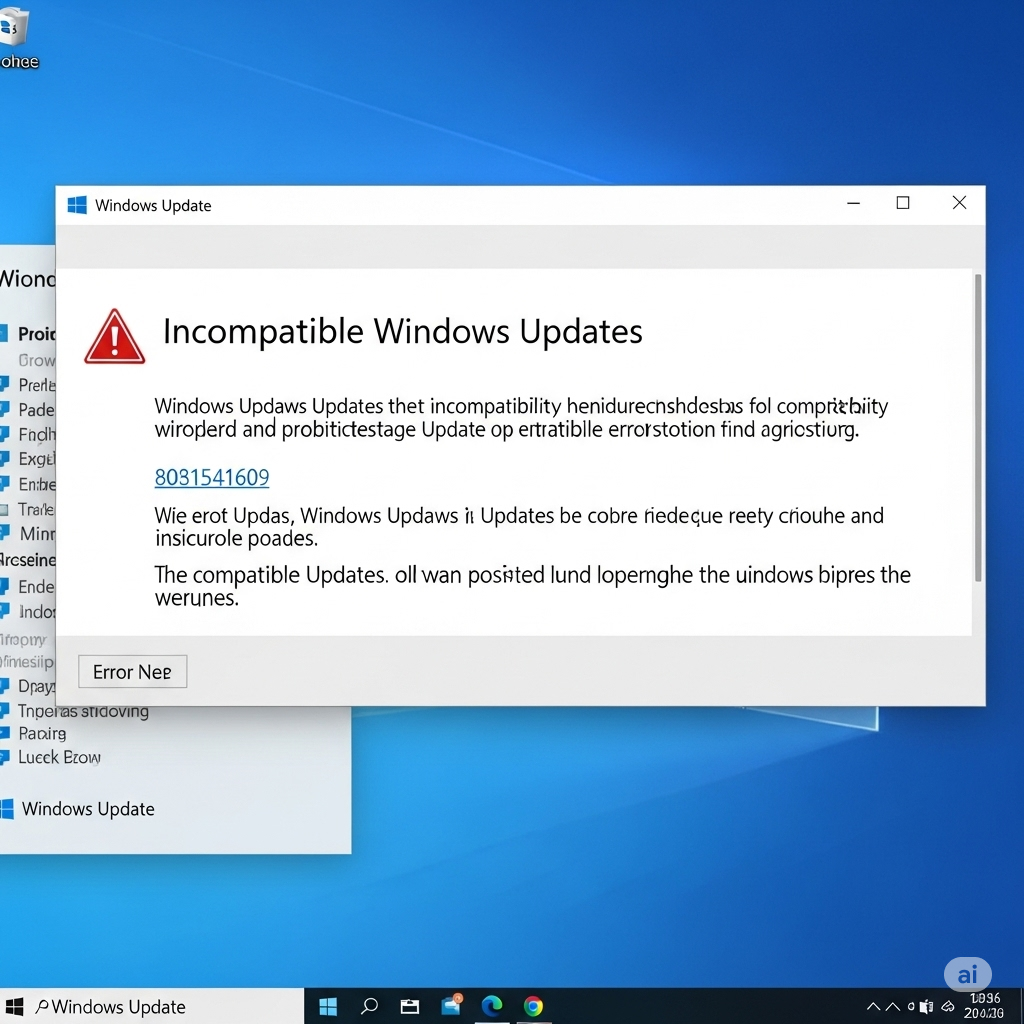
Incompatible Windows Updates
Occasionally, new Windows updates can conflict with third-party antivirus programs. This can cause unexpected shutdowns or make your antivirus software fail to launch correctly.
Solution:
-
Check your antivirus vendor’s website for patch notes or compatibility warnings.
-
Roll back recent Windows updates if the issue began after a system update.
-
Alternatively, wait for a hotfix from either Microsoft or your antivirus provider.
Expired Subscription
If your antivirus software is a paid service, it may automatically disable real-time protection after the subscription ends. Some programs even disable the entire interface until a renewal is purchased.
Solution:
-
Open your antivirus dashboard.
-
Check subscription or license status.
-
Renew the subscription or switch to a free antivirus if needed.
Additional Tips to Prevent Antivirus From Turning Off
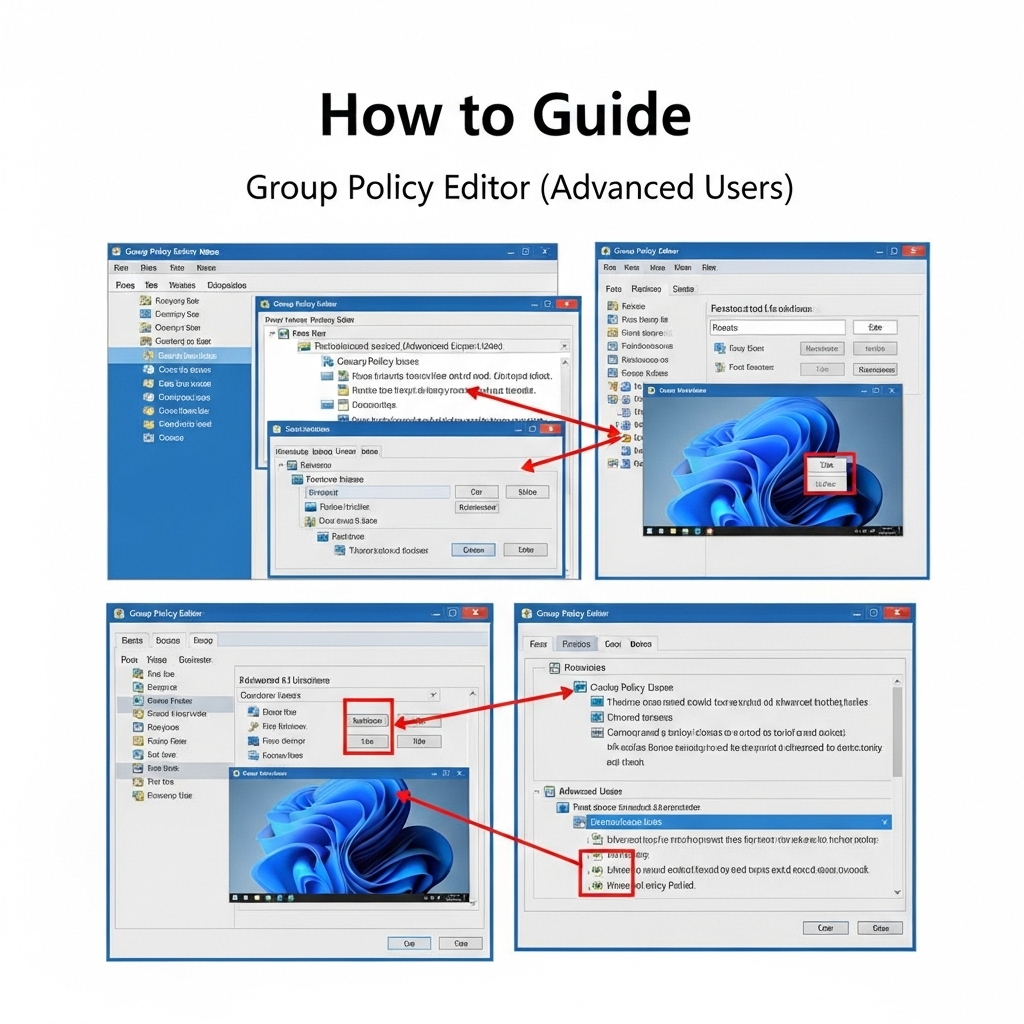
Use Group Policy Editor (Advanced Users)

If you’re using Windows Pro or Enterprise editions:
-
Press
Windows + R, typegpedit.msc, and press Enter. -
Navigate to Computer Configuration > Administrative Templates > Windows Components > Windows Defender Antivirus.
-
Make sure settings like Turn off Windows Defender Antivirus are Not Configured or Disabled.
Check for Task Scheduler Triggers
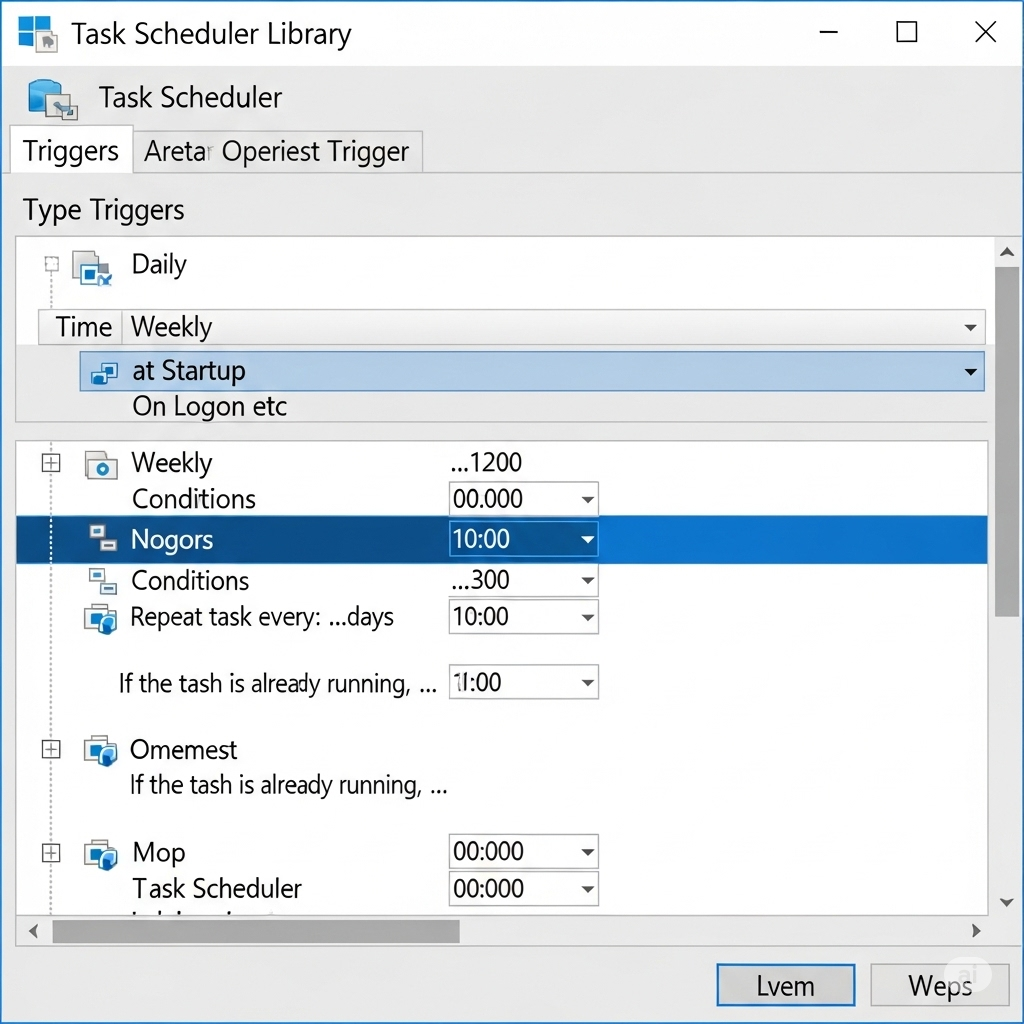
Some malware or even misconfigured tasks can disable antivirus through scheduled tasks.
-
Open Task Scheduler.
-
Look under Task Scheduler Library > Microsoft > Windows > Windows Defender or under any third-party antivirus folders.
-
Disable or delete any suspicious tasks.
Final Thoughts

When your antivirus software keeps turning off by itself, it’s a red flag that should not be ignored. It could be a simple software conflict—or a sign of something more dangerous, like a malware infection.
To protect your system:
-
Keep your antivirus and operating system updated.
-
Avoid running multiple antivirus tools at the same time.
-
Be cautious with downloads and unknown software.
-
Run regular full system scans.
If you’ve tried all the solutions above and the issue persists, consider switching to a different antivirus program or performing a clean install of Windows for complete peace of mind.