


Speed Up Your Document Editing in Microsoft Word
Editing is one of the most important stages of creating a professional document. Whether you’re writing reports, essays, business proposals, research papers, or marketing content, efficient editing helps improve clarity, eliminate errors, and ensure your message is communicated effectively. Microsoft Word includes a wide range of built-in tools that make editing faster and more accurate, yet many users only scratch the surface of its capabilities.
This comprehensive guide explores practical techniques, keyboard shortcuts, and advanced Microsoft Word features that can significantly speed up your editing workflow while maintaining high-quality results.
Why Efficient Editing Matters
Editing is more than correcting spelling mistakes. It involves refining structure, improving readability, verifying formatting, and ensuring consistency throughout the document.
Faster editing helps you:
- Save valuable time
- Improve document quality
- Reduce grammatical errors
- Maintain consistent formatting
- Enhance readability
- Increase productivity
Whether you’re a student, writer, or business professional, mastering Word’s editing tools can streamline your work.
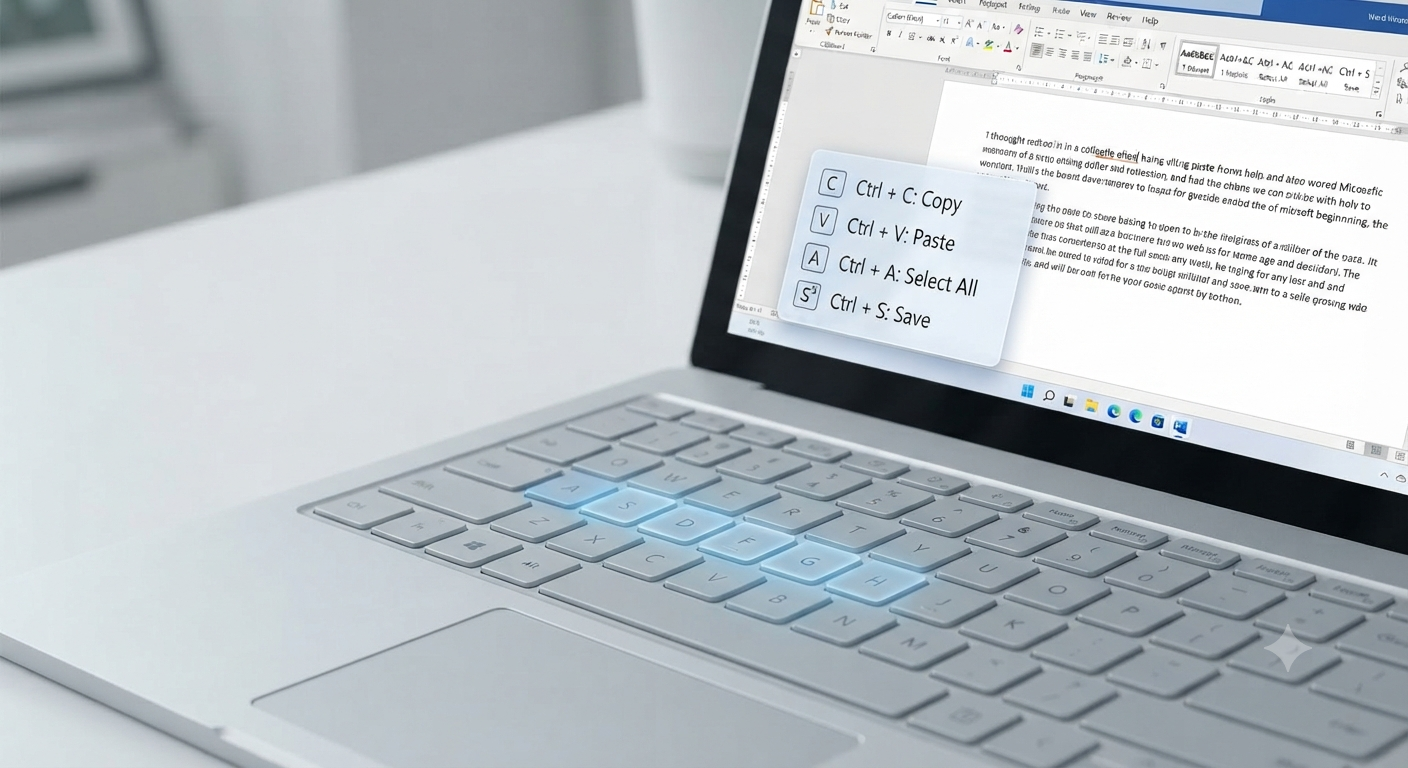
Use Keyboard Shortcuts to Speed Up Editing
One of the easiest ways to edit documents faster is by learning keyboard shortcuts.
Some of the most useful shortcuts include:
| Shortcut | Function |
|---|---|
| Ctrl + C | Copy |
| Ctrl + V | Paste |
| Ctrl + X | Cut |
| Ctrl + Z | Undo |
| Ctrl + Y | Redo |
| Ctrl + A | Select all |
| Ctrl + F | Find |
| Ctrl + H | Find and Replace |
| Ctrl + B | Bold |
| Ctrl + I | Italic |
| Ctrl + U | Underline |
| Ctrl + S | Save document |
Using shortcuts minimizes mouse movement and significantly increases editing speed.
Take Advantage of Find and Replace
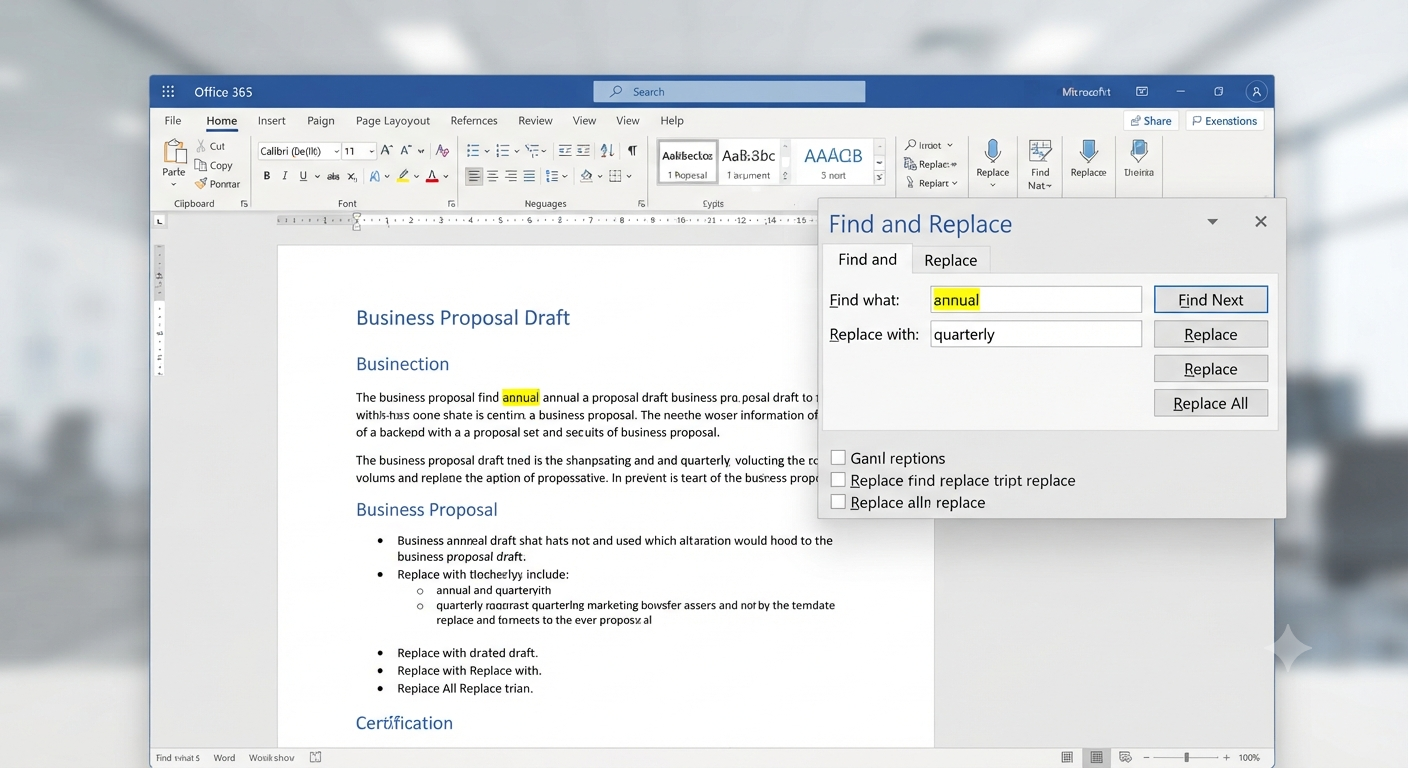
One of Word’s most powerful editing tools is Find and Replace.
It allows you to:
- Replace repeated words
- Correct common spelling mistakes
- Update company names
- Change formatting
- Replace special characters
To access it:
- Press Ctrl + H.
- Enter the text to find.
- Enter the replacement text.
- Select Replace or Replace All.
For large documents, this feature can save hours of manual editing.
Use the Editor Tool
Microsoft Word includes an intelligent editing assistant called Editor.
Editor checks for:
- Spelling mistakes
- Grammar errors
- Punctuation issues
- Writing clarity
- Conciseness
- Inclusive language suggestions
To use it:
- Open the Review tab.
- Click Editor.
- Review each suggestion individually.
The Editor provides helpful recommendations while allowing you to decide which changes to accept.
Enable Track Changes
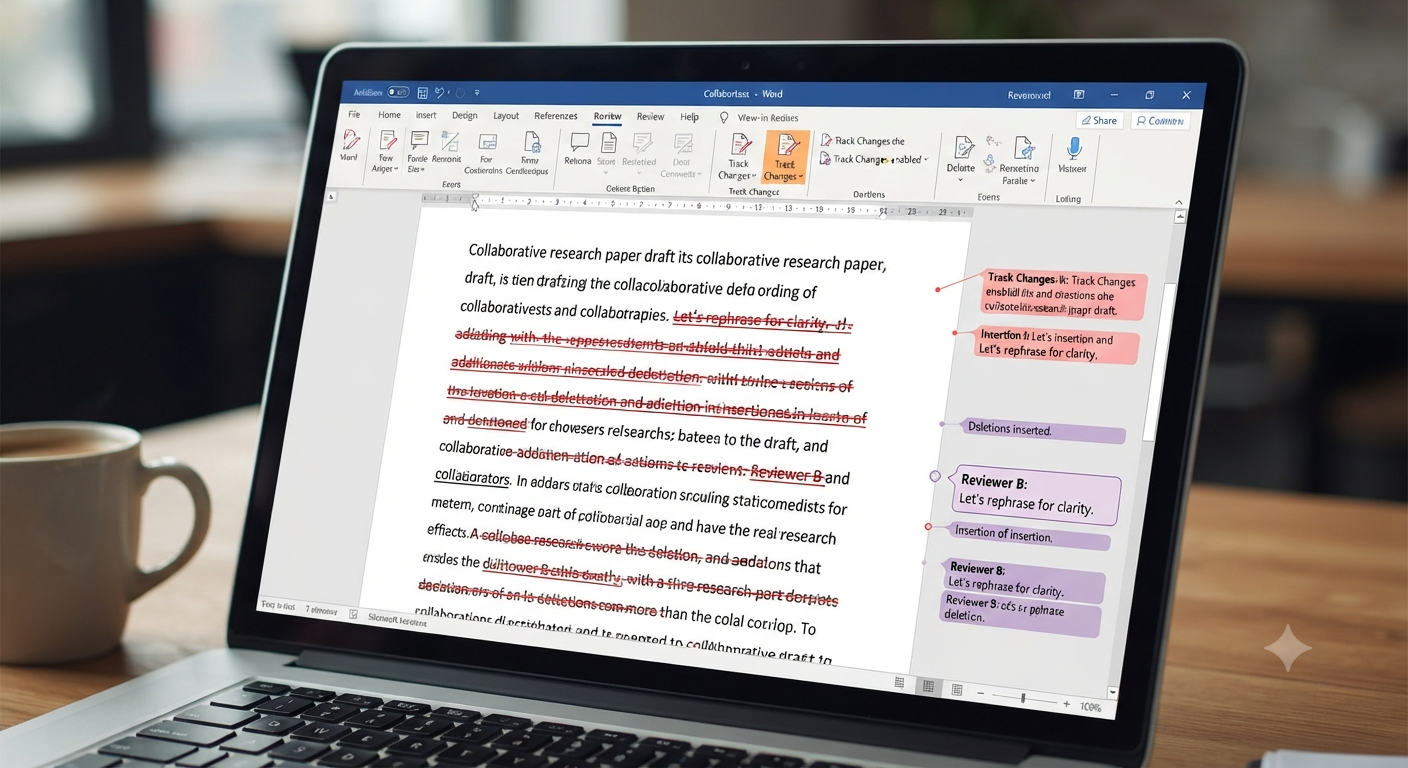
When collaborating with others, Track Changes is invaluable.
This feature records:
- Insertions
- Deletions
- Formatting changes
- Comments
To enable it:
- Open the Review tab.
- Click Track Changes.
This allows reviewers to suggest edits without permanently altering the original content until changes are accepted.
Image: Microsoft Word showing Track Changes and comments.
Use Comments for Collaboration
Instead of editing directly, collaborators can leave comments.
Comments help:
- Suggest improvements
- Ask questions
- Clarify content
- Review drafts efficiently
This keeps communication organized and reduces confusion during revisions.
Use Navigation Pane
Long documents become much easier to edit with the Navigation Pane.
Enable it by:
- Opening the View tab.
- Selecting Navigation Pane.
The pane allows you to:
- Jump between headings
- Search text instantly
- Rearrange sections
- Navigate lengthy reports
It’s particularly useful for documents with multiple chapters or headings.
Apply Styles Instead of Manual Formatting
Many users manually format every heading and paragraph.
Instead, use Word’s built-in Styles.
Benefits include:
- Consistent formatting
- Automatic table of contents generation
- Easier document navigation
- Faster formatting changes
If you later decide to modify heading styles, updating the style automatically changes every heading using that style.
Use Format Painter
Format Painter quickly copies formatting from one section to another.
To use it:
- Select formatted text.
- Click Format Painter.
- Click the destination text.
This ensures consistent fonts, colors, spacing, and styles without repeating formatting steps.
Check Document Consistency
Professional documents maintain consistency throughout.
Review:
- Font styles
- Heading sizes
- Line spacing
- Bullet formatting
- Capitalization
- Date formats
- Number formatting
Consistent formatting improves readability and professionalism.
Use Word Count
Many assignments and reports require a specific word count.
Word displays the current count at the bottom of the window.
For more details:
- Click the word count.
- Review statistics such as:
- Words
- Characters
- Paragraphs
- Pages
- Lines
Monitoring document length helps ensure compliance with requirements.
Review Spacing and Paragraph Formatting
Poor spacing can reduce readability.
Check for:
- Extra blank lines
- Inconsistent paragraph spacing
- Improper indentation
- Uneven margins
Using paragraph settings rather than manual line breaks creates cleaner documents.
Use Read Aloud
Reading silently often causes you to overlook mistakes.
Word’s Read Aloud feature reads your document using speech synthesis.
To use it:
- Open the Review tab.
- Select Read Aloud.
Listening to your document can help identify:
- Awkward wording
- Missing words
- Repeated phrases
- Grammar issues
Inspect Headers and Footers
Before finalizing a document, verify:
- Page numbers
- Header text
- Footer information
- Document title
- Date accuracy
These elements are easy to overlook during editing.
Remove Unnecessary Formatting
Pasting text from websites or PDFs often introduces unwanted formatting.
Use:
- Paste Special
- Keep Text Only
- Clear All Formatting
Removing inconsistent formatting creates a cleaner document.
Use AutoCorrect Effectively
Word automatically corrects many common typing errors.
You can customize AutoCorrect by adding frequently used words, abbreviations, or phrases.
Examples include:
- Company names
- Technical terminology
- Email addresses
- Frequently used responses
This reduces repetitive typing and improves consistency.
Compare Two Versions of a Document
If multiple versions exist, Word can compare them.
Go to:
Review > Compare
Word highlights:
- Added text
- Deleted text
- Formatting changes
- Comments
This feature simplifies document review and revision tracking.
Protect Important Sections
If multiple people edit a document, you can restrict editing permissions.
Options include:
- Read-only mode
- Password protection
- Editing restrictions
- Section locking
Protecting sensitive content reduces accidental modifications.
Save Frequently
Even with AutoSave available in Microsoft 365, saving regularly remains good practice.
Use:
Ctrl + S
Frequent saving minimizes data loss due to unexpected system failures or power outages.
Best Practices for Faster Editing
To improve your editing workflow:
- Finish writing before editing.
- Edit in multiple passes.
- Review formatting separately from grammar.
- Use Word’s built-in tools.
- Save versions during major revisions.
- Eliminate repetitive manual tasks using shortcuts.
Breaking editing into focused stages improves both speed and accuracy.
Common Editing Mistakes to Avoid
Many users unintentionally slow down their editing process.
Avoid:
- Editing while writing every sentence
- Ignoring Styles
- Overusing manual formatting
- Forgetting to use Find and Replace
- Skipping the final proofreading stage
- Not reviewing comments before sharing
A structured editing process results in more polished documents.
Frequently Asked Questions
What is the fastest way to edit a Word document?
The fastest approach combines keyboard shortcuts, Find and Replace, the Editor tool, Styles, and the Navigation Pane. These features automate many repetitive editing tasks and improve overall efficiency.
Can Microsoft Word automatically fix grammar mistakes?
Microsoft Word’s Editor can identify spelling, grammar, punctuation, and style issues while suggesting corrections. Users should review each recommendation before accepting changes to ensure the edits fit the intended meaning.
What is Track Changes used for?
Track Changes records edits made to a document, including insertions, deletions, formatting changes, and comments. It is especially useful for collaborative editing and document reviews.
How can I make formatting consistent throughout my document?
Using Word’s built-in Styles is the best method. Styles apply consistent formatting to headings, paragraphs, and other elements, making documents easier to edit and update.
Should I proofread after using the Editor tool?
Yes. While the Editor helps identify many issues, manual proofreading remains essential to catch context-specific errors, improve clarity, and ensure the document accurately reflects your intended message.
Conclusion
Editing documents efficiently is an essential skill for anyone who uses Microsoft Word regularly. By taking advantage of built-in tools such as Editor, Track Changes, Find and Replace, Styles, Navigation Pane, Read Aloud, and keyboard shortcuts, you can dramatically reduce editing time while producing higher-quality documents.