


Resolve the Print Screen Issue on Your Windows 11 PC
The Print Screen (PrtSc) key is a quick and convenient way to capture your screen on Windows. However, if you press it and nothing happens, it can be frustrating—especially if you’re working on something important and need to take a screenshot quickly.
Fortunately, there are multiple ways to resolve the issue when the Print Screen key stops working on Windows 11. In this guide, we’ll walk you through the most effective troubleshooting steps to get the functionality back.
What Does the Print Screen Key Do?
The Print Screen key is designed to take a screenshot of your entire screen and copy it to your clipboard. From there, you can paste it into applications like Paint, Word, or any image editor.
On Windows 11, you can also use PrtSc in combination with other keys:
-
Alt + PrtSc – Captures only the active window
-
Windows + Shift + S – Opens Snipping Tool (formerly Snip & Sketch)
-
Windows + PrtSc – Saves a screenshot directly to the Pictures > Screenshots folder
If none of these shortcuts work, it’s time to start troubleshooting.
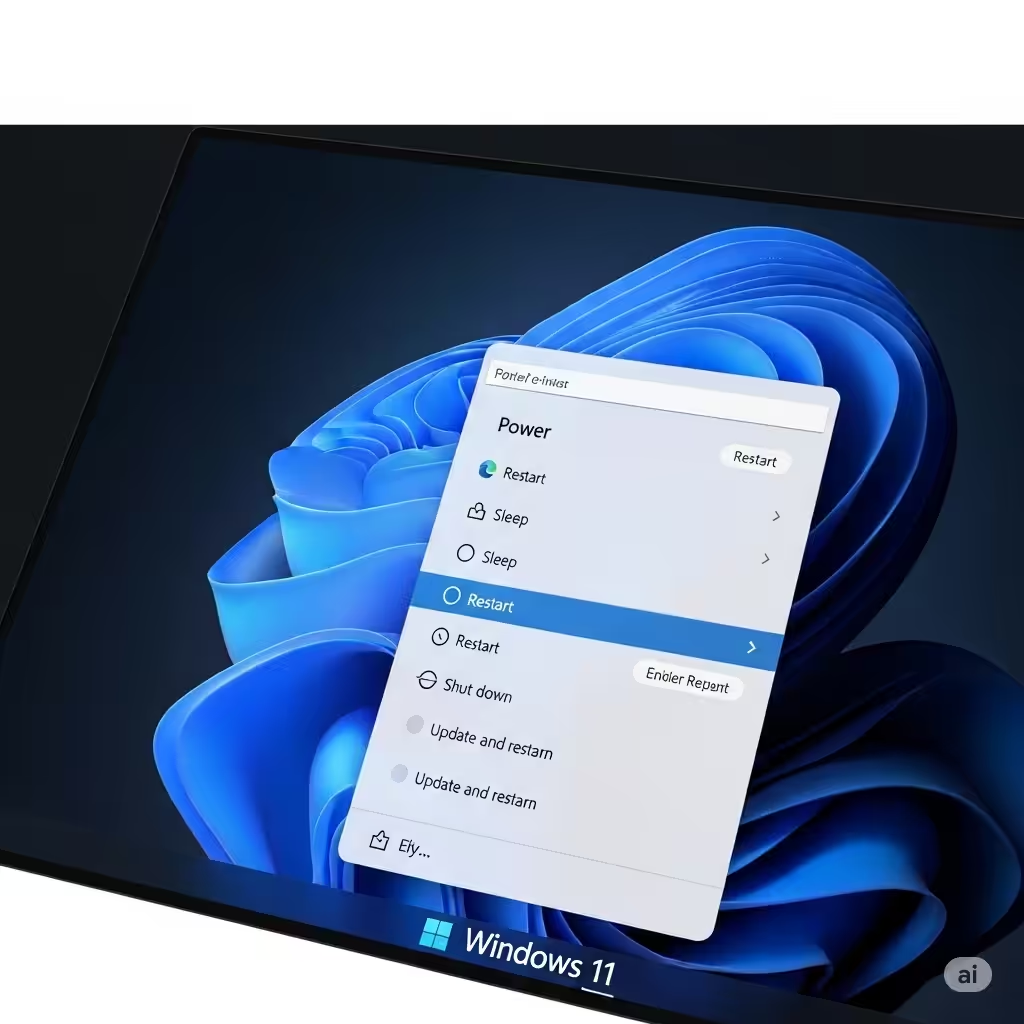
Restart Your PC
It may sound basic, but restarting your computer can resolve temporary glitches that prevent the Print Screen key from working.
Steps:
-
Save any open work.
-
Click the Start button.
-
Choose Power > Restart.
After rebooting, try using the Print Screen key again.
Check if the Key is Physically Damaged
Make sure the Print Screen key is not broken or stuck. Dirt, debris, or a faulty keyboard can prevent the key from wp-signup.phping.
Try these:
-
Press other keys like F1 to F12 to ensure the function row is working.
-
Try using an external USB keyboard if you’re on a laptop.
-
Use the on-screen keyboard: Press Windows + Ctrl + O to launch it and test the PrtScn button.
If the key doesn’t respond on any keyboard, the issue may be software-related.
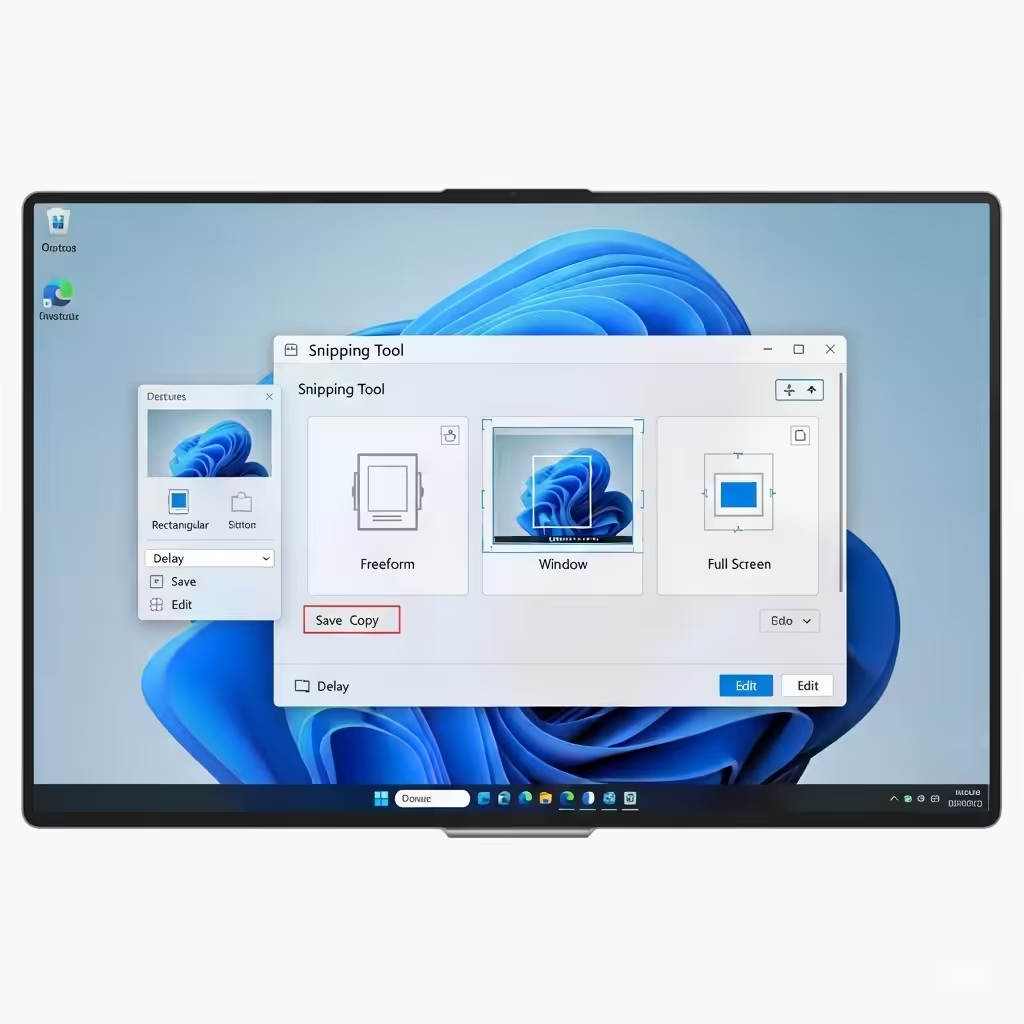
Use Snipping Tool Instead
Windows 11 includes the Snipping Tool as a built-in screenshot tool that replaces the old Snip & Sketch app.
Steps:
-
Press Windows + Shift + S.
-
Your screen will dim slightly, and you can choose to capture a rectangle, freeform, window, or full screen.
-
The image is copied to your clipboard and shown in a notification where you can edit or save it.
This shortcut often works even if the traditional Print Screen key does not.
Check the Clipboard Functionality
Since the Print Screen key copies the screenshot to the clipboard, any issues with clipboard functionality could prevent it from working correctly.
Steps:
-
Press Windows + V to check if clipboard history is enabled.
-
If it’s off, turn it on from Settings > System > Clipboard.
-
Try copying and pasting something simple like text to make sure the clipboard works.
If the clipboard is functioning correctly but screenshots still don’t show up, continue troubleshooting.
Disable Background Apps That Might Interfere
Some third-party applications—especially screen capture tools like Lightshot, ShareX, or clipboard managers—may hijack the Print Screen key.
Steps:
-
Press Ctrl + Shift + Esc to open Task Manager.
-
Go to the Startup tab.
-
Disable suspicious or redundant apps related to screen capture.
-
Restart your system and try using the Print Screen key again.
You can also uninstall such apps temporarily to see if it resolves the issue.
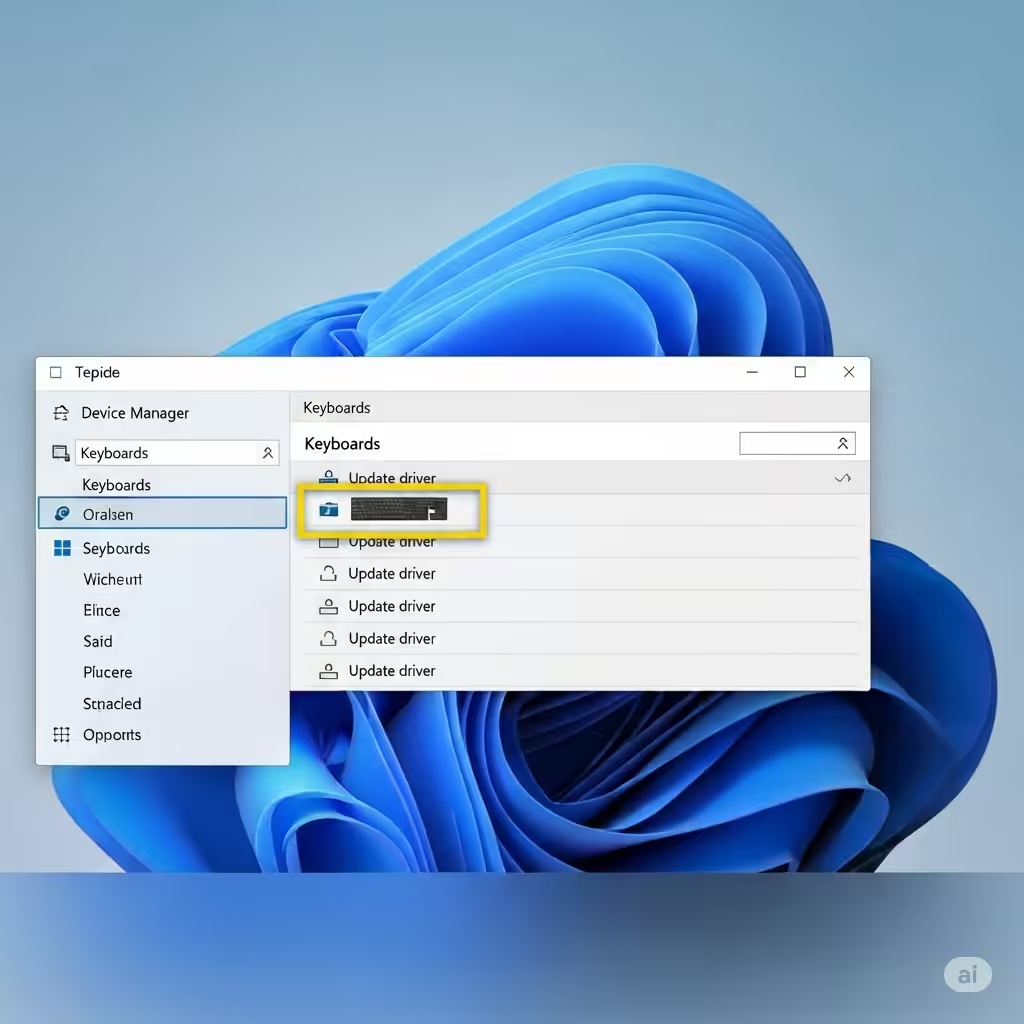
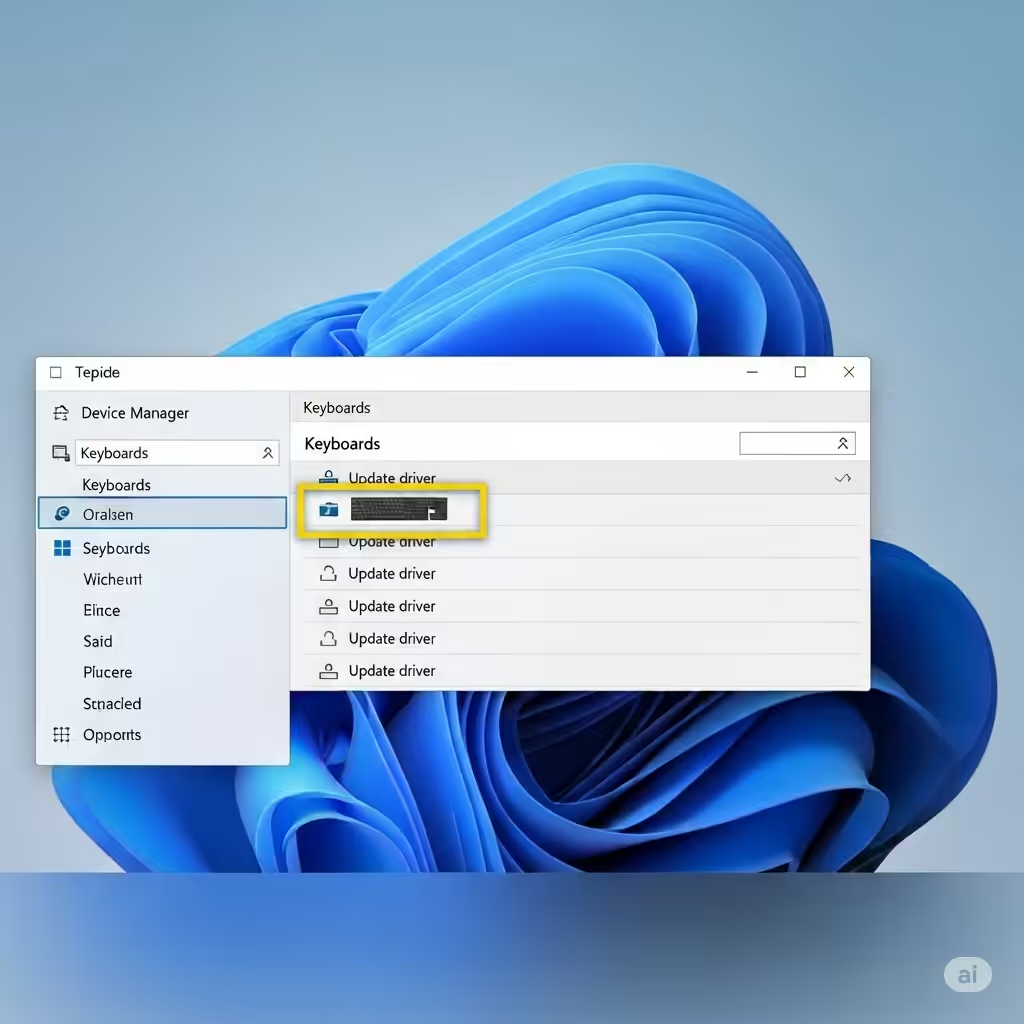
Update Your Keyboard Driver
Outdated or corrupt keyboard drivers can affect key functions like Print Screen.
Steps:
-
Right-click the Start button and select Device Manager.
-
Expand the Keyboards section.
-
Right-click your keyboard and choose Update driver.
-
Select Search automatically for drivers.
If Windows finds a new driver, it will install it. Restart your PC afterward.
Turn Off Function (Fn) Lock or Use Fn + PrtSc
On many laptops, the Print Screen key may require you to hold down the Fn (Function) key.
Try the following:
-
Press Fn + PrtSc.
-
If your laptop has a Function Lock key (often Fn + Esc), press it to toggle function key behavior.
-
Check your laptop’s manual or manufacturer’s website for details.
If this works, you can change your function key behavior in BIOS or UEFI settings to avoid pressing Fn every time.
Modify Print Screen Settings in Windows 11
Windows allows you to assign the Print Screen function to open the Snipping Tool, which may cause conflicts.
To check this setting:
-
Go to Settings > Accessibility > Keyboard.
-
Scroll down to the Print Screen shortcut section.
-
If Use the Print Screen button to open screen snipping is turned on, toggle it off.
-
Restart your PC and try again.
Disabling this option can restore the traditional screenshot behavior.
Run Windows Troubleshooter
Windows has built-in troubleshooters for detecting and fixing hardware problems.
Steps:
-
Go to Settings > System > Troubleshoot > Other troubleshooters.
-
Find and run the Keyboard troubleshooter.
-
Follow the on-screen prompts.
If any issues are found, the troubleshooter will suggest or apply fixes automatically.
Use Third-Party Screenshot Tools as an Alternative
If nothing else works, consider using free and lightweight third-party tools to take screenshots. Some popular options include:
-
ShareX
-
Greenshot
-
Lightshot
-
Snagit (premium)
These tools often offer advanced features like region capture, delayed capture, and automatic uploads, and can serve as a full replacement for the Print Screen key.
Conclusion
When the Print Screen key stops working on Windows 11, it can disrupt your productivity. However, as you’ve seen, there are numerous ways to fix the issue—from checking your hardware and keyboard settings to disabling conflicting apps or using built-in alternatives like Snipping Tool.
To summarize:
-
Restart your computer
-
Test another keyboard
-
Use Windows + Shift + S for snipping
-
Check clipboard and keyboard settings
-
Update drivers
-
Disable interfering background apps
-
Consider third-party screenshot tools
With the right combination of these solutions, your screenshot functionality should be back up and running in no time.