


How to Master the IF Function in Excel: Tips and Best Practices
Microsoft Excel is one of the most powerful tools for data analysis, reporting, and business management. Among its many built-in functions, the IF function stands out as one of the most useful and widely used. Whether you’re creating financial reports, tracking sales performance, managing inventory, or analyzing student grades, the IF function allows you to make logical decisions within your spreadsheets.
At its core, the IF function evaluates a condition and returns one value if the condition is true and another value if it is false. While the basic concept is simple, mastering the IF function can unlock advanced spreadsheet capabilities and significantly improve your productivity.
In this guide, you’ll learn how the IF function works, explore practical examples, and discover useful tips and tricks to take your Excel skills to the next level.
What Is the IF Function in Excel?
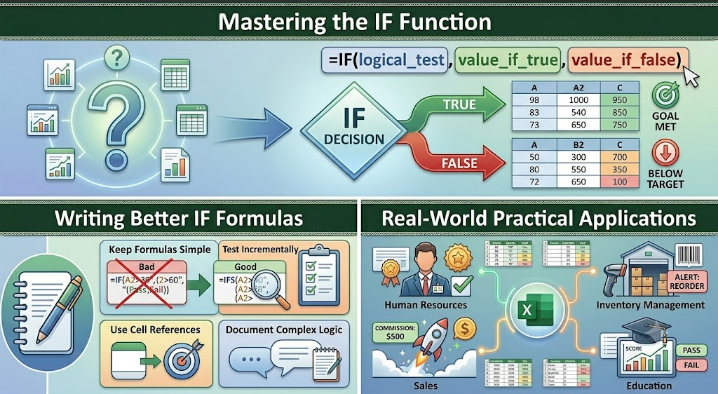
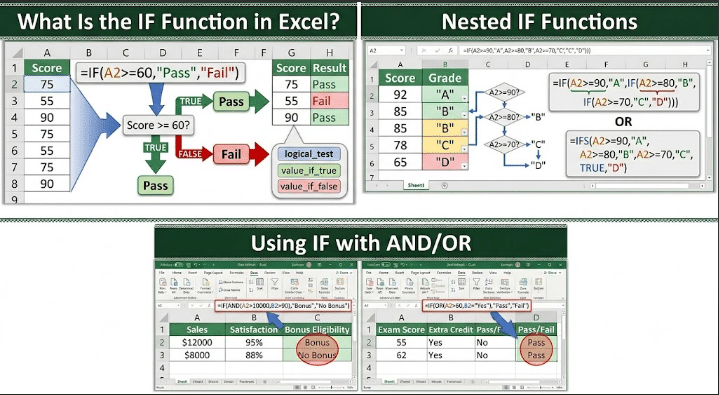
The IF function performs a logical test and returns different results based on whether the condition is met.
Basic Syntax
=IF(logical_test, value_if_true, value_if_false)Components Explained
- logical_test: The condition to evaluate.
- value_if_true: The result returned if the condition is true.
- value_if_false: The result returned if the condition is false.
The function essentially asks a question and provides one answer for “Yes” and another for “No.”
Simple IF Function Example
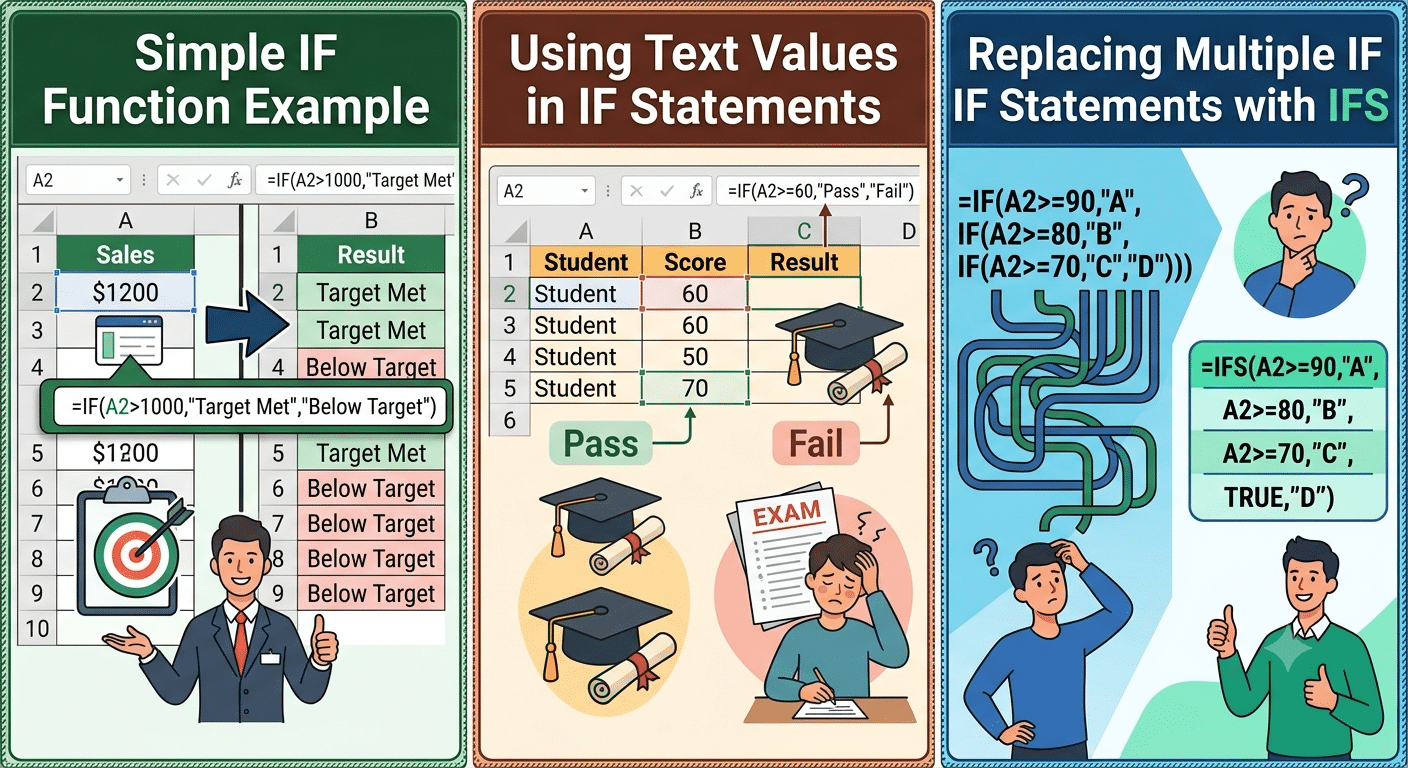
Suppose a company considers sales above $1,000 as successful.
| Sales |
|---|
| 800 |
| 1200 |
| 1500 |
To determine whether each sale meets the target:
=IF(A2>1000,"Target Met","Below Target")Results
| Sales | Result |
|---|---|
| 800 | Below Target |
| 1200 | Target Met |
| 1500 | Target Met |
This simple formula automatically categorizes performance.
Why Use the IF Function?
The IF function helps automate decision-making in Excel.
Benefits
- Reduces manual calculations
- Automates data analysis
- Improves reporting accuracy
- Simplifies complex spreadsheets
- Enhances productivity
- Supports conditional logic
It is one of the foundational functions used in business, finance, education, and data management.
Using Text Values in IF Statements
The IF function can return text responses.
Example
If a student’s score is at least 60:
=IF(A2>=60,"Pass","Fail")This creates an automatic grading system.
Sample Results
| Score | Result |
|---|---|
| 75 | Pass |
| 55 | Fail |
| 90 | Pass |
Text-based outputs make reports easier to interpret.
Using Numbers in IF Statements
The IF function can also return numerical values.
Example
Employees receive a bonus of $500 if sales exceed $10,000.
=IF(A2>10000,500,0)Result
- Sales above $10,000 → 500
- Sales below $10,000 → 0
This approach is commonly used in payroll and commission calculations.
Comparing Values with Logical Operators
The IF function relies on logical operators to evaluate conditions.
Common Operators
| Operator | Meaning |
|---|---|
| = | Equal to |
| > | Greater than |
| < | Less than |
| >= | Greater than or equal to |
| <= | Less than or equal to |
| <> | Not equal to |
These operators form the basis of logical testing in Excel.
Using IF with Dates
The IF function works effectively with dates.
Example
Determine whether a task is overdue:
=IF(A2<TODAY(),"Overdue","On Schedule")If the date is earlier than today’s date, Excel returns “Overdue.”
This is useful for project tracking and deadline management.
Nested IF Functions
Sometimes multiple conditions need to be evaluated.
Example: Grading System
| Score | Grade |
|---|---|
| 90+ | A |
| 80–89 | B |
| 70–79 | C |
| Below 70 | D |
Formula:
=IF(A2>=90,"A",IF(A2>=80,"B",IF(A2>=70,"C","D")))How It Works
Excel checks conditions sequentially until a match is found.
Nested IF functions allow multiple outcomes within a single formula.
Limitations of Nested IF Statements
While powerful, deeply nested IF formulas can become difficult to read and maintain.
Problems Include
- Reduced readability
- Increased risk of errors
- Difficult troubleshooting
- Complex formula management
For complex scenarios, alternative functions may be preferable.
Using IF with AND
The AND function allows multiple conditions to be tested simultaneously.
Syntax
=IF(AND(condition1,condition2),value_if_true,value_if_false)Example
Employees receive a bonus only if:
- Sales exceed $10,000
- Customer satisfaction exceeds 90%
Formula:
=IF(AND(A2>10000,B2>90),"Bonus","No Bonus")Both conditions must be true.
Using IF with OR
The OR function returns TRUE if at least one condition is met.
Example
A student passes if:
- Exam score exceeds 60
- Extra credit is completed
Formula:
=IF(OR(A2>60,B2="Yes"),"Pass","Fail")Only one condition needs to be true.
Combining IF, AND, and OR
Complex business logic often requires multiple conditions.
Example
=IF(AND(A2>10000,OR(B2="Gold",B2="Platinum")),"Eligible","Not Eligible")This formula evaluates several criteria simultaneously.
Using IFERROR with IF
Errors can make reports difficult to understand.
Example
Instead of displaying:
#DIV/0!Use:
=IFERROR(A2/B2,"Invalid Calculation")This provides a more user-friendly result.
Using IF with Blank Cells
You can test whether cells are empty.
Example
=IF(A2="","No Data","Data Entered")This helps identify missing information.
Alternative Method
=IF(ISBLANK(A2),"No Data","Data Entered")Both methods achieve similar results.
Using IF for Conditional Formatting Logic
Although Conditional Formatting has built-in rules, IF formulas can help create custom conditions.
Example
Determine performance status:
=IF(A2>=100,"Excellent","Needs Improvement")The result can then drive visual formatting rules.
Creating Dynamic Labels
The IF function can generate labels automatically.
Example
=IF(A2>5000,"High Revenue","Low Revenue")Dynamic labels simplify reporting and dashboard creation.
Using IF with Lookup Functions
The IF function is often combined with lookup functions such as:
- VLOOKUP
- HLOOKUP
- INDEX
- MATCH
- XLOOKUP
Example
=IF(XLOOKUP(A2,D2:D20,E2:E20)>1000,"Premium","Standard")This allows decision-making based on retrieved data.
Replacing Multiple IF Statements with IFS
Modern versions of Excel include the IFS function.
Example
Instead of:
=IF(A2>=90,"A",IF(A2>=80,"B",IF(A2>=70,"C","D")))Use:
=IFS(A2>=90,"A",A2>=80,"B",A2>=70,"C",TRUE,"D")IFS improves readability when handling multiple conditions.
Common IF Function Errors
Missing Quotation Marks
Incorrect:
=IF(A2>100,Yes,No)Correct:
=IF(A2>100,"Yes","No")Incorrect Parentheses
Ensure all parentheses are properly closed.
Logical Errors
A formula may be syntactically correct but still produce incorrect results if conditions are arranged improperly.
Tips for Writing Better IF Formulas
Keep Formulas Simple
Avoid unnecessary complexity whenever possible.
Test Incrementally
Build and test formulas step by step.
Use Cell References
Avoid hard-coding values unless necessary.
Document Complex Logic
Add comments or notes to explain advanced formulas.
Consider Alternative Functions
Functions such as:
- IFS
- SWITCH
- CHOOSE
- XLOOKUP
may simplify certain tasks.
Practical Applications of the IF Function
The IF function is useful in countless scenarios.
Finance
- Budget analysis
- Expense tracking
- Investment evaluation
Sales
- Commission calculations
- Target tracking
- Customer classification
Human Resources
- Attendance monitoring
- Bonus eligibility
- Employee performance evaluations
Education
- Grade calculations
- Pass/fail determination
- Student assessments
Inventory Management
- Stock alerts
- Reorder notifications
- Product categorization
Its flexibility makes it indispensable across industries.
Best Practices for Using the IF Function
Use Meaningful Outputs
Choose clear labels that are easy to understand.
Avoid Excessive Nesting
Too many nested IF statements can become difficult to maintain.
Combine with Other Functions
IF works best when integrated with Excel’s broader function library.
Validate Results
Always verify that formulas produce expected outcomes.
Final Thoughts
The IF function is one of the most important and versatile tools in Microsoft Excel. It enables users to automate decisions, classify data, evaluate conditions, and create dynamic spreadsheets that respond intelligently to changing information.
From simple pass/fail calculations to advanced business logic involving multiple criteria, the IF function can dramatically improve efficiency and reduce manual work. By learning how to combine IF with functions such as AND, OR, IFERROR, XLOOKUP, and IFS, you can build powerful formulas capable of handling complex real-world scenarios.