


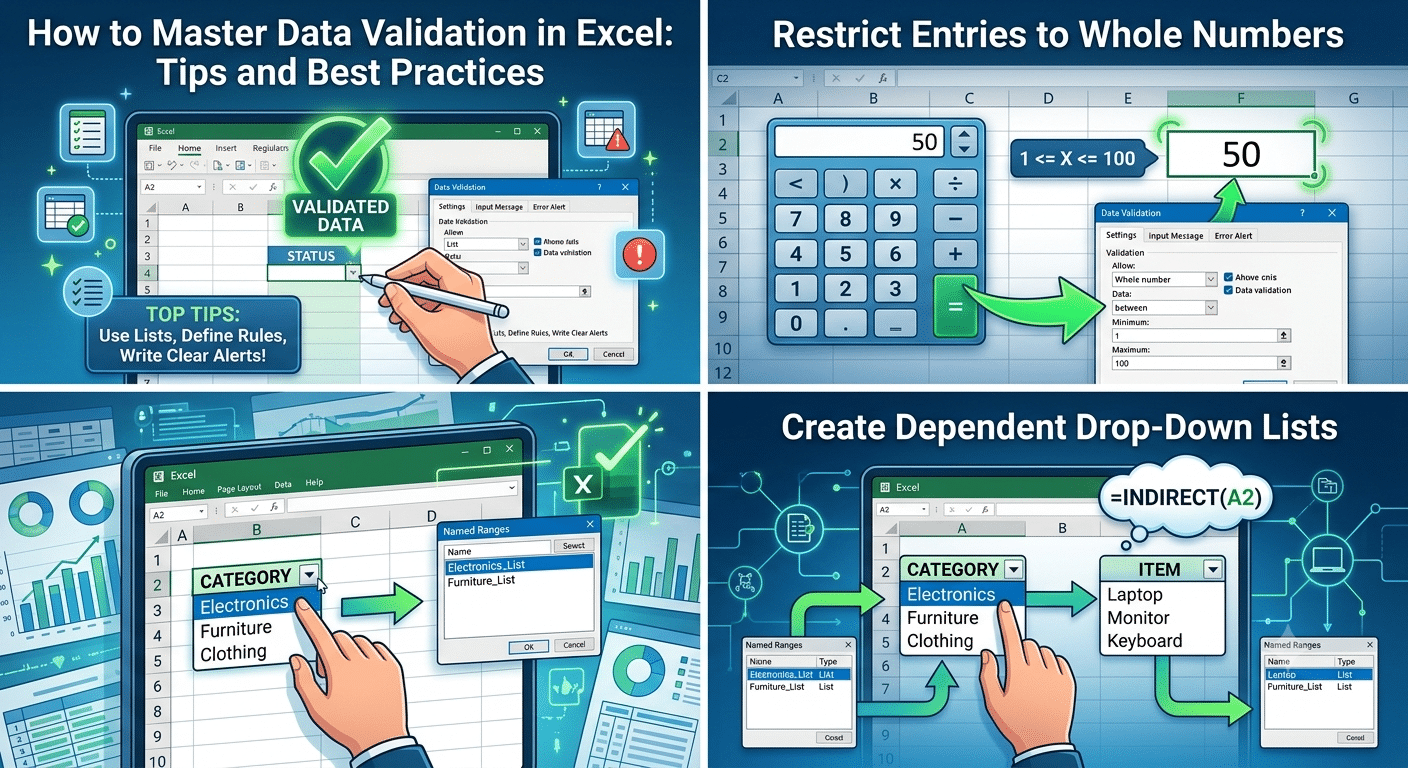
How to Master Data Validation in Excel: Tips and Best Practices
Microsoft Excel is one of the most widely used tools for managing, analyzing, and organizing data. However, even the most sophisticated spreadsheet can become unreliable if users enter incorrect or inconsistent information. This is where Data Validation becomes an essential feature.
Data Validation allows you to control what users can enter into cells, helping prevent errors, maintain consistency, and improve data quality. Whether you’re creating a budget worksheet, employee database, inventory tracker, survey form, or financial report, Data Validation can significantly enhance the accuracy and professionalism of your spreadsheets.
In this comprehensive guide, you’ll learn what Data Validation is, how it works, and the best tips and tricks for using it effectively in Excel.
What Is Data Validation in Excel?
Data Validation is a feature that restricts the type of data users can enter into a cell.
Instead of allowing any value, you can specify rules such as:
- Whole numbers only
- Decimal values within a range
- Specific dates
- Text of a certain length
- Values selected from a drop-down list
- Custom formulas
When users attempt to enter invalid data, Excel can display an error message and prevent the entry.
Why Is Data Validation Important?
Data quality is critical for accurate reporting and analysis.
Benefits of Data Validation
- Reduces data-entry errors
- Improves consistency
- Saves time during data cleaning
- Enhances spreadsheet reliability
- Makes forms easier to use
- Supports better decision-making
Without validation rules, even small errors can lead to incorrect calculations and misleading results.
Where to Find Data Validation
Data Validation is located on the Data tab in Excel.
Steps
- Select the cell or range.
- Click the Data tab.
- Choose:
Data ValidationThe Data Validation dialog box will open, allowing you to configure validation rules.
Understanding the Data Validation Window
The Data Validation dialog contains three primary tabs:
Settings
Used to define validation rules.
Input Message
Displays instructions when users select a cell.
Error Alert
Shows an error message when invalid data is entered.
Understanding these sections helps you create more effective spreadsheets.
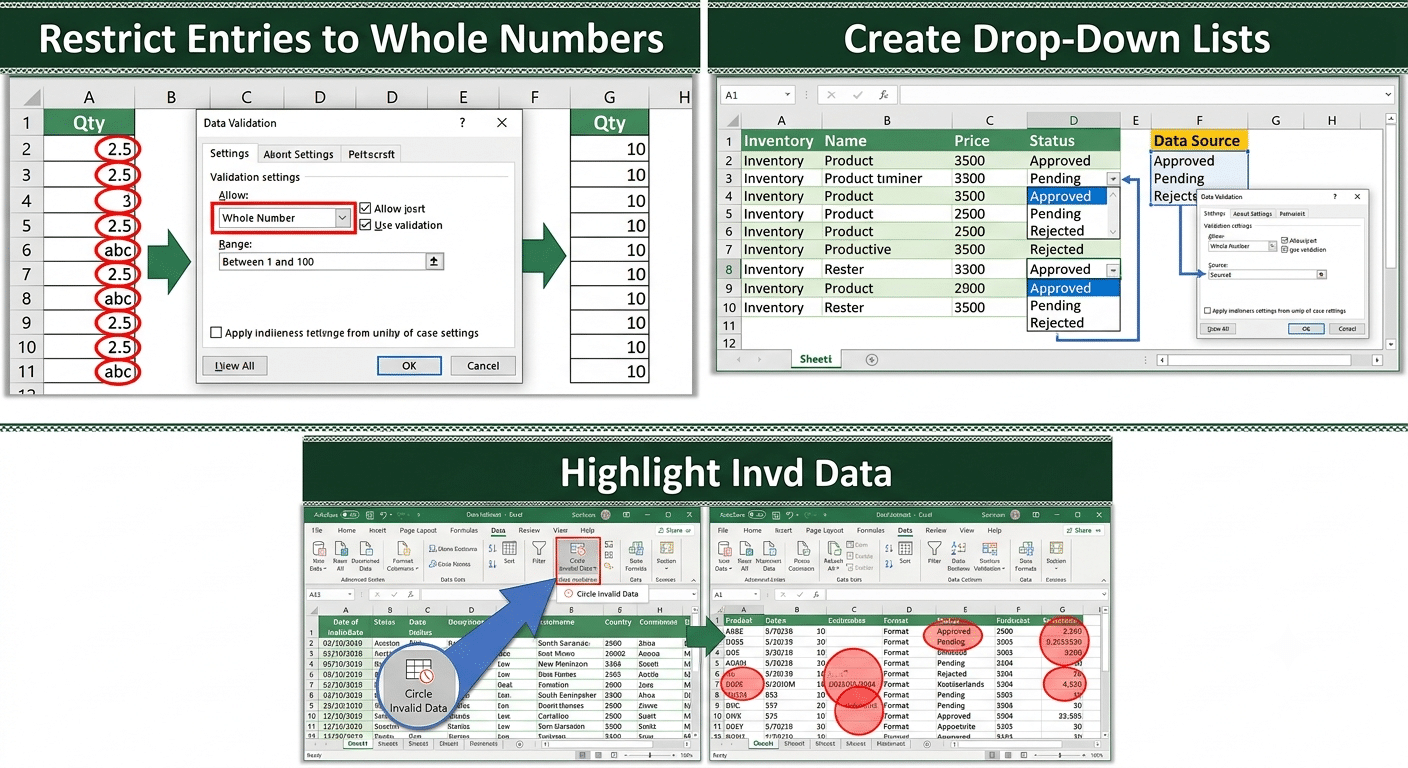
Restrict Entries to Whole Numbers
One of the simplest uses of Data Validation is restricting entries to whole numbers.
Example
Suppose employees can only enter quantities between 1 and 100.
Steps
- Select the target cells.
- Open Data Validation.
- Under Allow, select:
Whole Number- Set:
- Minimum: 1
- Maximum: 100
- Click OK.
Excel now accepts only whole numbers within that range.
Restrict Entries to Decimal Values
For financial or measurement data, decimal values may be required.
Example
Allow values between:
0.00 and 100.00Configuration
- Open Data Validation.
- Select:
Decimal- Specify the minimum and maximum values.
This ensures users enter valid numerical data.
Validate Dates
Date validation is particularly useful in project management and scheduling spreadsheets.
Example
Allow dates only within the current year.
Steps
- Select the cells.
- Choose:
Date- Define the date range.
Users will only be able to enter dates within the specified period.
Restrict Time Entries
Excel can also validate time values.
Applications
- Employee timesheets
- Shift schedules
- Appointment trackers
- Attendance records
You can limit entries to business hours or specific time ranges.
Control Text Length
Sometimes you need users to enter text within a specific character limit.
Example
Employee IDs must contain exactly six characters.
Steps
- Select the cells.
- Choose:
Text Length- Set:
Equal To- Enter:
6Excel will reject entries that do not meet the requirement.
Create Drop-Down Lists
Drop-down lists are among the most popular Data Validation features.
Benefits
- Faster data entry
- Consistent values
- Reduced spelling errors
- Improved reporting accuracy
Example
Allow users to select:
- Approved
- Pending
- Rejected
Steps
- Create a list of options.
- Select the target cells.
- Open Data Validation.
- Choose:
List- Specify the source range.
- Click OK.
Users can now select values from a drop-down menu.
Use Named Ranges for Dynamic Lists
Named ranges make drop-down lists easier to manage.
Create a Named Range
- Select the list.
- Click the Name Box.
- Enter a name.
Example:
DepartmentsUse in Data Validation
=DepartmentsThis creates a cleaner and more flexible setup.
Create Dependent Drop-Down Lists
Advanced users often create dependent lists.
Example
If a user selects:
ElectronicsThe second list displays:
- Laptop
- Monitor
- Keyboard
If the user selects:
FurnitureThe second list displays:
- Chair
- Desk
- Cabinet
This improves user experience and reduces errors.
Use Input Messages
Input messages provide instructions when users select a cell.
Example Message
Title:
Enter DepartmentMessage:
Please select a department from the list.Input messages guide users before they enter data.
Customize Error Messages
Excel allows custom error alerts.
Example
Title:
Invalid EntryMessage:
Please enter a value between 1 and 100.Custom messages make validation rules easier to understand.
Understanding Error Alert Types
Excel provides three alert styles.
Stop
Prevents invalid entries completely.
Warning
Allows users to override the rule after confirmation.
Information
Provides a notification but permits the entry.
For most business applications, Stop is recommended.
Using Custom Formulas for Data Validation
Custom formulas unlock advanced validation capabilities.
Example: Prevent Duplicate Entries
Suppose employee IDs must be unique.
Formula:
=COUNTIF($A$2:$A$100,A2)=1Excel rejects duplicate values automatically.
Allow Entries Based on Another Cell
Validation can depend on values elsewhere in the worksheet.
Example
A bonus amount should only be entered if sales exceed a target.
Custom formulas can enforce such business rules.
Prevent Future Dates
Suppose users should only enter today’s date or earlier.
Formula
=A2<=TODAY()This prevents future dates from being entered.
Allow Only Weekdays
You can restrict entries to weekdays.
Formula
=WEEKDAY(A2,2)<=5This blocks Saturday and Sunday entries.
Highlight Invalid Data
Even after validation is applied, invalid data may exist.
Check for Invalid Data
- Select the validated cells.
- Go to:
Data → Data Validation- Click:
Circle Invalid DataExcel highlights cells containing invalid values.
Copy Validation Rules
When working with large datasets, copying validation rules saves time.
Method
- Copy a validated cell.
- Select the destination range.
- Use:
Paste Special → ValidationOnly the validation settings are copied.
Removing Data Validation
Validation rules can be removed if they are no longer needed.
Steps
- Select the cells.
- Open Data Validation.
- Click:
Clear All- Click OK.
The cells return to unrestricted input.
Common Data Validation Mistakes
Not Validating All Relevant Cells
Incomplete validation leaves room for errors.
Using Static Lists
Hard-coded lists require manual updates.
Dynamic lists are often more effective.
Ignoring Error Messages
Clear instructions improve user compliance.
Overcomplicating Rules
Keep validation simple whenever possible.
Complex rules can confuse users and increase maintenance requirements.
Best Practices for Data Validation
Plan Validation Rules Early
Design validation before users begin entering data.
Use Meaningful Error Messages
Tell users exactly what is required.
Combine with Conditional Formatting
Highlight important entries and validation issues visually.
Protect Critical Worksheets
Worksheet protection prevents accidental changes to validation settings.
Test Thoroughly
Verify that all validation rules work as intended before sharing the workbook.
Real-World Uses of Data Validation
Data Validation is valuable across many industries.
Human Resources
- Employee records
- Attendance tracking
- Recruitment forms
Finance
- Budget templates
- Expense reports
- Financial forecasting
Sales
- Customer databases
- Order forms
- Revenue tracking
Inventory Management
- Product catalogs
- Stock tracking
- Purchase orders
Education
- Student records
- Grade sheets
- Registration forms
Its flexibility makes it one of Excel’s most practical features.
Final Thoughts
Data Validation is one of the most effective tools for improving the quality, consistency, and reliability of Excel spreadsheets. By controlling what users can enter, Data Validation helps prevent errors, streamline data entry, and ensure that reports and analyses are based on accurate information.
From simple number restrictions and drop-down lists to advanced formula-based validation rules, Excel offers a wide range of options for managing data effectively. Whether you’re building business reports, tracking inventory, managing employee records, or creating interactive forms, mastering Data Validation can significantly improve the usability and professionalism of your spreadsheets.