


How to Replace VLOOKUP with INDEX and MATCH in Excel
For many years, VLOOKUP has been one of the most popular functions in Microsoft Excel. It allows users to search for a value in a table and return corresponding information from another column. While VLOOKUP is useful and easy to learn, it has several limitations that can make complex spreadsheets difficult to manage.
This is where the powerful combination of INDEX and MATCH comes in. Many Excel professionals prefer INDEX/MATCH because it is more flexible, more efficient, and capable of handling lookup scenarios that VLOOKUP simply cannot.
Whether you’re managing customer databases, financial reports, inventory records, or large business datasets, mastering INDEX/MATCH can significantly improve your Excel skills and help you create more reliable spreadsheets.
In this guide, you’ll learn why many users replace VLOOKUP with INDEX/MATCH, how these functions work, and how to use them effectively in real-world situations.
Why Move Beyond VLOOKUP?
VLOOKUP has been a staple of Excel for decades, but it comes with several limitations.
Common VLOOKUP Limitations
- Can only search from left to right
- Requires hard-coded column numbers
- Breaks when columns are inserted or deleted
- Can become inefficient with large datasets
- Less flexible for advanced lookups
As spreadsheets grow more complex, these limitations become increasingly noticeable.
Understanding the INDEX Function
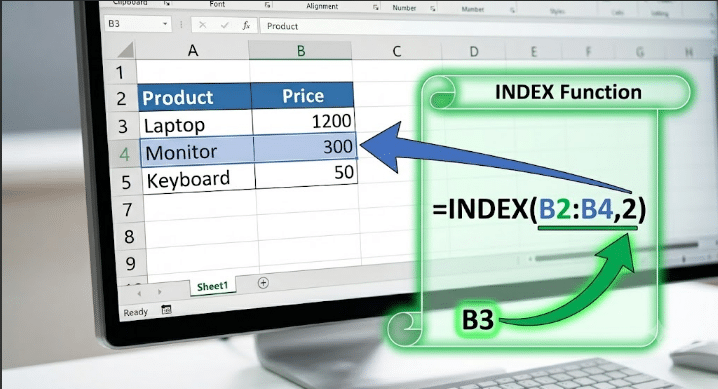
The INDEX function returns a value from a specified position within a range.
Syntax
=INDEX(array, row_num, [column_num])Example
Suppose you have the following data:
| A | B |
|---|---|
| Product | Price |
| Laptop | 1200 |
| Monitor | 300 |
| Keyboard | 50 |
Formula:
=INDEX(B2:B4,2)Result:
300The function returns the second value from the selected range.
What INDEX Does
INDEX answers the question:
“What value exists at this specific position?”
Understanding the MATCH Function
MATCH identifies the position of a value within a range.
Syntax
=MATCH(lookup_value, lookup_array, [match_type])Example
Using the product list:
=MATCH("Monitor",A2:A4,0)Result:
2MATCH finds that “Monitor” appears in the second position of the range.
What MATCH Does
MATCH answers the question:
“Where is this value located?”
How INDEX and MATCH Work Together
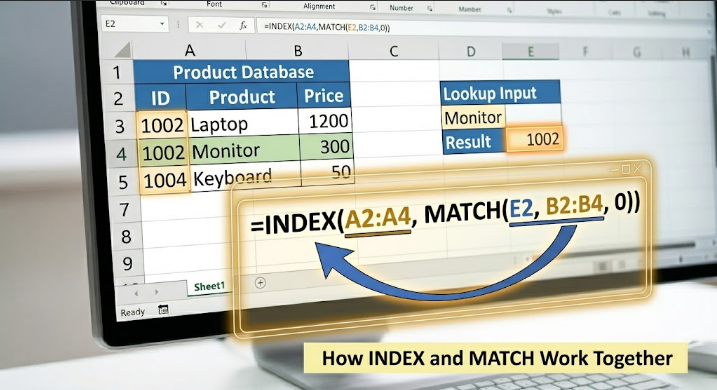
When combined, MATCH finds the position of a value, and INDEX returns information from that position.
Formula Structure
=INDEX(return_range,MATCH(lookup_value,lookup_range,0))This combination creates a flexible lookup solution.
Basic INDEX/MATCH Example
Consider the following table:
| Product | Price |
|---|---|
| Laptop | 1200 |
| Monitor | 300 |
| Keyboard | 50 |
| Mouse | 25 |
Suppose you want to find the price of “Keyboard.”
Formula
=INDEX(B2:B5,MATCH("Keyboard",A2:A5,0))Result
50MATCH finds the position of “Keyboard,” and INDEX returns the corresponding price.
Why INDEX/MATCH Is Better Than VLOOKUP
Lookup Direction Flexibility
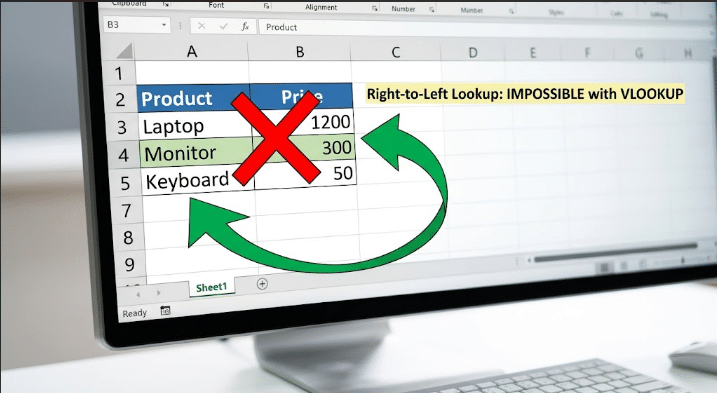
VLOOKUP can only search left-to-right.
INDEX/MATCH can search:
- Left-to-right
- Right-to-left
- Up
- Down
This makes it far more versatile.
Example
Suppose product names are in column B and IDs are in column A.
VLOOKUP cannot return values from a column to the left of the lookup column.
INDEX/MATCH handles this easily.
=INDEX(A2:A10,MATCH("Laptop",B2:B10,0))No Column Number Dependency
VLOOKUP requires specifying a column index.
Example:
=VLOOKUP(E2,A2:D100,3,FALSE)If a column is inserted, the formula may return incorrect results.
INDEX/MATCH references actual ranges instead.
=INDEX(C2:C100,MATCH(E2,A2:A100,0))Inserted columns do not affect the formula.
Improved Spreadsheet Reliability
Business spreadsheets often evolve over time.
Because INDEX/MATCH does not depend on column positions, it is generally more resistant to structural changes.
This reduces maintenance and troubleshooting efforts.
Using Cell References with INDEX/MATCH
Instead of hard-coded values, use cell references.
Example
If cell E2 contains a product name:
=INDEX(B2:B100,MATCH(E2,A2:A100,0))Users can enter different products without changing the formula.
Exact Match Lookups
The most common MATCH setting uses:
0Example:
=MATCH(E2,A2:A100,0)This forces Excel to find an exact match.
For most business applications, exact matching is recommended.
Performing Left Lookups
One of the biggest advantages of INDEX/MATCH is performing left lookups.
Example Table
| ID | Product |
|---|---|
| 1001 | Laptop |
| 1002 | Monitor |
| 1003 | Keyboard |
Find the ID for “Monitor”:
=INDEX(A2:A4,MATCH("Monitor",B2:B4,0))Result:
1002This is impossible with traditional VLOOKUP.
Two-Way Lookups with INDEX/MATCH
INDEX/MATCH can retrieve values using both row and column criteria.
Example
| Product | Jan | Feb | Mar |
|---|---|---|---|
| Laptop | 100 | 120 | 130 |
| Monitor | 80 | 90 | 95 |
Retrieve Monitor sales for February:
=INDEX(B2:D3,MATCH("Monitor",A2:A3,0),MATCH("Feb",B1:D1,0))Result:
90This dynamic lookup is extremely useful for reporting.
Using INDEX/MATCH with Large Datasets
Performance matters when working with thousands of rows.
Benefits
- Efficient calculations
- Reduced formula maintenance
- Better scalability
For large business workbooks, INDEX/MATCH often performs better than complex VLOOKUP formulas.
Handling Errors with IFERROR
Lookup formulas may return errors when values are not found.
Example
=IFERROR(INDEX(B2:B100,MATCH(E2,A2:A100,0)),"Not Found")Instead of displaying:
#N/AExcel displays:
Not FoundThis improves user experience and report readability.
Using Wildcards with MATCH
MATCH supports wildcard searches.
Example
=MATCH("Lap*",A2:A100,0)This matches entries beginning with:
LapSuch as:
- Laptop
- Laptops
- Laptop Bag
Wildcards provide additional flexibility.
Case-Sensitive Lookups
By default, Excel lookups are not case-sensitive.
Advanced users can combine INDEX, MATCH, and EXACT functions to create case-sensitive searches when necessary.
This is useful in specialized databases and coding environments.
INDEX/MATCH vs. XLOOKUP
Modern Excel versions include XLOOKUP.
Advantages of XLOOKUP
- Simpler syntax
- Built-in error handling
- Native left lookup support
Example:
=XLOOKUP(E2,A2:A100,B2:B100)Why Learn INDEX/MATCH Anyway?
Many organizations still use:
- Excel 2016
- Excel 2019
- Older versions
INDEX/MATCH remains universally supported and widely used.
Common INDEX/MATCH Mistakes
Different Range Sizes
The lookup range and return range should contain the same number of rows.
Incorrect:
=INDEX(B2:B50,MATCH(E2,A2:A100,0))This may return unexpected results.
Using Approximate Matching Accidentally
Always use:
0for exact matches unless approximate matching is intentionally required.
Incorrect References
Verify that ranges point to the intended data.
Small reference mistakes can produce inaccurate results.
Best Practices for INDEX/MATCH
Use Named Ranges
Named ranges make formulas easier to understand.
Example:
=INDEX(Prices,MATCH(E2,Products,0))Add Error Handling
Wrap formulas with IFERROR whenever possible.
Document Complex Formulas
Use comments or notes to explain advanced lookup logic.
Test Formulas Thoroughly
Validate results before using them in reports or dashboards.
Real-World Applications of INDEX/MATCH
INDEX/MATCH is used extensively across industries.
Finance
- Budget analysis
- Financial reporting
- Investment tracking
Sales
- Product pricing
- Revenue reports
- Customer records
Human Resources
- Employee databases
- Salary lookup systems
- Performance tracking
Inventory Management
- Stock monitoring
- Product identification
- Warehouse reporting
Its flexibility makes it valuable for virtually any data-driven task.
Final Thoughts
While VLOOKUP remains a useful Excel function, INDEX/MATCH offers a more powerful and flexible approach to data lookups. By combining the position-finding capabilities of MATCH with the value-returning power of INDEX, users can perform advanced searches that are more reliable, scalable, and adaptable to changing spreadsheet structures.
Whether you’re building financial models, managing large databases, creating reports, or analyzing business data, mastering INDEX/MATCH can significantly improve your efficiency and confidence in Excel. Although newer functions like XLOOKUP are available in modern Excel versions, INDEX/MATCH continues to be an essential skill for professionals who want to create robust and future-proof spreadsheets.