


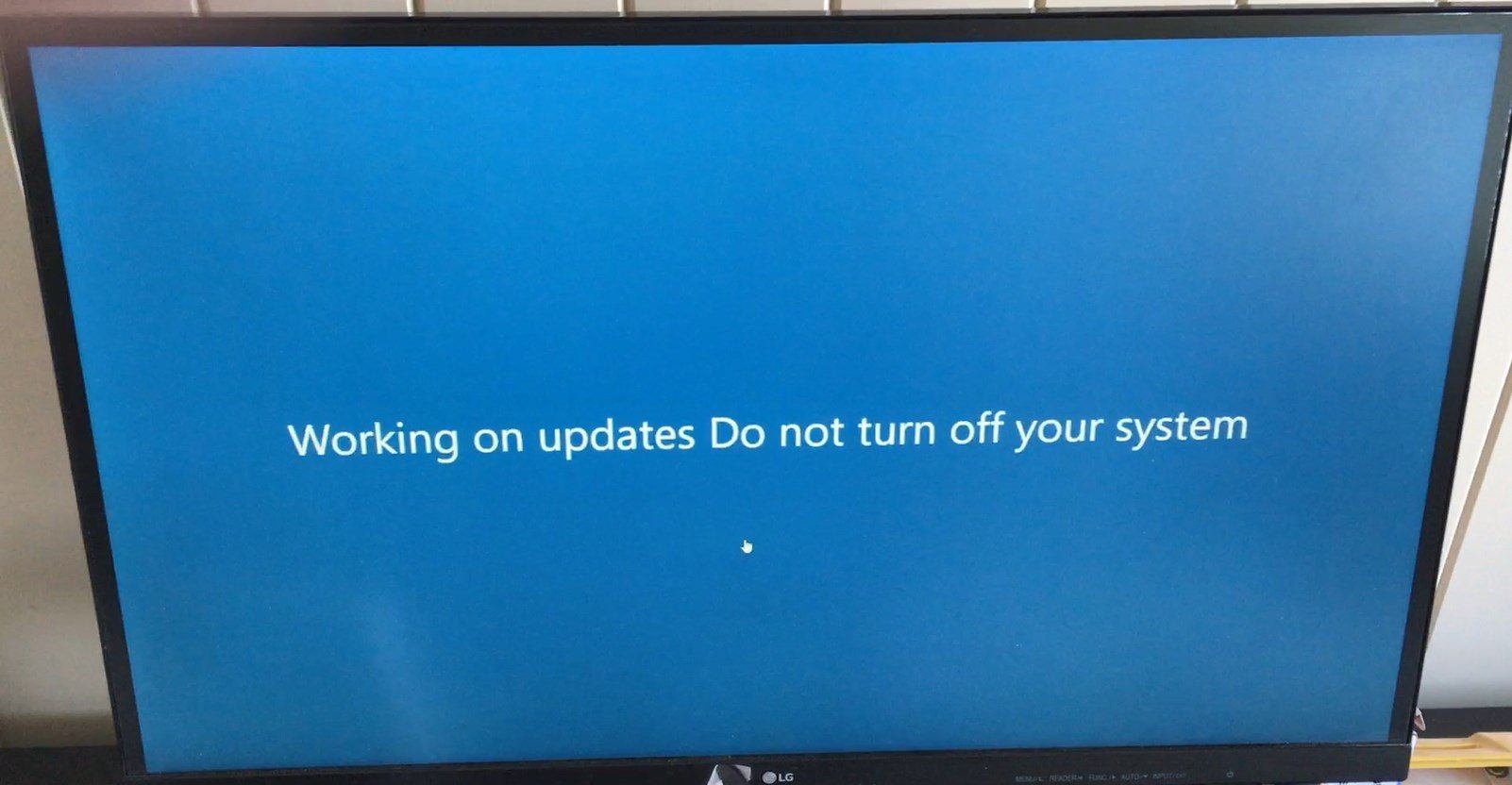
How to Fix Windows Update Failures in Windows 10
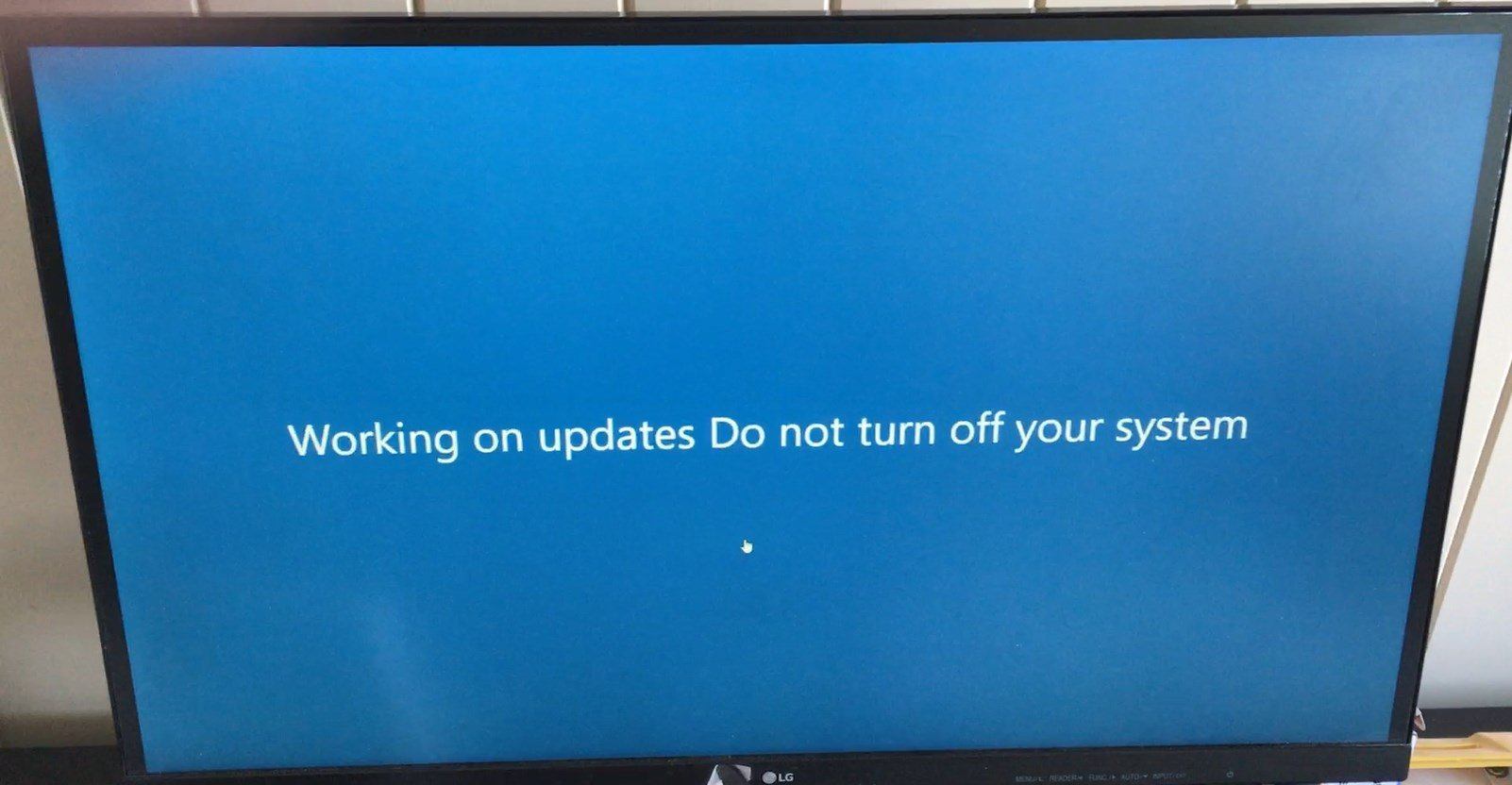
Windows updates are essential for security, stability, and new features. However, sometimes Windows Update fails to install properly, leaving your system vulnerable and outdated. If you keep encountering errors when trying to update Windows 10, this guide will help you troubleshoot and fix the issue effectively.
COMMON REASONS WHY WINDOWS UPDATE FAILS
Before applying solutions, it is important to understand why Windows Update might be failing:
- Corrupt System Files – Damaged system files can prevent Windows Update from running.
- Insufficient Storage Space – Lack of disk space can stop updates from installing.
- Software Conflicts – Third-party software, especially antivirus programs, may interfere with updates.
- Network Issues – A poor or unstable internet connection can cause update failures.
- Windows Update Services Not Running – Required services might be disabled or malfunctioning.
METHOD 1: RUN THE WINDOWS UPDATE TROUBLESHOOTER
Windows has a built-in troubleshooter that can detect and fix update issues automatically.
- Press Win + I to open Settings.
- Go to Update & Security > Troubleshoot.
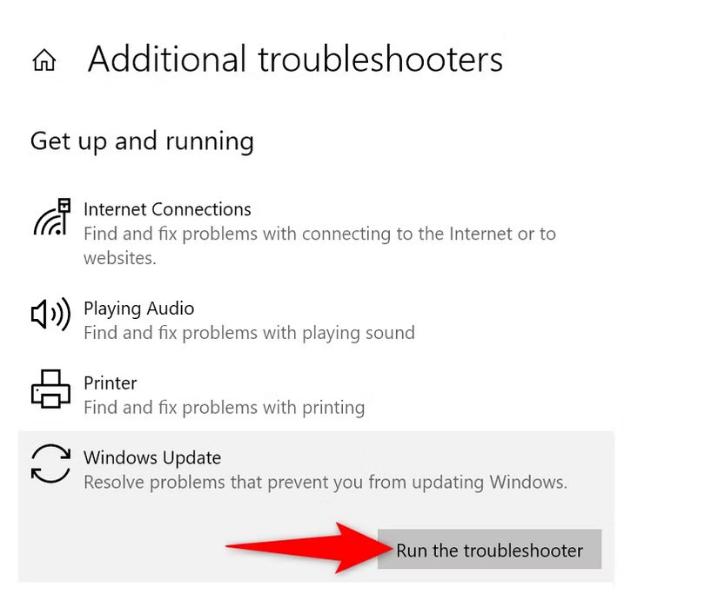
- Click Additional troubleshooters.
- Select Windows Update, then click Run the troubleshooter.
- Follow the on-screen instructions and restart your computer once the process is complete.
METHOD 2: CHECK YOUR INTERNET CONNECTION
A slow or unstable internet connection can prevent updates from downloading.
- Restart your router and modem.
- Try using a wired connection instead of Wi-Fi.
- Run a speed test to ensure your internet is stable.
- Disable VPNs or proxy servers, as they may interfere with Windows Update.
METHOD 3: FREE UP DISK SPACE
Windows updates require sufficient storage space to install.
- Press Win + E to open File Explorer.
- Right-click the C: drive and select Properties.
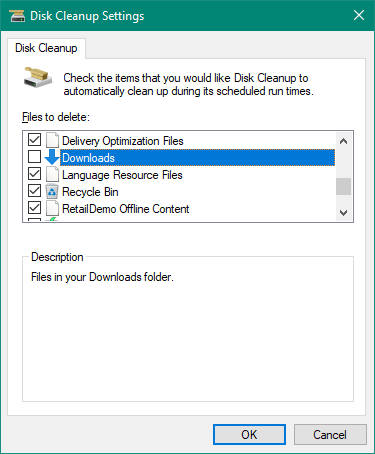
- Click Disk Cleanup, check unnecessary files, and click OK.
- Delete large unused files or move them to an external drive.
- Empty the Recycle Bin and restart your computer.
METHOD 4: RESET WINDOWS UPDATE COMPONENTS
Resetting Windows Update components can resolve many update-related issues.
- Press Win + X and select Windows Terminal (Admin).
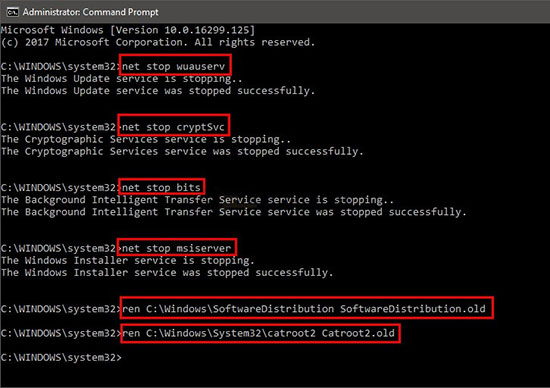
- Type the following commands and press Enter after each:
net stop wuauserv net stop cryptSvc net stop bits net stop msiserver - Rename the SoftwareDistribution and Catroot2 folders:
ren C:\Windows\SoftwareDistribution SoftwareDistribution.old ren C:\Windows\System32\catroot2 catroot2.old - Restart the stopped services:
net start wuauserv net start cryptSvc net start bits net start msiserver - Close the terminal and restart your computer.
METHOD 5: RUN SYSTEM FILE CHECKER AND DISM SCAN
Corrupt system files may prevent Windows Update from installing successfully.
- Open Windows Terminal (Admin).
- Run the following command to scan and fix corrupt system files:
sfc /scannow - Wait for the process to complete, then restart your computer.
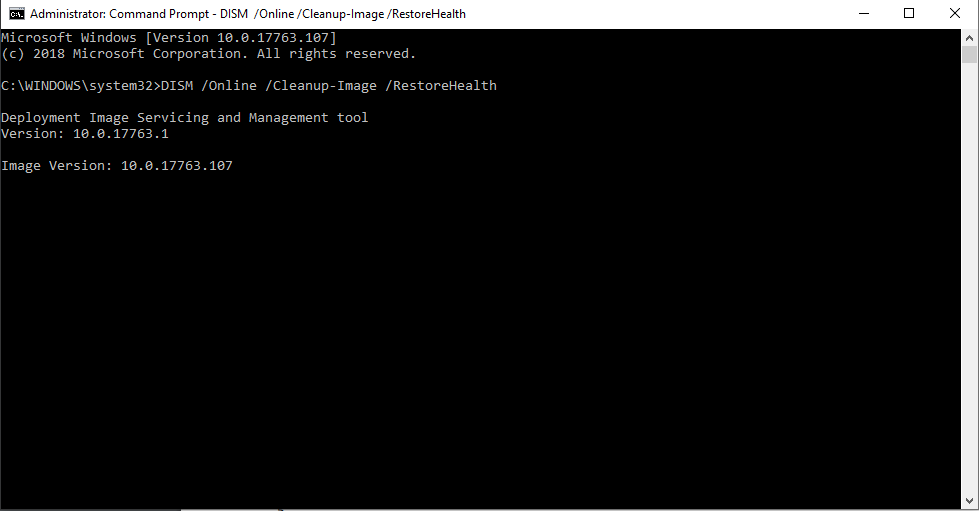
- If the problem persists, run the following DISM commands:
DISM /Online /Cleanup-Image /CheckHealth DISM /Online /Cleanup-Image /ScanHealth DISM /Online /Cleanup-Image /RestoreHealth - Restart your PC and try updating Windows again.
METHOD 6: CHECK WINDOWS UPDATE SERVICES
If Windows Update services are disabled, updates will not work.
- Press Win + R, type
services.msc, and press Enter. - Find the following services:
- Windows Update
- Background Intelligent Transfer Service (BITS)
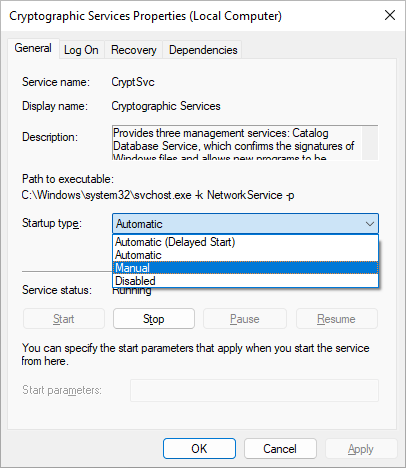
- Cryptographic Services
- Right-click each service, select Properties, and set Startup type to Automatic.
- Click Start if the service is not running.
- Restart your computer and try updating Windows again.
METHOD 7: UPDATE WINDOWS MANUALLY
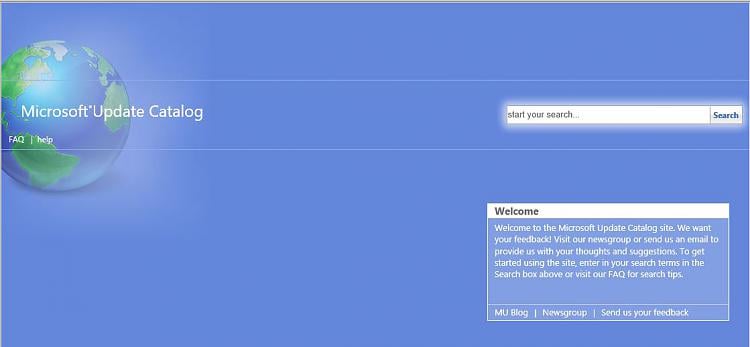
If Windows Update fails, you can manually install updates from the Microsoft Update Catalog.
- Visit the Microsoft Update Catalog.
- Search for the KB number of the failed update.
- Download the correct version for your system (32-bit or 64-bit).
- Run the installer and follow the on-screen instructions.
- Restart your computer once the update is installed.
METHOD 8: DISABLE THIRD-PARTY ANTIVIRUS SOFTWARE
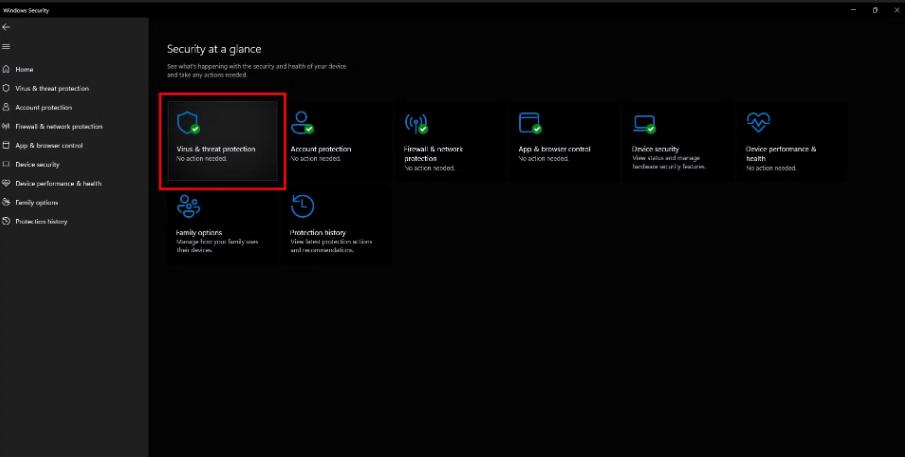
Some third-party antivirus programs interfere with Windows updates.
- Open your antivirus program.
- Temporarily disable real-time protection.
- Try running Windows Update again.
- If updates install successfully, consider switching to a less intrusive antivirus.
METHOD 9: PERFORM A CLEAN BOOT
A clean boot starts Windows with only essential services, helping identify software conflicts.
- Press Win + R, type
msconfig, and press Enter. - Go to the Services tab and check Hide all Microsoft services.
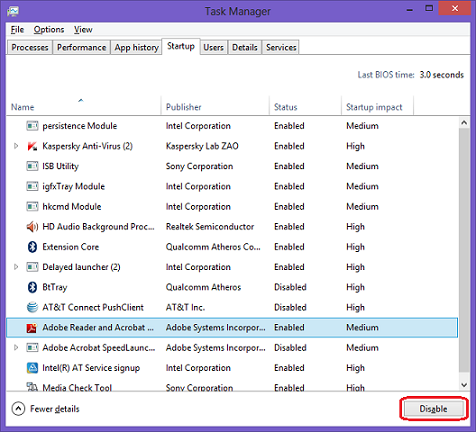
- Click Disable all, then go to the Startup tab and click Open Task Manager.
- Disable all startup programs and restart your PC.
- Try updating Windows in this clean state.
METHOD 10: PERFORM A SYSTEM RESTORE
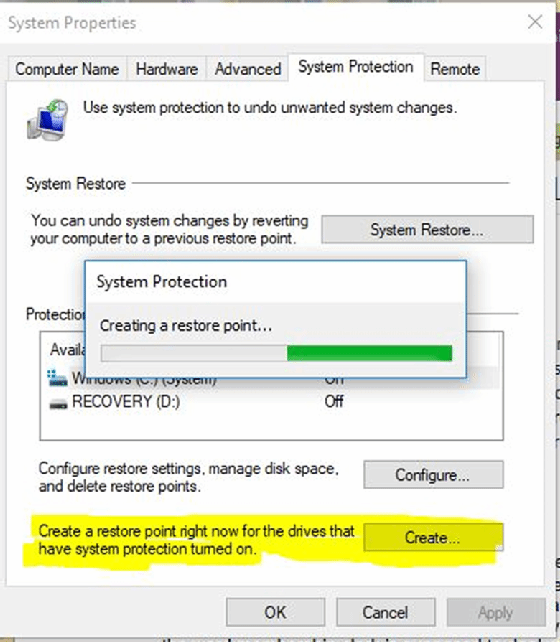
If the issue started recently, restoring Windows to a previous state may help.
- Press Win + R, type
rstrui, and press Enter. - Select a restore point before the update issues started.
- Follow the instructions to restore your system.
- Restart your computer and check if Windows Update works.
FINAL THOUGHTS
Windows Update failures can be frustrating, but by following these troubleshooting steps, you can fix the issue and keep your system up to date. If none of the methods work, consider reinstalling Windows as a last resort. Keeping your system updated ensures better security, stability, and performance.