


Disabling Hardware Acceleration in Windows 10
Hardware acceleration is a useful feature in Windows 10 that allows your computer’s hardware—such as the GPU (Graphics Processing Unit)—to handle certain tasks more efficiently than software alone. It is commonly used to improve performance in applications like web browsers, video editors, and games.
However, in some cases, hardware acceleration can cause more harm than good. It may lead to screen flickering, UI glitches, slowdowns, or compatibility issues—especially with older drivers or hardware. If you experience such problems, disabling hardware acceleration might help stabilize your system and improve performance.
This guide explains what hardware acceleration does, when to disable it, and how to turn it off across different areas of Windows 10 and various applications.
What Is Hardware Acceleration?
Hardware acceleration refers to the process where specific tasks are offloaded to hardware components instead of the CPU. For example, your GPU can accelerate graphics rendering, freeing up resources and allowing for smoother visuals and faster performance in games, video playback, or web browsing.
Although generally beneficial, hardware acceleration can conflict with outdated drivers or certain programs, causing instability. Disabling it is a common troubleshooting step when users encounter crashes, freezes, or visual artifacts.
When Should You Disable Hardware Acceleration?
You may consider disabling hardware acceleration in the following situations:
-
Apps or system UI becomes unresponsive or flickers
-
Video playback is choppy or causes system lag
-
Your system crashes during certain operations like rendering or browsing
-
Display drivers frequently stop responding
-
You use legacy hardware or older drivers that don’t fully support acceleration
Disabling hardware acceleration might slightly reduce performance in some cases, but it can enhance stability and compatibility.
How to Disable Hardware Acceleration in Windows 10 System Settings
As of recent versions of Windows 10, hardware acceleration can be toggled using the Graphics Settings panel. Here’s how:
Step-by-Step Instructions:
-
Open Settings
-
Press Windows + I to open the Settings window.
-
-
Go to System > Display
-
Click on System, then select Display from the left-hand menu.
-
-
Scroll Down and Click “Graphics Settings”
-
At the bottom of the Display settings page, click Graphics settings.
-
-
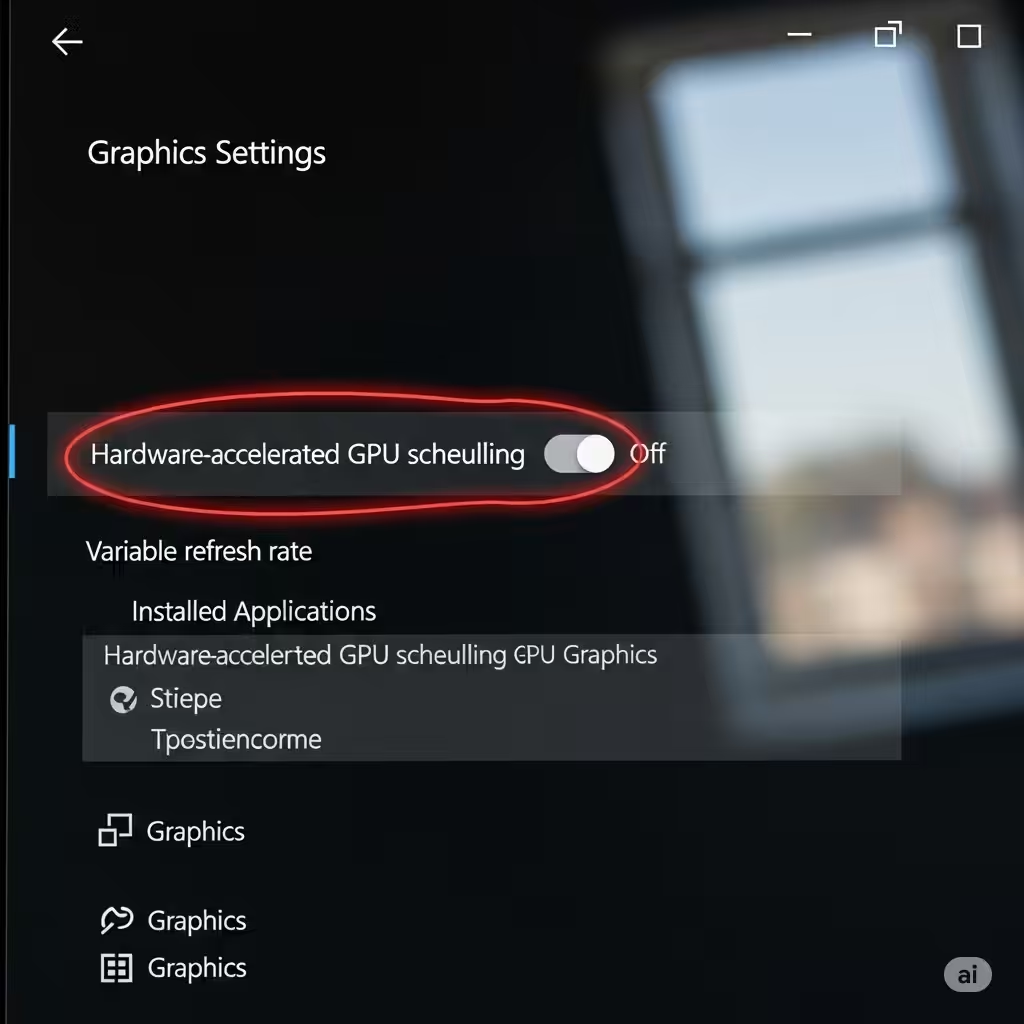
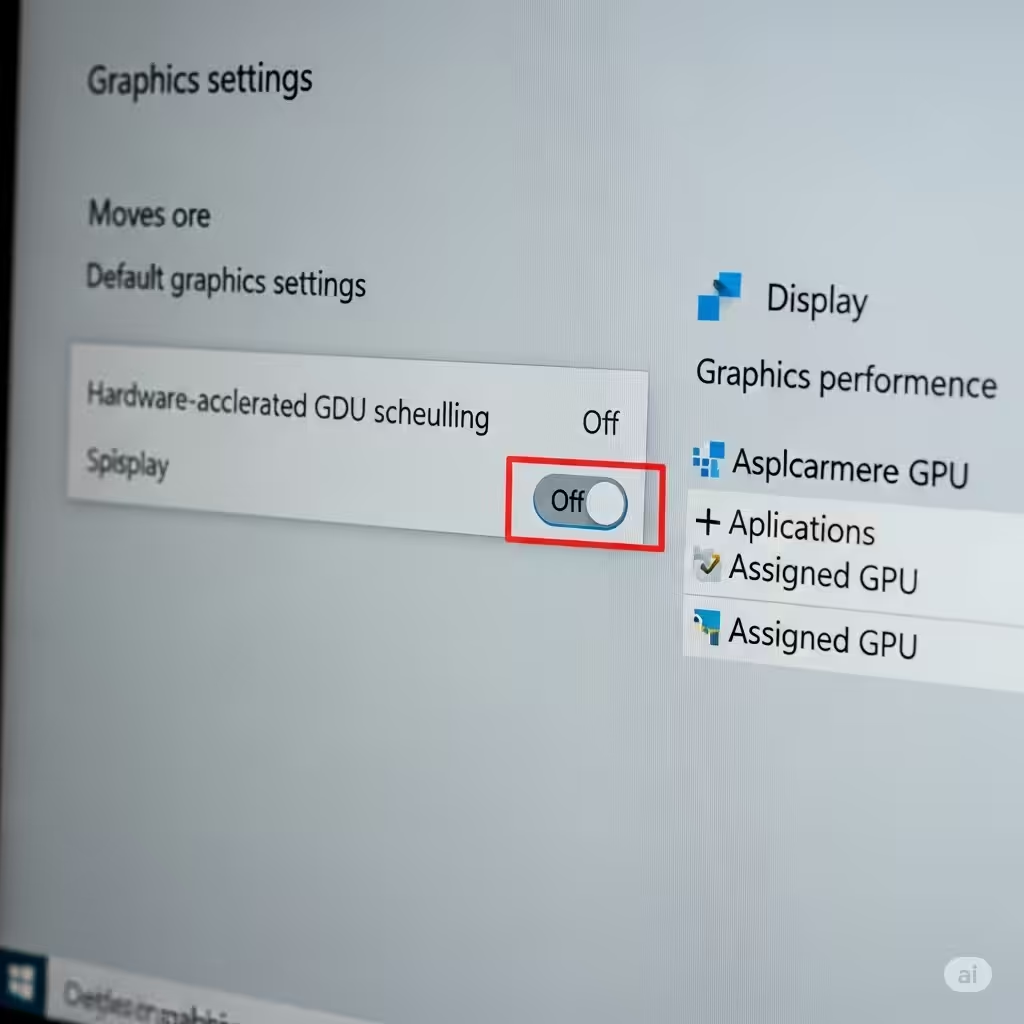
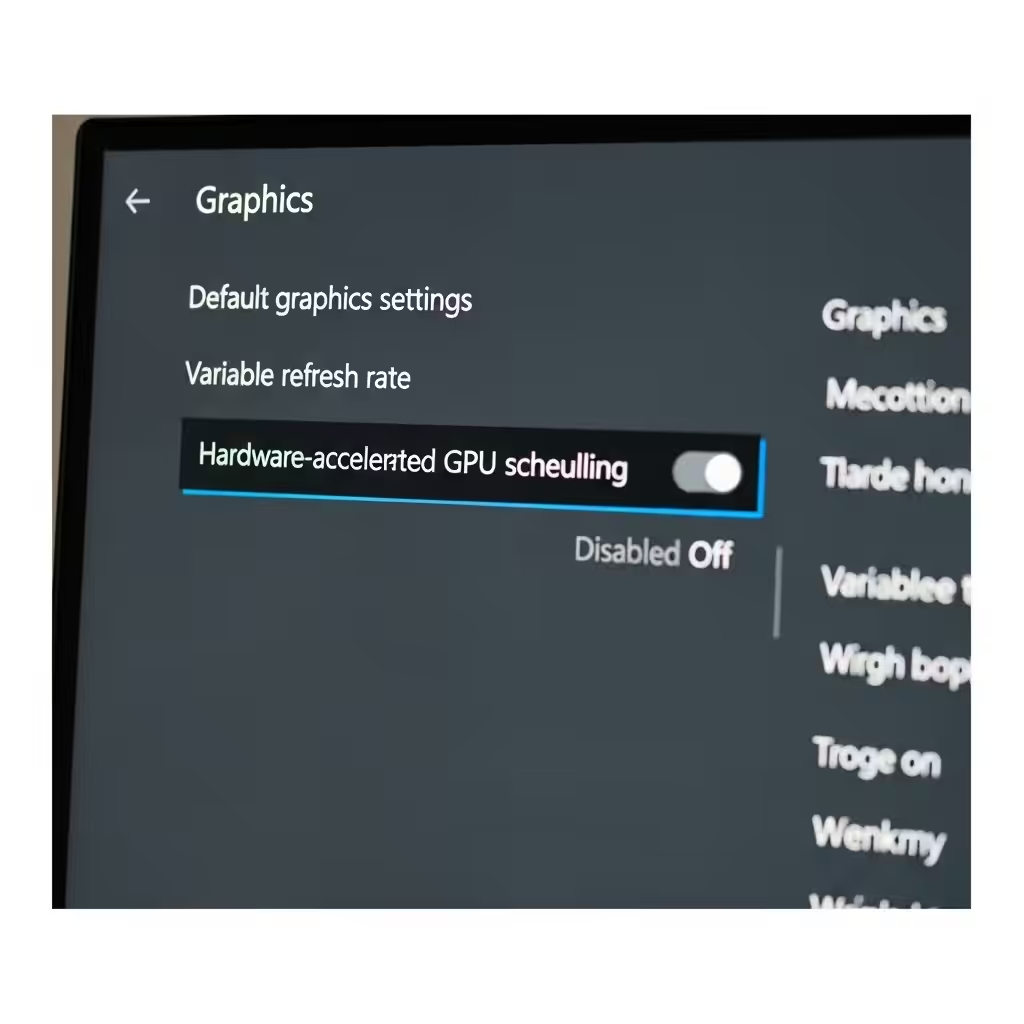
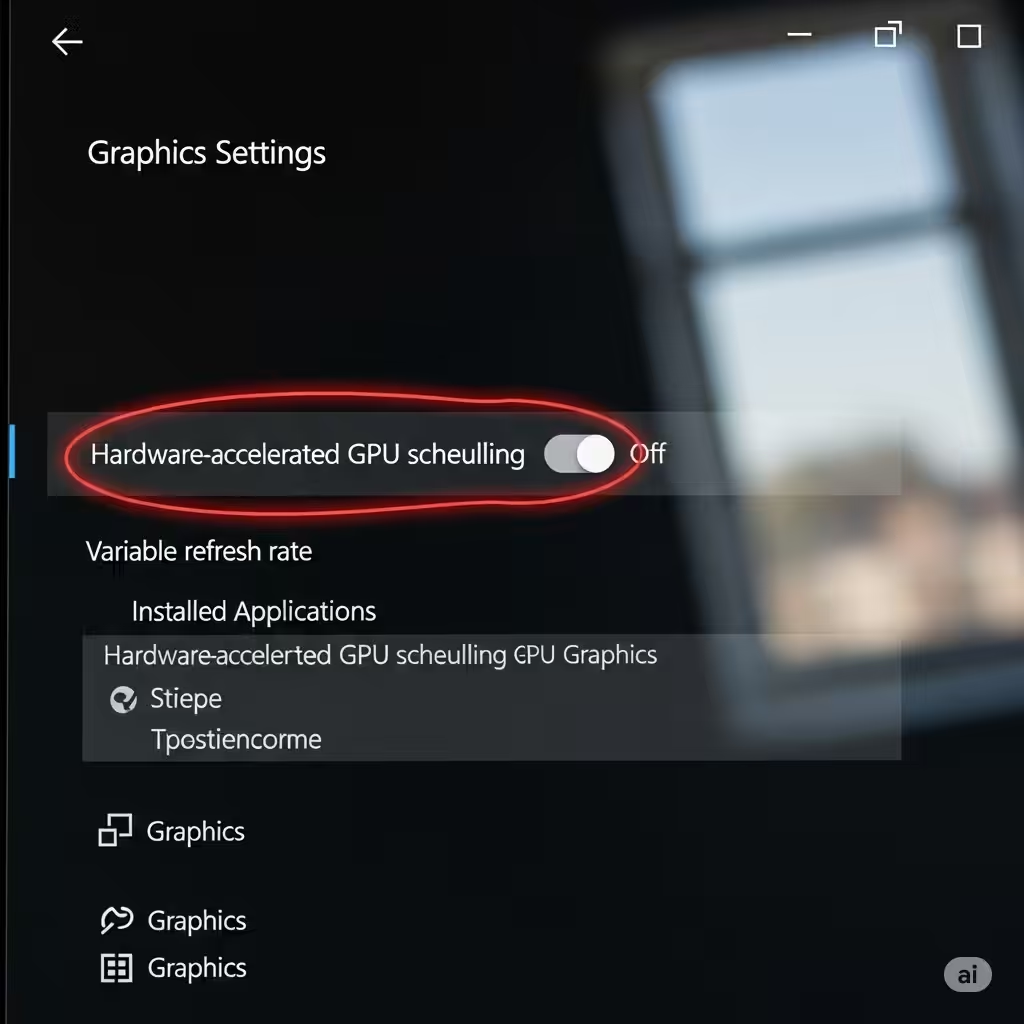
Toggle Hardware-Accelerated GPU Scheduling
-
If supported by your device, you will see an option labeled Hardware-accelerated GPU scheduling.
-
Toggle the switch off to disable it.
-
-
Restart Your PC
-
A restart is necessary for changes to take effect.
-
Note: If this setting is not visible, your hardware or driver may not support GPU scheduling. In that case, you can explore other ways to disable hardware acceleration in specific applications.
How to Disable Hardware Acceleration in the Registry (Advanced)
For users who don’t see the option in Graphics Settings, it’s possible to disable hardware acceleration via the Windows Registry. Be cautious—this method is advanced and should be done carefully.
Steps:
-
Press Windows + R, type
regedit, and hit Enter to open the Registry Editor. -
Navigate to the following key:
-
If the Avalon.Graphics key does not exist, right-click on the Microsoft folder, select New > Key, and name it Avalon.Graphics.
-
Inside that key, right-click on the right pane and select New > DWORD (32-bit) Value.
-
Name the new entry DisableHWAcceleration.
-
Double-click on it and set the Value data to
1(to disable acceleration). -
Click OK and restart your system.
To re-enable hardware acceleration, change the value back to 0 or delete the entry.
How to Disable Hardware Acceleration in Chrome
Google Chrome uses hardware acceleration by default. If you’re experiencing lag or display issues while using the browser, try disabling it:
-
Open Google Chrome.
-
Click the three dots (menu) in the upper-right corner.
-
Go to Settings > System.
-
Turn off “Use hardware acceleration when available”.
-
Click Relaunch to restart Chrome.
How to Disable Hardware Acceleration in Microsoft Edge
Microsoft Edge, like Chrome, uses hardware acceleration for rendering pages and videos:
-
Open Microsoft Edge.
-
Click the three-dot menu, then go to Settings.
-
Click System and performance.
-
Toggle off Use hardware acceleration when available.
-
Click Restart to apply changes.
How to Disable Hardware Acceleration in Microsoft Office
For applications like Word, Excel, or PowerPoint, hardware acceleration may cause UI lag or display problems.
-
Open any Office application (e.g., Word).
-
Click File > Options.
-
Go to Advanced settings.
-
Scroll down to the Display section.
-
Check the box for “Disable hardware graphics acceleration”.
-
Click OK, then restart the application.
Additional Tip: Update Graphics Drivers
If hardware acceleration is causing issues, updating your graphics drivers may fix the underlying problem.
-
Right-click the Start menu, then select Device Manager.
-
Expand Display adapters.
-
Right-click your GPU, then click Update driver.
-
Choose Search automatically for drivers.
Alternatively, visit the manufacturer’s website (Intel, NVIDIA, AMD) to download the latest version.
Final Thoughts
Hardware acceleration can enhance performance for modern tasks, but it’s not perfect for every system. If you’re facing graphical glitches, performance issues, or crashes, disabling it can be a practical solution. The steps above provide comprehensive methods to turn off hardware acceleration system-wide or in specific applications.
While the performance drop is usually minimal, the increase in system stability is often worth the trade-off. If problems persist after disabling hardware acceleration, consider checking your hardware components, updating drivers, or scanning for malware.
Let your system guide you—if disabling the feature resolves your issues, it’s a worthwhile fix.