


How to Configure Triple Monitor Setup on Windows 11/10
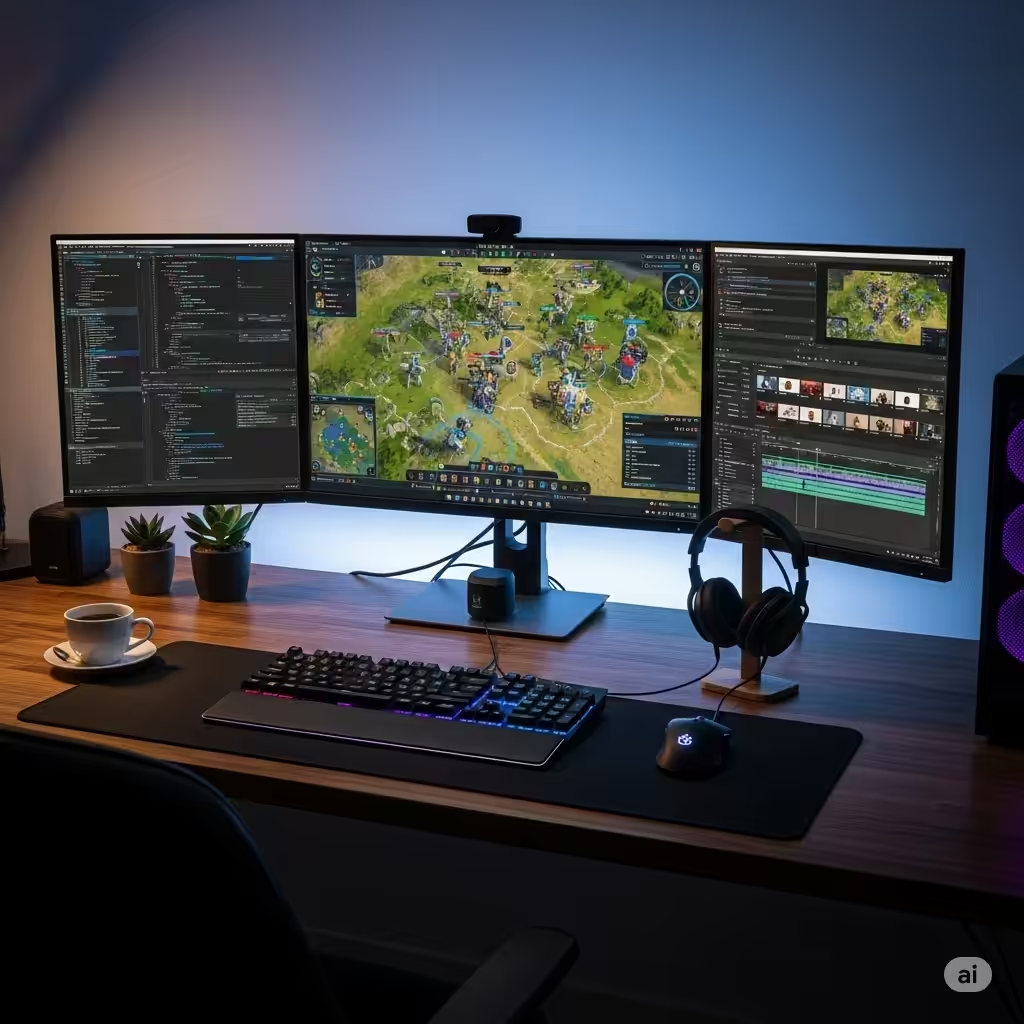
Using multiple monitors can greatly enhance productivity, especially if you’re multitasking, gaming, editing, or working in a professional environment. Windows 11 and 10 both support multiple monitor setups, including triple-monitor configurations. If you’re considering adding a third screen to your workspace, this guide will walk you through everything you need to know — from hardware requirements to display settings and troubleshooting tips.
Why Use Three Monitors?
Before diving into the setup process, let’s explore the benefits of a triple-monitor setup.
-
Increased productivity: You can have a document open on one screen, a web browser on another, and communication apps on the third.
-
Better multitasking: No more constant window switching.
-
Improved gaming: For gamers, a wider field of view can enhance immersion in supported titles.
-
Efficient workspace for developers and editors: Video editors, programmers, and designers can benefit from the extra screen real estate.
What You Need to Set Up 3 Monitors
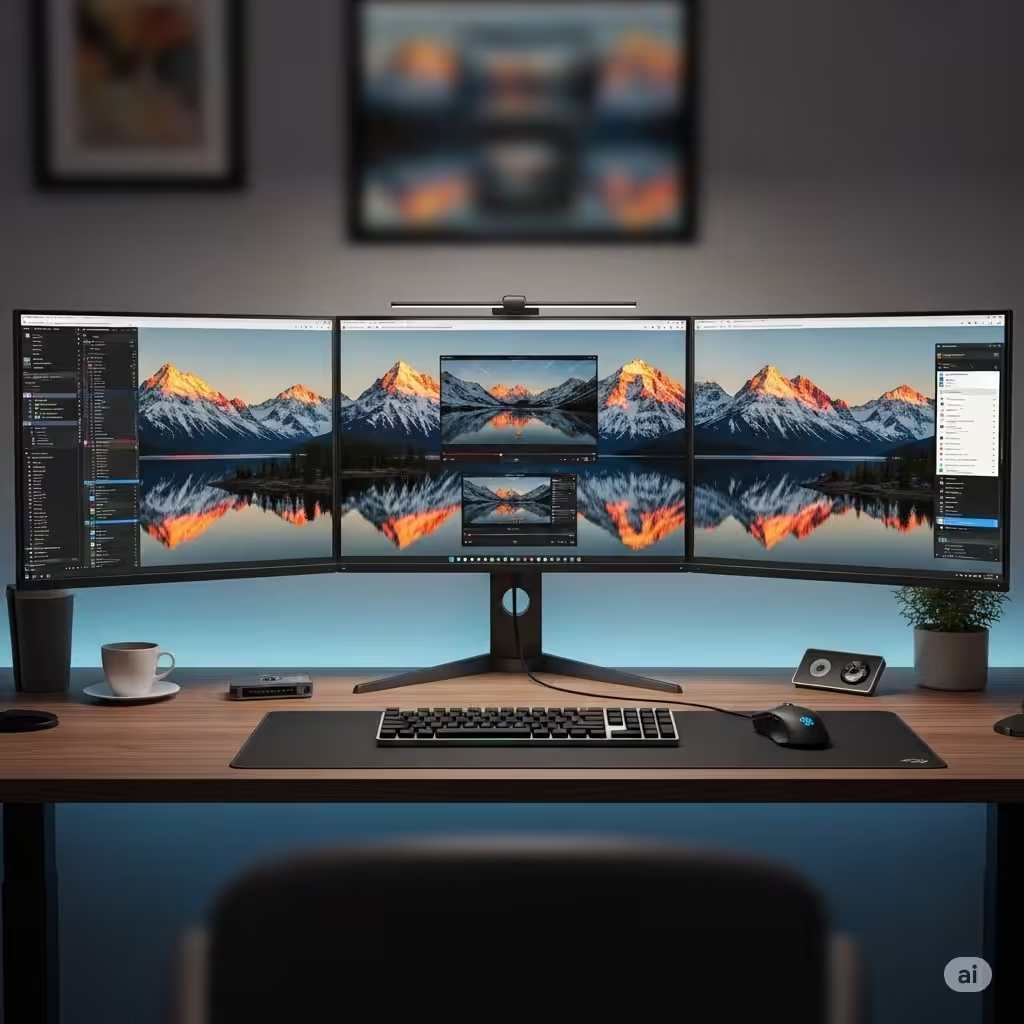
To successfully set up three monitors, your computer needs the following:
A Compatible Graphics Card
Your PC must have a graphics card (GPU) that supports three displays simultaneously. Most modern dedicated GPUs from NVIDIA, AMD, and even some integrated Intel graphics can handle this. However, always check your card’s specifications.
Sufficient Display Ports
Your computer should have at least three video output ports (e.g., HDMI, DisplayPort, DVI, or VGA). If you don’t have enough ports, you can:
-
Use a DisplayPort hub (MST hub).
-
Use a USB-to-HDMI/DisplayPort adapter.
-
Add a second GPU, if your desktop motherboard supports it.
Three Monitors
Any combination of monitors should work, though ideally, they should support the same resolution and refresh rate for the smoothest experience.
Proper Cables
Make sure you have the correct cables for your monitors and GPU. For example:
-
HDMI to HDMI
-
DisplayPort to DisplayPort
-
USB-C to HDMI (for laptops or modern graphics cards)
How to Set Up Three Monitors in Windows 11/10
Step 1: Connect All Monitors
-
Turn off your computer.
-
Connect each monitor to a video port on your graphics card or laptop.
-
Turn on the monitors, then power on your computer.
-
All monitors should receive a signal. If one doesn’t, check cable connections and the monitor’s power.
Step 2: Open Display Settings
After connecting the monitors:
-
Right-click on your desktop and select Display settings.
-
In the display arrangement window, you will see your three monitors labeled as 1, 2, and 3.
If only one or two monitors are detected:
-
Click Detect at the bottom of the settings screen.
-
Ensure all monitors are powered on and properly connected.
Step 3: Arrange the Monitors
You can drag and drop the numbered screens in the display settings to match your physical monitor layout. This is important for smooth cursor movement between screens.
For example, if you have two monitors side by side and one above, arrange them accordingly in the display layout.
Step 4: Choose Display Mode
Under the Multiple displays section, you can choose how you want Windows to use the monitors:
-
Duplicate these displays: Shows the same content on all screens.
-
Extend these displays: Expands the desktop across all monitors (ideal for productivity).
-
Show only on X: Displays content on a single screen.
Choose Extend these displays to make use of all three monitors independently.
Click Apply to confirm changes.
Step 5: Set Primary Display
Choose which monitor will be the “main” display where your taskbar and Start menu appear:
-
Select the monitor number.
-
Scroll down and check Make this my main display.
Optional Display Adjustments
Adjust Resolution and Scale
-
Scroll to the Scale and layout section in Display Settings.
-
Set the recommended display resolution for each screen.
-
Adjust scaling if needed (100%, 125%, etc.) to ensure text and apps look right.
Change Refresh Rate
For smoother visuals, especially in gaming:
-
Click Advanced display settings under Display.
-
Select the monitor.
-
Click Display adapter properties and go to the Monitor tab.
-
Choose the highest supported refresh rate.
Troubleshooting Tips
One Monitor Not Detected
-
Check the monitor’s power and input settings.
-
Try switching cables or ports.
-
Use the Detect button in Display Settings.
-
Update or reinstall graphics drivers.
Performance Issues or Lag
-
Ensure your GPU supports three displays at your desired resolution.
-
Lower the resolution or refresh rate of one or more displays.
-
Close background apps consuming high GPU/CPU resources.
Wrong Monitor Order
-
Simply drag the displays to match your physical setup in the Display Settings interface.
Apps Opening on the Wrong Screen
-
Move the app window to the desired screen.
-
Close it on that screen. Windows should remember its last position next time.
Useful Tools for Multi-Monitor Setups
Several third-party tools can enhance your experience:
-
DisplayFusion – Advanced multi-monitor taskbar management, window snapping, and wallpapers.
-
Ultramon – Adds additional features for multi-display environments.
-
Dual Monitor Tools – Free and lightweight utility for managing multi-screen workflows.
Final Thoughts
Setting up three monitors in Windows 11 or 10 can significantly boost your productivity, gaming, and multitasking capabilities. As long as your hardware supports it, the process is straightforward and customizable. With the right cables, drivers, and settings, you’ll enjoy a seamless multi-monitor experience that transforms how you use your PC.
Whether you’re a professional, gamer, or casual user, three screens can help you work smarter, play better, and stay more organized throughout your day.