


How to Migrate a Windows 10 or 11 Product Key to Another PC
If you’ve purchased a new computer and want to save money on buying another copy of Windows, you may be wondering if you can transfer your existing Windows 10 or Windows 11 license to your new PC. The good news is that in many cases, it is possible, depending on the type of license you own.
This detailed guide will walk you through how Windows licenses work, what types of licenses are transferable, and the exact steps to transfer your license to another device.
Understanding Windows License Types
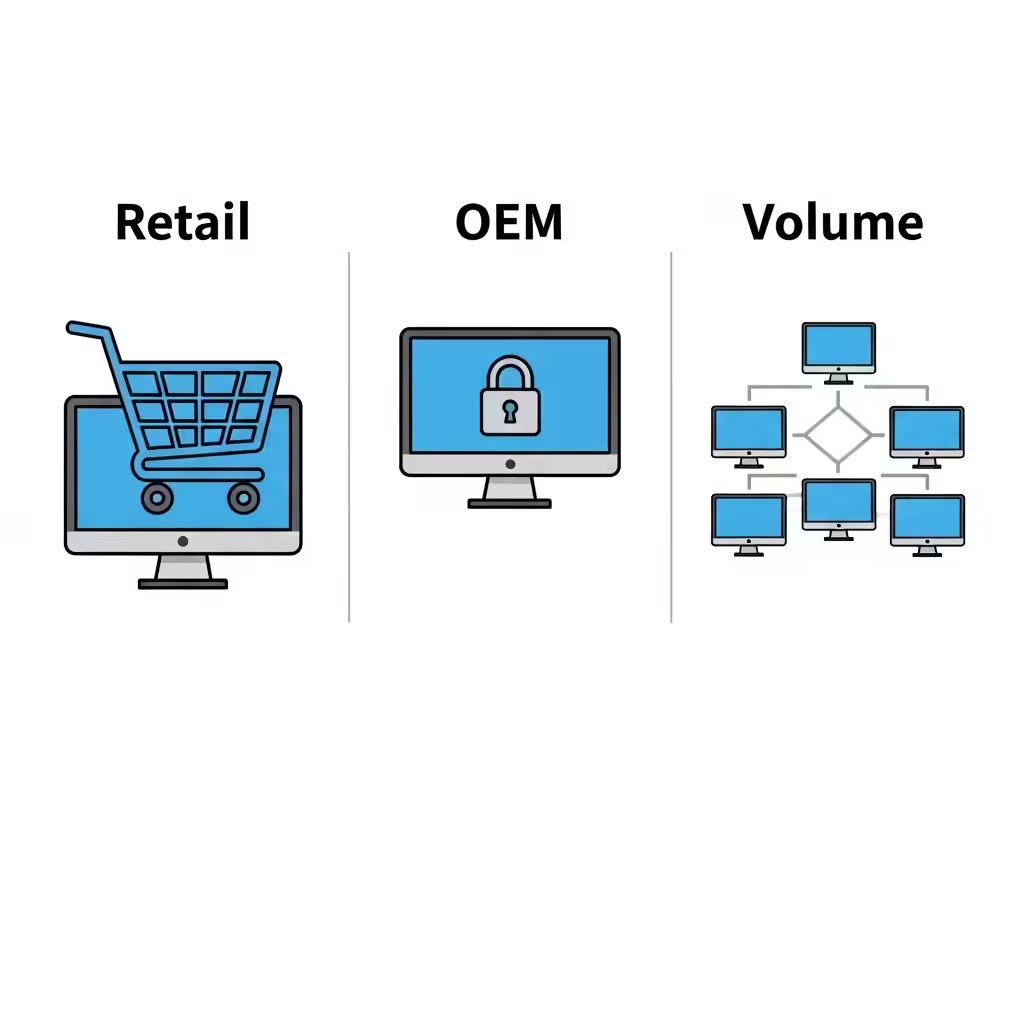
Before starting, it’s important to understand the different types of Windows licenses, since not all of them can be transferred.
Retail License
-
Purchased separately from a store or Microsoft website.
-
Can be transferred to a new PC as long as it’s only active on one device at a time.
OEM License (Original Equipment Manufacturer)
-
Pre-installed on a device when purchased from a manufacturer.
-
Tied to the hardware (usually the motherboard) and cannot legally be transferred to another computer.
Volume License
-
Typically used by organizations and businesses.
-
Transfer rights depend on the agreement with Microsoft.
If you purchased Windows separately (not pre-installed), you likely have a retail license, which means you can transfer it to your new PC.
Step 1: Check Your Windows License Type
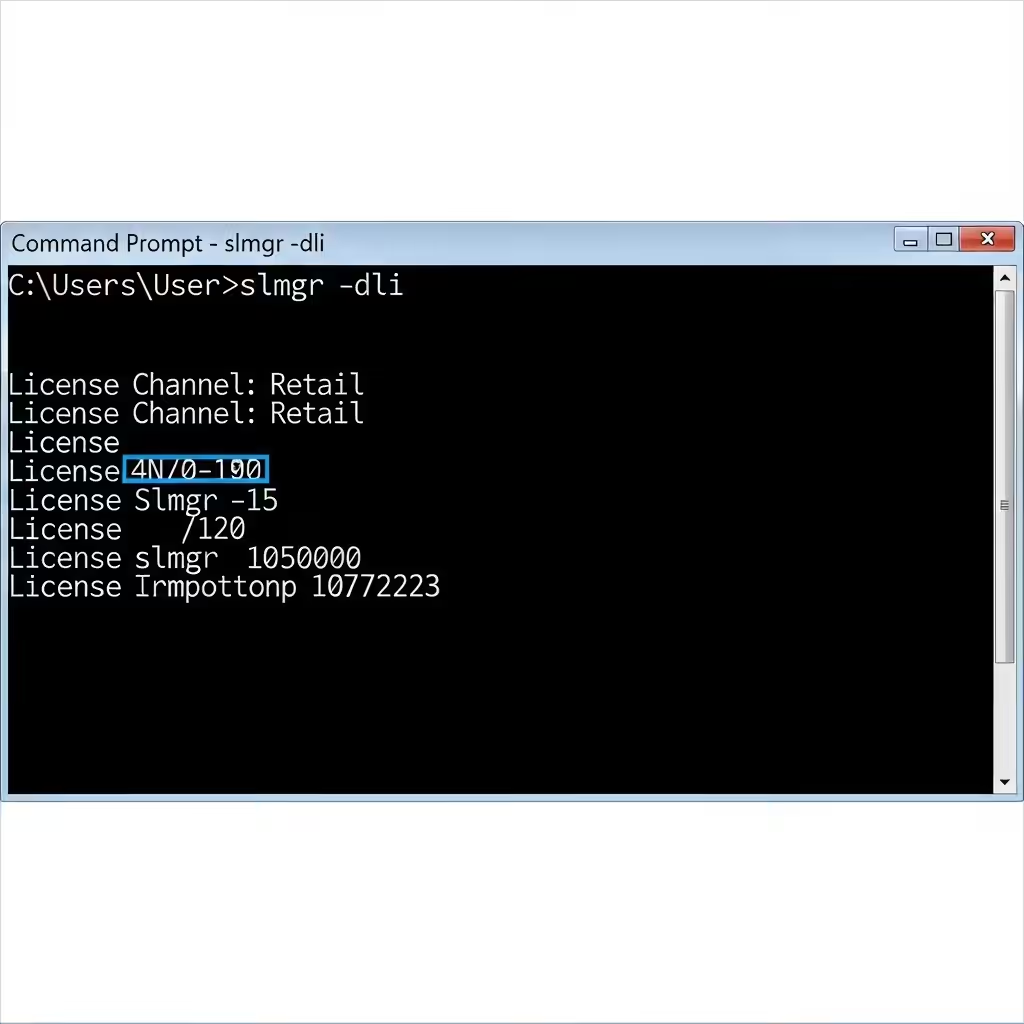
Before attempting the transfer, confirm what type of license you have.
-
Open the Command Prompt by pressing Windows + R, typing
cmd, and hitting Enter. -
Type the following command:
-
A window will appear showing the license channel.
-
If it says Retail, you can transfer it.
-
If it says OEM, you cannot transfer it.
-
Step 2: Find Your Windows Product Key
You will need your product key to activate Windows on your new PC.
Option 1: Check Your Microsoft Account
If your license is linked to your Microsoft account, you don’t need a product key. Simply sign in with the same Microsoft account on the new PC and Windows will activate automatically.
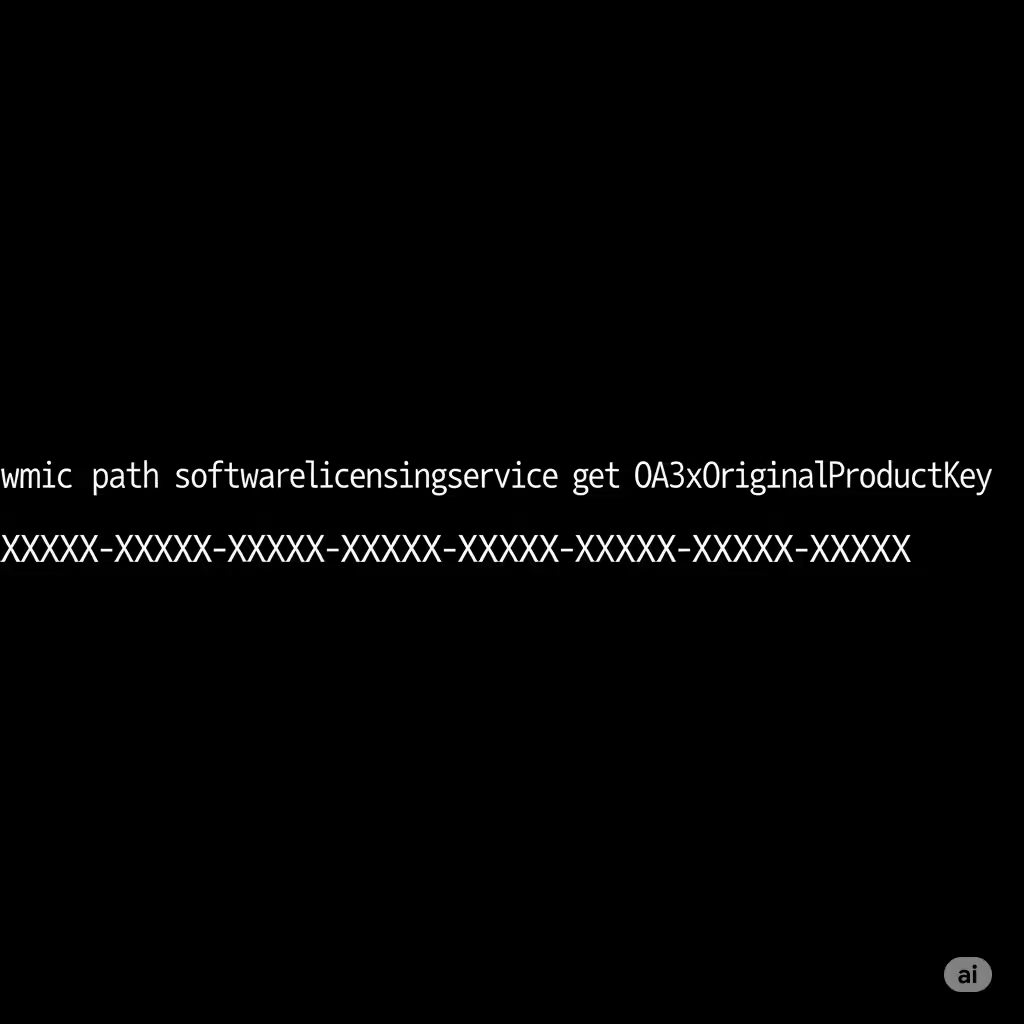
Option 2: Use Command Prompt
-
Open Command Prompt as administrator.
-
Type the following command and press Enter:
-
Your product key will appear if available.
Option 3: Use Third-Party Tools
You can use free software such as ProduKey or Magical Jelly Bean Keyfinder to retrieve your product key.
Step 3: Deactivate Windows on Your Old PC
Before activating Windows on your new computer, you must remove the license from the old one.
-
Open Command Prompt as administrator.
-
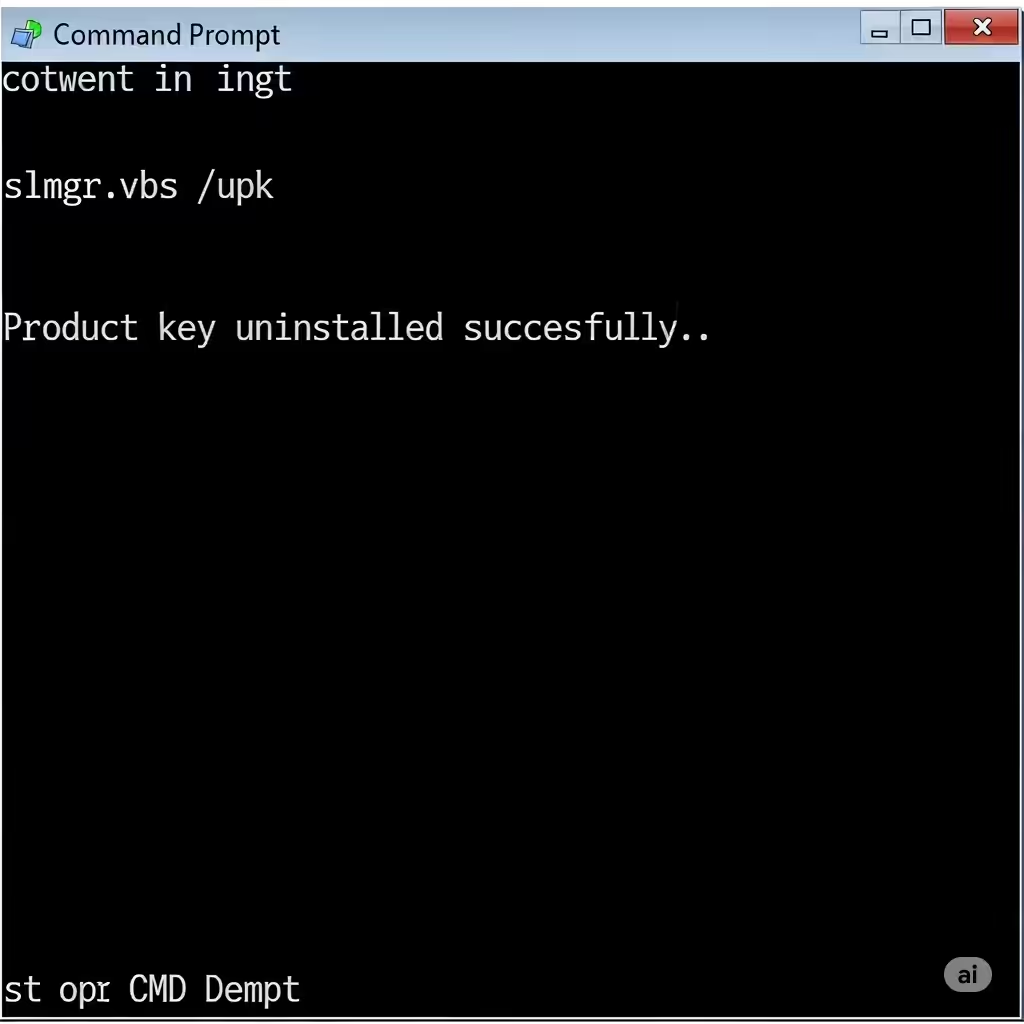
Type the following command and press Enter:
This uninstalls the product key.
-
To clear it from the registry, type:
Your old PC will now no longer have an activated version of Windows.
Step 4: Install Windows on the New PC
Now that you’ve deactivated the license, it’s time to set up your new PC.
-
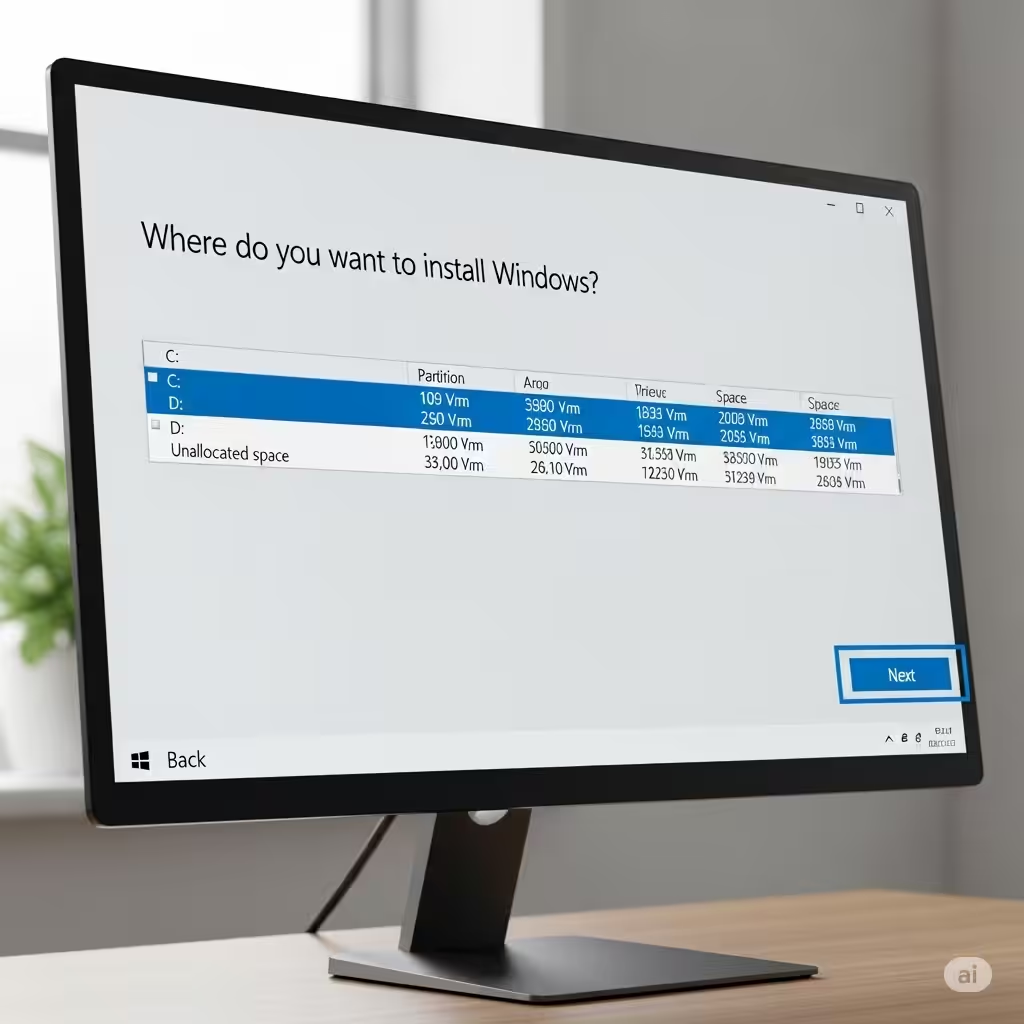
Install Windows 10 or Windows 11 using a USB installation drive.
-
You can create one with the Media Creation Tool from Microsoft’s website.
-
-
During installation, enter your product key when prompted.
-
If you don’t enter it during installation, you can add it later through activation settings.
Step 5: Activate Windows on the New PC
Once Windows is installed, activate your license.
-
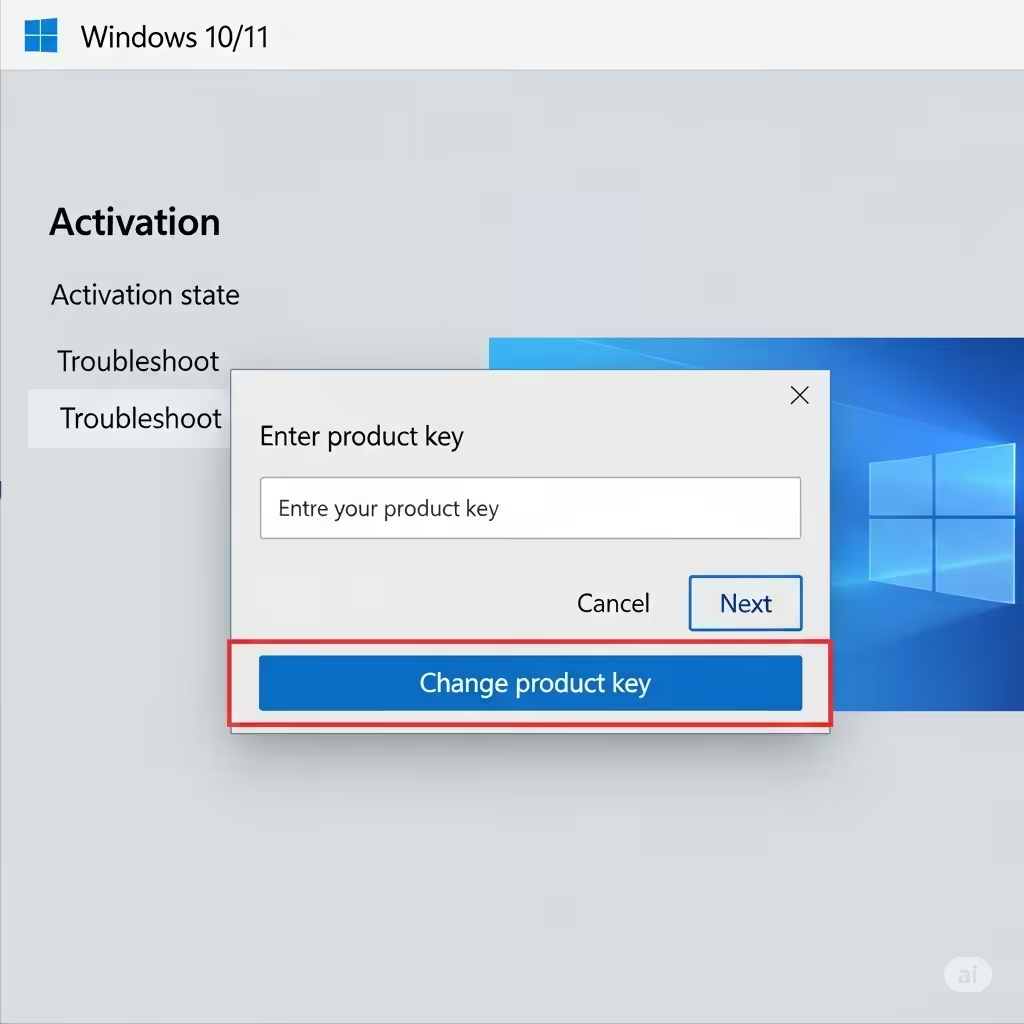
Go to Settings > Update & Security > Activation (Windows 10) or Settings > System > Activation (Windows 11).
-
Click Change product key.
-
Enter your product key and click Next.
If your license is linked to your Microsoft account, simply sign in and Windows should automatically activate.
Step 6: Troubleshoot Activation Issues
Sometimes you may encounter problems when transferring a license. Here’s how to resolve them:
-
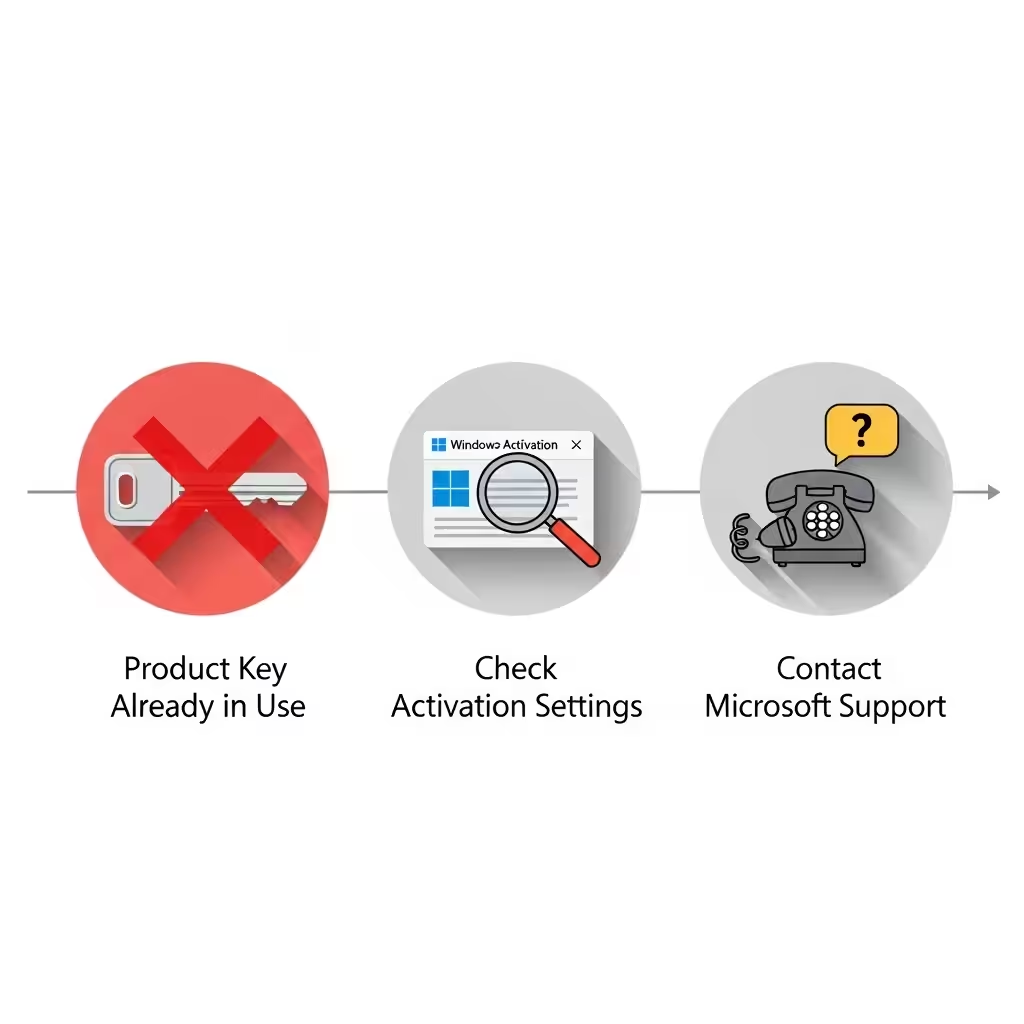
Error: Product Key Already in Use
-
Make sure you properly deactivated the license on your old PC using the command above.
-
-
Error: Activation Failed
-
Use the Activation Troubleshooter found in the activation settings.
-
-
Contact Microsoft Support
-
If you still face issues, you may need to call Microsoft support and explain that you’re moving your license to a new device.
-
Important Things to Keep in Mind
-
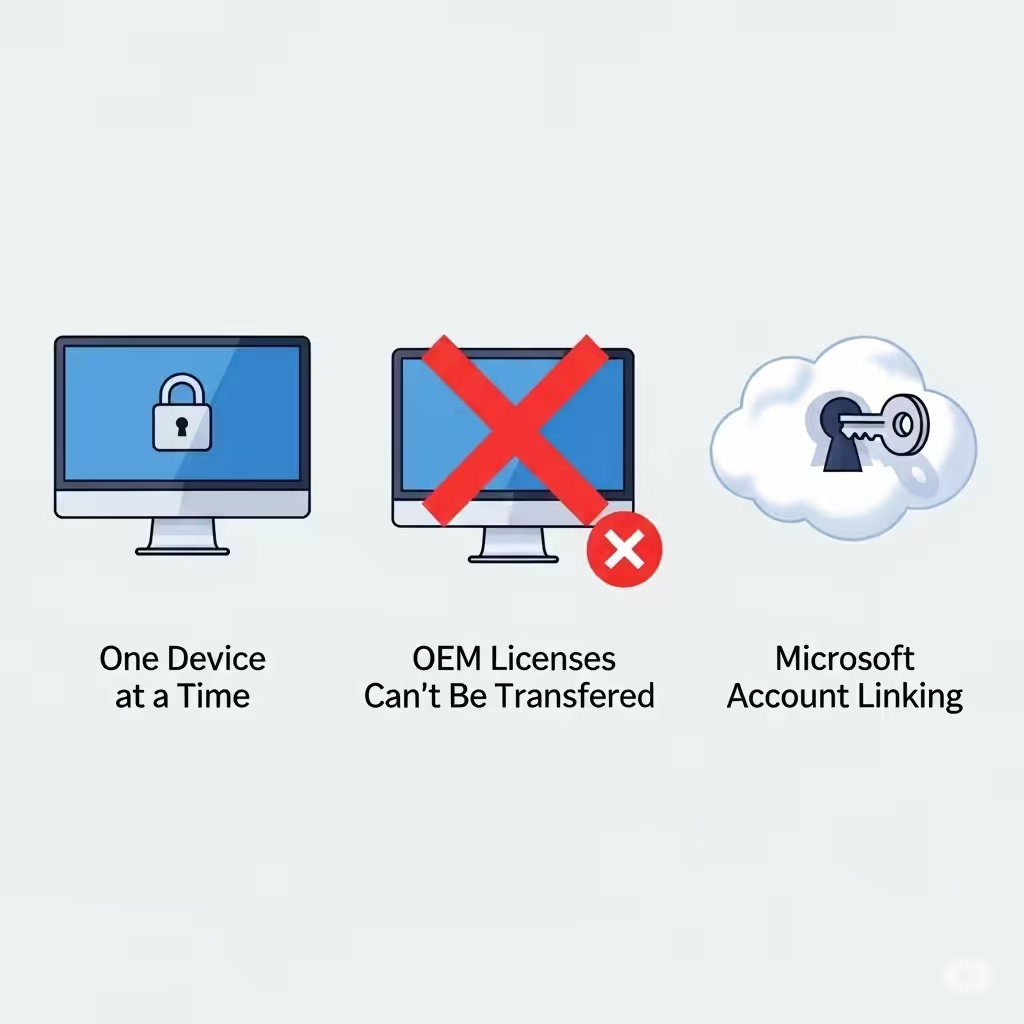
One Device at a Time: A retail Windows license can only be active on one computer at a time.
-
OEM Licenses Can’t Be Transferred: If your old PC came with Windows pre-installed, you’ll need a new license for your new device.
-
Microsoft Account Linking: Always link your license to your Microsoft account for easier transfers in the future.
-
Back Up Your Files: Transferring your license doesn’t move your personal data, so back up your files separately.
Conclusion
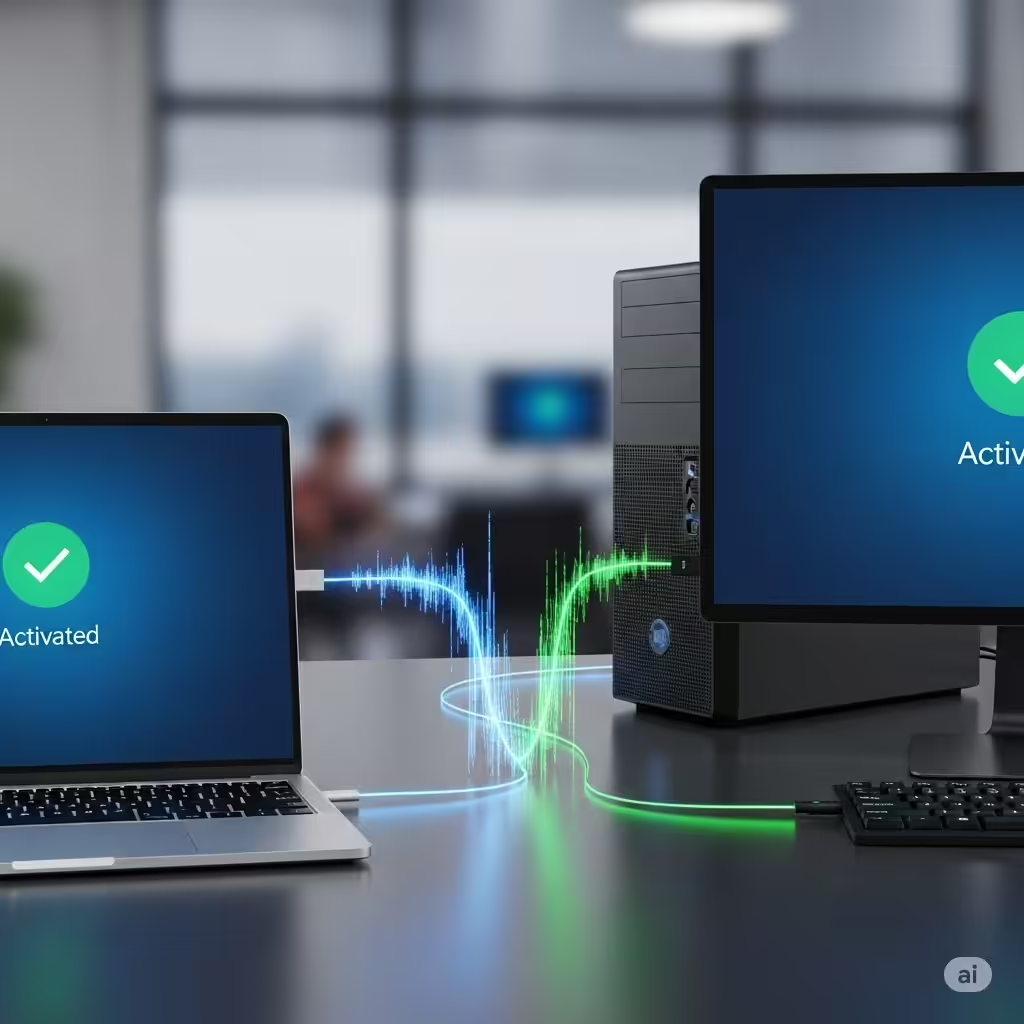
Transferring a Windows 10 or 11 license to a new PC is straightforward as long as you own a retail license. By checking your license type, retrieving your product key, deactivating the old device, and activating the new one, you can move your copy of Windows without buying a new license.
This process ensures that you remain compliant with Microsoft’s licensing rules while saving money. For most users, especially those with retail licenses tied to their Microsoft accounts, the process is quick and seamless.
With the steps outlined in this guide, you can confidently transfer your Windows license to your new PC and continue enjoying all the features of Windows 10 or Windows 11 without interruptions.