


Top Free Screensavers for Windows 11/10
Although modern monitors no longer require screensavers to prevent screen burn-in, screensavers remain a popular way to personalize a Windows computer. Whether you want beautiful nature scenes, relaxing animations, digital clocks, or nostalgic effects from older versions of Windows, there are plenty of free screensavers available for Windows 11 and Windows 10.
Besides adding visual appeal, screensavers can display useful information, provide entertainment during idle time, and even add an extra layer of privacy by requiring a password when your computer wakes up.
In this guide, we’ll explore some of the best free screensavers for Windows 11 and Windows 10, explain how to install and configure them, and share tips for choosing the right one for your needs.
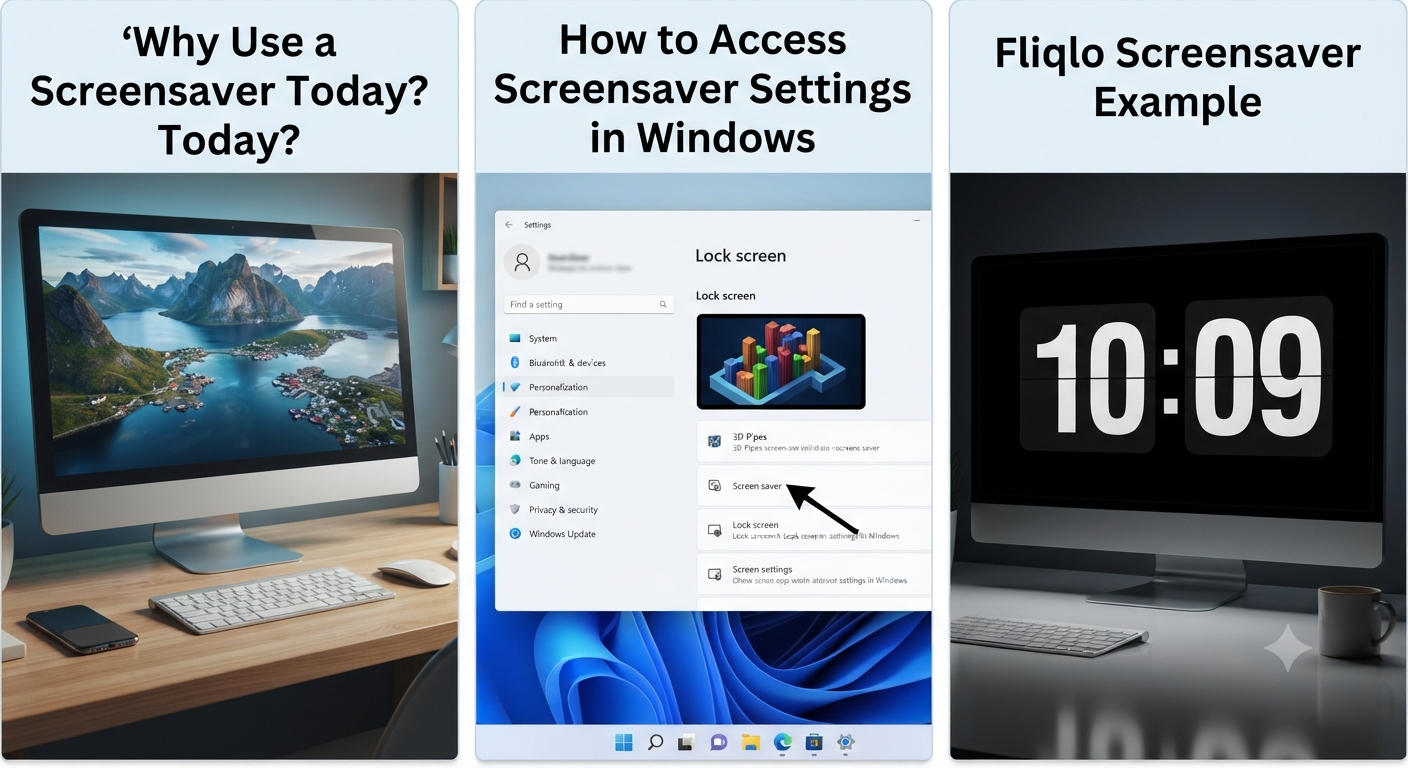
Why Use a Screensaver Today?
While screensavers were originally designed to protect CRT monitors from image burn-in, today’s LCD, LED, and OLED displays generally don’t require them for that purpose.
Instead, people use screensavers to:
- Personalize their desktop
- Display beautiful artwork or photography
- Show family photos
- Display clocks or calendars
- Add relaxing animations
- Increase privacy when away from the computer
- Give their PC a unique appearance
Many users also enjoy the nostalgic feel of classic Windows screensavers.
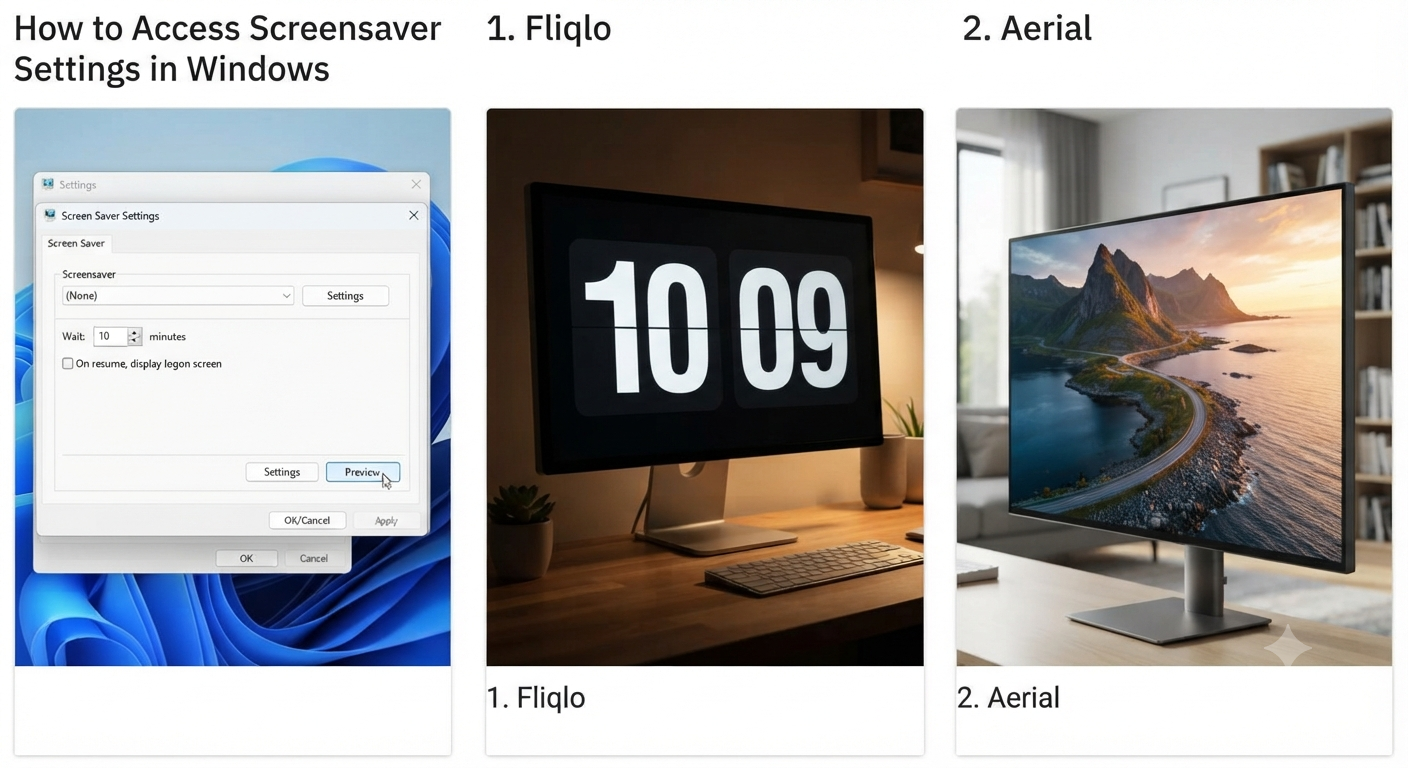
How to Access Screensaver Settings in Windows
Windows 11 and Windows 10 still include built-in screensaver settings.
To open them:
- Press:
Windows + S- Search for:
Change screen saver- Open the matching result.
The Screen Saver Settings window allows you to:
- Select a screensaver
- Set the waiting time
- Preview the animation
- Require a password after resuming
- Configure supported screensavers
Image: Windows Screen Saver Settings.
1. Fliqlo
Fliqlo is one of the most popular free screensavers available.
It transforms your monitor into a stylish flip clock inspired by vintage alarm clocks.
Features
- Large digital clock
- Adjustable clock size
- 12-hour and 24-hour formats
- Minimalist design
- Low system resource usage
Fliqlo is ideal for home offices, study spaces, and anyone who prefers a clean, distraction-free look.
Image: Fliqlo screensaver.
2. Aerial
Aerial brings breathtaking aerial videos similar to those seen on Apple TV to Windows.
The screensaver displays high-quality footage of cities, mountains, oceans, forests, and landmarks around the world.
Features
- Stunning 4K videos
- Dynamic landscapes
- Automatic video updates
- Multiple location categories
- Smooth playback
It’s an excellent choice for users who enjoy cinematic visuals.
Image: Aerial screensaver.
3. Electric Sheep
Electric Sheep is a unique screensaver that generates continuously evolving abstract artwork.
Instead of repeating the same animation, it creates colorful fractal designs that change over time.
Features
- Animated fractals
- Community-generated artwork
- Endless visual variety
- High-quality rendering
- Artistic experience
This screensaver is perfect for users who appreciate digital art and creative visuals.
Image: Electric Sheep animation.
4. IMAX Hubble 3D
Space enthusiasts may enjoy the IMAX Hubble 3D screensaver.
It features breathtaking images of:
- Galaxies
- Nebulae
- Stars
- Planets
- Deep-space photography
Many versions include smooth transitions and subtle animations that create a relaxing viewing experience.
Image: Hubble space screensaver.
5. System 47
Fans of science fiction will recognize System 47 as a screensaver inspired by the computer interfaces seen in Star Trek.
Features
- Animated LCARS interface
- Simulated system displays
- Futuristic appearance
- Customizable layouts
- Lightweight performance
It offers a fun way to personalize your PC without consuming significant system resources.
Image: System 47 interface.
6. Living Marine Aquarium Lite
This classic aquarium screensaver remains popular years after its release.
It recreates a peaceful underwater environment complete with colorful fish and coral reefs.
Features
- Animated tropical fish
- Ocean backgrounds
- Smooth movement
- Relaxing atmosphere
The free version includes fewer fish than the premium edition but still provides an enjoyable experience.
Image: Marine Aquarium screensaver.
7. YoWindow Weather Screensaver
YoWindow combines weather information with beautiful animated landscapes.
Instead of displaying static images, it reflects your local weather conditions.
For example:
- Sunshine
- Rain
- Snow
- Clouds
- Sunrise
- Sunset
Features
- Live weather updates
- Animated scenery
- Seasonal changes
- Real-time conditions
This screensaver is useful for users who like combining functionality with attractive visuals.
Image: YoWindow Weather.
8. 3D Pipes
One of the most iconic screensavers from older versions of Windows, 3D Pipes continues to attract nostalgic users.
The animation creates colorful pipes that continuously grow in random directions.
Features
- Classic Windows appearance
- Smooth 3D animation
- Adjustable colors
- Lightweight performance
Although no longer included with Windows, compatible versions remain available from trusted software archives.
Image: 3D Pipes.
9. Matrix Code Screensaver
Inspired by The Matrix films, this screensaver fills the display with cascading streams of green characters.
Features
- Matrix-style animation
- Customizable speed
- Adjustable colors
- Multiple display options
It’s a favorite among programmers and technology enthusiasts.
Image: Matrix digital rain.
10. Photo Screensaver
Windows includes a built-in Photo Screensaver that allows you to display your own pictures.
You can create slideshows featuring:
- Family photos
- Vacation pictures
- Wedding albums
- Nature photography
- Artwork
How to Configure It
- Open Screen Saver Settings.
- Select Photos.
- Click Settings.
- Choose your picture folder.
- Save the configuration.
Image: Windows Photos screensaver.
How to Install a Screensaver
Most Windows screensavers are distributed as .SCR files or installation packages.
General installation steps include:
- Download the screensaver from a trusted source.
- Run the installer or copy the
.SCRfile to the appropriate location if instructed by the developer. - Open Screen Saver Settings.
- Select the new screensaver.
- Click Preview to test it.
- Click Apply and OK.
Always download screensavers from reputable websites to reduce the risk of malware.
Customize Your Screensaver Settings
Windows lets you adjust several screensaver options.
Common settings include:
- Wait time before activation
- Password protection after resume
- Screensaver preview
- Animation settings (if supported)
- Display resolution options
Configuring these settings ensures your screensaver behaves the way you expect.
Should You Use a Password-Protected Screensaver?
If you work in a shared environment, enabling password protection can improve security.
When enabled:
- The screensaver activates after the specified idle time.
- Moving the mouse or pressing a key wakes the computer.
- Windows requires your account password or PIN before returning to the desktop.
This feature helps prevent unauthorized access when you’re away from your computer.
Tips for Choosing the Right Screensaver
When selecting a screensaver, consider the following:
- Choose lightweight animations if you have older hardware.
- Select high-resolution screensavers for modern displays.
- Avoid downloading files from unknown websites.
- Pick a style that matches your workspace.
- Test performance before using a resource-intensive 3D screensaver.
A good screensaver should enhance your desktop without slowing down your computer.
Common Screensaver Problems
Screensaver Doesn’t Start
Possible causes include:
- Incorrect wait time
- Mouse movement from sensitive devices
- Running applications preventing activation
- Power settings overriding the screensaver
Check both your screensaver and power management settings.
Screensaver Closes Immediately
Some applications, especially media players or games, prevent screensavers from activating while they are running.
Close these applications and test again.
Downloaded Screensaver Doesn’t Appear
Ensure the installation completed successfully and restart the Screen Saver Settings window.
If necessary, restart your computer after installing the screensaver.
Screensaver Uses Too Much CPU
Some animated or 3D screensavers may consume significant system resources.
Try switching to a simpler option if performance becomes an issue.
Best Practices for Using Screensavers
To get the best experience:
- Download only from trusted developers.
- Keep Windows updated.
- Use password protection on shared computers.
- Match the screensaver resolution to your display.
- Avoid unnecessary background applications while using graphics-intensive screensavers.
- Combine a screensaver with appropriate power settings for energy efficiency.
Following these practices helps ensure both security and smooth performance.
Frequently Asked Questions
Do Windows 11 and Windows 10 still support screensavers?
Yes. Although screensavers are no longer heavily promoted, both Windows 11 and Windows 10 continue to support them through the built-in Screen Saver Settings window.
Are free screensavers safe?
They can be, provided you download them from reputable developers or trusted software websites. Avoid downloading screensavers from unknown sources, as they may contain unwanted software or malware.
Do screensavers save energy?
No. Screensavers keep your display active, so they do not reduce power consumption. If your goal is to save energy, configure your monitor to turn off automatically after a period of inactivity.
Can I use my own photos as a screensaver?
Yes. Windows includes a built-in Photos screensaver that lets you create a slideshow from a folder of your choice.
Will screensavers slow down my computer?
Most simple screensavers have little impact on system performance. However, complex 3D animations or high-resolution video screensavers may use more CPU or GPU resources, especially on older hardware.
Conclusion
Screensavers may no longer be essential for protecting modern displays, but they remain a great way to personalize your Windows 11 or Windows 10 computer. Whether you prefer the minimalist elegance of Fliqlo, the cinematic beauty of Aerial, the artistic visuals of Electric Sheep, or the nostalgia of 3D Pipes, there’s a free screensaver to suit every style and preference.