


How to Organize Your Windows 11 Desktop for Maximum Productivity
A cluttered desktop can make it harder to find important files, slow down your workflow, and create unnecessary distractions. While Windows 11 offers a modern and clean interface, your desktop can quickly become overcrowded with shortcuts, screenshots, downloads, and miscellaneous files if left unmanaged.
Organizing your Windows 11 desktop not only improves its appearance but also helps you work more efficiently. By using built-in Windows features and adopting a few simple habits, you can create a workspace that saves time, reduces stress, and keeps your important files within easy reach.
In this guide, you’ll learn practical ways to organize your Windows 11 desktop for better productivity, whether you use your computer for work, school, gaming, or personal tasks.
Why a Well-Organized Desktop Matters
Your desktop is often the first thing you see after signing in to Windows. A clean and organized workspace can make it easier to focus on the task at hand.
Some of the benefits of an organized desktop include:
- Faster access to important files
- Reduced visual clutter
- Improved productivity
- Easier file management
- Better system organization
- A more professional-looking workspace
Although desktop clutter does not usually have a significant impact on modern computer performance, keeping unnecessary files to a minimum can make navigation much more efficient.
Start by Cleaning Up Your Desktop
Before organizing anything, remove items you no longer need.
Review every shortcut, file, and folder on your desktop.
Ask yourself:
- Do I use this regularly?
- Is this file already stored elsewhere?
- Can this shortcut be deleted?
- Should this file be archived?
Delete unnecessary shortcuts and move important documents to appropriate folders in your Documents, Pictures, or other libraries.
Empty the Recycle Bin once you’re sure you no longer need the deleted items.
Create Folders for Better Organization
Instead of placing dozens of files directly on the desktop, group similar items into folders.
Examples include:
- Work
- Personal
- Projects
- School
- Downloads
- Photos
- Screenshots
- Receipts
Using folders significantly reduces clutter while making files easier to locate.
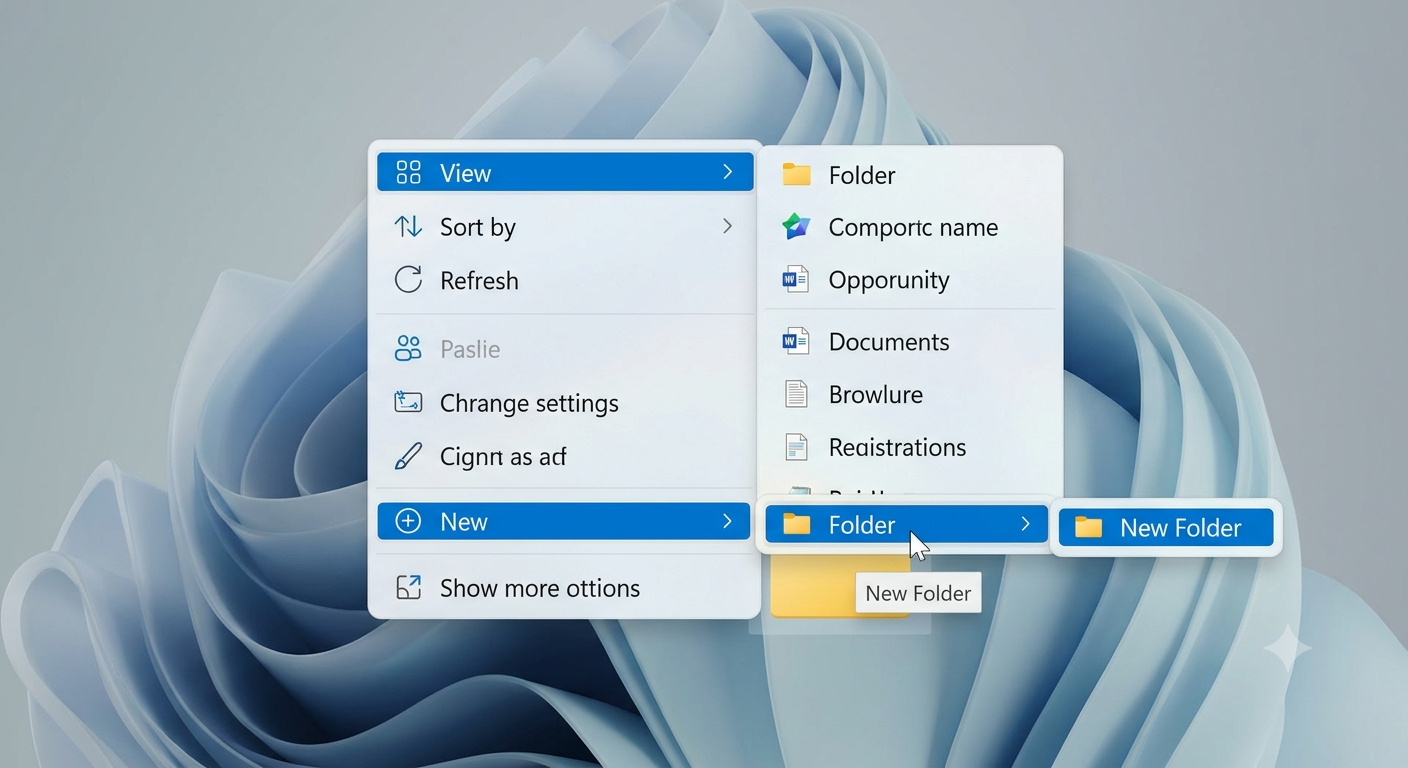
How to Create a Folder
Right-click an empty area of the desktop.
Select:
New > Folder
Give the folder a descriptive name.
Move related files into it.
Image: Creating a new desktop folder.
Use Meaningful File and Folder Names
Avoid generic names such as:
- New Folder
- File1
- Document
- Image
Instead, use descriptive names like:
- Marketing Budget 2026
- Vacation Photos Hawaii
- Client Contracts
- Monthly Reports
- Project Phoenix
Clear naming conventions make searching for files much easier.
Pin Frequently Used Apps Instead of Keeping Desktop Shortcuts
Many users keep dozens of application shortcuts on the desktop.
Instead, pin your most-used programs to:
- Start Menu
- Taskbar
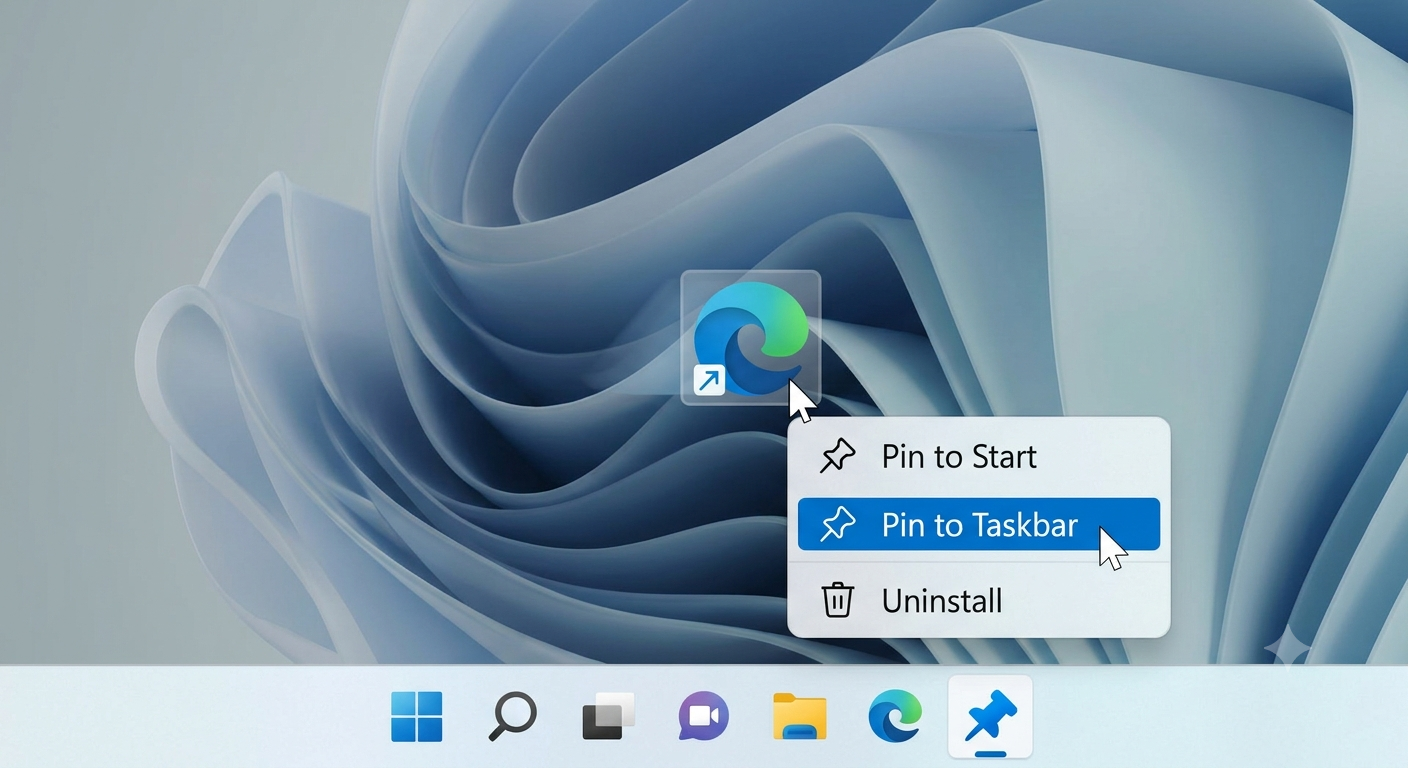
To pin an application:
- Open the Start menu.
- Search for the application.
- Right-click it.
- Select Pin to Start or Pin to Taskbar.
This keeps your desktop cleaner while providing faster access to your favorite applications.
Image: Pinning an app to the taskbar.
Use Desktop Icon Alignment
Windows 11 includes automatic alignment features.
To enable them:
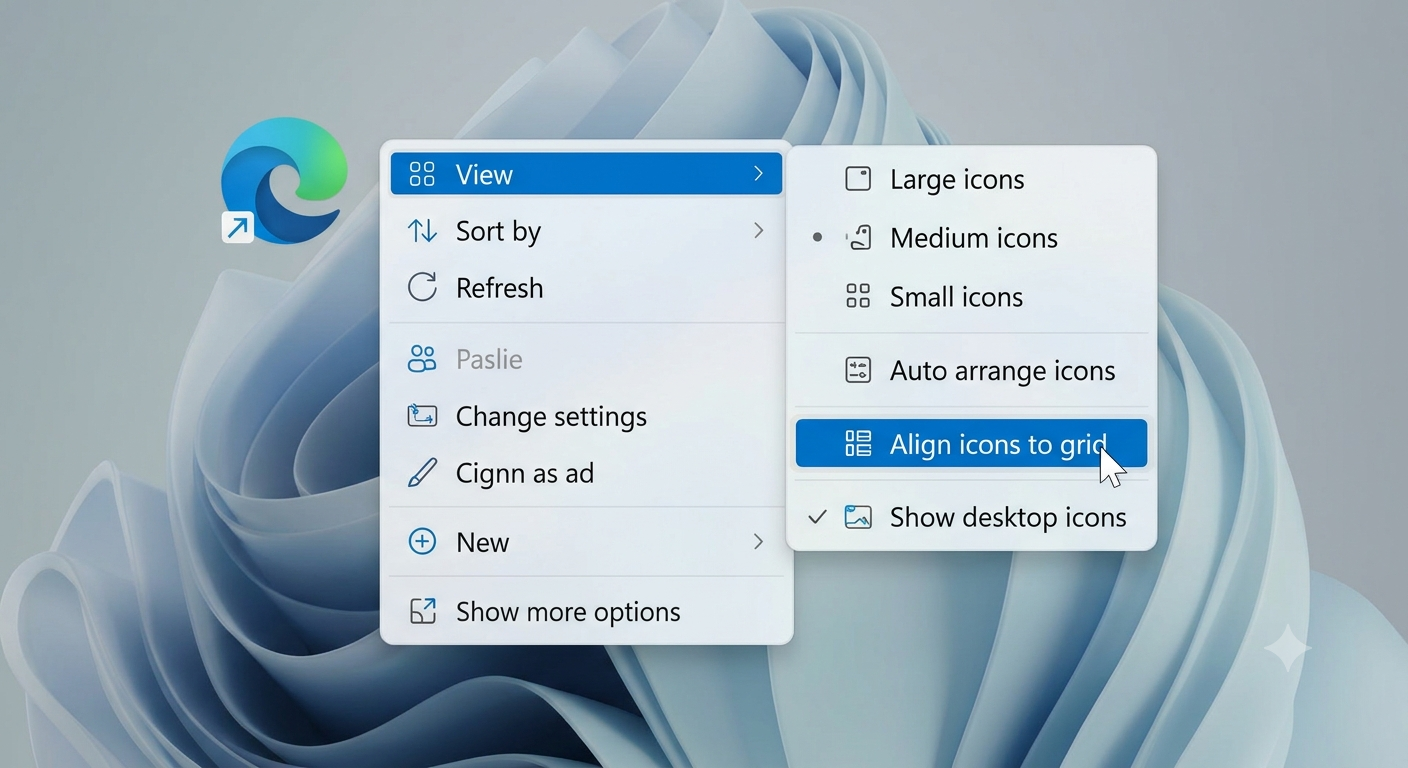
Right-click the desktop.
Choose:
View
Enable:
- Auto arrange icons
- Align icons to grid
These options keep icons neatly organized and prevent overlapping.
Image: Desktop View menu.
Hide Desktop Icons When Necessary
If you prefer a completely clean desktop, Windows allows you to hide all icons without deleting them.
To do this:
Right-click the desktop.
Select:
View
Uncheck:
Show desktop icons
Your files remain on the desktop but are temporarily hidden.
Repeat the process to show them again.
This is useful during presentations or when you want a distraction-free workspace.
Take Advantage of Virtual Desktops
One of Windows 11’s best productivity features is Virtual Desktops.
You can create separate desktops for different activities.
Examples include:
- Work
- School
- Personal
- Gaming
- Creative projects
How to Create a Virtual Desktop
Click the Task View button on the taskbar.
Or press:
Windows + TabSelect:
New Desktop
You can switch between desktops whenever needed.
Image: Windows 11 Task View.
Organize Files Outside the Desktop
The desktop should not become your primary storage location.
Instead, use Windows folders such as:
- Documents
- Downloads
- Pictures
- Videos
- Music
Store long-term files in these locations while keeping only temporary or frequently accessed items on the desktop.
Use OneDrive for Automatic Sync
If you use Microsoft OneDrive, your desktop can be backed up automatically.
Benefits include:
- Automatic cloud backup
- File synchronization across devices
- Easy recovery after reinstalling Windows
- Protection against hardware failure
To enable desktop backup:
- Open OneDrive.
- Open Settings.
- Choose Sync and Backup.
- Enable Desktop Backup.
Your desktop files will remain available from other devices connected to your Microsoft account.
Customize Your Desktop Background
A simple wallpaper can reduce distractions.
Consider choosing:
- Solid colors
- Minimalist wallpapers
- Nature scenes
- Soft gradients
Avoid overly busy backgrounds that make icons difficult to read.
Windows 11 also supports automatic wallpaper rotation through Windows Spotlight and slideshow options.
Use Widgets Carefully
Windows 11 includes Widgets for displaying information such as:
- Weather
- Calendar
- News
- Sports
- Traffic
While Widgets can be useful, too many notifications or constantly updating content may become distracting.
Customize Widgets to display only the information you actually use.
Keep the Taskbar Organized
A cluttered taskbar can be just as distracting as a cluttered desktop.
Only pin applications you use regularly.
Examples include:
- File Explorer
- Microsoft Edge
- Google Chrome
- Microsoft Word
- Excel
- Outlook
- Visual Studio Code
Remove applications you rarely use.
A clean taskbar makes switching between programs much faster.
Use Snap Layouts for Better Workflow
Windows 11 introduces Snap Layouts, allowing you to arrange multiple windows efficiently.
Hover over the maximize button of any window.
Choose one of the available layouts.
Examples include:
- Two-column layout
- Three-column layout
- Four-window grid
Snap Layouts help you multitask without manually resizing windows.
Image: Windows 11 Snap Layout menu.
Create a Simple Desktop Workflow
Develop a routine for managing desktop files.
For example:
- Save new downloads to the Downloads folder.
- Move completed work into project folders.
- Archive old documents monthly.
- Delete unnecessary screenshots weekly.
- Empty the Recycle Bin regularly.
Small habits prevent clutter from accumulating.
Use Search Instead of Filling the Desktop
Windows Search is much more powerful than manually browsing dozens of desktop icons.
Press:
Windows + SType part of the file name.
Windows quickly locates:
- Files
- Applications
- Settings
- Documents
Using Search reduces the need to keep every important file visible on the desktop.
Color-Code Folders with Third-Party Tools
Windows does not natively support folder colors, but some third-party utilities allow you to assign different colors to folders.
For example:
- Blue for work
- Green for personal files
- Red for urgent projects
- Yellow for temporary documents
Use only trusted software from reputable developers if you choose this approach.
Avoid Storing Too Many Large Files
Large video projects, backups, or ISO files can consume significant storage space if left on the desktop.
Instead, move them to:
- External drives
- Dedicated project folders
- Cloud storage
- Archive directories
This keeps your desktop responsive and easier to manage.
Review Your Desktop Regularly
Desktop organization is not a one-time task.
Schedule a quick review every week or month.
During each review:
- Delete unnecessary files.
- Organize new documents.
- Rename unclear folders.
- Remove broken shortcuts.
- Archive completed projects.
Regular maintenance keeps your workspace tidy over time.
Common Desktop Organization Mistakes
Avoid these common habits:
- Saving every download to the desktop
- Keeping hundreds of shortcuts
- Using generic folder names
- Ignoring old screenshots
- Leaving completed projects on the desktop
- Using the desktop as permanent storage
Correcting these habits can make your workspace much easier to manage.
Best Practices for a Productive Desktop
To maintain an organized Windows 11 desktop:
- Keep only frequently used shortcuts visible.
- Store documents in dedicated folders.
- Pin applications to the taskbar instead of creating desktop shortcuts.
- Use Virtual Desktops for different types of work.
- Enable OneDrive backup for important files.
- Review and clean your desktop regularly.
- Take advantage of Windows Search to locate files quickly.
- Use Snap Layouts to improve multitasking.
Following these practices helps create a workspace that is both organized and efficient.
Frequently Asked Questions
Does having too many desktop icons slow down Windows 11?
For most modern computers, a large number of desktop icons has little impact on performance. However, an overcrowded desktop can make it more difficult to find files and may slightly increase the time it takes for the desktop to load after signing in.
Should I store important files on my desktop?
You can temporarily keep frequently used files on your desktop, but important documents should ideally be stored in folders such as Documents or backed up using OneDrive or another reliable storage solution.
How often should I organize my desktop?
A quick cleanup once a week and a more thorough review once a month is enough for most users. Regular maintenance prevents clutter from building up.
What is the best way to organize desktop files?
Creating folders with clear names, using meaningful file names, and limiting the number of visible shortcuts are some of the most effective ways to keep your desktop organized.
Can I have different desktops for work and personal use?
Yes. Windows 11 supports Virtual Desktops, allowing you to create separate workspaces for different tasks and switch between them whenever needed.
Conclusion
An organized Windows 11 desktop can make your daily computing experience more efficient, whether you’re working, studying, or managing personal projects. By removing unnecessary clutter, grouping files into folders, pinning frequently used applications to the taskbar, and using built-in features like Virtual Desktops, Snap Layouts, and Windows Search, you can create a workspace that supports focus and productivity.