


How to Fix a Frozen OneDrive
Microsoft OneDrive is one of the most popular cloud storage services, allowing users to store, sync, and access files across multiple devices. While OneDrive is generally reliable, there are times when it may appear to freeze, stop syncing, become unresponsive, or display a “frozen” status. This can prevent you from accessing or updating important files, disrupting both personal and professional workflows.
Fortunately, most OneDrive freezing issues can be resolved with a few troubleshooting steps. In this guide, you’ll learn why OneDrive freezes, how to identify the cause, and the most effective methods to get it working normally again.
What Does It Mean When OneDrive Is Frozen?
A “frozen” OneDrive doesn’t always mean the application has crashed. Instead, it usually indicates that OneDrive has stopped responding or is unable to complete its normal synchronization process.
Common signs include:
- OneDrive sync is stuck.
- Files remain in a pending state.
- The OneDrive icon stops updating.
- The app becomes unresponsive.
- Uploads or downloads never complete.
- OneDrive won’t open.
- Sync errors continue to appear.
In some cases, the issue is temporary and resolves automatically once the underlying problem is fixed.
Common Reasons OneDrive Freezes
Several factors can cause OneDrive to stop working correctly.
Some of the most common causes include:
- Poor internet connectivity
- Outdated OneDrive software
- Corrupted cache files
- Insufficient storage space
- Conflicting applications
- Windows updates in progress
- File synchronization conflicts
- Antivirus software interference
- Large file uploads
- Account authentication issues
Identifying the cause makes it easier to choose the right solution.
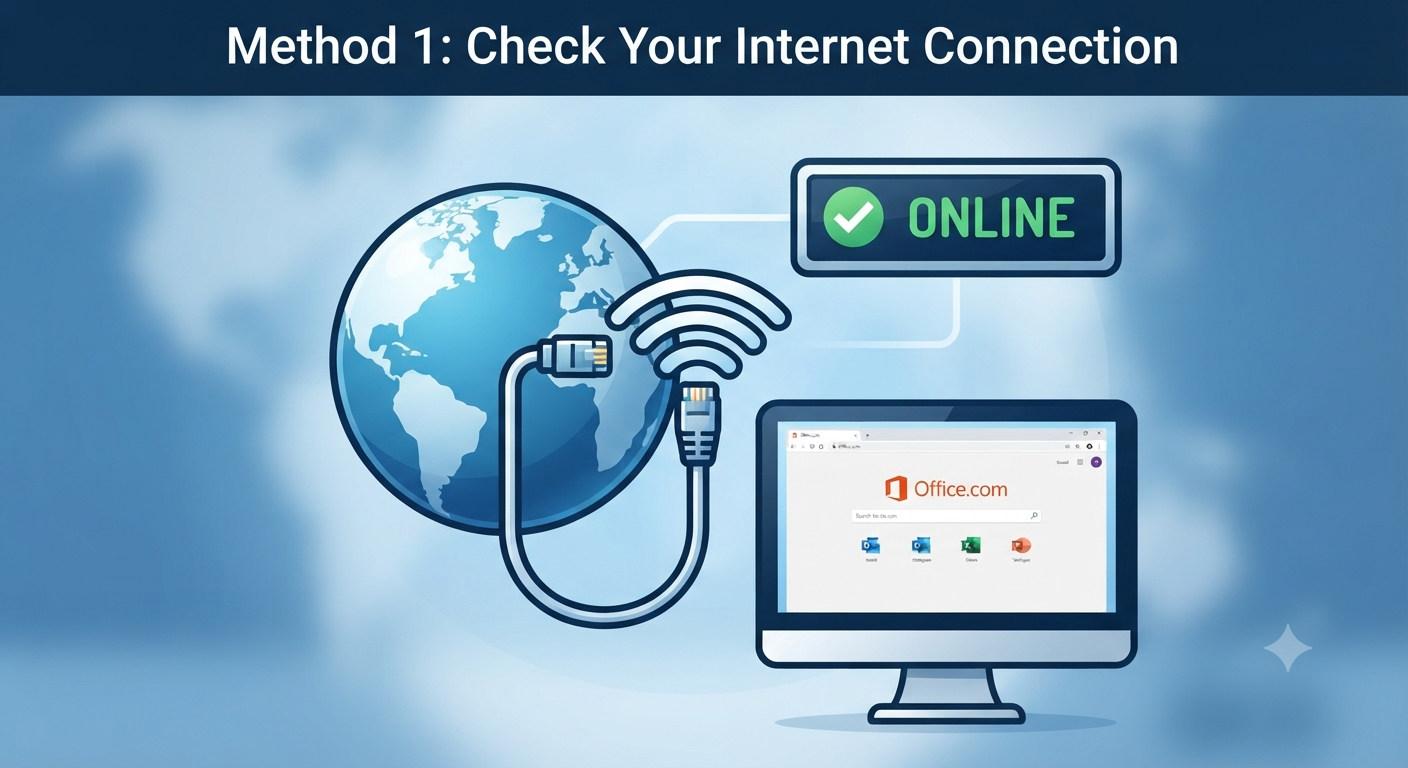
Method 1: Check Your Internet Connection
Since OneDrive relies on cloud synchronization, a stable internet connection is essential.
To verify your connection:
- Open a web browser.
- Visit several websites.
- Check whether pages load normally.
- Restart your router if necessary.
If you’re using Wi-Fi, try moving closer to the router or switching to a wired Ethernet connection.
Image: Checking internet connectivity.
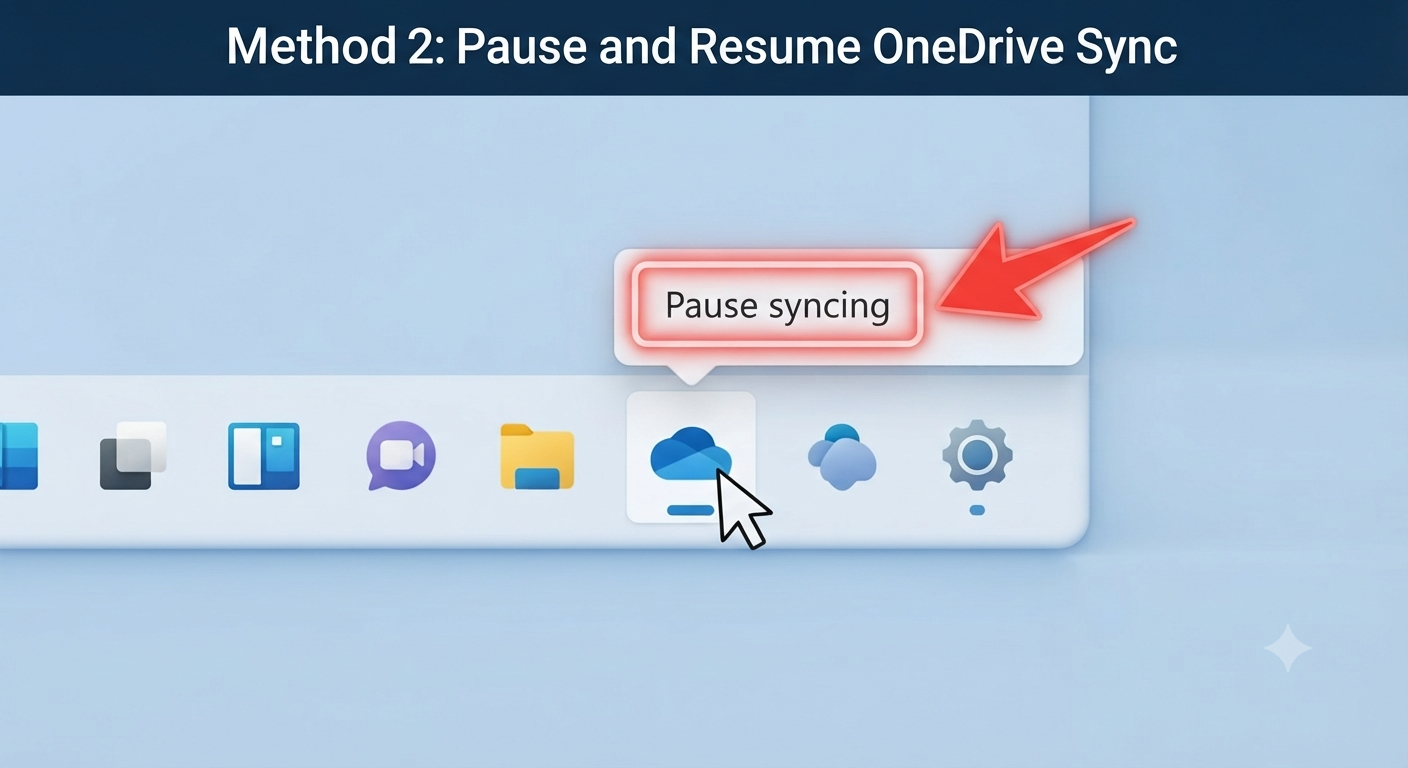
Method 2: Pause and Resume OneDrive Sync
Sometimes restarting the synchronization process is enough.
Step 1
Click the OneDrive cloud icon in the Windows notification area.
Step 2
Select:
Pause syncing
Choose any available duration.
Step 3
Wait a few moments.
Then click:
Resume syncing
OneDrive will attempt to reconnect and continue synchronizing your files.
Image: Pause Sync option.
Method 3: Restart OneDrive
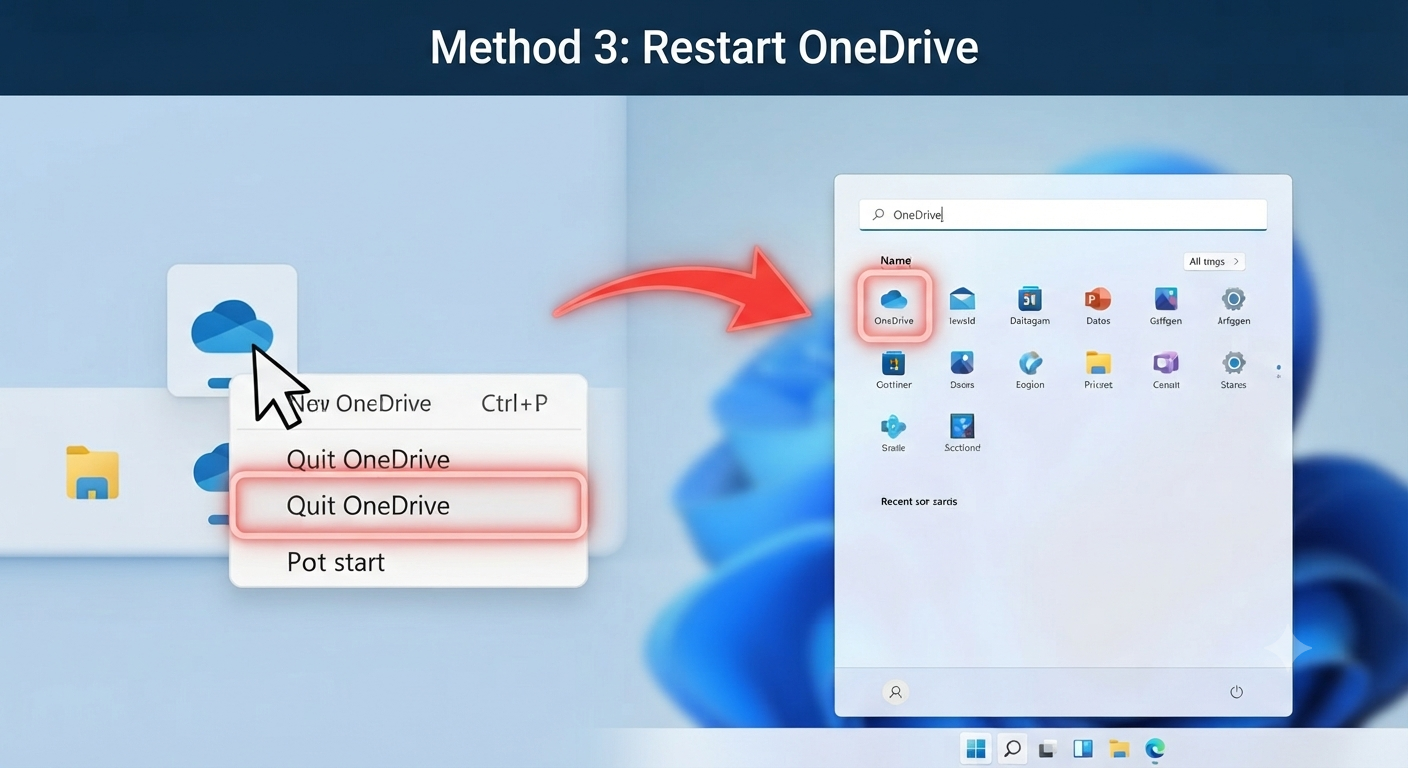
Restarting the application often clears temporary glitches.
Step 1
Right-click the OneDrive icon.
Choose:
Quit OneDrive
Confirm if prompted.
Step 2
Open the Start menu.
Search for:
OneDrive
Launch the application again.
Sign in if necessary.
Image: Restarting OneDrive.
Method 4: Restart Your Computer
A simple restart can resolve many temporary software issues.
Restarting Windows:
- Closes background processes
- Refreshes system memory
- Restarts network services
- Reloads OneDrive
After Windows starts, wait a few minutes to see whether synchronization resumes.
Method 5: Check Available OneDrive Storage
If your cloud storage is full, synchronization may stop.
To verify your storage:
- Open OneDrive online.
- Sign in to your Microsoft account.
- Review your available storage.
If necessary:
- Delete unnecessary files.
- Empty the OneDrive Recycle Bin.
- Upgrade your storage plan.
Image: OneDrive storage usage.
Method 6: Verify Available Disk Space
OneDrive also requires sufficient free space on your computer.
To check:
- Open File Explorer.
- Select This PC.
- Review available space on your system drive.
If storage is low:
- Remove unnecessary files.
- Empty the Recycle Bin.
- Uninstall unused applications.
- Move large files to another drive.
Method 7: Update OneDrive
Using an outdated version can cause compatibility issues.
To update:
- Open OneDrive.
- Click Settings.
- Check for updates if available.
Alternatively, download the latest version from Microsoft’s official website.
Updated versions often include bug fixes and performance improvements.
Method 8: Reset OneDrive
Resetting OneDrive restores its settings without deleting your cloud files.
Step 1
Press:
Windows + RStep 2
Type:
%localappdata%\Microsoft\OneDrive\OneDrive.exe /resetClick OK.
The OneDrive icon may temporarily disappear.
Step 3
If OneDrive doesn’t restart automatically after a few minutes:
Press:
Windows + RThen enter:
%localappdata%\Microsoft\OneDrive\OneDrive.exePress Enter.
OneDrive launches again and begins rebuilding its synchronization database.
Image: OneDrive reset command.
Method 9: Sign Out and Sign Back In
Account authentication problems can interrupt synchronization.
To reconnect your account:
- Open OneDrive Settings.
- Select Account.
- Choose Unlink this PC.
- Restart OneDrive.
- Sign in using your Microsoft account.
After signing in, OneDrive rebuilds the connection to your cloud storage.
Method 10: Check File Name Restrictions
Certain files cannot be synchronized because of unsupported names or paths.
Examples include:
- Invalid characters
- Extremely long file names
- Excessively deep folder structures
Rename problematic files and try syncing again.
Avoid using characters such as:
" * : < > ? / \ |These characters are generally not allowed in Windows file names.
Method 11: Resolve Sync Conflicts
If multiple devices edit the same file simultaneously, OneDrive may create synchronization conflicts.
Review any conflict notifications.
Choose:
- Keep local version
- Keep cloud version
- Rename one copy
Resolving conflicts allows synchronization to continue normally.
Method 12: Temporarily Disable Antivirus Software
Some antivirus programs may interfere with OneDrive.
Temporarily disable real-time protection to determine whether it’s causing the problem.
If OneDrive resumes syncing, consider adding the application to your antivirus exclusions.
Only disable security software briefly while testing, and re-enable it immediately afterward.
Method 13: Install Windows Updates
Windows updates often include fixes for OneDrive and networking components.
To check for updates:
- Open Settings.
- Select Windows Update.
- Click Check for updates.
- Install available updates.
- Restart your computer.
Keeping Windows current helps prevent compatibility issues.
Method 14: Reinstall OneDrive
If all else fails, reinstalling OneDrive may resolve persistent problems.
Remove OneDrive
- Open Settings.
- Select Apps.
- Choose Installed Apps.
- Find Microsoft OneDrive.
- Click Uninstall.
Install the Latest Version
Download the newest installer from Microsoft’s official website.
Sign in again after installation.
Your cloud files remain stored online and will begin syncing after setup.
How to Prevent OneDrive from Freezing
Following a few best practices can reduce the likelihood of future issues.
These include:
- Keep Windows updated.
- Install OneDrive updates regularly.
- Maintain a stable internet connection.
- Avoid storing unsupported file names.
- Monitor available cloud storage.
- Leave enough free space on your computer.
- Close OneDrive properly before shutting down Windows.
- Avoid editing the same file on multiple devices simultaneously whenever possible.
These habits help ensure smoother synchronization.
Common OneDrive Error Messages
While troubleshooting, you may encounter messages such as:
- Sync pending
- Processing changes
- File locked
- Upload blocked
- Can’t sync this file
- Sign-in required
Each message usually points to a specific issue, such as a file conflict, authentication problem, or unsupported file type. Reviewing the details of the error can help you choose the appropriate solution.
Frequently Asked Questions
Will resetting OneDrive delete my files?
No. Resetting OneDrive does not delete files stored in your cloud account. It simply refreshes the application’s configuration and synchronization process. Your files remain available online and will sync again after the reset.
Why is OneDrive stuck on “Processing Changes”?
This often happens because of large file uploads, synchronization conflicts, unstable internet connections, or files with unsupported names. Restarting or resetting OneDrive usually resolves the issue.
Can a full OneDrive account stop syncing?
Yes. If your OneDrive storage quota has been reached, new files cannot be uploaded until you free up space or upgrade your storage plan.
Why does OneDrive keep asking me to sign in?
Repeated sign-in prompts may indicate an authentication issue, an expired session, or corrupted account information. Signing out and signing back in often resolves the problem.
Do I need to reinstall OneDrive if it freezes?
Not necessarily. Most freezing issues can be fixed by restarting the application, resetting it, or updating it. Reinstallation is typically recommended only if other troubleshooting methods have failed.
Conclusion
A frozen OneDrive can interrupt your work and prevent important files from syncing, but in most cases, the issue is relatively easy to resolve. By checking your internet connection, restarting or resetting the application, verifying available storage, resolving file conflicts, and keeping both Windows and OneDrive updated, you can restore normal operation without losing your files.