


How to Make Microsoft Edge Open Where You Left Off
Microsoft Edge includes several built-in features that make it easy to pick up right where you left off, whether you’re browsing websites, researching a project, or working with multiple tabs. Instead of reopening each page manually after restarting your computer or browser, Edge can restore your previous browsing session automatically, saving time and improving productivity.
Whether you’re using Windows 10 or Windows 11, learning how to continue where you left off in Microsoft Edge can streamline your daily workflow. This guide explains how the feature works, how to enable it, and what to do if your tabs aren’t restoring as expected.
What Does “Continue Where You Left Off” Mean?
The “Continue where you left off” feature allows Microsoft Edge to reopen tabs that were active during your previous browsing session.
For example, if you had several websites open and closed Edge or restarted your computer, the browser can automatically restore those tabs the next time you launch it.
This feature is especially useful for:
- Research projects
- Online learning
- Business workflows
- Shopping comparisons
- Reading articles
- Managing multiple web applications
- Daily work routines
Instead of searching for each website again, you can continue your browsing session with minimal interruption.
Benefits of Restoring Previous Tabs
Using session restore offers several advantages.
These include:
- Saves time reopening websites
- Improves productivity
- Reduces interruptions
- Keeps research organized
- Makes multitasking easier
- Prevents accidentally losing open pages
For users who regularly work with dozens of browser tabs, this feature can significantly improve efficiency.
Method 1: Enable Startup Boost and Restore Tabs Automatically
Microsoft Edge allows you to choose what happens when the browser starts.
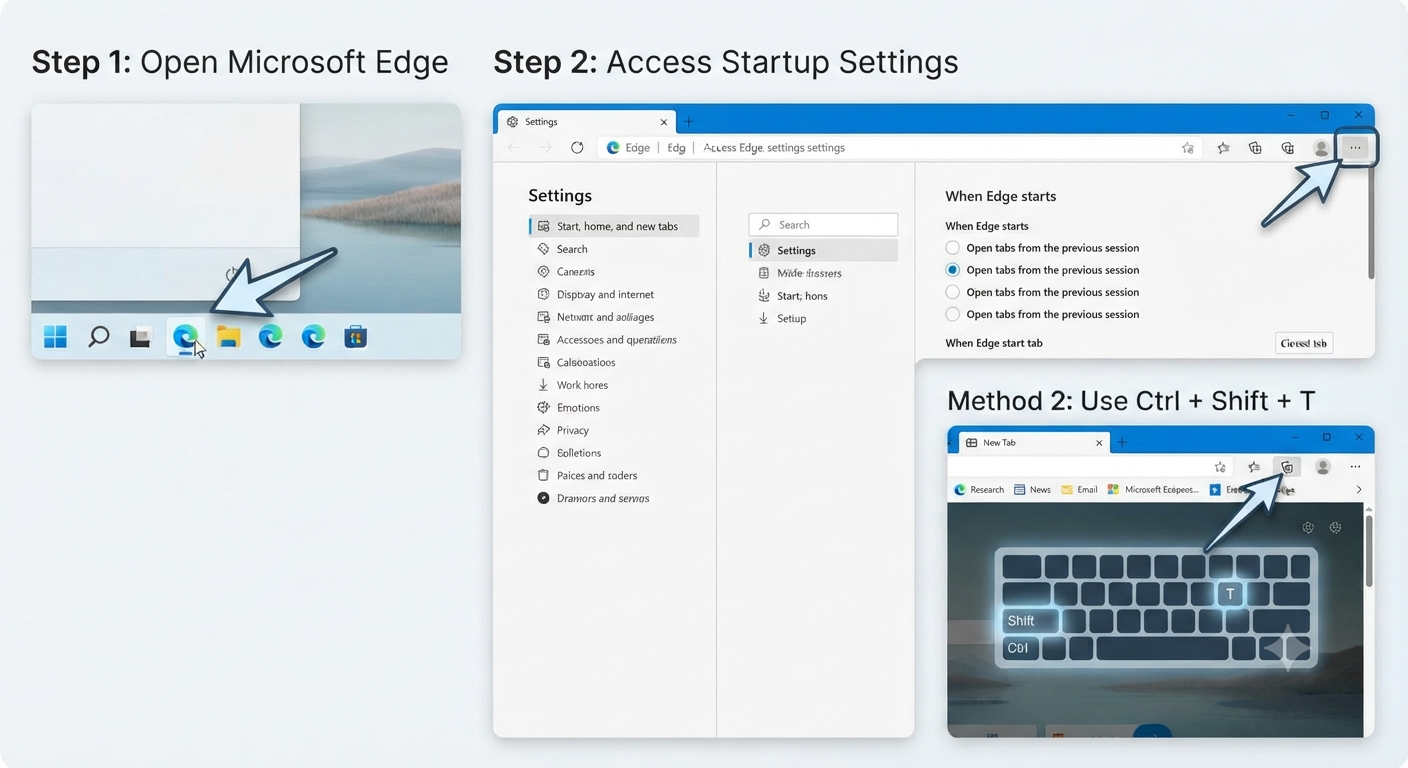
Step 1: Open Microsoft Edge
Launch Microsoft Edge from the Start menu, Taskbar, or desktop shortcut.
Image: Microsoft Edge home screen.
Step 2: Open Settings
Click the three-dot menu in the upper-right corner.
Select:
Settings
Image: Edge Settings menu.
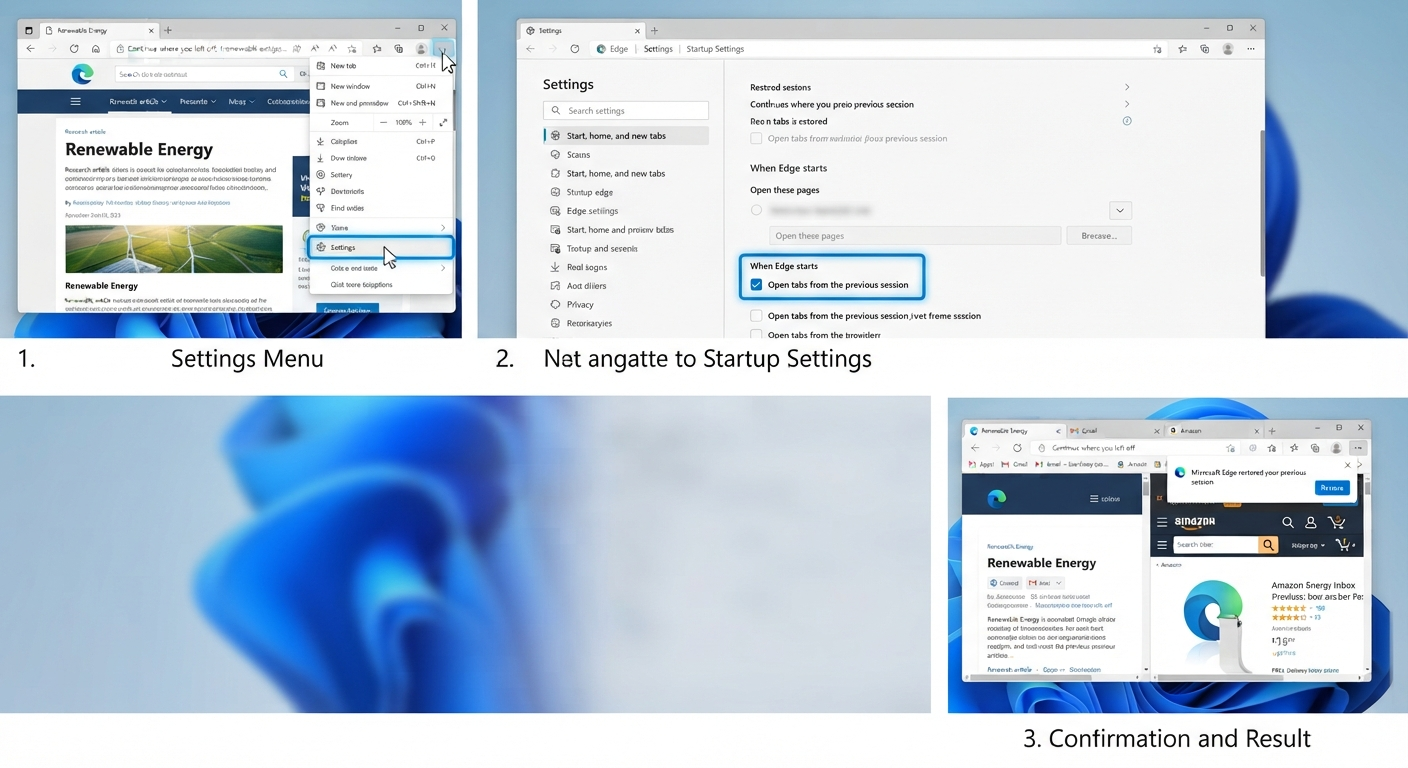
Step 3: Open the Start, Home, and New Tabs Section
In the left navigation pane, click:
Start, home, and new tabs
This section contains options related to Edge’s startup behavior.
Image: Start, Home, and New Tabs settings.
Step 4: Configure Startup Behavior
Under the startup options, select:
Open tabs from the previous session
After enabling this option, Edge automatically restores the tabs that were open the last time you closed the browser normally.
Image: Startup settings in Edge.
Method 2: Restore Recently Closed Tabs
If you accidentally close one or more tabs, Edge lets you reopen them quickly.
Using the Keyboard Shortcut
Press:
Ctrl + Shift + TEach time you press the shortcut, Edge restores the most recently closed tab.
If multiple tabs were closed together as a window, repeatedly using the shortcut may restore the entire group.
Image: Restoring closed tabs.
Method 3: Reopen Tabs from Browsing History
If session restore doesn’t work, your browsing history may still contain the pages you visited.
Step 1: Open History
Click the three-dot menu.
Choose:
History
Or press:
Ctrl + HImage: Edge History menu.
Step 2: Reopen Websites
Browse your recent history.
Right-click a page and choose:
- Open in new tab
- Open in new window
This method works even if the previous browsing session wasn’t restored automatically.
Method 4: Use Collections to Save Groups of Websites
If you frequently work with the same group of websites, consider using Collections.
Collections allow you to save web pages, notes, images, and links for future reference.
How to Create a Collection
- Click the Collections icon.
- Select Start new collection.
- Give it a descriptive name.
- Add your current tabs.
You can reopen saved pages anytime without relying on session restore.
Image: Microsoft Edge Collections.
Method 5: Sync Open Tabs Across Devices
If you’re signed in with a Microsoft account, Edge can synchronize your browsing information.
Syncing allows you to access:
- Favorites
- Passwords
- History
- Extensions
- Open tabs
Enable Sync
- Open Settings.
- Select Profiles.
- Sign in with your Microsoft account.
- Choose Sync.
- Enable Open tabs.
Now you can continue browsing from another Windows PC or compatible mobile device.
Image: Edge Sync settings.
How Session Restore Works
Edge stores information about your browsing session when the browser closes normally.
This information includes:
- Open tabs
- Window arrangement
- Tab groups
- Active websites
The next time Edge starts, it uses this saved session to reopen your previous tabs.
If the browser crashes unexpectedly, Edge often detects the abnormal shutdown and offers to restore your previous session automatically.
Common Reasons Tabs Don’t Restore
Sometimes Edge may fail to reopen your previous tabs.
Possible causes include:
- Startup settings are configured incorrectly.
- Browsing data was cleared.
- Edge was closed unexpectedly.
- Third-party cleanup software removed session files.
- The browser profile became corrupted.
Checking your settings is usually the first step in resolving the issue.
Prevent Losing Open Tabs
To reduce the risk of losing important browsing sessions:
- Enable tab synchronization.
- Save important pages in Favorites.
- Use Collections for research projects.
- Close Edge normally instead of forcing it to shut down.
- Keep Edge updated.
These habits help preserve your browsing data.
Use Tab Groups for Better Organization
Microsoft Edge supports Tab Groups, allowing you to organize related tabs.
For example:
- Work
- School
- Shopping
- News
- Research
You can assign different colors and names to each group.
Although tab groups improve organization, it’s still recommended to save important groups using Collections or Favorites for long-term access.
Keep Microsoft Edge Updated
Using the latest version of Edge ensures you receive bug fixes and performance improvements.
To check for updates:
- Open Settings.
- Select About Microsoft Edge.
- Edge automatically checks for updates.
- Restart the browser if an update is installed.
Newer versions often improve session recovery reliability.
Troubleshooting Session Restore Problems
The Previous Session Doesn’t Open
Verify that the startup setting is configured to open tabs from the previous session.
Also ensure that Edge was closed normally during the last session.
Tabs Disappear After Restarting Windows
Some system cleanup utilities automatically remove temporary browsing data.
Review the settings of any cleanup or optimization software installed on your computer.
Edge Opens the Home Page Instead
Check your startup settings.
If Edge is configured to open a specific page or a new tab page, it won’t restore your previous browsing session.
The Browser Crashed
Following an unexpected crash, Edge often displays a prompt asking whether you’d like to restore the previous session.
Choose Restore if the prompt appears.
If it doesn’t, check your browsing history for recently visited pages.
Best Practices for Managing Browser Sessions
To make the most of Microsoft Edge:
- Enable startup session restoration.
- Turn on synchronization with your Microsoft account.
- Save frequently visited websites as Favorites.
- Use Collections for ongoing projects.
- Organize tabs into groups.
- Keep the browser updated.
- Close Edge properly instead of forcing it to exit.
Following these practices helps ensure your work is easier to resume after restarting the browser or your computer.
Frequently Asked Questions
Can Microsoft Edge automatically reopen all tabs after restarting my computer?
Yes. If Edge is configured to open tabs from the previous session and the browser was closed normally, it can restore your previously open tabs after you restart your computer.
Will InPrivate tabs be restored?
No. InPrivate browsing sessions are designed to protect your privacy and are not saved after you close all InPrivate windows.
Does syncing open tabs work across devices?
Yes. If you’re signed in with the same Microsoft account and have enabled tab synchronization, you can access open tabs from other compatible devices using Microsoft Edge.
What happens if Edge crashes unexpectedly?
In many cases, Edge detects the crash and offers to restore your previous browsing session the next time you launch the browser. If it doesn’t, you can often recover recently visited pages through your browsing history.
Can I choose specific pages to open instead of restoring the previous session?
Yes. Microsoft Edge allows you to configure startup behavior so it opens a new tab page, a specific page, multiple predefined pages, or your previous browsing session.
Additional Productivity Tips
To further improve your browsing experience in Microsoft Edge:
- Pin frequently used tabs so they remain easily accessible.
- Use vertical tabs if you regularly work with many open pages.
- Create separate browser profiles for work and personal browsing.
- Use Sleeping Tabs to reduce memory usage while keeping inactive tabs available.
- Save important research in Collections before closing your browser.
These features work well alongside session restoration and can help you maintain an organized and efficient workflow.
Conclusion
The ability to continue where you left off in Microsoft Edge is a valuable productivity feature that helps you resume browsing without reopening every website manually. Whether you’re working on research, managing business tasks, or simply keeping track of your favorite sites, restoring your previous session can save time and minimize interruptions.