


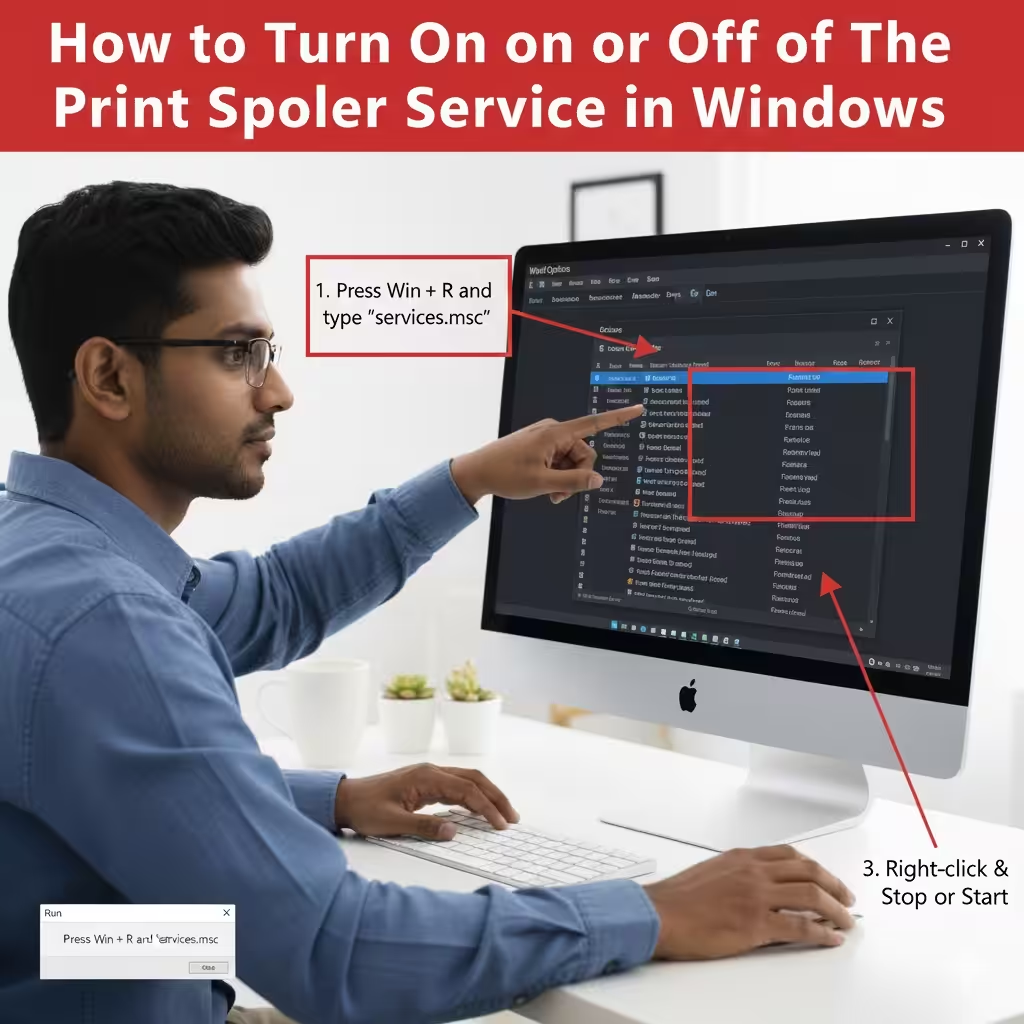
How to Turn On or Turn Off the Print Spooler Service in Windows
The Print Spooler service is an essential component of the Windows operating system. It manages all print jobs sent from your computer to a printer. When functioning properly, the Print Spooler ensures that documents are queued, processed, and printed smoothly. However, issues such as stuck print jobs, printer errors, or security concerns may require you to temporarily disable or restart the Print Spooler service.
Whether you want to troubleshoot printing problems, resolve errors, enhance security, or manage printing resources, this guide provides detailed methods to enable, disable, and restart the Print Spooler service in Windows.
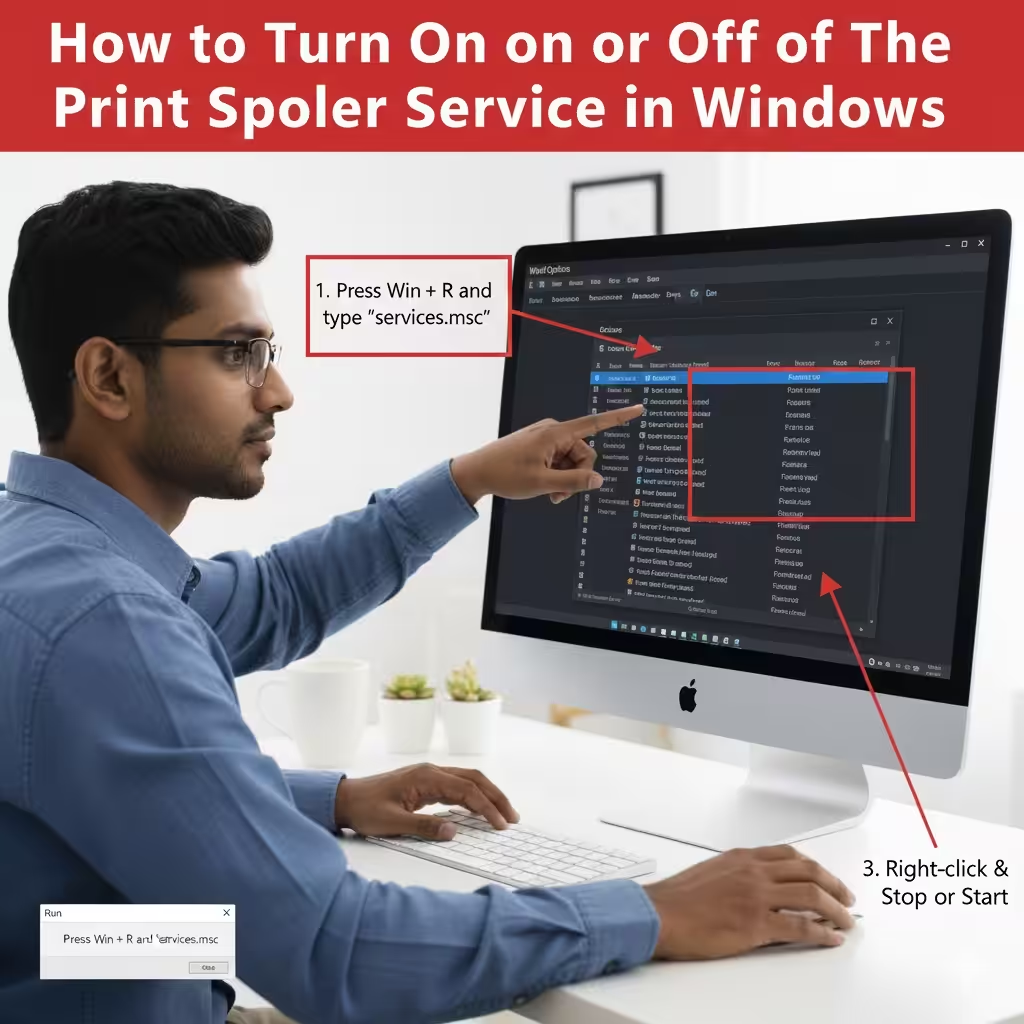
What Is the Print Spooler Service?
The Print Spooler service is responsible for:
-
Managing print tasks
-
Sending data to printers
-
Handling printer drivers
-
Storing print jobs in a queue
When the Print Spooler malfunctions, you may experience:
-
“Print Spooler Service Not Running” errors
-
Stuck print jobs
-
Printer not responding
-
Printer installation failures
Understanding how to control the Print Spooler gives you a powerful tool to fix many printing issues.
When Should You Disable the Print Spooler?
Disabling the Print Spooler is helpful in several situations:
-
You’re troubleshooting persistent printing errors
-
Print jobs are stuck in the queue and won’t delete
-
You want to remove and reinstall printer drivers
-
You need to temporarily block printing on a shared computer
-
There is a security vulnerability involving the Print Spooler
Windows environments sometimes recommend disabling the service when certain vulnerabilities (like “PrintNightmare”) are identified.
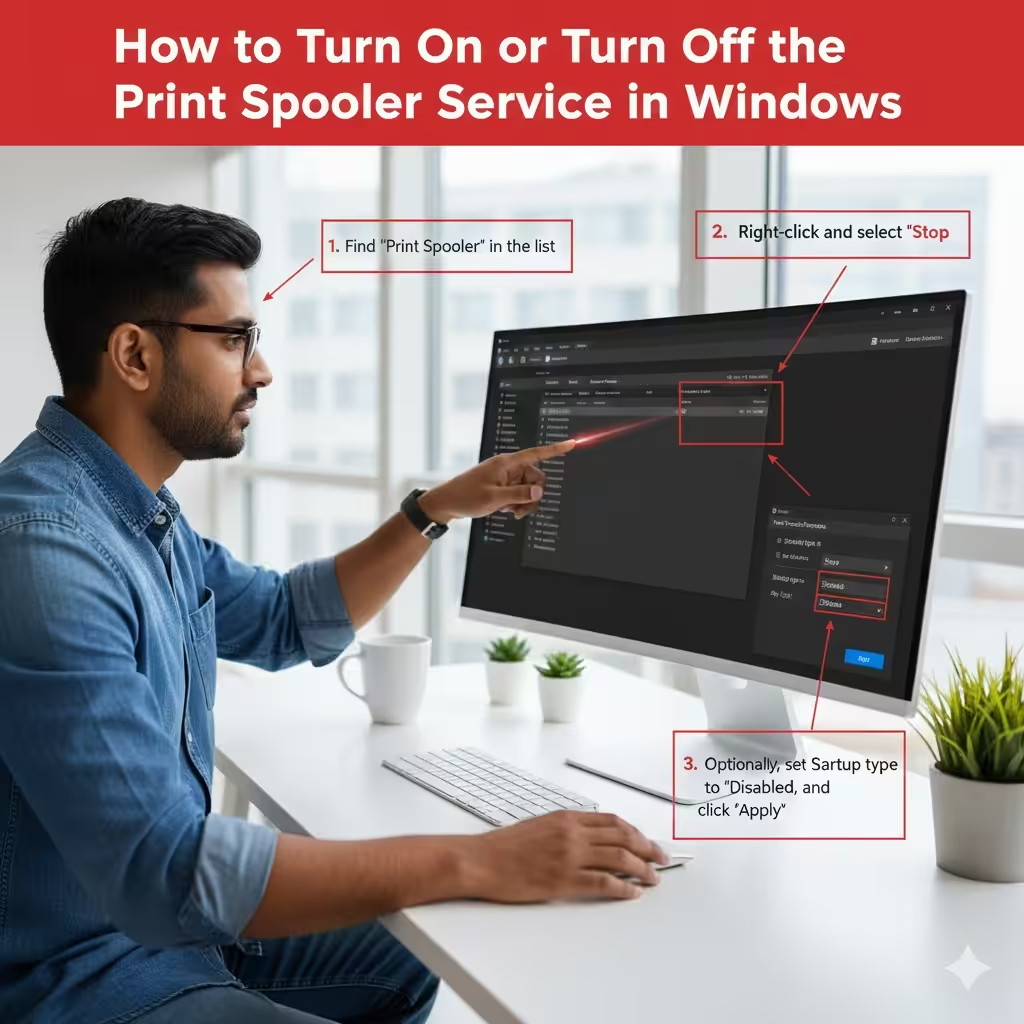
Enable or Disable Print Spooler Using Services Console
The simplest way to control the Print Spooler is through the Services console.
Steps to Disable the Print Spooler Service
-
Press Win + R to open the Run dialog.
-
Type services.msc and press Enter.
-
In the Services window, scroll down to find Print Spooler.
-
Right-click Print Spooler and select Stop.
-
To prevent it from starting automatically:
-
Right-click again and choose Properties
-
Set Startup type to Disabled
-
Click Apply, then OK
-
Steps to Enable the Print Spooler Service
-
Open services.msc using the Run dialog.
-
Locate Print Spooler.
-
Right-click and select Start.
-
To ensure it runs automatically:
-
Open Properties
-
Set Startup type to Automatic
-
Click Apply, then OK
-
The Services console method is ideal for quick manual control.
Enable or Disable Print Spooler Using Command Prompt
If you prefer command-line tools, the Command Prompt offers quick, direct control over the Print Spooler.
Disable Print Spooler via Command Prompt
-
Open Command Prompt as Administrator.
-
Type the command:
-
Press Enter. The service stops immediately.
To disable the service from automatic startup:
Enable Print Spooler via Command Prompt
-
Start the service:
-
Ensure automatic startup:
This method is fast and useful for scripting or remote administration.
Enable or Disable Print Spooler Using PowerShell
Microsoft PowerShell provides even more powerful control over system services.
Disable Print Spooler Using PowerShell
-
Open PowerShell as Administrator.
-
Run:
To disable automatic startup:
Enable Print Spooler Using PowerShell
-
Start the service:
To set it to start automatically:
PowerShell is especially useful in enterprise environments.
Restart Print Spooler to Fix Printing Problems
Often, instead of fully disabling the Print Spooler, simply restarting it resolves most printing issues.
How to Restart the Print Spooler (Services Console)
-
Open services.msc.
-
Right-click Print Spooler.
-
Select Restart.
Restart via Command Prompt
Restart via PowerShell
Restarting clears stuck print jobs and refreshes printer connections.
Clear the Print Spooler Queue Manually
Sometimes print jobs get stuck in the queue, preventing new documents from printing. Clearing the queue solves this problem.
Steps to Clear Print Spooler Queue
-
Stop the Print Spooler:
-
Open File Explorer and go to:
-
Delete all files inside the folder.
-
Restart the Print Spooler:
This method removes corrupted jobs causing print delays or failures.
Enable or Disable Print Spooler Using Group Policy (Windows Pro & Enterprise)
For network administrators or advanced users, Group Policy is a powerful way to control the Print Spooler.
Disable Print Spooler via Group Policy
-
Press Win + R, type gpedit.msc, press Enter.
-
Navigate to:
Computer Configuration → Administrative Templates → Printers -
Locate Allow Print Spooler to accept client connections.
-
Set it to Disabled.
-
Restart your computer.
Enable Print Spooler via Group Policy
-
In the same location, set Allow Print Spooler to accept client connections to Enabled.
-
Restart your device.
Group Policy is ideal in businesses that need centralized printer control.
When You Should Keep Print Spooler Enabled
You should keep the Print Spooler enabled if:
-
You regularly print documents
-
You use Bluetooth/Wi-Fi printers
-
You share printers across a network
-
You install new printer drivers or software
Disabling it permanently will prevent all printing functions in Windows.
Best Practices for Managing the Print Spooler Service
To maintain stable printing performance:
-
Restart the Print Spooler when print jobs get stuck
-
Keep printer drivers updated
-
Avoid installing unnecessary printer software
-
Clear spooler files periodically
-
Use Group Policy in managed networks
Following these tips ensures smoother printing operations on your PC.
Final Thoughts
The Print Spooler service is a critical component for printing in the Windows operating system. Knowing how to enable, disable, and restart it allows you to fix printing errors, improve system performance, and enhance security when needed. Whether you use the Services console, Command Prompt, PowerShell, or Group Policy, each method gives you complete control over the Print Spooler.