


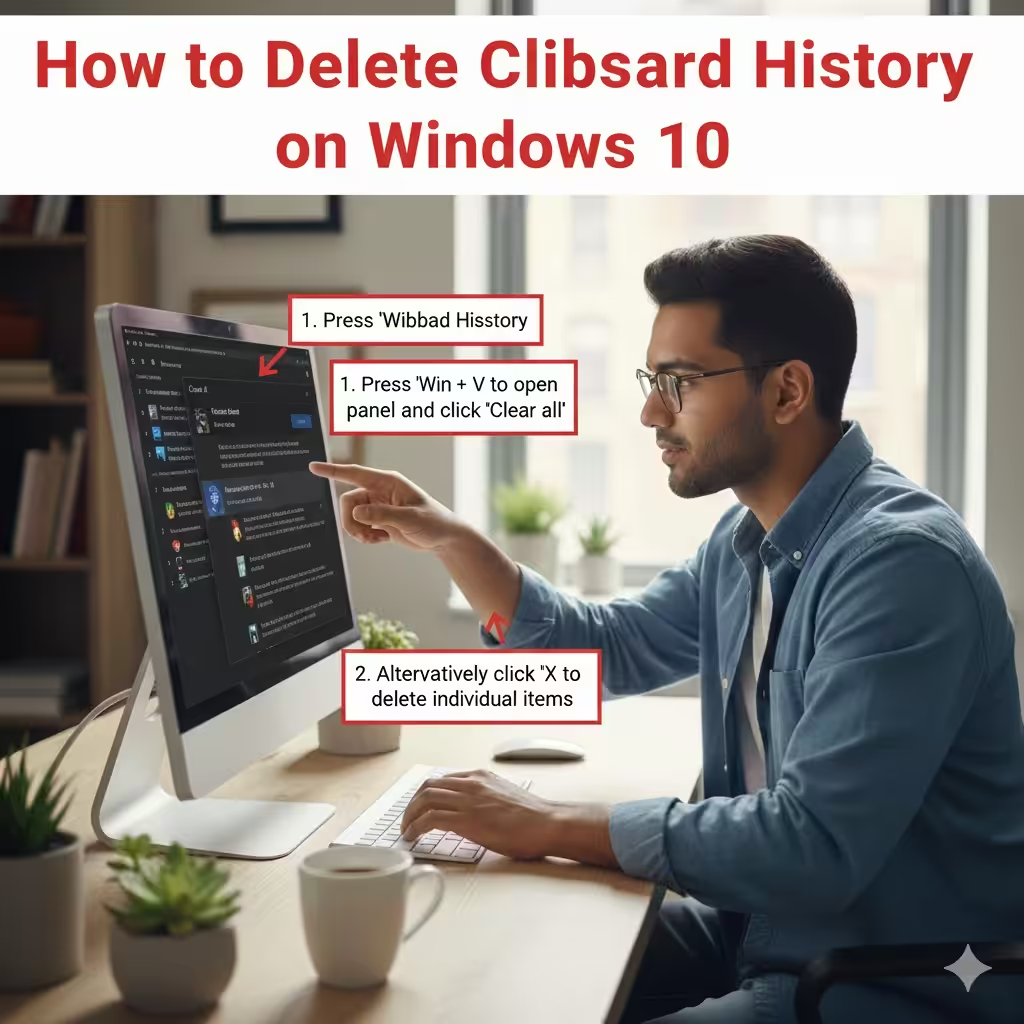
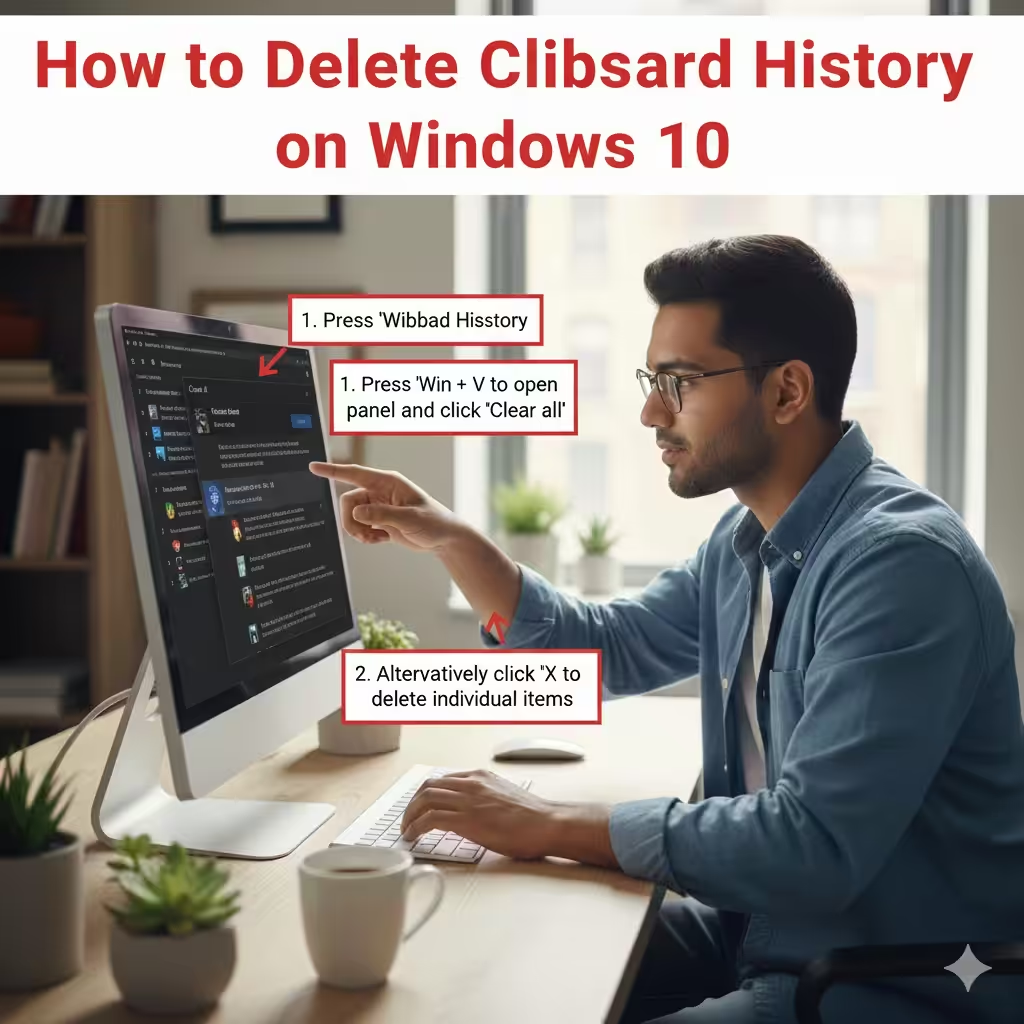
How to Delete Clipboard History on Windows 10
Clipboard History is a useful productivity feature in Windows 10 that allows you to store multiple items—such as text, images, and copied files—and access them whenever needed. While this is convenient, it also means your system keeps a record of what you copy. For privacy, security, or simply to declutter your clipboard data, you may want to clear your clipboard history from time to time.
This guide explains in detail how clipboard history works, how to clear it using several different methods, and how to disable it entirely if you prefer not to use the feature.
What Is Clipboard History in Windows 10?
Clipboard History is a system-wide tool that stores up to 25 items you’ve copied. This includes:
-
Text
-
HTML content
-
Small images
-
File paths
-
Snippets copied from apps and browsers
Clipboard History is stored temporarily in RAM, and its content resets after a system restart unless cloud sync is enabled. You can access Clipboard History using the shortcut Win + V.
Although convenient, clipboard content can sometimes include sensitive data such as passwords, personal information, or confidential text. That’s why knowing how to clear your clipboard history is important for maintaining privacy and security.
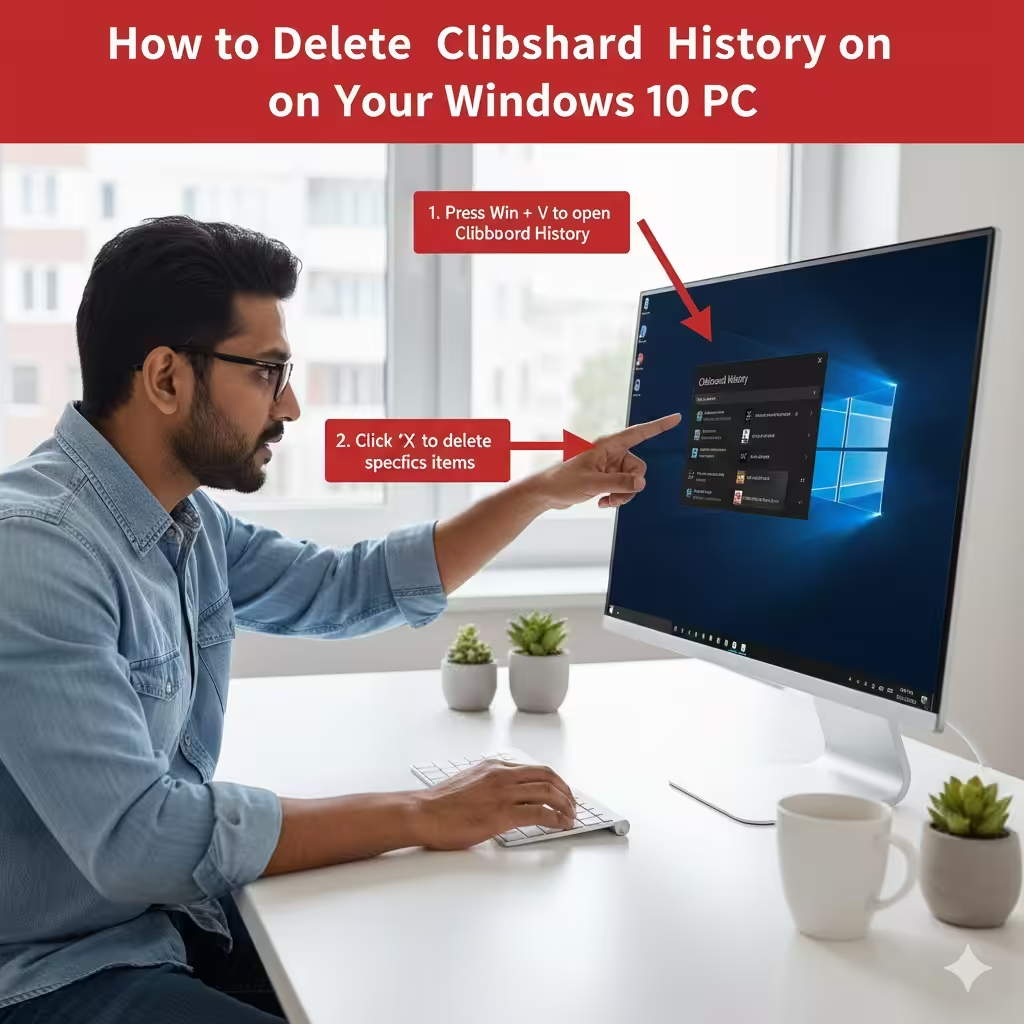
Clear Clipboard History Using the Clipboard Panel
The simplest and fastest way to clear individual items from your clipboard history is through the Clipboard panel.
Steps to Clear Items Using Win + V
-
Press Win + V to open the Clipboard panel.
-
A list of all saved clipboard items will appear.
-
Hover over the item you want to remove.
-
Click the small X icon in the corner of the card.
-
Repeat for each item you wish to delete.
This method is ideal for clearing only specific pieces of information.
Clear All Clipboard History at Once
-
Press Win + V to open Clipboard History.
-
Click Clear all located at the top of the panel.
This removes all stored clipboard entries except pinned items.
Notes About Pinned Items
If you pin any clipboard item by clicking the pin icon, it will remain in your clipboard history until you unpin it manually. Clearing all will not remove pinned entries.
Clear Clipboard Data Through Windows Settings
Windows 10 provides a built-in option in the Settings app to clear all clipboard data, including items synced across devices.
How to Clear Clipboard History in Settings
-
Press Win + I to open Settings.
-
Navigate to System.
-
Select Clipboard from the left menu.
-
Scroll down to the section Clear clipboard data.
-
Click the Clear button.
This deletes everything stored in the local clipboard history as well as cloud-synced items (if enabled).
Why Use the Settings Method?
-
It clears all items at once
-
More reliable than individual deletion
-
Works even when the Win + V panel cannot be opened
-
Sync data is also removed
This method is recommended if you regularly use the cloud clipboard sync feature.
Clear the Clipboard Using Command Prompt
If you prefer using command-line tools or want a quick executable option, Command Prompt offers a convenient way to wipe the clipboard instantly.
Command to Clear Clipboard
-
Press Win + R, type cmd, and press Enter.
-
In the Command Prompt window, type the following command:
-
Press Enter.
Your clipboard is now completely empty.
What This Command Does
The command sends an empty string into the clipboard buffer, effectively replacing all previously stored clipboard data.
Create a Shortcut to Clear Clipboard
If you want a one-click method:
-
Right-click your desktop and select New → Shortcut.
-
In the location field, enter:
-
Click Next.
-
Name it something like Clear Clipboard.
-
Click Finish.
Now, every time you run this shortcut, your clipboard will be cleared instantly.
Use PowerShell to Clear Clipboard History
PowerShell also provides a simple command to empty your clipboard.
Steps to Clear Clipboard Using PowerShell
-
Press Win + X and select Windows PowerShell.
-
Type:
-
Press Enter.
PowerShell immediately wipes all clipboard data.
Advantages of Using PowerShell
-
Simple and safe
-
Can be automated with scripts
-
No third-party tools required
This is a great option for advanced users or those managing multiple systems.
Disable Clipboard History Entirely
If you do not want Windows 10 to save clipboard history at all, you can disable the feature.
Turn Off Clipboard History in Settings
-
Open Settings using Win + I.
-
Select System.
-
Click Clipboard.
-
Toggle Clipboard history to Off.
After this, Windows will only store your most recent copied item, and the Win + V shortcut will no longer open clipboard history.
Disable Clipboard Sync (Optional)
If you prefer not to sync copied items across your devices:
-
Go to Settings → System → Clipboard
-
Turn off Sync across devices
This ensures your copied items do not get uploaded to your Microsoft account.
Use Group Policy Editor to Disable Clipboard History (Windows 10 Pro)
For Windows 10 Pro and Enterprise users, Group Policy offers another way to disable clipboard history, especially useful in workplace environments.
Steps to Disable Clipboard History via GPO
-
Press Win + R, type gpedit.msc, and press Enter.
-
Navigate to:
-
Find Allow Clipboard History.
-
Double-click the policy.
-
Set it to Disabled.
-
Click Apply, then OK.
Effect of This Policy
-
Clipboard History is fully disabled
-
Users cannot enable it
-
Win + V will not open the panel
-
Great for sensitive environments
Clear Clipboard History Through Registry Editor
If you prefer registry-level control, you can toggle the clipboard history setting directly.
Steps to Clear or Disable Clipboard Using Registry
-
Press Win + R, type regedit, and press Enter.
-
Navigate to:
-
Look for the key EnableClipboardHistory.
-
Set its value to 0 to disable or 1 to enable.
Important Reminder
Always back up your registry before making changes.
When Should You Clear Your Clipboard?
Clearing clipboard data is useful in scenarios such as:
-
After copying sensitive information (passwords, IDs, financial data)
-
Before sharing your device with others
-
To reduce clutter when pasting multiple items
-
To avoid accidental pasting of old content
-
When troubleshooting clipboard issues
Practicing regular clipboard maintenance helps maintain both privacy and system performance.
Final Thoughts
Clearing your clipboard history in Windows 10 is simple and can be done in multiple ways. Whether you prefer using keyboard shortcuts, Settings, command-line tools, or administrative policies, Windows offers several flexible options. By understanding how clipboard history works and how to delete or disable it, you can ensure your private information remains secure and that your system operates more efficiently.