


How to Unblock a Stuck Windows Update Assistant Process
Windows Update Assistant is a helpful Microsoft tool designed to upgrade Windows to the latest version when standard Windows Update fails or is unavailable. However, many users encounter a frustrating problem where the Windows Update Assistant gets stuck at a certain percentage, freezes during downloading, or hangs during installation. This issue can delay important security updates and feature upgrades, leaving your system outdated.
This detailed guide explains why Windows Update Assistant gets stuck, how to fix it step by step, and how to prevent the problem from happening again.
What Is Windows Update Assistant
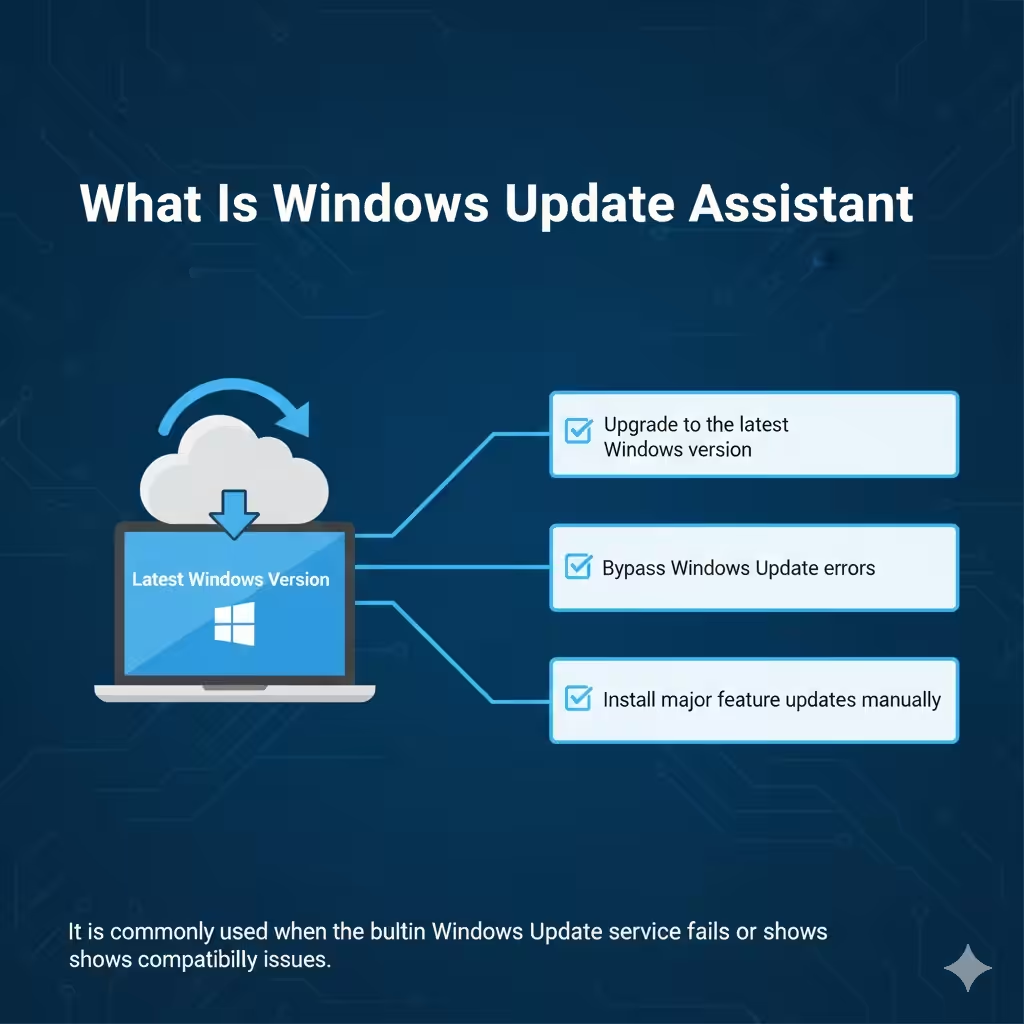
Windows Update Assistant is a standalone Microsoft utility that helps users:
-
Upgrade to the latest Windows version
-
Bypass Windows Update errors
-
Install major feature updates manually
It is commonly used when the built-in Windows Update service fails or shows compatibility issues.
Common Symptoms of Windows Update Assistant Getting Stuck
The issue can appear in several ways, including:
-
Stuck at 0%, 99%, or any percentage in between
-
Freezing at “Checking for updates”
-
Hanging during “Downloading” or “Installing”
-
Not responding or crashing unexpectedly
Understanding where it gets stuck helps identify the cause.
Why Windows Update Assistant Gets Stuck
Several factors can cause this problem.
Unstable Internet Connection
Windows Update Assistant requires a stable and fast internet connection. Interruptions can cause the process to freeze or restart repeatedly.
Insufficient Disk Space
Large feature updates require significant free space. If your system drive is nearly full, the update may stall.
Corrupted System Files
Damaged or missing Windows system files can prevent updates from installing properly.
Conflicting Software
Antivirus programs, firewalls, and third-party system tools can block update processes.
Windows Update Service Issues
If core update services are disabled or malfunctioning, the assistant may fail to proceed.
Initial Checks Before Applying Advanced Fixes
Before moving to advanced solutions, perform these basic checks.
Restart Your Computer
A simple restart can clear temporary glitches, release locked files, and restart Windows services.
Check Internet Stability
Ensure:
-
You are connected to a reliable network
-
No large downloads are running in the background
-
VPNs are disabled temporarily
Free Up Disk Space
Make sure your system drive has enough free space by:
-
Deleting temporary files
-
Removing unused apps
-
Emptying the Recycle Bin
Method 1: Close and Restart Windows Update Assistant
Sometimes the assistant simply needs a fresh start.
How This Helps
-
Clears frozen processes
-
Restarts the update sequence
-
Reconnects to Microsoft servers
Close the tool completely, then reopen it and try again.
Method 2: Run Windows Update Assistant as Administrator
Lack of permissions can prevent progress.
Why Administrator Access Matters
Running as administrator ensures:
-
Full access to system files
-
Proper modification of update components
-
Reduced permission-related errors
Right-click the Update Assistant and choose the administrator option.
Method 3: Temporarily Disable Antivirus and Firewall
Security software may interfere with update processes.
Why This Works
Some antivirus programs mistakenly flag update files as suspicious, blocking downloads or installation.
Important Tip
Disable protection temporarily and re-enable it immediately after the update completes.
Method 4: Check and Restart Windows Update Services
Windows Update Assistant relies on several background services.
Key Services Involved
-
Windows Update
-
Background Intelligent Transfer Service
-
Cryptographic Services
If any of these services are stopped or malfunctioning, updates can stall.
Restarting these services often resolves the issue.
Method 5: Clear Windows Update Cache
A corrupted update cache can cause the assistant to freeze.
What Clearing the Cache Does
-
Removes damaged update files
-
Forces Windows to download fresh update data
-
Fixes stalled downloads
This method is safe and commonly recommended for update issues.
Method 6: Run Windows Update Troubleshooter
Windows includes a built-in troubleshooter for update problems.
How the Troubleshooter Helps
-
Detects service errors
-
Resets update components
-
Fixes common configuration issues
Running this tool can automatically resolve many update-related problems.
Method 7: Use System File Checker
Corrupted system files can block update progress.
Why System File Checker Is Important
It scans and repairs:
-
Missing system files
-
Corrupted Windows components
-
Files required for updates
After the scan completes, restart your system and try again.
Method 8: Repair Windows Image Using DISM
If system corruption is deeper, DISM can help.
What DISM Does
-
Repairs the Windows image
-
Restores missing components
-
Fixes update-related system issues
This method is especially useful when System File Checker alone does not solve the problem.
Method 9: Disable Unnecessary Startup Programs
Background applications can interfere with updates.
Why This Helps
Reducing background load:
-
Frees system resources
-
Prevents conflicts
-
Improves update stability
Disable non-essential startup programs temporarily.
Method 10: Download the Update Using Media Creation Tool
If Windows Update Assistant continues to get stuck, use an alternative official tool.
Why Media Creation Tool Works
-
Bypasses Update Assistant
-
Offers direct upgrade options
-
Is maintained and supported by Microsoft
This is often the most reliable fallback solution.
Method 11: Perform an In-Place Upgrade
As a last resort, an in-place upgrade can fix persistent issues.
What an In-Place Upgrade Does
-
Reinstalls Windows without deleting personal files
-
Restores all update components
-
Fixes severe system corruption
This method should be used only after other fixes fail.
Common Mistakes to Avoid
Avoid these actions:
-
Force-shutting down the PC during updates
-
Using unofficial update tools
-
Deleting system files manually
-
Disabling Windows Update permanently
These can make the issue worse.
How to Prevent Windows Update Assistant Issues in the Future
To reduce future problems:
-
Keep sufficient free disk space
-
Avoid aggressive system cleaners
-
Keep drivers updated
-
Maintain a stable internet connection
-
Let updates complete without interruption
Good system maintenance improves update reliability.
Frequently Asked Questions
Is It Safe to Stop Windows Update Assistant
Yes, stopping it is safe if it is stuck, but avoid doing so repeatedly during installation.
Will I Lose Data If Update Assistant Fails
No, failed updates usually do not affect personal files.
Why Does It Get Stuck at 99%
Final installation steps can take longer. However, if it stays stuck for hours, troubleshooting is recommended.
Conclusion
When Windows Update Assistant gets stuck, it is usually caused by internet issues, system corruption, insufficient disk space, or software conflicts. Fortunately, the problem can be resolved using built-in Windows tools such as restarting services, clearing update cache, running system scans, or switching to the Media Creation Tool.