


Everything You Should Know About Windows Temporary Files
Windows creates temporary files every day as part of its normal operation. These files help applications run more efficiently, store data during installations, save recovery information, and improve system performance. However, over time, temporary files can accumulate and consume a significant amount of storage space, potentially affecting your computer’s speed and responsiveness.
Understanding what Windows temporary files are, where they are stored, and how to manage them safely can help you keep your PC running smoothly. In this guide, you’ll learn everything you need to know about Windows temporary files, including their purpose, types, locations, and the safest ways to remove them.
What Are Windows Temporary Files?
Temporary files, often referred to as temp files, are files that Windows and various applications create to store information temporarily while performing specific tasks.
These files are usually needed only during the execution of a program or process. Once the task is completed, many temporary files become unnecessary and can be safely deleted.
Temporary files commonly have extensions such as:
- .tmp
- .temp
- .log
- .chk
- .old
Although Windows automatically removes many temporary files, some remain on the system due to unexpected shutdowns, software crashes, incomplete updates, or applications that fail to clean up after themselves.
Why Does Windows Create Temporary Files?
Temporary files serve several important functions that improve both system stability and application performance.
Some common purposes include:
- Storing temporary working data
- Saving auto-recovery information
- Supporting software installations
- Caching frequently accessed data
- Holding temporary internet files
- Recording application logs
- Processing print jobs
- Managing Windows updates
Without temporary files, many programs would run slower or lose unsaved data during unexpected interruptions.
Where Are Temporary Files Stored?
Windows stores temporary files in several different locations.
Some of the most common folders include:
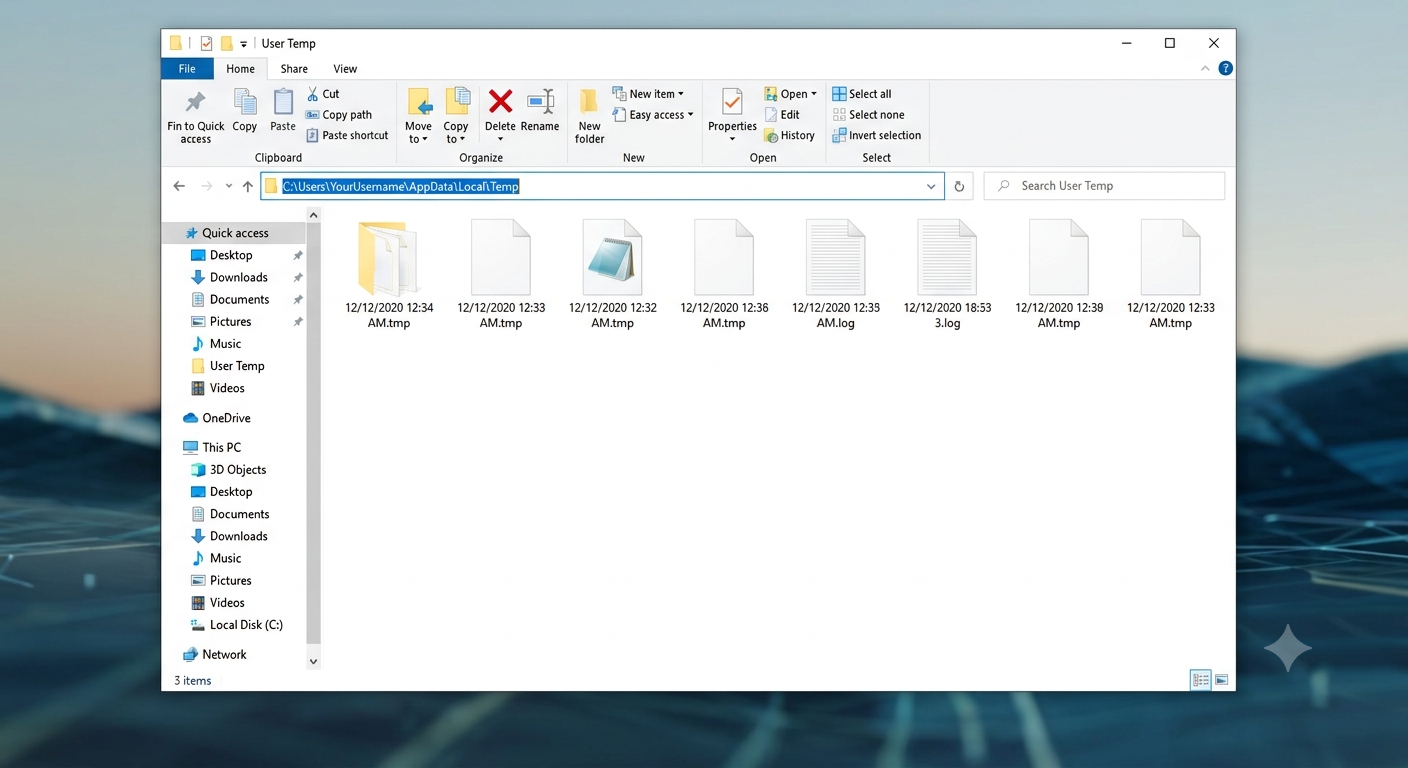
1. User Temp Folder
Location:
C:\Users\YourUsername\AppData\Local\TempThis folder stores temporary files created by applications running under your user account.
Image: User Temp folder in File Explorer.
2. Windows Temp Folder
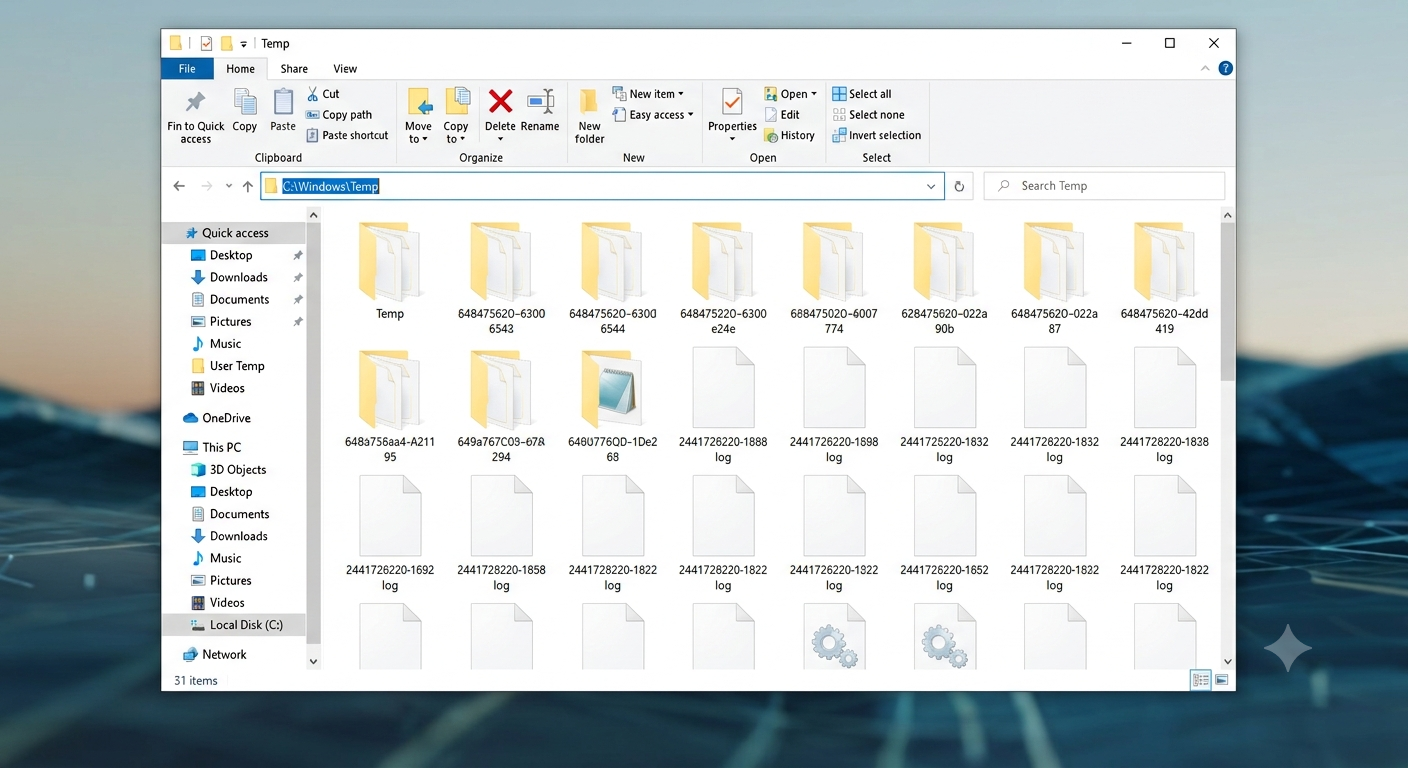
Location:
C:\Windows\TempThis folder contains system-wide temporary files that are used by Windows and installed software.
Administrative permission may be required to access or delete files in this folder.
Image: Windows Temp folder.
3. Temporary Internet Files
Modern browsers maintain their own cache folders for web pages, images, scripts, and downloaded content.
Examples include:
- Microsoft Edge Cache
- Google Chrome Cache
- Mozilla Firefox Cache
These files help websites load faster during future visits.
4. Windows Update Cache
Location:
C:\Windows\SoftwareDistribution\DownloadWindows stores downloaded update files here before installation.
Sometimes these files remain even after updates are completed.
Types of Windows Temporary Files
Not all temporary files serve the same purpose.
Common categories include:
Application Temporary Files
Programs like Microsoft Office, Photoshop, and video editors create temporary working files while documents are open.
These files may help recover unsaved work if the application crashes.
Installer Temporary Files
Software installers extract installation packages into temporary folders before copying files to their final destinations.
These files usually become unnecessary after installation.
Browser Cache
Web browsers save website content locally to improve loading times.
Cached items include:
- Images
- CSS files
- JavaScript
- Videos
- Fonts
While useful, browser caches can grow quite large over time.
Windows Update Files
Windows Update temporarily stores downloaded installation packages.
Older update files may remain after successful installation and consume several gigabytes of storage.
Crash Dump Files
If Windows experiences a system crash, it may generate memory dump files to help diagnose the issue.
These files can be very large and are mainly useful for troubleshooting.
Error Reporting Files
Windows Error Reporting collects diagnostic information whenever applications or the operating system encounter errors.
These reports help developers identify and fix software problems.
Are Temporary Files Safe to Delete?
In most situations, yes.
Many temporary files are no longer needed after the associated task has been completed.
Deleting unnecessary temporary files can:
- Free up disk space
- Improve system performance
- Reduce storage clutter
- Remove outdated cache files
- Help resolve certain software issues
However, you should avoid deleting temporary files that are currently being used by running applications.
If Windows displays a message indicating that a file is in use, simply skip it.
How to Delete Temporary Files Using Windows Settings
Windows 10 and Windows 11 include a built-in cleanup feature.
Step 1: Open Settings
Press:
Windows + ISelect:
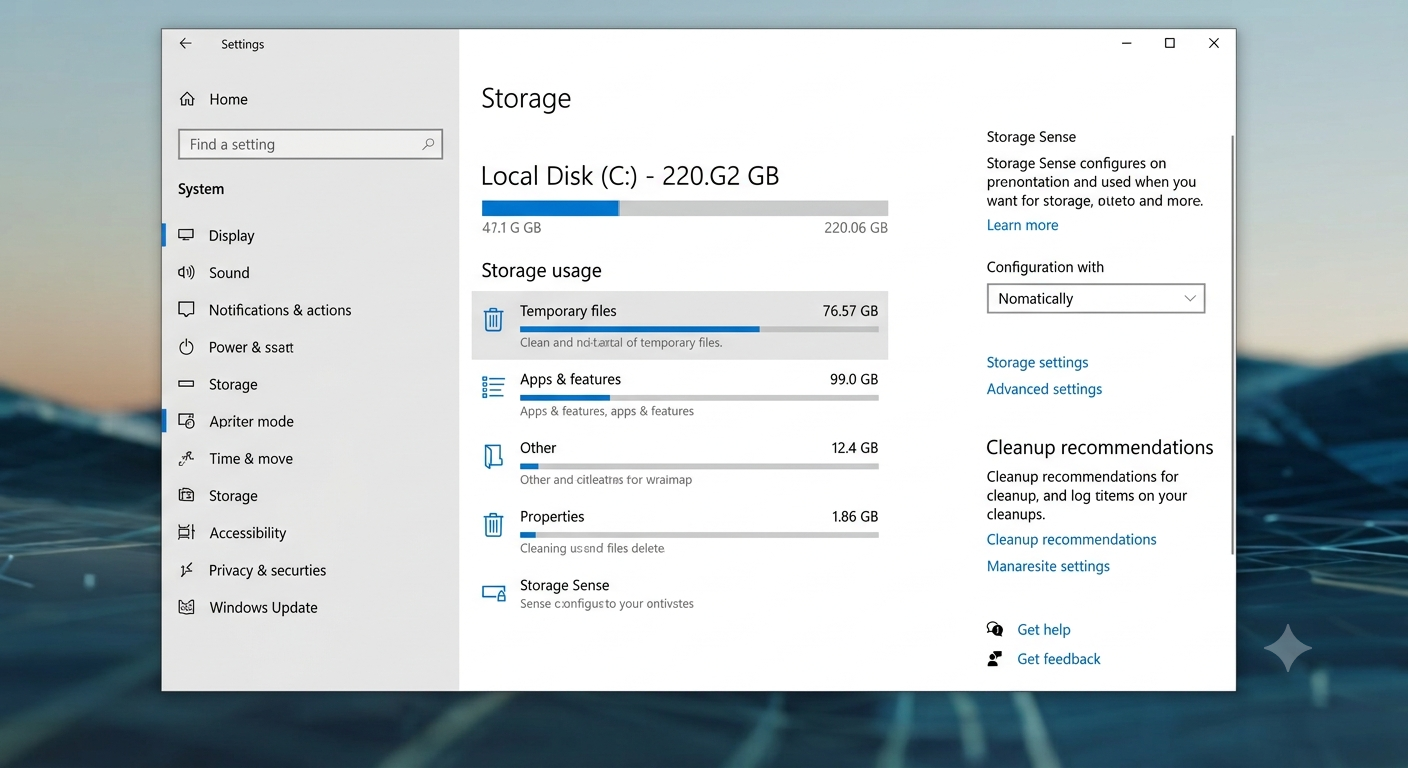
System > Storage
Image: Windows Storage settings.
Step 2: Open Temporary Files
Click:
Temporary Files
Windows scans your storage and displays removable files.
Image: Temporary Files page.
Step 3: Select Items to Remove
You may see categories such as:
- Temporary files
- Downloads
- Recycle Bin
- Delivery Optimization Files
- Thumbnails
- Windows Update Cleanup
Review the list carefully before selecting items.
Step 4: Delete the Files
Click:
Remove files
Windows safely removes the selected temporary files.
Image: Remove Files button.
How to Delete Temporary Files Using Disk Cleanup
Disk Cleanup remains one of the easiest maintenance tools available.
Step 1: Open Disk Cleanup
Press:
Windows + SSearch for:
Disk CleanupOpen the application.
Step 2: Choose Your Drive
Select your Windows drive, usually:
C:Click OK.
Step 3: Select File Categories
Disk Cleanup displays removable items, including:
- Temporary files
- Temporary Internet Files
- DirectX Shader Cache
- Delivery Optimization Files
- Thumbnails
- Windows Error Reports
Choose the categories you want to remove.
Step 4: Start Cleanup
Click:
OK
Then confirm by selecting:
Delete Files
Windows begins removing unnecessary files.
Image: Disk Cleanup utility.
How to Delete Temporary Files Manually
Advanced users can manually remove temporary files.
Delete User Temp Files
Press:
Windows + RType:
%temp%Press Enter.
Select all files using:
Ctrl + APress:
DeleteSkip any files currently in use.
Image: %temp% folder.
Delete Windows Temp Files
Open Run again.
Type:
tempor navigate to:
C:\Windows\TempDelete removable files.
Administrator permission may be required.
Enable Storage Sense for Automatic Cleanup
Storage Sense automatically removes unnecessary files without requiring manual intervention.
To enable it:
- Open Settings.
- Go to System > Storage.
- Turn on Storage Sense.
- Configure cleanup frequency.
- Choose when temporary files should be removed.
Storage Sense can also automatically empty the Recycle Bin and delete old Downloads files based on your preferences.
Benefits of Cleaning Temporary Files
Regular cleanup offers several advantages.
These include:
- More available storage space
- Faster file searches
- Improved system responsiveness
- Better Windows Update performance
- Reduced storage fragmentation
- Fewer software conflicts caused by outdated temporary data
While deleting temporary files won’t dramatically speed up every computer, it can improve overall system maintenance and free valuable disk space.
Common Myths About Temporary Files
Deleting Temporary Files Will Damage Windows
This is false.
Windows is designed to recreate temporary files whenever they are needed.
All Temporary Files Should Be Deleted Every Day
Not necessarily.
Many temporary files improve application performance through caching.
Deleting them too frequently may cause applications to rebuild caches, resulting in slightly slower initial loading times.
Temporary Files Are Always Tiny
Incorrect.
Some temporary files, especially installation packages, memory dumps, and video editing cache files, can consume several gigabytes.
Common Problems Caused by Temporary Files
Large collections of temporary files may contribute to:
- Low disk space warnings
- Failed Windows updates
- Slow application launches
- Browser issues
- Installation errors
- Excessive storage usage
Regular maintenance helps prevent these problems.
Best Practices for Managing Temporary Files
To keep your Windows PC running efficiently:
- Run Disk Cleanup periodically.
- Enable Storage Sense for automatic maintenance.
- Delete browser cache when troubleshooting website issues.
- Avoid manually deleting files currently in use.
- Keep sufficient free storage space on your system drive.
- Restart your computer occasionally to allow Windows to remove temporary files that are locked during normal operation.
These habits help maintain both performance and storage efficiency over time.
Frequently Asked Questions
Can I delete all temporary files?
Most temporary files can be deleted safely. If Windows reports that a file is currently in use, leave it alone and delete the remaining files.
How often should I clean temporary files?
For most users, cleaning temporary files once a month is sufficient. If you frequently install software, edit large media files, or have limited storage space, you may benefit from more frequent cleanups.
Will deleting temporary files make my computer faster?
Removing temporary files can free up storage space and resolve certain performance issues, but it is unlikely to produce a dramatic speed increase on its own. Performance improvements depend on your system’s overall condition.
Does Storage Sense delete important files?
Storage Sense only removes files from the categories you configure. Review its settings carefully to ensure it matches your preferences, especially regarding the Downloads folder.
Why do temporary files keep coming back?
This is normal. Windows and applications continuously create temporary files as part of their everyday operation. Cleanup removes unnecessary files, but new ones will be generated whenever needed.
Conclusion
Windows temporary files play an essential role in the operating system by supporting applications, storing temporary data, improving performance, and helping recover information after unexpected events. While these files are useful during active processes, many become unnecessary over time and can consume valuable storage space.