


How to Fix Avast Slowing Down Your PC
Avast Antivirus is a well-known name in cybersecurity, offering both free and paid protection against viruses, malware, and online threats. However, many users have reported that Avast is slowing down their computers, especially during startup or while running background tasks.
If your system is feeling unusually sluggish after installing Avast, you’re not alone—and the good news is that it can be fixed. This guide explains why Avast might be impacting your system’s performance and provides several methods to speed things up without compromising your security.
Why Avast May Slow Down Your Computer
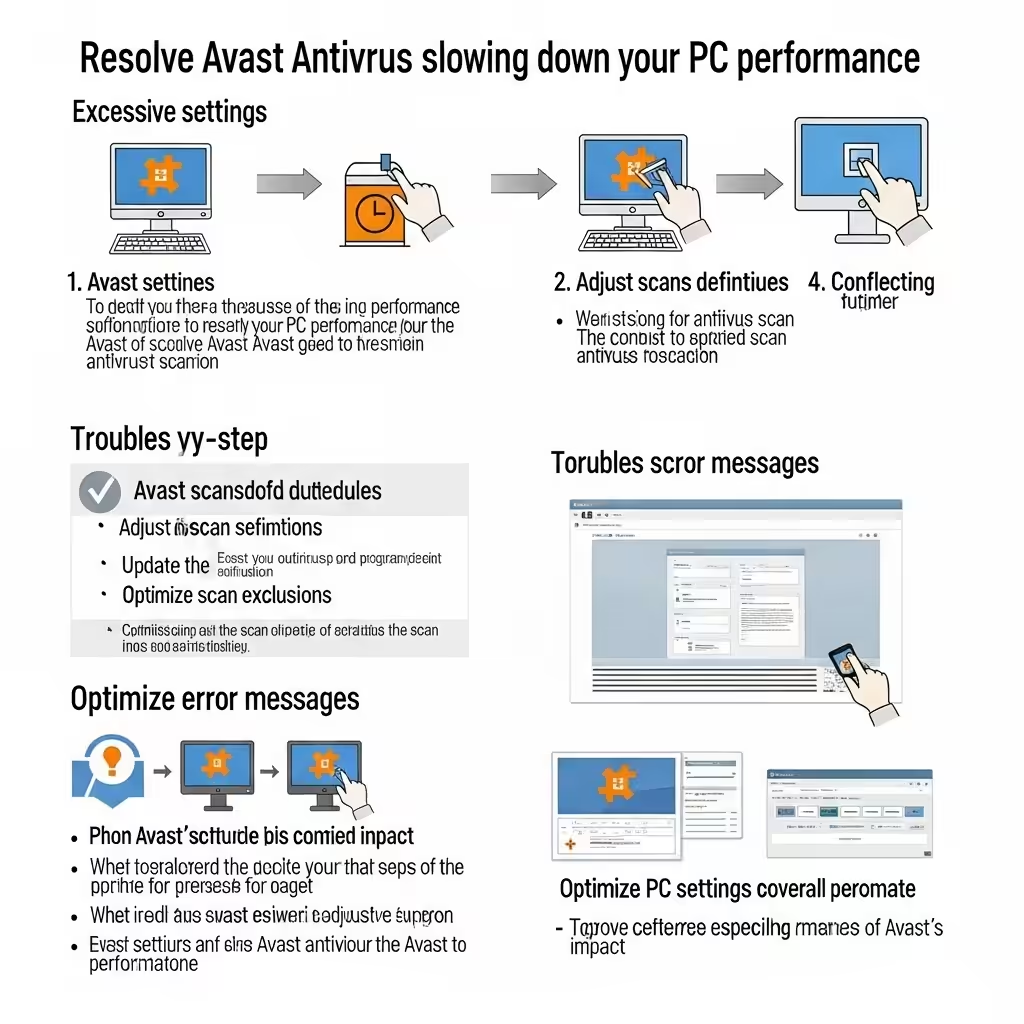
There are several reasons why Avast could be causing performance issues on your PC:
-
Real-time protection constantly scanning files
-
Avast Cleanup Premium or background processes consuming resources
-
Frequent automatic updates and virus scans
-
High disk or CPU usage in Task Manager
-
Conflicts with Windows Defender or other antivirus tools
Understanding what’s causing the slowdown is the first step toward resolving it.
Fix 1: Update Avast to the Latest Version
Software updates often include performance improvements and bug fixes. If you’re running an outdated version of Avast, it might be the reason your system is lagging.
How to update Avast:
-
Open Avast
-
Click Menu > Settings
-
Go to General > Update
-
Click Check for updates under both Virus definitions and Program
-
Restart your PC after updating
Fix 2: Disable Unused Avast Features
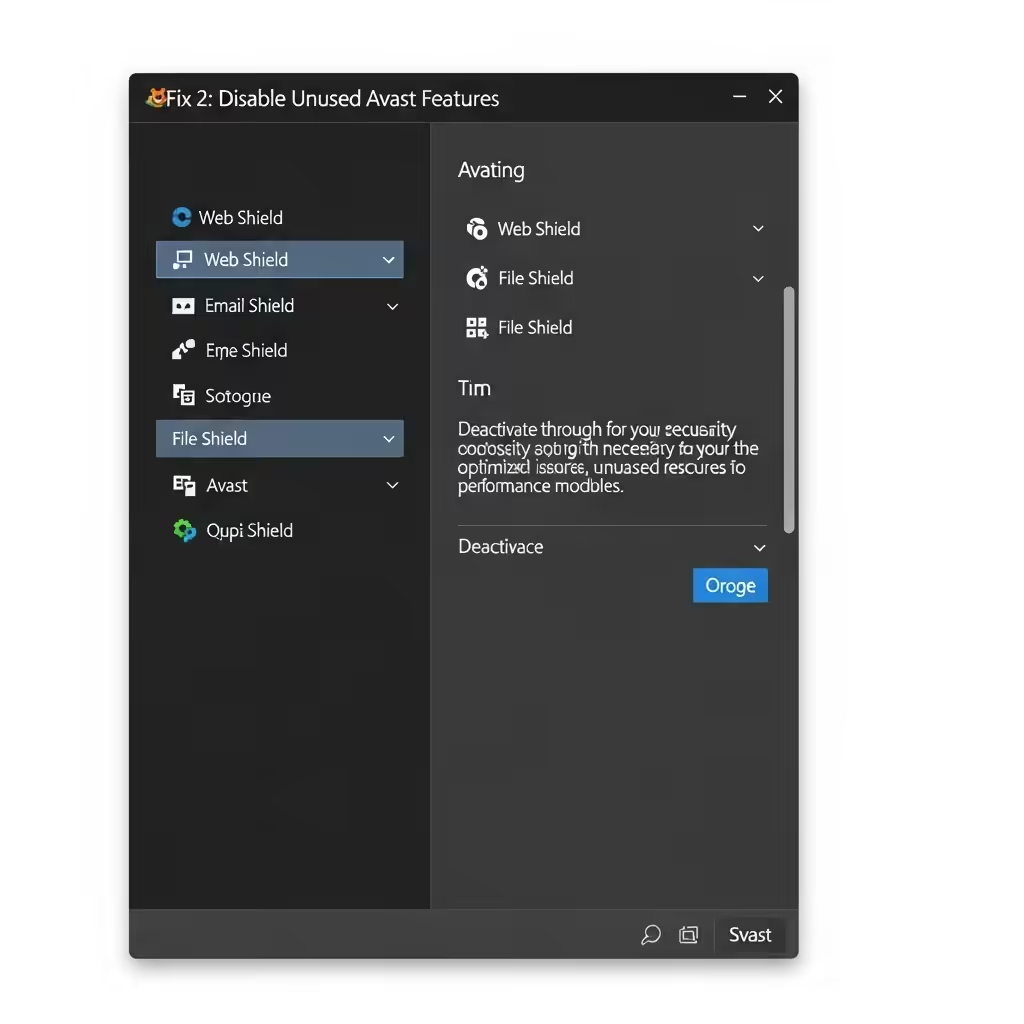
Avast includes several extra tools such as Software Updater, Do Not Disturb Mode, Cleanup, and Driver Updater. While some of these may be helpful, they can use significant system resources.
Steps to disable:
-
Open Avast
-
Navigate to Menu > Settings > Protection
-
Turn off any features you don’t use regularly, such as:
-
Mail Shield
-
Software Updater
-
Web Shield
-
-
Go to Performance and disable any active modules like Cleanup Premium or Driver Updater
Disabling these modules can instantly reduce Avast’s background activity.
Fix 3: Adjust Scan Schedule and Frequency

By default, Avast runs scheduled virus scans and Smart Scans that may interfere with your computer’s performance.
How to modify scan settings:
-
Open Avast
-
Go to Protection > Virus Scans
-
Click on each scheduled scan and adjust frequency to weekly or monthly
-
Schedule scans to run at night or during idle hours
Avoid running multiple scans during system startup or while using resource-heavy applications.
Fix 4: Exclude Trusted Apps and Folders

If Avast is scanning your frequently used applications or games unnecessarily, it can slow things down.
Add exclusions:
-
Open Avast > Menu > Settings > General > Exceptions
-
Click Add Exception
-
Add folders or apps you trust (e.g., game directories, editing software)
-
Click Add Exception again to save
This prevents Avast from scanning those items constantly.
Fix 5: Delay Avast Services on Startup

If your computer takes a long time to boot up, Avast’s startup services might be the cause.
Delay startup:
-
Press Ctrl + Shift + Esc to open Task Manager
-
Go to the Startup tab
-
Right-click Avast Antivirus and choose Disable
-
Alternatively, go to Settings > Troubleshooting in Avast and enable “Delay Avast startup”
This allows Windows to boot up faster before Avast fully launches.
Fix 6: Repair Avast Installation
If Avast is using excessive CPU or RAM, or if some components aren’t working properly, repairing the installation may help.
Steps:
-
Open Control Panel > Programs > Programs and Features
-
Click on Avast Antivirus
-
Select Uninstall/Change > Repair
-
Follow the on-screen instructions
After the repair, restart your PC and monitor system performance.
Fix 7: Use Passive Mode (If Using Another Antivirus)

Running multiple antivirus programs at the same time can lead to system slowdowns.
Enable Passive Mode:
-
Go to Avast > Settings > Troubleshooting
-
Turn on Passive Mode
-
This disables Avast’s real-time protection while keeping other features available
Use this only if you’re using another antivirus solution and don’t want to uninstall Avast.
Fix 8: Check Avast’s Resource Usage in Task Manager
If you want to confirm which Avast services are slowing your system:
-
Press Ctrl + Shift + Esc to open Task Manager
-
Go to the Processes tab
-
Look for Avast Antivirus, Avast Cleanup, or AvastSvc.exe
-
If any of these consistently use high CPU, right-click and select End task (only as a temporary fix)
For a permanent solution, disable the corresponding features inside the Avast app.
Fix 9: Consider a Clean Reinstallation

If performance issues persist despite all changes, a clean reinstall of Avast may be the best option.
How to do it:
-
Download Avast Uninstall Utility from Avast’s official website
-
Boot into Safe Mode
-
Run the utility and follow instructions to remove Avast completely
-
Reboot your PC
-
Download and install the latest version of Avast
This ensures any corrupt files or settings are fully removed.
Fix 10: Switch to a Lighter Antivirus (Optional)

If Avast continues to slow down your system, even after optimizing it, you might want to try a lighter alternative:
-
Microsoft Defender (built into Windows 10/11)
-
Bitdefender Free Edition
-
Kaspersky Security Cloud Free
These alternatives provide decent protection with lower system impact.
Conclusion
Avast is a powerful antivirus tool, but its background processes, frequent scans, and extra features can slow down your system—especially on lower-end PCs. The good news is that you don’t need to uninstall it completely. By tweaking its settings, turning off unnecessary features, and managing startup behavior, you can keep your system secure and fast.
Summary of Fixes:
-
Update Avast regularly
-
Disable unneeded modules like Cleanup or Mail Shield
-
Adjust scan frequency and startup impact
-
Add trusted apps as exceptions
-
Use passive mode or reinstall if needed
With the right configuration, you can continue using Avast without sacrificing performance.