


How to Restart Services Connected to Windows Update
If you’re experiencing problems updating your Windows operating system—such as stuck updates, error codes, or failure to install—it could be due to malfunctioning Windows Update services. Restarting these services is one of the most effective ways to fix common update issues in both Windows 10 and Windows 11.
This comprehensive guide will walk you through the steps to properly restart Windows Update-related services and ensure your system can download and install updates correctly.
Why You Might Need to Restart Windows Update Services
The Windows Update process depends on several background services. These include the Windows Update Service, Background Intelligent Transfer Service (BITS), Cryptographic Services, and more. If any of these services are not working properly, you might encounter:
-
Windows Update getting stuck at a specific percentage
-
Update error codes like 0x80070002, 0x8024a105, or 0xc1900101
-
Updates downloading but not installing
-
Failure to check for new updates
Manually restarting the services can refresh these components and resolve issues that automatic troubleshooting tools may not fix.
List of Windows Update Related Services
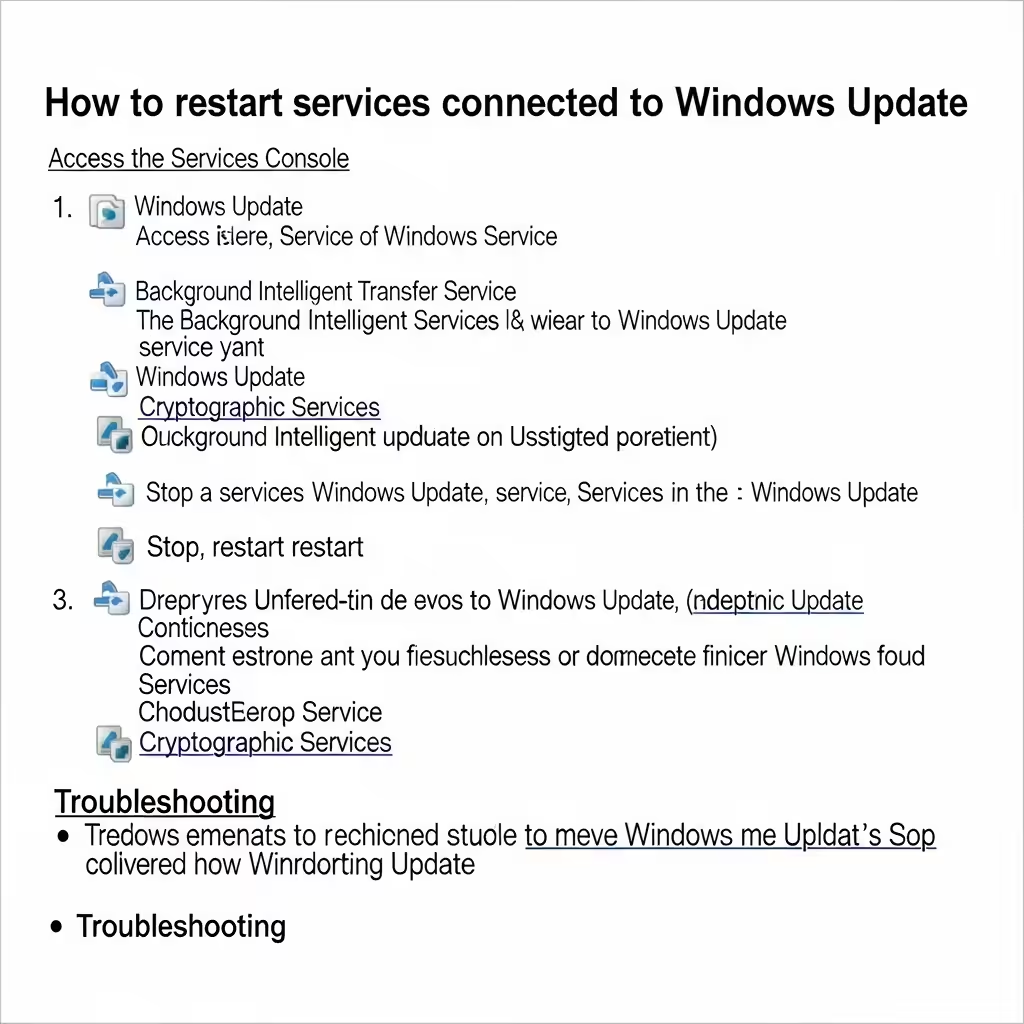
Before restarting anything, it’s useful to know which services are involved:
-
Windows Update (wuauserv) – Handles update checking, download, and installation.
-
Background Intelligent Transfer Service (BITS) – Transfers update data in the background.
-
Cryptographic Services (cryptsvc) – Validates Windows update signatures.
-
Windows Installer (msiserver) – Sometimes required for installing updates or patches.
-
DCOM Server Process Launcher
-
RPC Endpoint Mapper
Now let’s walk through how to restart them using three different methods.
Method 1: Restart Services Using Command Prompt
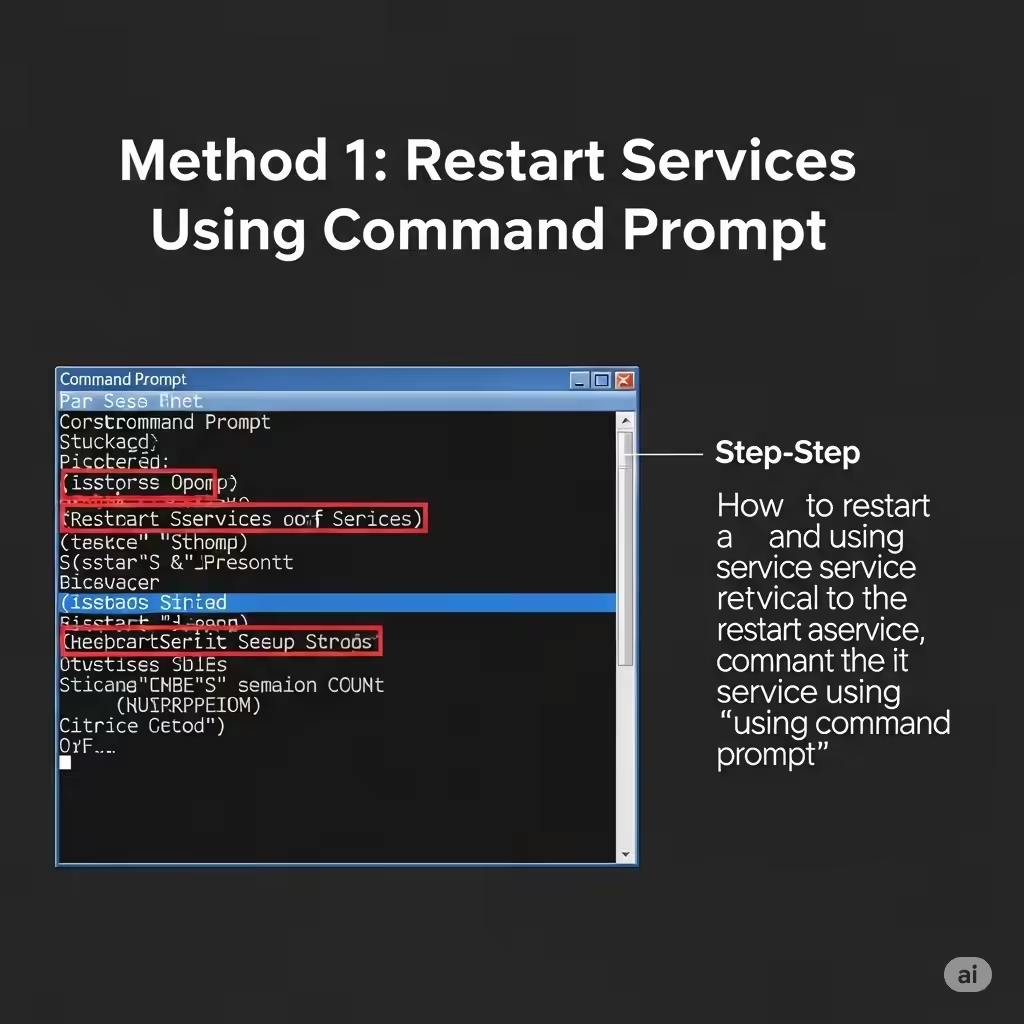
This is the most efficient method for restarting multiple services quickly.
Steps:
-
Press Windows + S, type cmd, right-click Command Prompt, and select Run as administrator.
-
In the Command Prompt window, enter the following commands one at a time:
These commands stop the update-related services. After stopping them, delete temporary update files by entering:
Now, restart the services by entering:
-
Close the Command Prompt and restart your computer.
This method clears cached update data and resets services, allowing updates to start fresh.
Method 2: Restart Services Using Services App
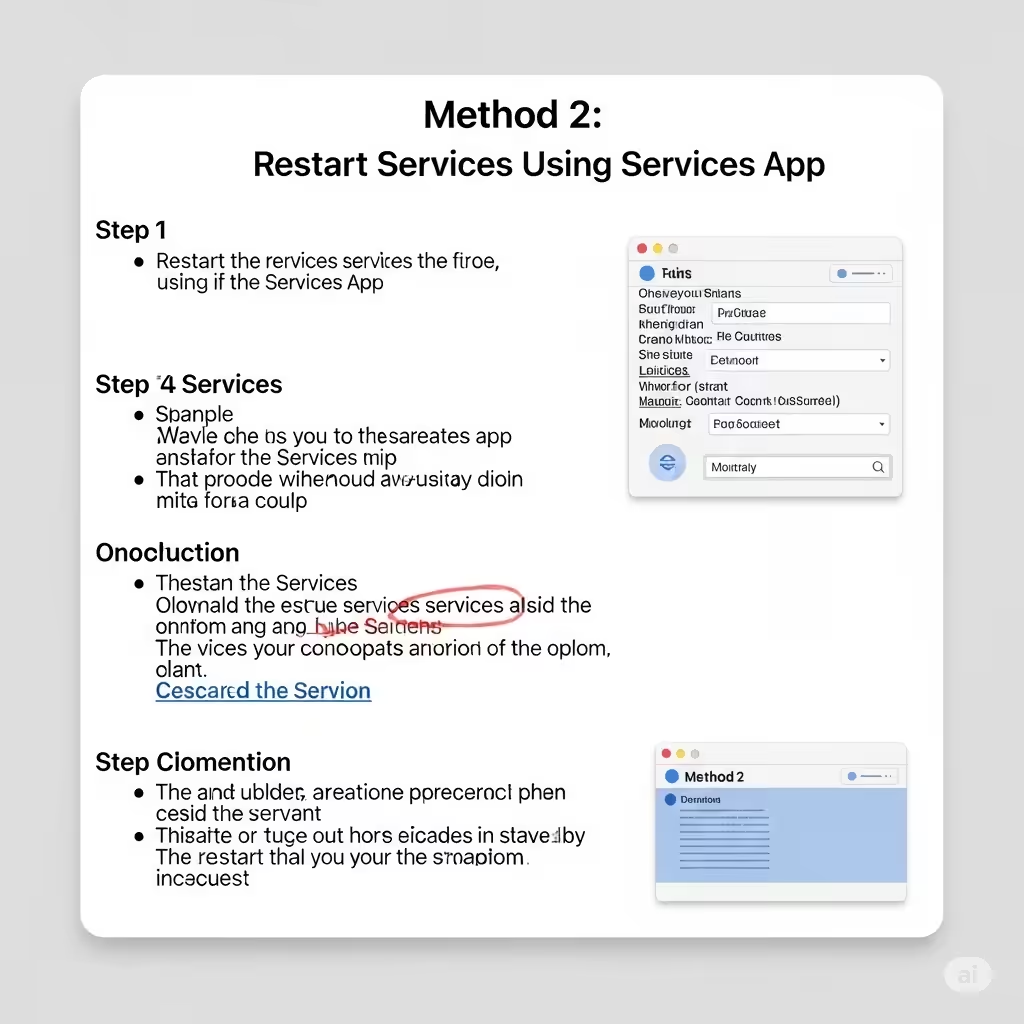
If you’re more comfortable with a graphical interface, you can restart update services manually through the Services app.
Steps:
-
Press Windows + R, type
services.msc, and press Enter. -
In the Services window, find each of the following services:
-
Windows Update
-
Background Intelligent Transfer Service
-
Cryptographic Services
-
Windows Installer (if available)
-
-
Right-click each service and select Stop. After all have stopped, wait for a few seconds.
-
Now, right-click each again and choose Start.
Make sure the Startup type is set to Automatic or Manual—not Disabled. If needed, double-click the service and adjust the startup settings.
Method 3: Restart Using a Batch File (Advanced Users)
If you often troubleshoot Windows Update, you can create a batch file to automate the process.
How to create the batch file:
-
Open Notepad
-
Copy and paste the following script:
-
Save the file as
Reset_WU.bat -
Right-click the file and select Run as administrator
This script automates the process of restarting all major Windows Update services.
What to Do If Services Don’t Restart or Respond
If you encounter issues restarting any of the services:
-
Make sure you are logged in as an administrator
-
Reboot your PC into Safe Mode with Networking and try again
-
Use the Windows Update Troubleshooter:
-
Go to Settings > Update & Security > Troubleshoot > Additional troubleshooters
-
Select Windows Update and run the troubleshooter
-
Additional Tips for Smooth Windows Updates
Here are some best practices to avoid future problems with Windows Update:
-
Keep your antivirus software up to date, but temporarily disable it if it interferes with updates
-
Ensure your system drive (usually C:) has at least 10 GB of free space
-
Avoid turning off your PC while an update is being installed
-
Only use trusted third-party tools to manage updates
When Should You Consider Resetting Windows Update Completely?
If restarting services does not help, and updates still fail repeatedly, consider resetting Windows Update components completely using the Windows Update Reset Tool or DISM and SFC commands:
-
Open Command Prompt as administrator
-
Run:
-
Then run:
These commands scan and repair Windows system files that may be preventing updates from completing.
Conclusion
Restarting Windows Update-related services is a highly effective way to resolve a wide variety of update problems on Windows 10 and Windows 11. Whether you’re facing slow updates, stuck installations, or persistent error codes, refreshing these core services can often get things moving again.
Summary of Methods:
-
Use Command Prompt to stop and restart key services
-
Use the Services app for a GUI approach
-
Automate the process with a batch file
-
Clear the SoftwareDistribution and Catroot2 folders
-
Use DISM and SFC if deeper problems exist
With the right steps, you can restore your system’s ability to update smoothly and maintain optimal performance.