



Resolved: MacBook Pro Stuck on Black Screen During Startup

A MacBook Pro booting to a black screen can be frustrating and alarming. This issue may stem from various causes, such as software glitches, incorrect display settings, or hardware failures. If your MacBook Pro screen stays black during startup, don’t worry—there are several troubleshooting methods you can use to restore normal operation.
1. CHECK DISPLAY BRIGHTNESS SETTINGS
Sometimes, the issue is as simple as the brightness being turned down.
- Press the F2 key (brightness increase) to check if the screen brightness is too low.
- If your keyboard has a Touch Bar, tap the brightness control and slide it to increase brightness.
- Try using an external monitor to see if the display is functional.
2. FORCE RESTART YOUR MACBOOK PRO
A force restart can resolve minor software glitches that cause a black screen.
- Press and hold the Power button for about 10 seconds.
- Wait for the MacBook to shut down completely.
- Press the Power button again to turn it back on.
- Check if the Apple logo appears on the screen.

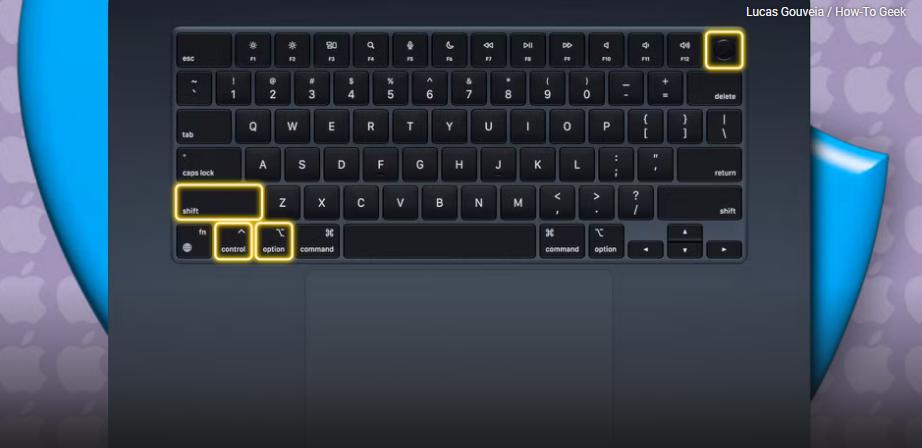
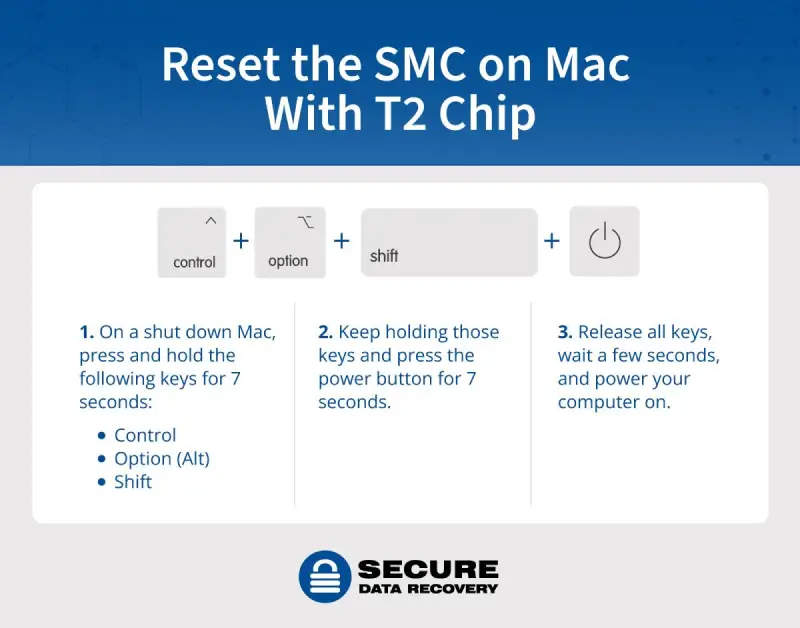
3. RESET THE SYSTEM MANAGEMENT CONTROLLER (SMC)
The SMC manages power-related functions and resetting it can fix booting issues.
For MacBooks with an Intel Processor:
- Turn off your MacBook.
- Press and hold Shift + Control + Option + Power button for 10 seconds.
- Release all keys and press the Power button to restart.
For MacBooks with Apple Silicon (M1, M2 chips):
- Simply shut down your Mac and leave it powered off for 30 seconds.
- Turn it back on normally.
4. RESET THE NON-VOLATILE RANDOM-ACCESS MEMORY (NVRAM)
Resetting the NVRAM can fix display-related issues.
- Turn off your MacBook Pro.
- Press and hold Option + Command + P + R for about 20 seconds.
- Release the keys when you hear the startup chime or see the Apple logo.
- Your Mac should restart normally.

5. BOOT INTO SAFE MODE
Safe Mode loads only essential system files and can help diagnose startup issues.
For Intel-based MacBooks:
- Turn off your Mac.
- Press and hold the Shift key while pressing the Power button.
- Release the Shift key when you see the login screen.
- If the screen works in Safe Mode, restart your Mac normally.
For M1/M2 MacBooks:
- Turn off your Mac.
- Press and hold the Power button until you see “Loading startup options.”
- Select your startup disk.
- Hold down the Shift key and click Continue in Safe Mode.
- Log in and check if the screen is functioning.
6. CHECK FOR EXTERNAL DISPLAY ISSUES
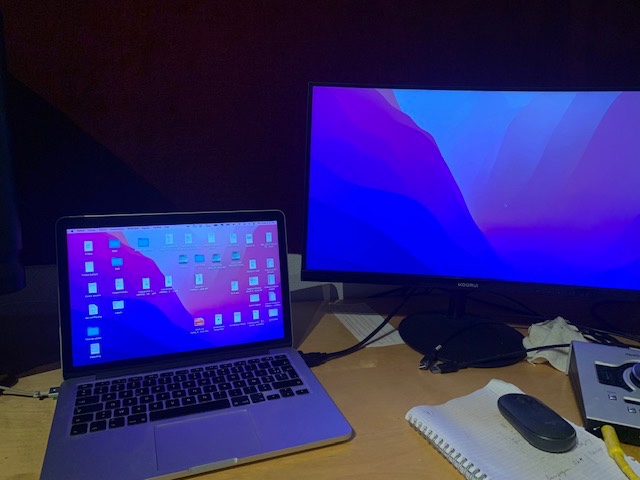
If you use an external display, disconnect it to ensure it’s not causing problems.
- Unplug all external monitors.
- Restart your MacBook and check if the built-in display works.
- If using an external monitor, ensure it’s powered on and set as the primary display.
7. RUN DISK UTILITY IN RECOVERY MODE
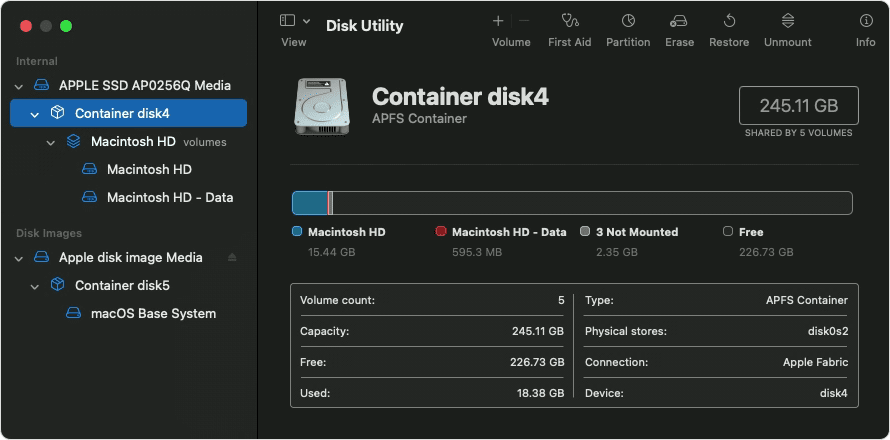
If the black screen issue is caused by a corrupted startup disk, Disk Utility can help repair it.
For Intel-based MacBooks:
- Turn off your Mac.
- Press Command + R while turning it back on.
- Release the keys when the Apple logo appears.
- Click Disk Utility, select your startup disk, and click First Aid.
- After the process completes, restart your Mac.
For M1/M2 MacBooks:
- Turn off your Mac.
- Press and hold the Power button until “Loading startup options” appears.
- Select Options and click Continue.
- Open Disk Utility and run First Aid on your startup disk.
- Restart your Mac and check if the issue is resolved.
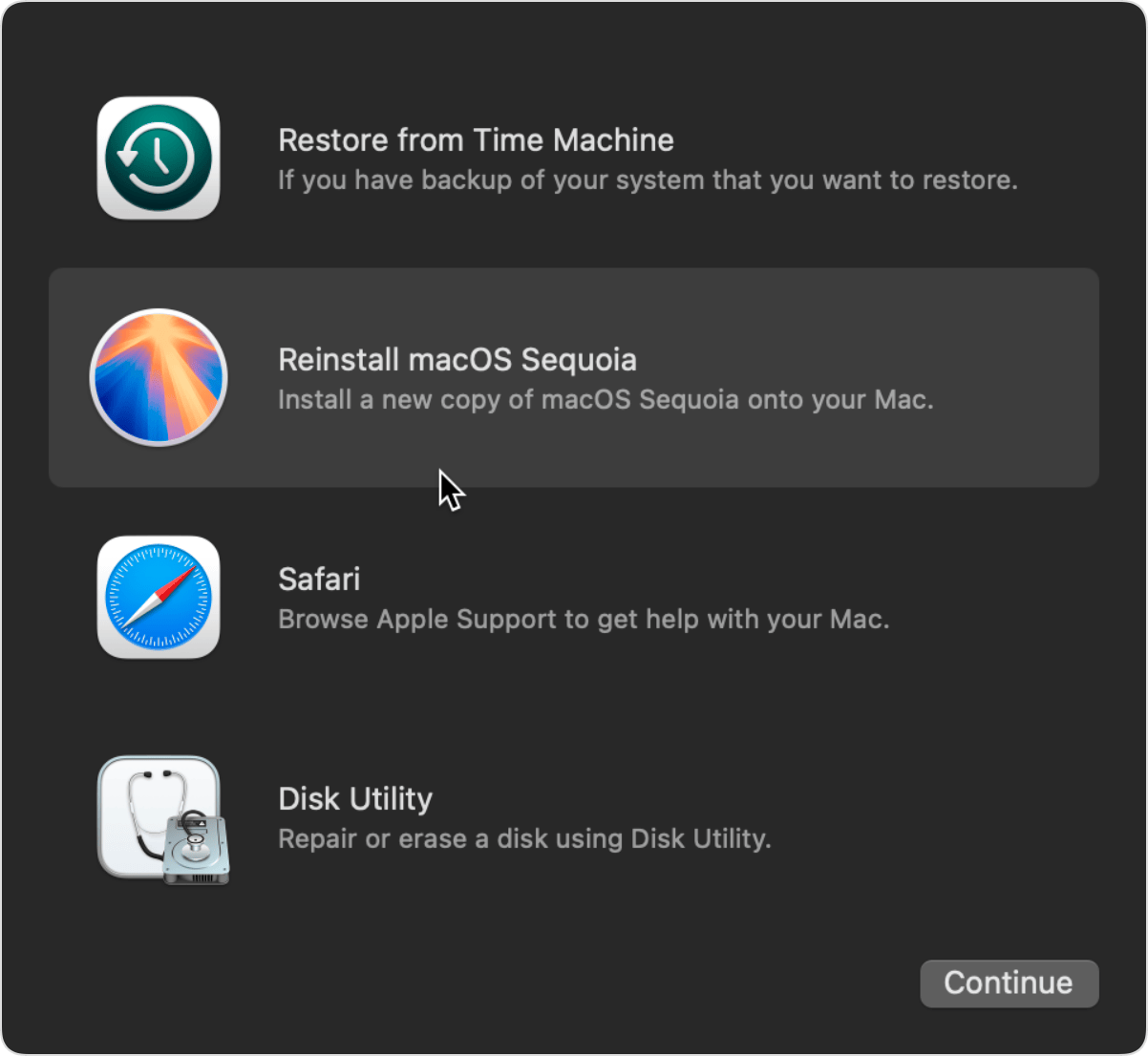
8. REINSTALL MACOS
If none of the above solutions work, reinstalling macOS may fix the black screen issue.
For Intel-based MacBooks:
- Boot into macOS Recovery by pressing Command + R at startup.
- Select Reinstall macOS and follow the on-screen instructions.
For M1/M2 MacBooks:
- Hold the Power button until “Loading startup options” appears.
- Select Options > Continue.
- Click Reinstall macOS and follow the installation process.
9. CHECK FOR HARDWARE DAMAGE
If your MacBook Pro still won’t boot properly, a hardware issue may be the cause:
- Check for any physical damage to the screen.
- Ensure there’s no liquid damage.
- If your MacBook has taken a fall, internal components may be damaged.
- Contact Apple Support or visit an Apple Store for a professional diagnosis.
FINAL THOUGHTS
A MacBook Pro booting to a black screen can be caused by software glitches, power-related settings, or even hardware damage. By following these troubleshooting steps, you can likely fix the issue without needing professional repair. If the problem persists, consider reaching out to Apple Support for further assistance.