



How to Resolve Windows Update Stuck on Downloading After Upgrading to Windows 10
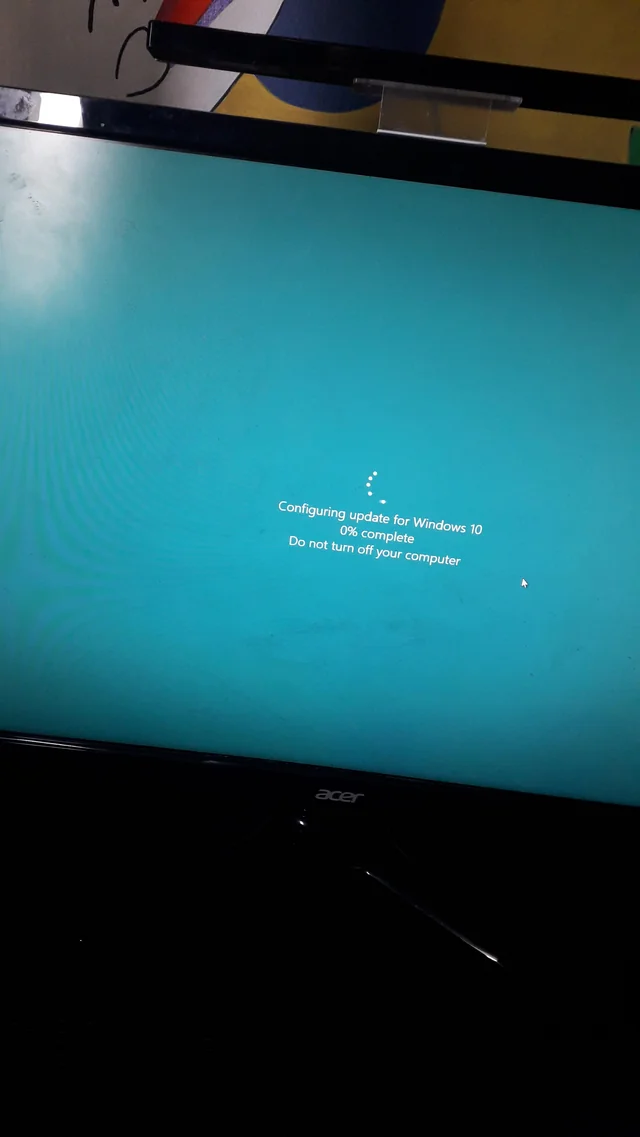
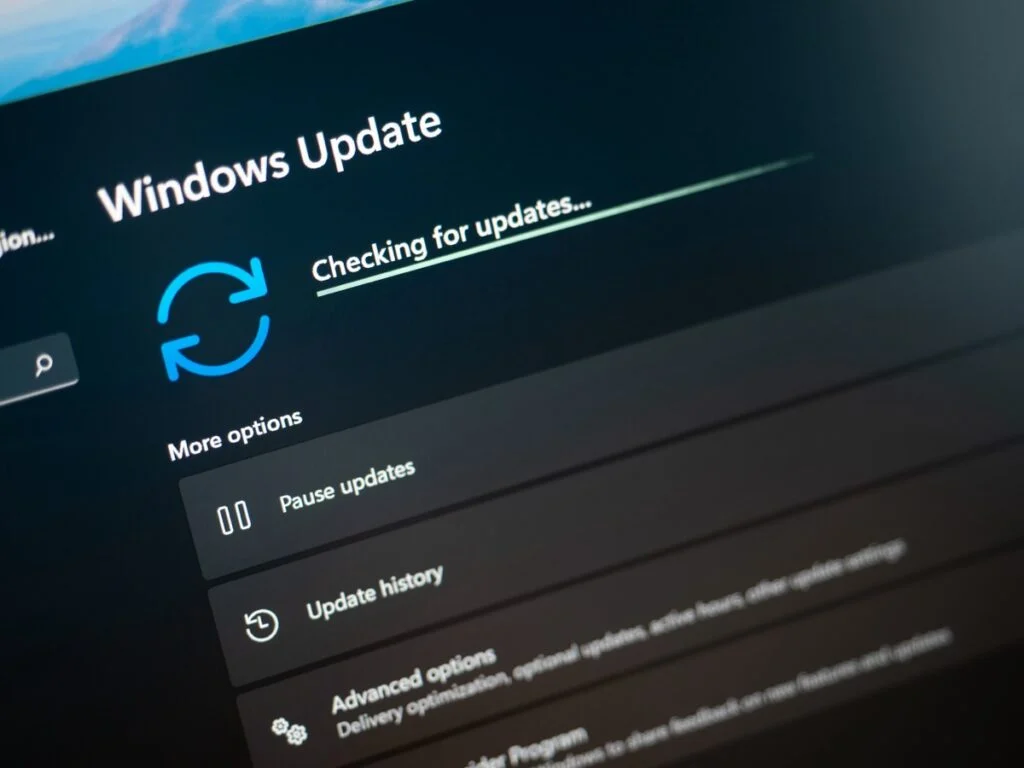
Windows updates are essential for keeping your system secure and running smoothly. However, after upgrading to Windows 10, some users experience an issue where Windows Update gets stuck while downloading updates. If you’re facing this problem, don’t worry—there are several methods to resolve it.
1. RESTART YOUR COMPUTER AND TRY AGAIN
Before diving into complex solutions, restart your computer and check if the update resumes. Sometimes, a simple reboot can clear temporary glitches that prevent updates from downloading properly.
2. CHECK YOUR INTERNET CONNECTION
A slow or unstable internet connection may cause Windows Update to get stuck. Follow these steps to ensure your network is functioning properly:
- Restart your router and modem.
- Run a speed test to verify your internet speed.
- Try connecting to a different network if possible.
- Disable VPN or proxy servers, as they can interfere with Windows Update.

3. RUN THE WINDOWS UPDATE TROUBLESHOOTER
Windows has a built-in troubleshooter that can automatically detect and fix update-related problems:
- Go to Settings > Update & Security > Troubleshoot.
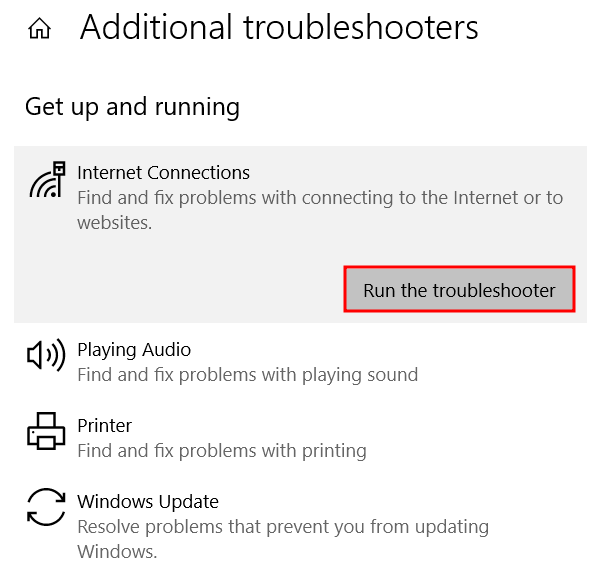
- Click on Additional troubleshooters.
- Select Windows Update and click Run the troubleshooter.
- Follow the prompts to apply the suggested fixes.
4. CLEAR THE WINDOWS UPDATE CACHE
Corrupt update files in the cache may be preventing updates from downloading. To reset the cache:
- Press Win + R, type
services.msc, and press Enter. - Scroll down and locate Windows Update.
- Right-click it and select Stop.
- Open File Explorer and navigate to
C:\Windows\SoftwareDistribution. - Delete all files and folders inside.
- Return to Services, right-click Windows Update, and select Start.
Now, try running Windows Update again.
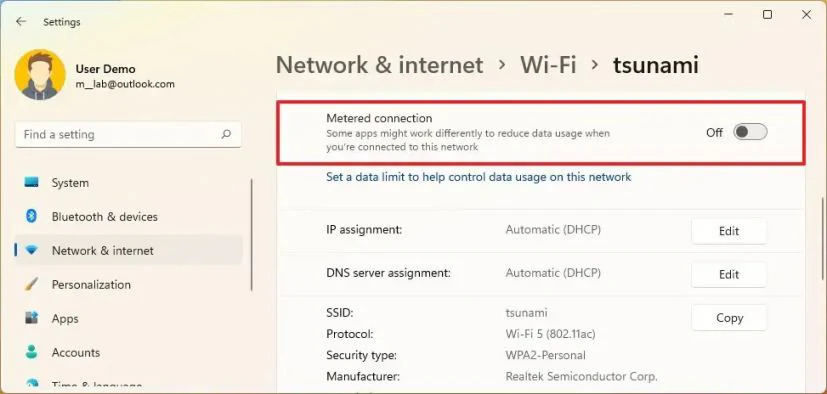
5. DISABLE METERED CONNECTION
Windows may pause updates if your network is set to metered. To disable this setting:
- Go to Settings > Network & Internet > Wi-Fi.
- Click on your connected network.
- Toggle Set as metered connection to Off.
6. CHECK AVAILABLE STORAGE SPACE
A lack of free disk space can prevent updates from downloading. To free up space:
- Open Settings > System > Storage.
- Click Temporary files and delete unnecessary items.
- Uninstall unused programs from Control Panel > Programs and Features.
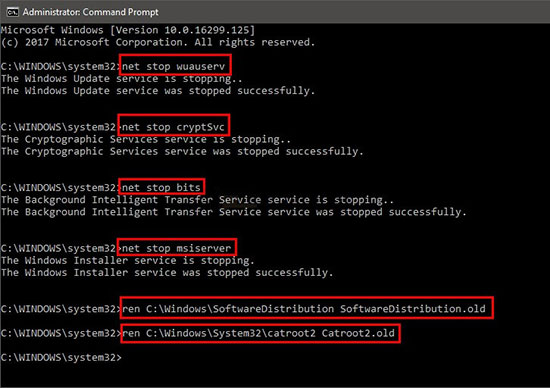
7. RESET WINDOWS UPDATE COMPONENTS
If the issue persists, try resetting the update components manually:
- Open Command Prompt as Administrator.
- Type the following commands, pressing Enter after each:
net stop wuauserv net stop cryptSvc net stop bits net stop msiserver ren C:\Windows\SoftwareDistribution SoftwareDistribution.old ren C:\Windows\System32\catroot2 Catroot2.old net start wuauserv net start cryptSvc net start bits net start msiserver - Close the Command Prompt and restart your PC.
8. UPDATE WINDOWS USING THE MICROSOFT UPDATE CATALOG
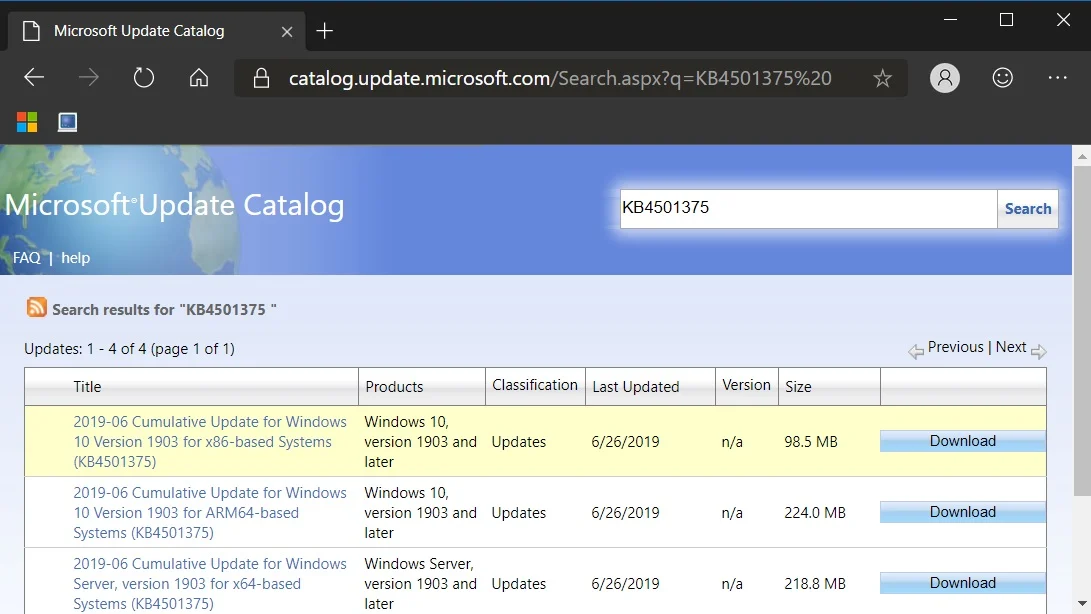
If Windows Update remains stuck, you can manually install updates:
- Go to the Microsoft Update Catalog (https://www.catalog.update.microsoft.com/).
- Search for the latest cumulative update for your Windows version.
- Download and install the update manually.
9. RUN SYSTEM FILE CHECKER AND DISM COMMANDS
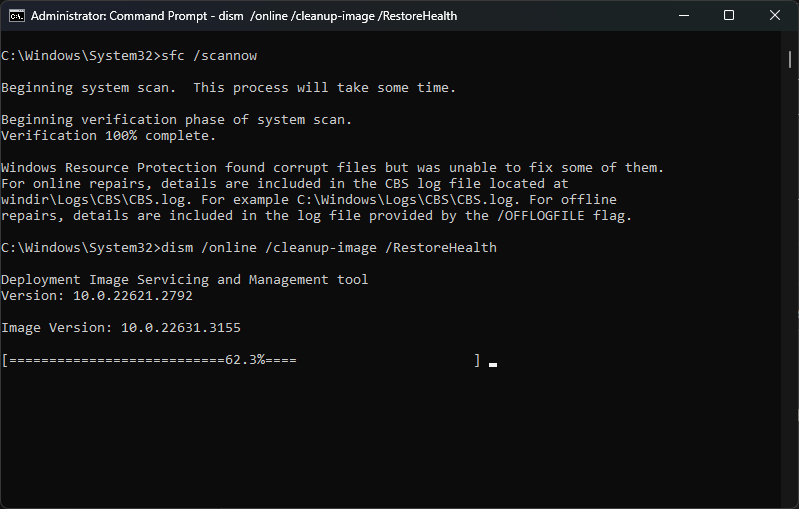
Corrupted system files may be preventing updates from installing. To fix this:
- Open Command Prompt as Administrator.
- Type
sfc /scannowand press Enter. - Wait for the scan to complete.
- If errors are found, type the following and press Enter:
DISM /Online /Cleanup-Image /RestoreHealth - Restart your computer and try updating again.
10. PERFORM A CLEAN BOOT
Third-party applications can sometimes interfere with Windows Update. To perform a clean boot:
- Press Win + R, type
msconfig, and hit Enter. - Go to the Services tab and check Hide all Microsoft services.
- Click Disable all and go to the Startup tab.
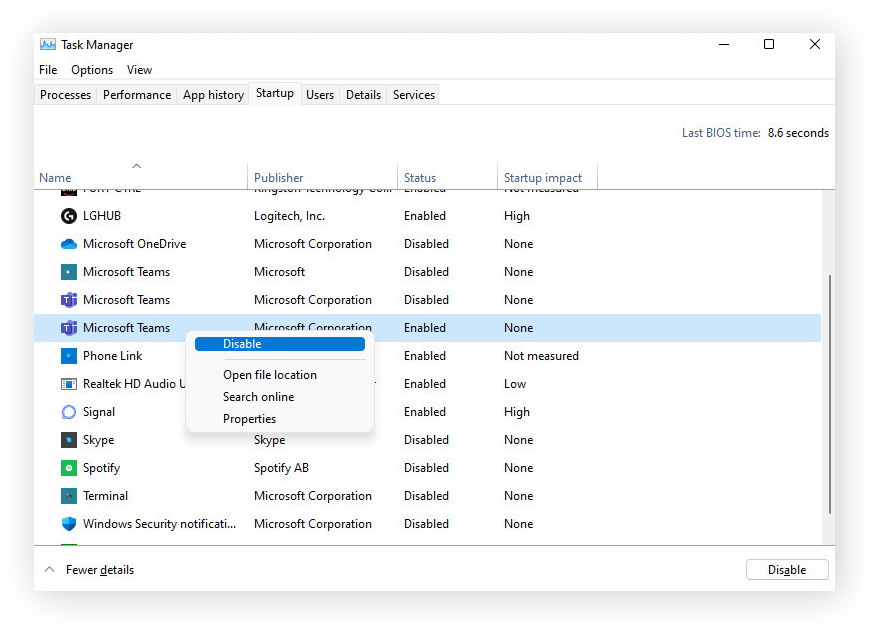
- Open Task Manager and disable all startup programs.
- Restart your computer and attempt the update again.
FINAL THOUGHTS
Windows Update getting stuck after an upgrade can be frustrating, but these troubleshooting steps should help resolve the issue. If none of the solutions work, consider using the Windows Media Creation Tool to perform an in-place upgrade or contacting Microsoft Support for further assistance. Let us know which method worked for you!