


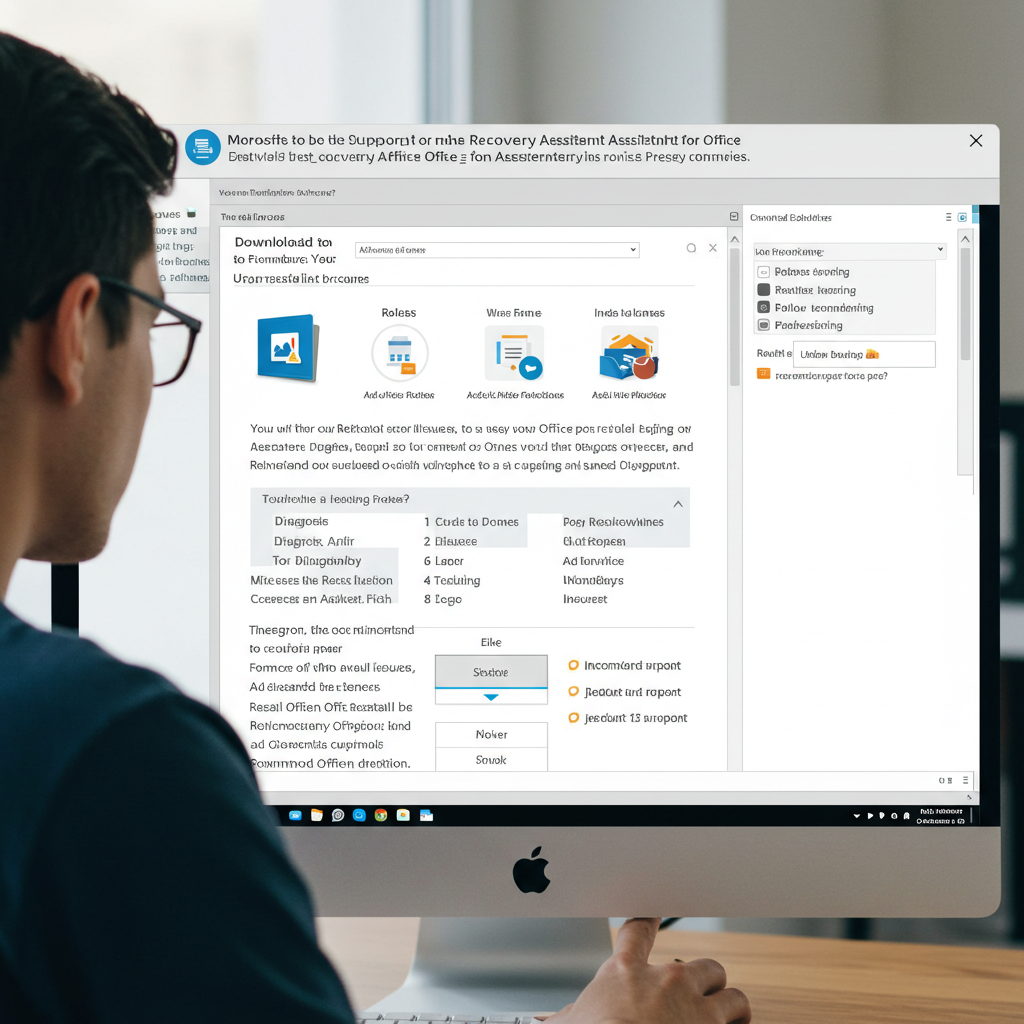
How to Fix Slow Microsoft Office Installation
Installing Microsoft Office should be a straightforward process. However, sometimes users notice that the installation takes an unusually long time to complete. Waiting for hours without any progress can be extremely frustrating, especially if you need to get back to work quickly.
In this article, we will explain the most common reasons why Microsoft Office takes too long to install and show you the best ways to fix the problem.
Why Is Microsoft Office Installation Taking So Long?
Several factors can cause delays during Office installation:
-
Slow or unstable internet connection
-
Conflicts with existing Office versions
-
Insufficient system resources (like RAM or CPU)
-
Problems with Microsoft servers
-
Background processes interfering with installation
-
Corrupted installation files
Understanding the cause is the first step to finding the right solution.
Common Solutions to Fix a Slow Office Installation
1. Check Your Internet Connection
Office installations, especially when using the online installer, require a stable and reasonably fast internet connection. A weak connection can drastically slow down or even freeze the installation.
How to Fix:
-
Use a wired Ethernet connection instead of Wi-Fi if possible.
-
Restart your router or modem.
-
Avoid downloading large files or streaming videos while installing Office.
-
Try switching to a different network if available.

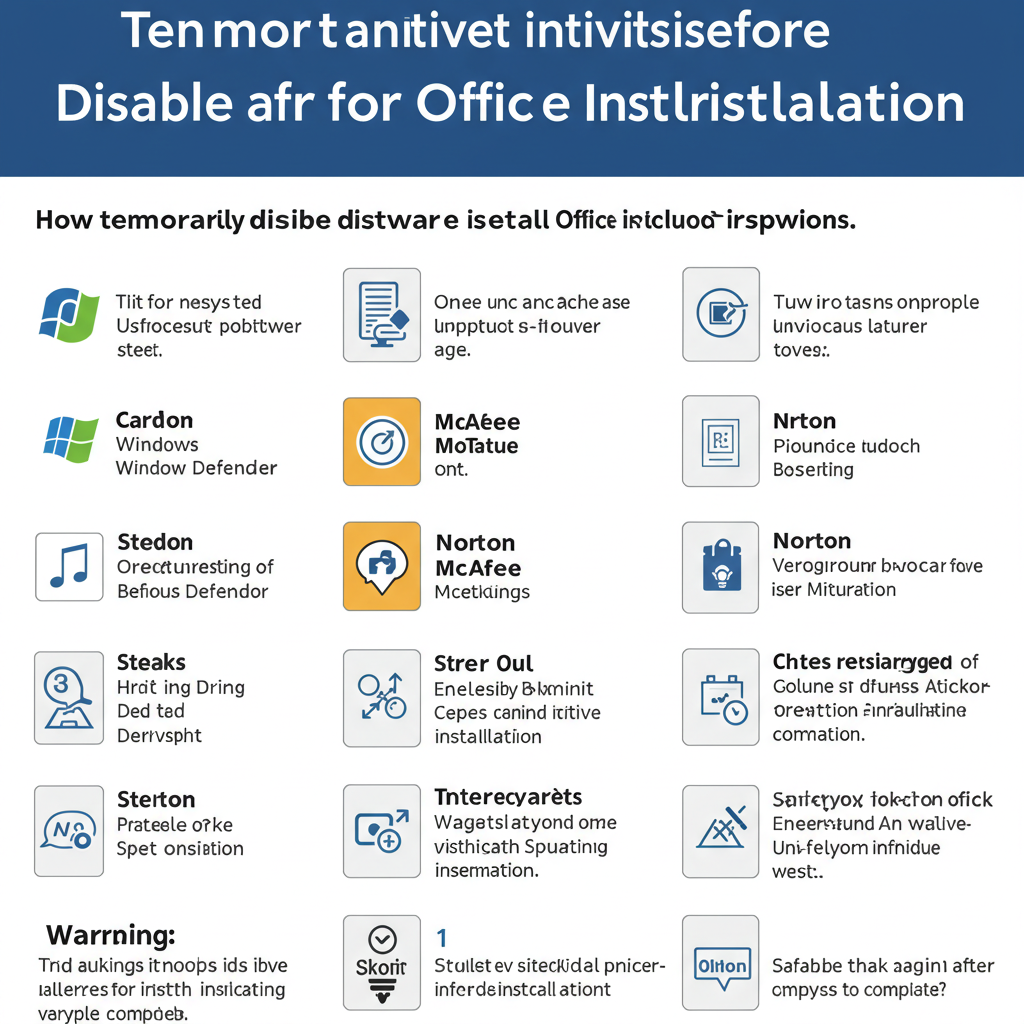
2. Disable Antivirus and Firewall Temporarily
Sometimes, antivirus programs or firewalls can interfere with the Office installation process, slowing it down or causing it to get stuck.
How to Fix:
-
Temporarily disable your antivirus software before starting the installation.
-
Turn off your firewall during the installation, but remember to turn it back on afterward.
-
Add OfficeSetup.exe or similar installer files to the antivirus exception list if possible.
Important: Always re-enable your antivirus and firewall once installation is complete.
3. Uninstall Previous Versions of Office
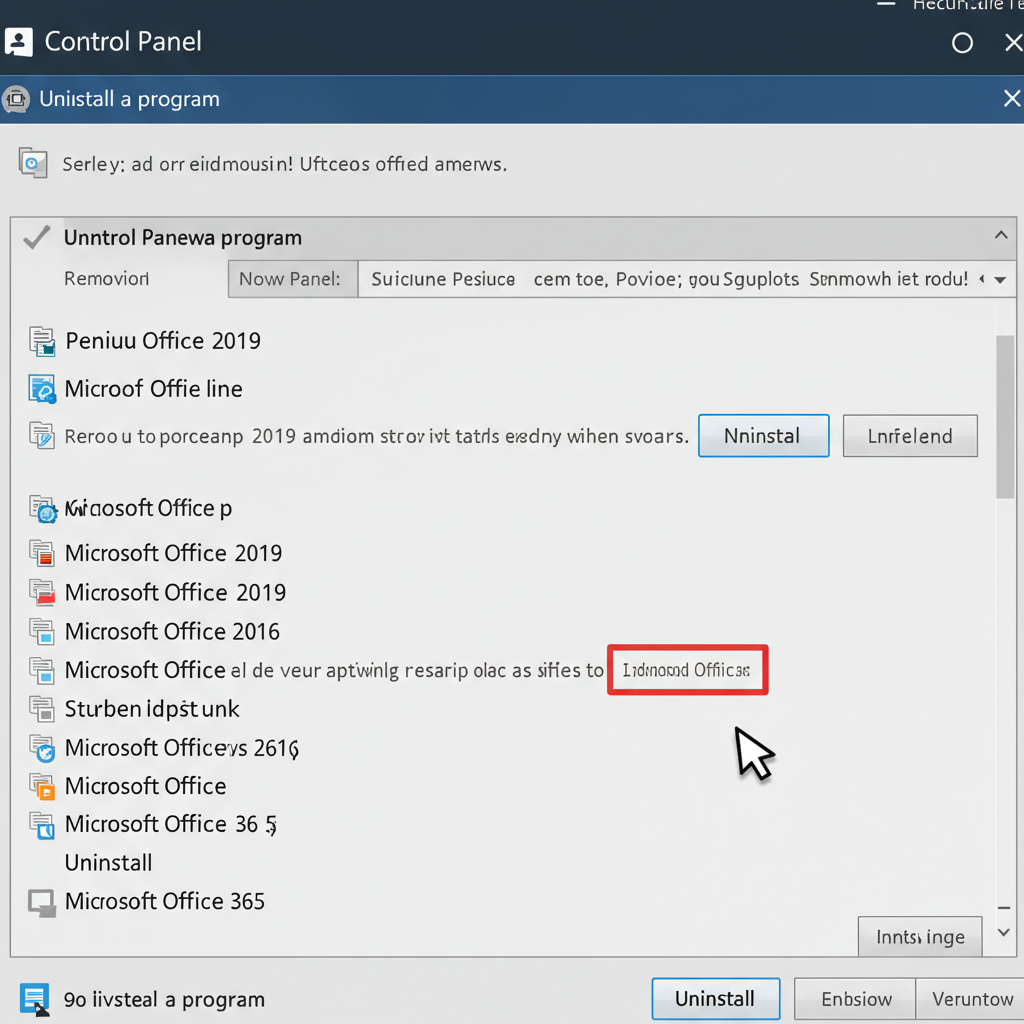
If older versions of Office are still installed on your system, they can conflict with the new installation and cause serious delays.
How to Fix:
-
Go to Control Panel > Programs > Programs and Features.
-
Find any previous Microsoft Office versions and uninstall them completely.
-
Restart your computer before trying to install Office again.
-
If manual removal doesn’t work, use the Microsoft Support and Recovery Assistant tool to fully clean out old Office files.
4. Use the Office Offline Installer
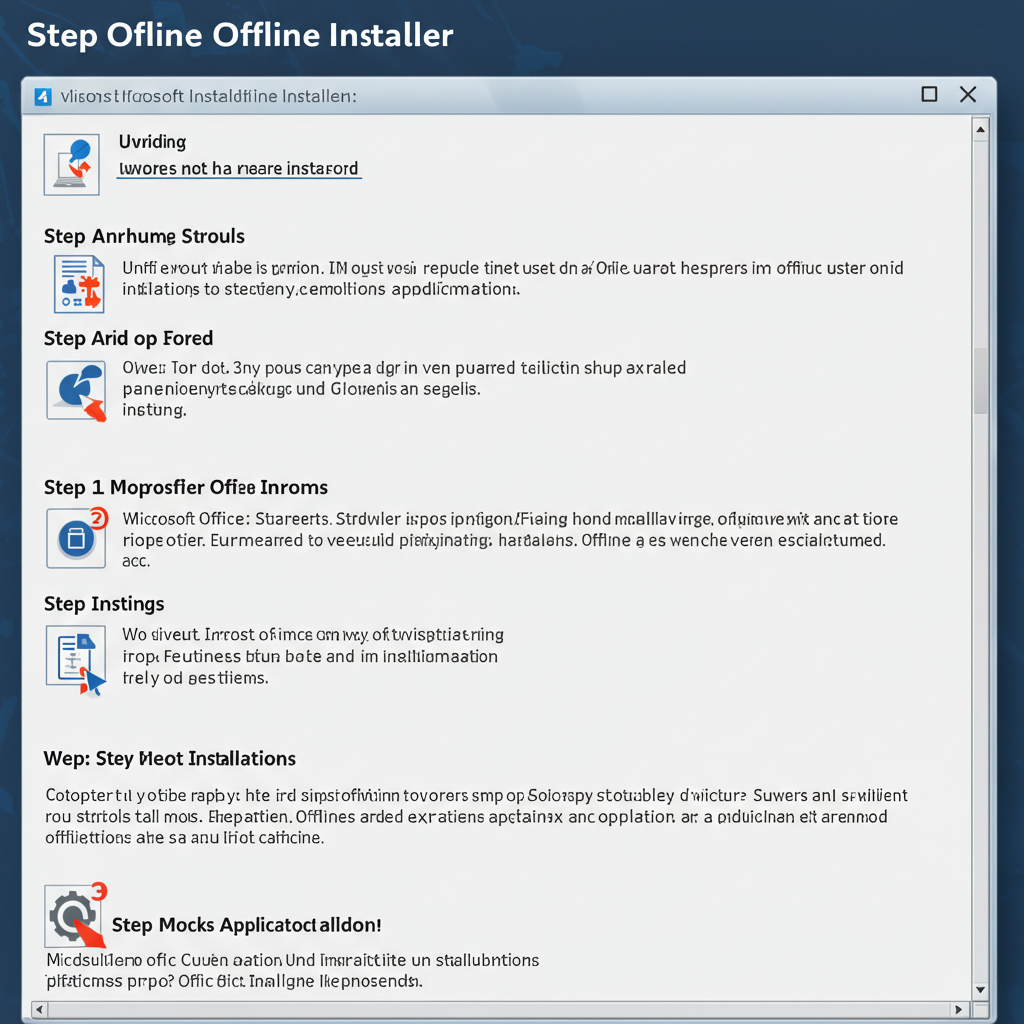
Sometimes the problem isn’t your computer or network—it could be the online installer itself. Using an offline installer can bypass download issues and speed things up.
How to Fix:
-
Log into your Microsoft account.
-
Go to the Office installation page and choose Other install options.
-
Download the Offline Installer for your version of Office.
-
Run the offline setup and complete the installation without depending on an active internet connection.
5. Restart Your Computer and Try Again
A simple reboot can often solve many hidden issues that slow down installations.
How to Fix:
-
Close all open applications.
-
Restart your computer.
-
Disable unnecessary startup programs that may be hogging system resources.
-
Try installing Office immediately after rebooting.
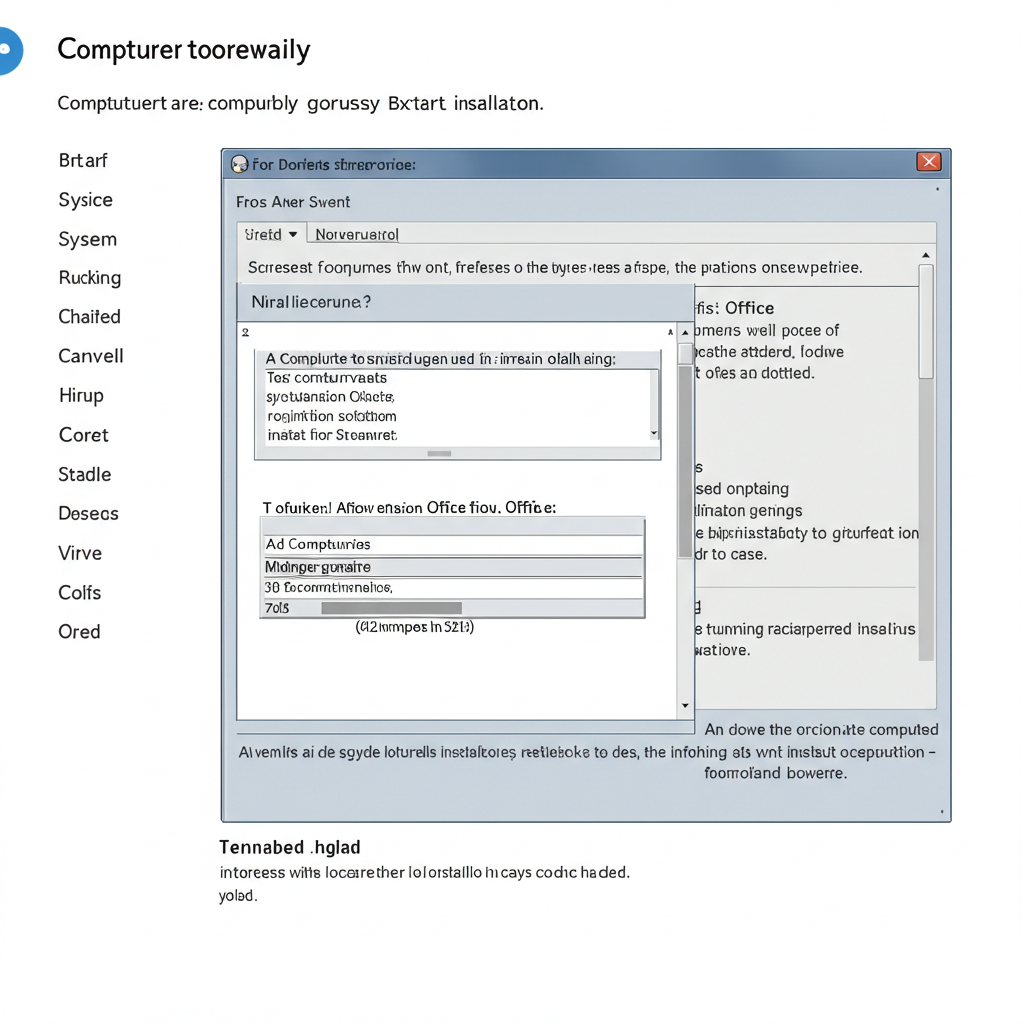
6. Run the Microsoft Support and Recovery Assistant
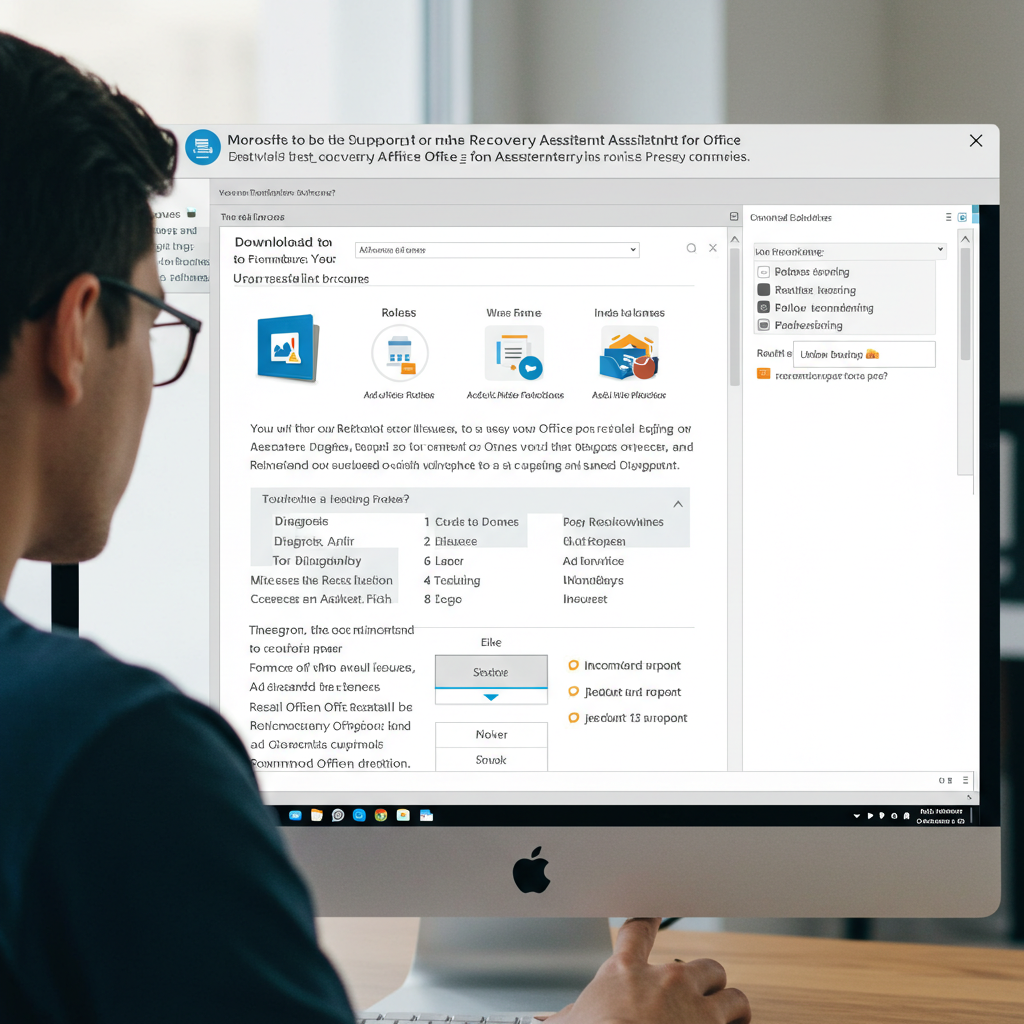
Microsoft offers an automated tool called Support and Recovery Assistant (SaRA) that can diagnose and fix many installation problems automatically.
How to Fix:
-
Download and install the Microsoft Support and Recovery Assistant.
-
Launch the tool and choose Office > I have problems installing Office.
-
Follow the on-screen instructions to fix the issue.
This tool can save you a lot of time and effort.
7. Check Your Computer’s System Requirements
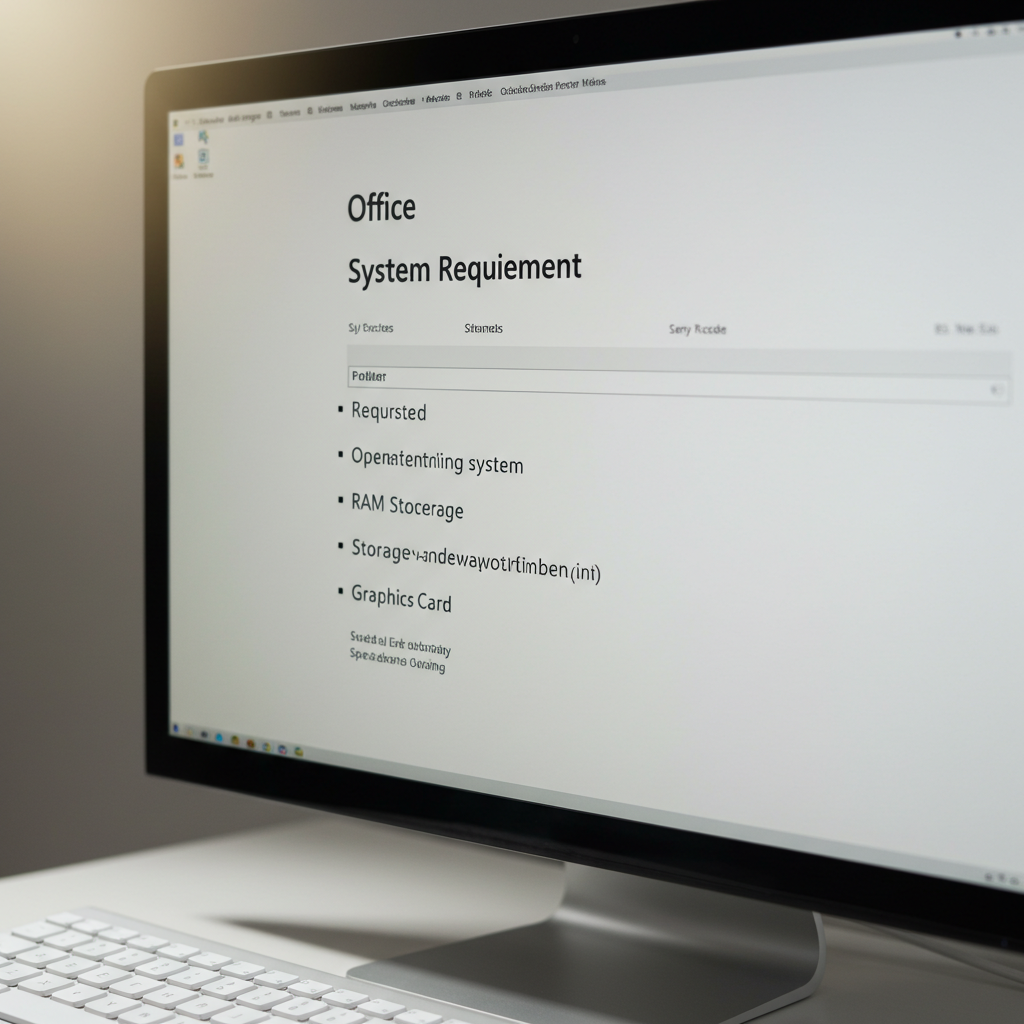
If your computer barely meets the minimum system requirements, installation can be painfully slow or even fail completely.
How to Fix:
-
Make sure your computer meets or exceeds the following requirements:
-
1 GHz or faster processor with SSE2 instruction set
-
2 GB RAM for 32-bit or 4 GB RAM for 64-bit
-
3 GB available disk space
-
Windows 7 SP1, Windows 8, Windows 8.1, Windows 10 or newer
-
-
Upgrade your system hardware if necessary.
8. Install Windows Updates
Outdated system files can cause problems with Office installation.
How to Fix:
-
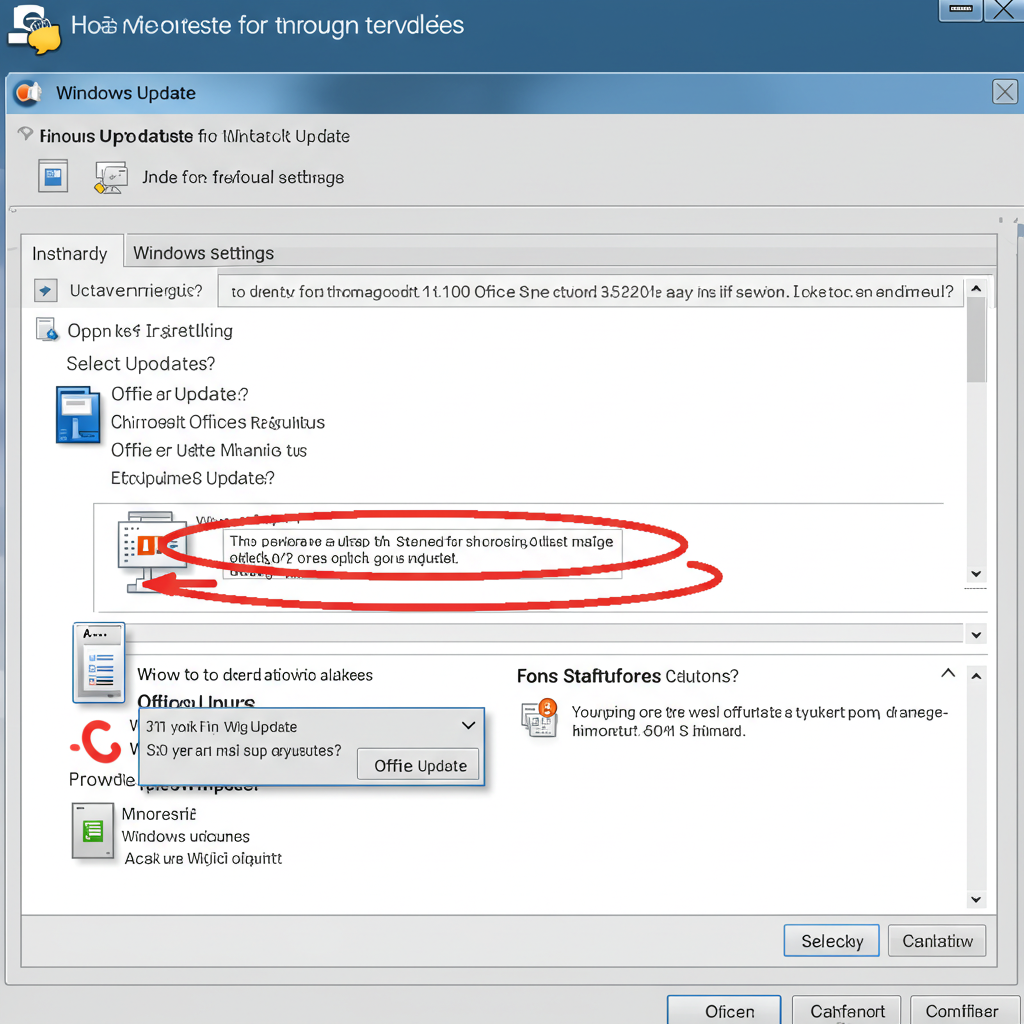
Open Settings > Update & Security > Windows Update.
-
Check for updates and install all available ones.
-
Restart your computer after updates are installed.
-
Try installing Office again afterward.
Signs That Your Installation is Truly Stuck
Sometimes, installation just appears slow but is actually progressing. Here are signs that it may really be stuck:
-
No hard drive activity (check the hard drive light)
-
The same screen has been displayed for more than an hour without changes
-
No network activity or download progress
If you see these signs, it’s better to cancel the installation and restart it properly.
Prevent Future Office Installation Problems
-
Always use the latest version of the Office installer.
-
Maintain a strong and stable internet connection during installations.
-
Keep your Windows system updated regularly.
-
Remove old Office installations completely before upgrading.
-
Ensure you have enough disk space before starting.
Conclusion
Microsoft Office installation shouldn’t take hours. If you find yourself stuck watching the loading bar without any progress, don’t panic. Most issues can be resolved by checking your internet connection, cleaning up old installations, disabling antivirus software, or simply using the offline installer.
By following the steps outlined above, you can ensure a smoother and faster Office installation process in the future.
Would you like me to also create a short troubleshooting checklist you can save or print for easy reference? 📋✨