


How to Fix Two-Finger Scrolling Not Working on Windows 10
Two-finger scrolling is a popular gesture used on touchpads that allows you to scroll up and down simply by sliding two fingers. It’s an essential feature for many users, especially on laptops. If two-finger scroll is not working on your Windows 10 device, it can make everyday tasks frustrating and time-consuming.
This guide will walk you through step-by-step solutions to restore two-finger scroll functionality on your laptop. Whether your touchpad settings are misconfigured, drivers are outdated, or features are disabled, this guide covers all the possible causes.
Check If Your Laptop Supports Multi-Touch Gestures
Before jumping into troubleshooting, you need to confirm whether your laptop supports multi-touch gestures, including two-finger scrolling. Not all touchpads have this capability, especially on older devices.
How to check:
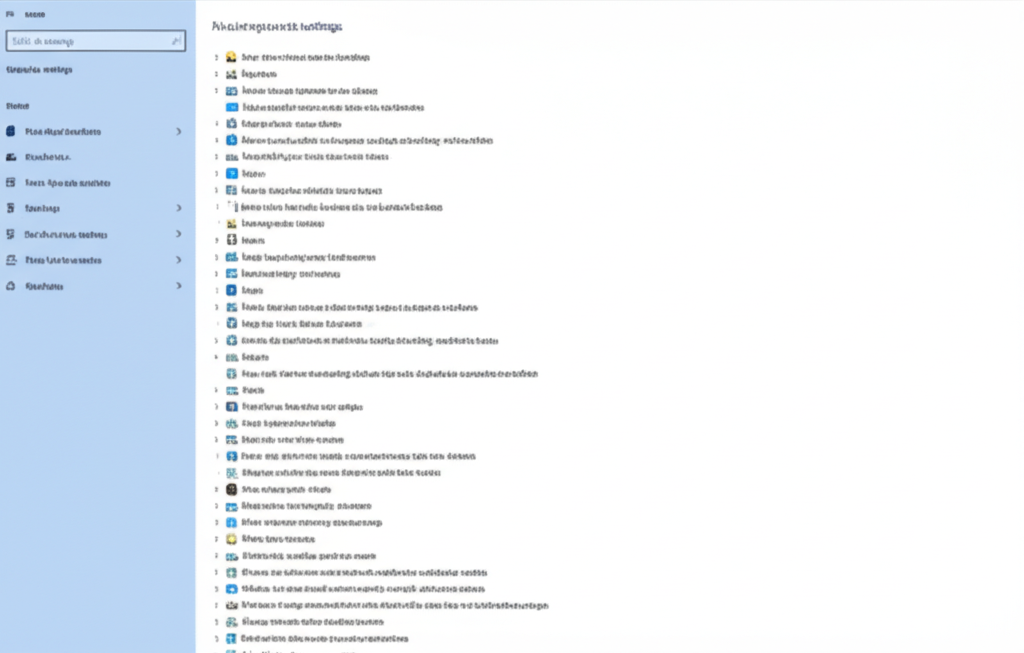
-
Press
Windows + Ito open Settings.
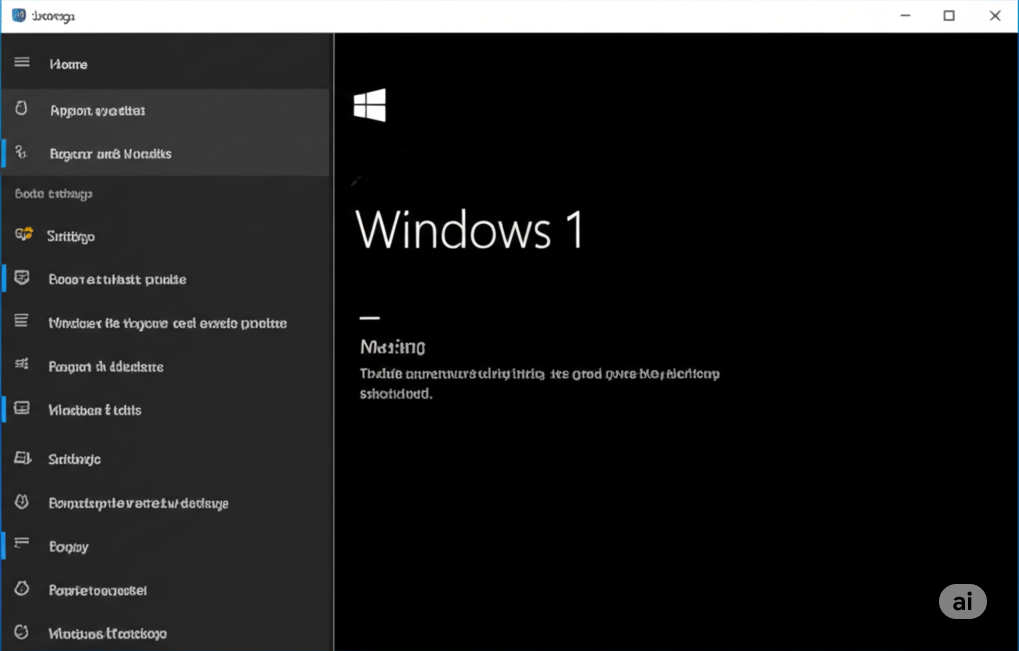
-
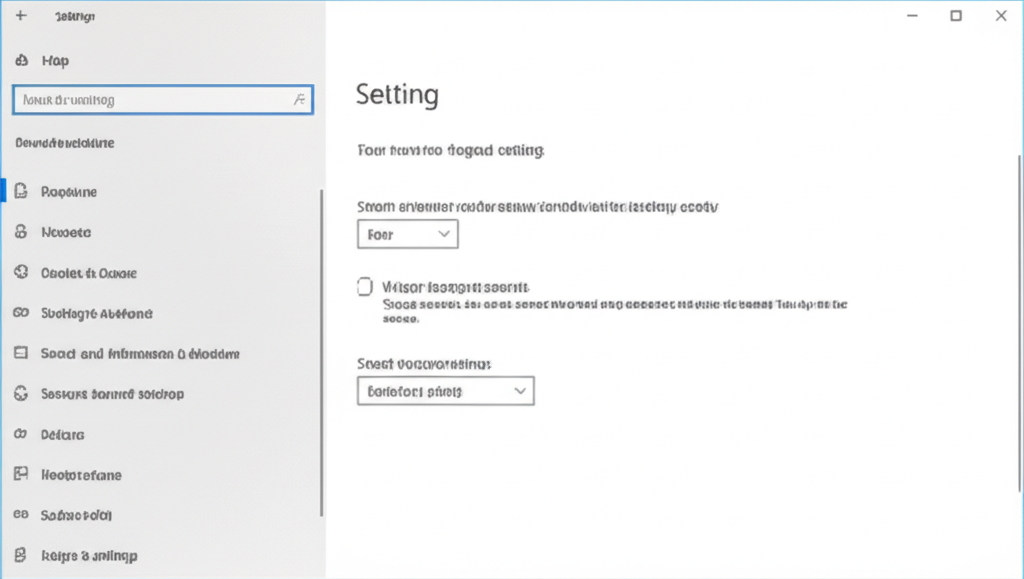
Go to Devices > Touchpad.
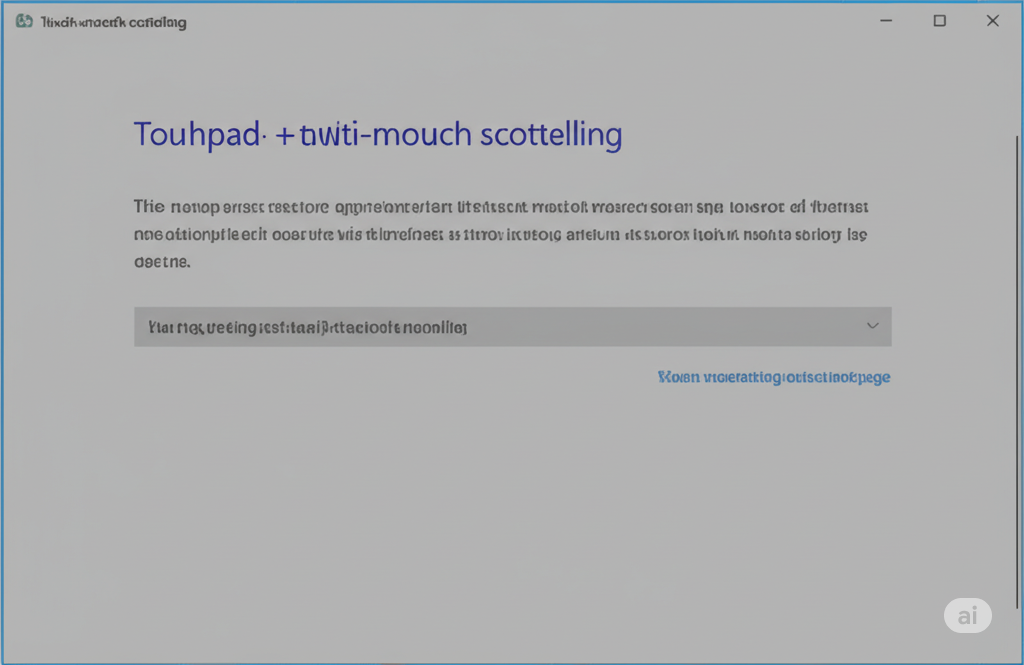
-
Look for any settings that mention “Scroll and Zoom” or “Use two fingers to scroll”.
If these options are missing, your device might not support two-finger scrolling. In such cases, your only option may be to use an external mouse or consider a touchpad upgrade.
Enable Two-Finger Scrolling in Windows 10 Settings

Sometimes, two-finger scrolling is simply disabled in your settings.
Follow these steps to turn it on:
-
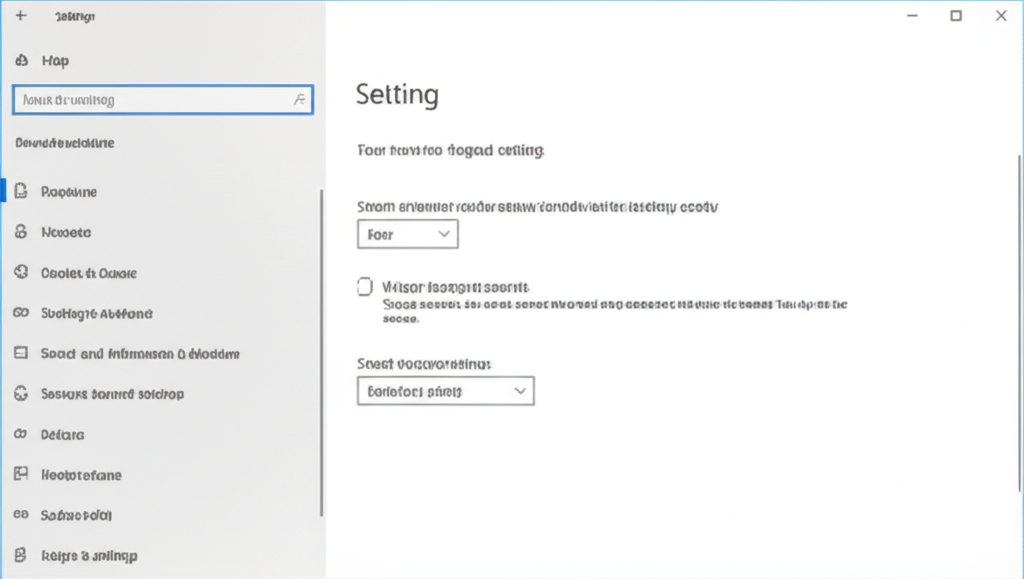
Press
Windows + Ito open Settings.
-
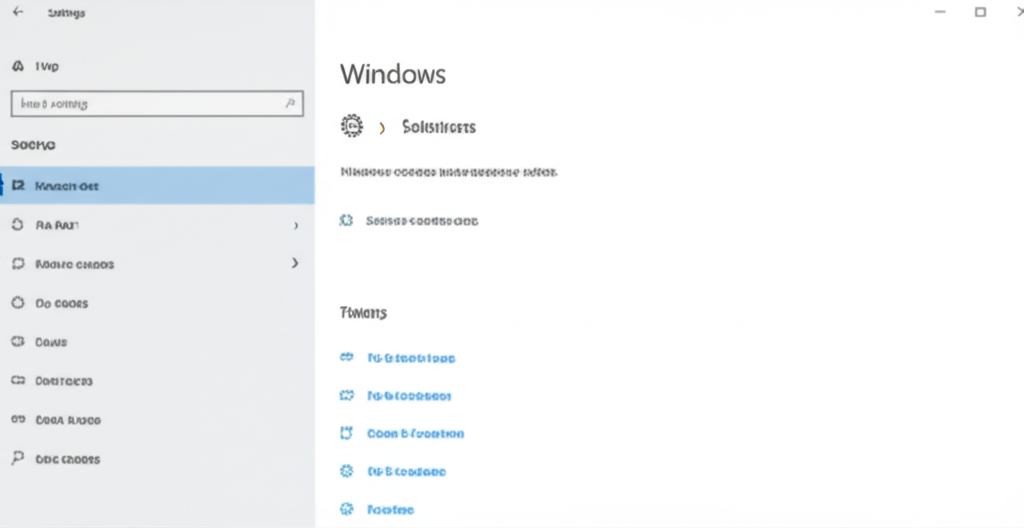
Navigate to Devices > Touchpad.
-
Under Scroll and Zoom, ensure the box for “Drag two fingers to scroll” is checked.
If this option is missing or grayed out, proceed to the next steps to troubleshoot touchpad drivers.
Update or Reinstall Touchpad Drivers
Outdated or corrupted touchpad drivers are a major cause of scrolling issues.
To update your drivers:
-
Right-click the Start menu and select Device Manager.
-
Expand the Mice and other pointing devices section.
-
Right-click your touchpad (e.g., Synaptics, ELAN, or Precision Touchpad) and choose Update driver.
-
Select Search automatically for drivers.
If no updates are found, try manually reinstalling the driver.
To reinstall the touchpad driver:
-
Right-click the touchpad device in Device Manager.
-
Select Uninstall device.
-
Restart your computer. Windows should reinstall the driver automatically.
Alternatively, you can visit your laptop manufacturer’s website and download the latest touchpad driver for your model.
Check Manufacturer-Specific Touchpad Software (e.g., Synaptics or ELAN)
Some laptops use third-party touchpad software like Synaptics or ELAN, which has its own gesture settings.
To check Synaptics settings:
-
Open the Control Panel and select Mouse.
-
Go to the Device Settings or Touchpad tab.
-
Click Settings or Options.
-
Find Scrolling settings and ensure Two-Finger Scrolling is enabled.
To check ELAN settings:
-
Control Panel > Mouse > ELAN tab.
-
Click Options or Settings.
-
Look for multi-finger gestures and enable two-finger scroll.
Turn Off Tablet Mode (If Enabled)
Tablet Mode can sometimes disable or affect the way input devices behave, including touchpad gestures.
How to disable it:
-
Click the Notification Center icon in the taskbar (bottom-right corner).
-
Look for Tablet Mode and click it to toggle it off.
Disable Third-Party Software That May Interfere
Certain third-party software—especially those controlling input devices, such as keyboard and mouse utilities, gesture customization apps, or even some accessibility tools—can interfere with normal touchpad gestures.
Try this:
-
Open Task Manager (Ctrl + Shift + Esc).
-
Go to the Startup tab and disable any unfamiliar or non-essential startup programs.
-
Restart your PC and check if two-finger scrolling works again.
Switch to Microsoft Precision Touchpad Drivers (If Applicable)
If your touchpad is compatible, switching to Microsoft Precision Touchpad drivers can greatly improve gesture reliability.
Steps:
-
Go to your manufacturer’s website and download Precision drivers (if available).
-
Install them and restart your device.
-
Head to Settings > Devices > Touchpad to configure gestures.
This is more advanced and only works on supported hardware.
Run Windows Troubleshooter
Windows 10 includes built-in troubleshooters for many hardware issues.
To run it:
-
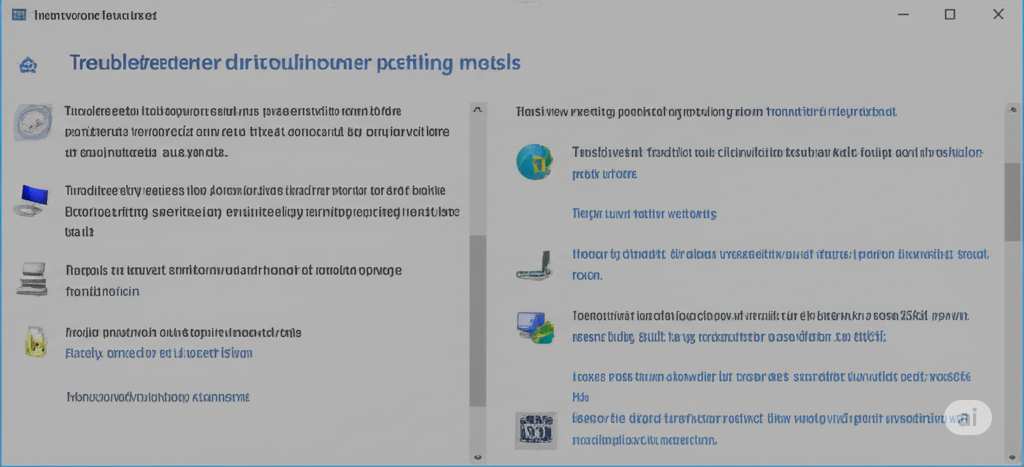
Open Settings > Update & Security > Troubleshoot.
-
Select Additional troubleshooters.
-
Choose Hardware and Devices, then click Run the troubleshooter.
-
Follow the on-screen instructions.
Restore System Settings with System Restore
If two-finger scrolling recently stopped working after an update or new software installation, consider using System Restore.
How to use System Restore:
-
Search for “Create a restore point” in the Start menu.
-
Open the System Properties window.
-
Click System Restore and follow the prompts.
-
Choose a restore point from when scrolling was working.
Final Thoughts
Two-finger scrolling is an essential feature for navigating efficiently on your laptop. If it suddenly stops working on Windows 10, it’s often due to simple settings changes, driver issues, or third-party interference. By carefully following the steps in this guide, you can restore smooth two-finger scrolling and enjoy a better user experience.
Have you tried all the steps but the issue still persists? Let me know your laptop model and driver version—I can help with more specific guidance.