


Updated Guide: Fixing the Unexpected Store Exception Error in Windows 10
One of the most frustrating issues users encounter in Windows 10 is the “Unexpected Store Exception” error. This is a Blue Screen of Death (BSOD) error that can suddenly crash your system, often without much warning. It disrupts workflow, restarts your PC unexpectedly, and can be quite difficult to troubleshoot if you don’t know where to begin.
In this updated guide, we’ll explore the causes of the Unexpected Store Exception error and provide a range of working solutions to help you fix it for good.
What Causes the Unexpected Store Exception Error?
Despite its confusing name, the “Unexpected Store Exception” error doesn’t have much to do with the Microsoft Store. In this context, “store” refers to the storage stack—the part of Windows that manages your data and hardware resources.
Here are the most common causes:
-
Outdated or corrupt drivers (especially for graphics or storage devices)
-
Corrupted system files or registry entries
-
Conflicting antivirus software
-
Hardware issues (especially hard drives or RAM)
-
Fast Startup glitches
-
Incompatible Windows updates
Fortunately, most of these problems can be fixed with simple troubleshooting steps.
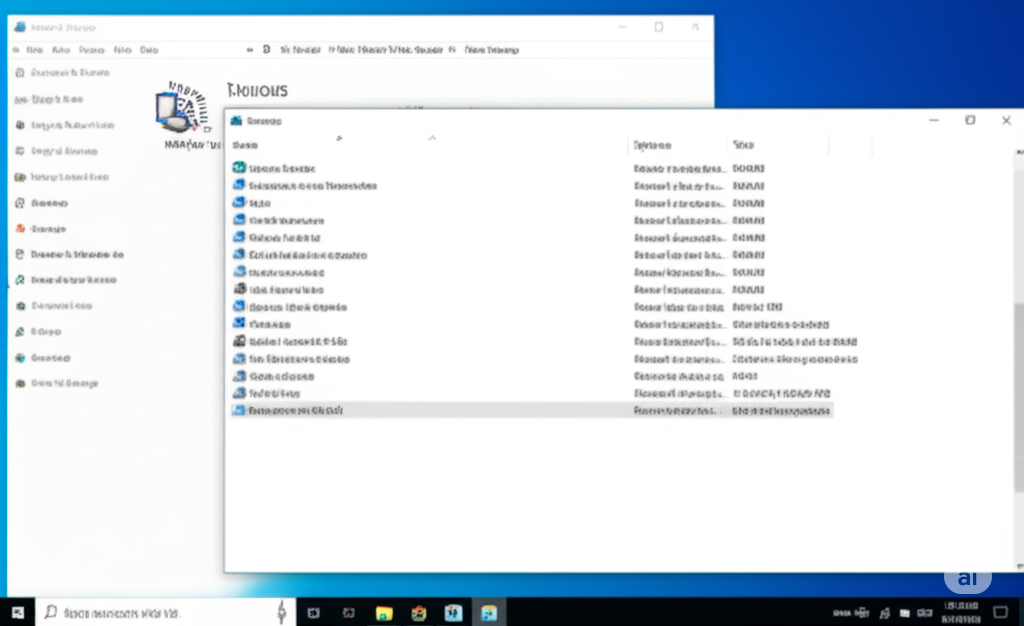
Solution 1: Check for and Install Windows Updates
Keeping your system up to date is the first and most important step.
-
Press Windows + I to open Settings.
-
Go to Update & Security > Windows Update.
-
Click Check for updates and install any available updates.
-
Restart your PC.
Windows updates often include stability improvements and fixes for BSOD errors.
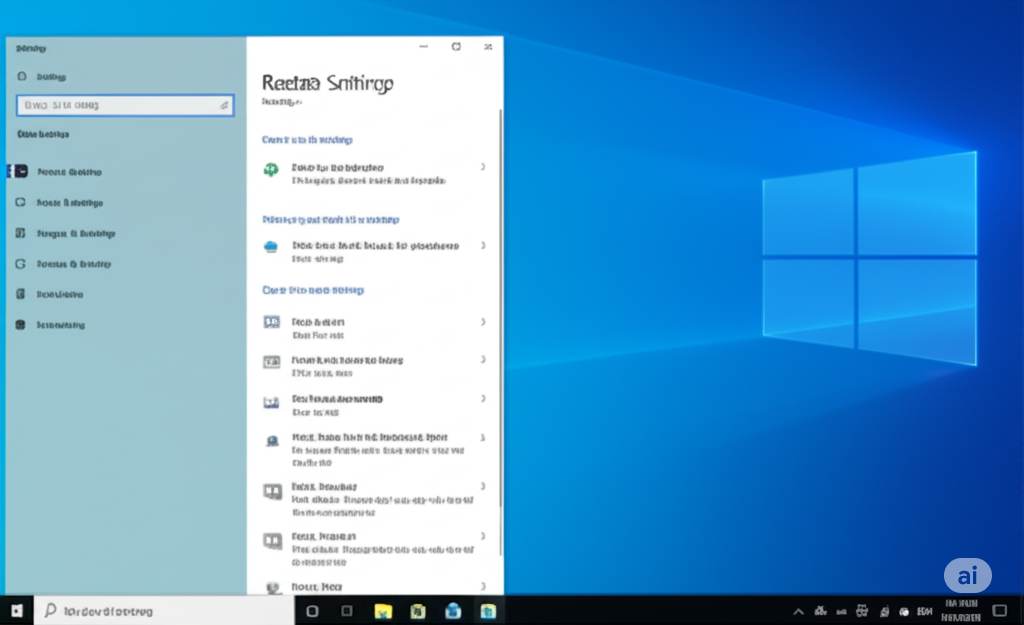
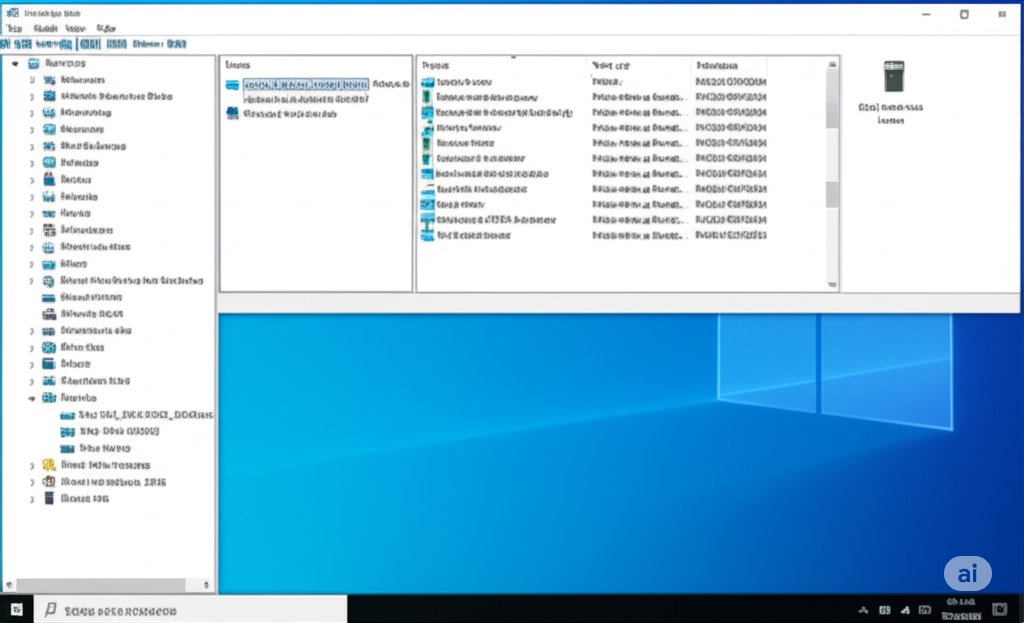
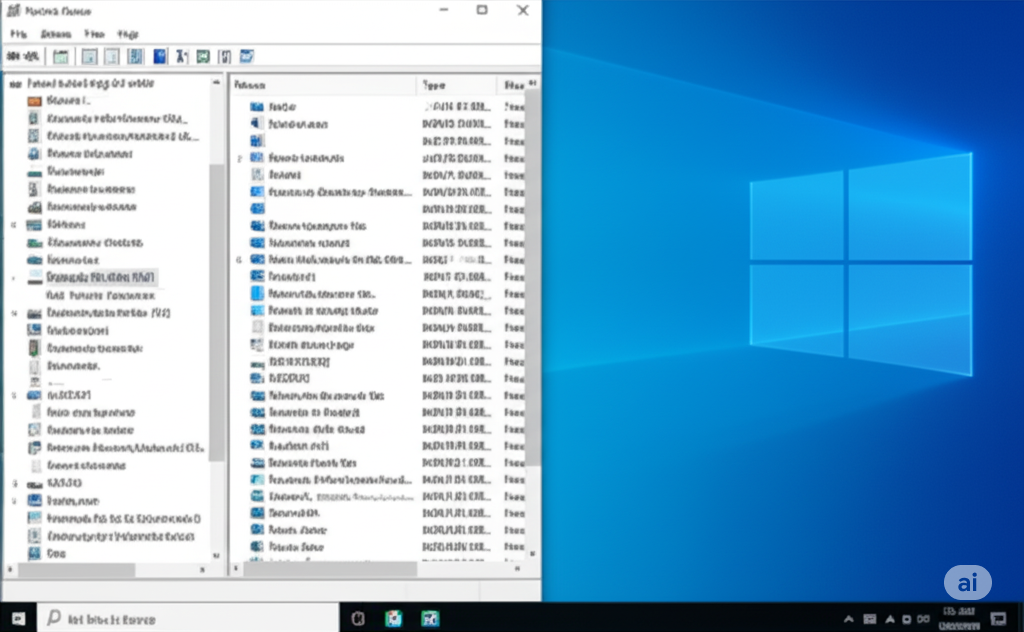
Solution 2: Update Device Drivers
Outdated or faulty drivers can trigger BSODs like this one, especially display and storage drivers.
-
Press Windows + X and select Device Manager.
-
Expand the following sections:
-
Display adapters
-
Disk drives
-
Network adapters
-
-
Right-click each device and select Update driver.
-
Choose Search automatically for updated driver software.
For even better results, you can visit the manufacturer’s website and download the latest drivers manually, especially for your graphics card (NVIDIA, AMD, or Intel).
Solution 3: Run the System File Checker (SFC) and DISM Tools
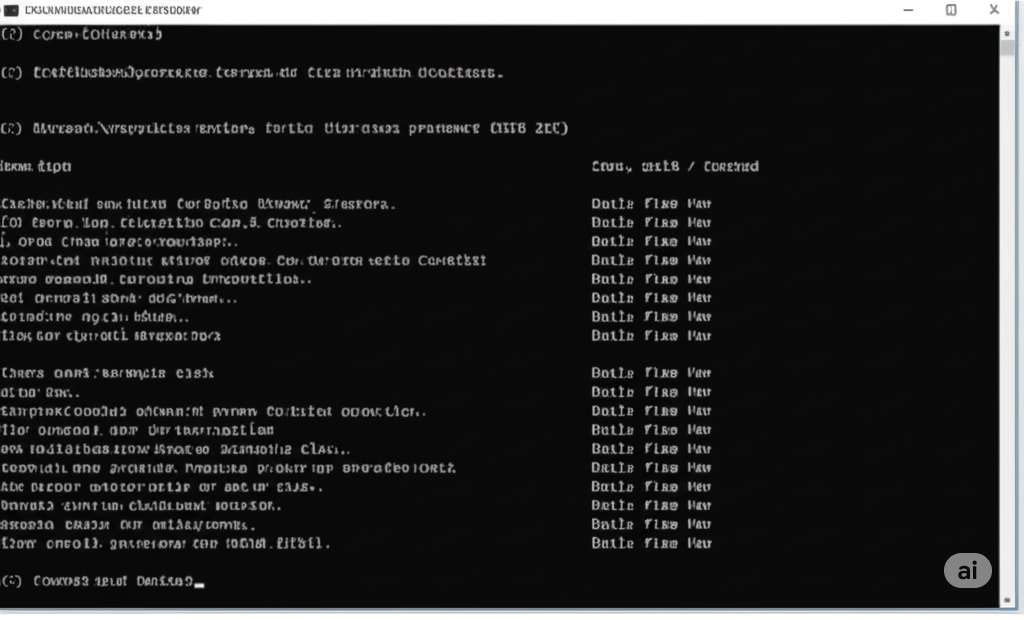
Corrupt system files can cause crashes. Windows provides built-in tools to repair them.
-
Open Command Prompt as Administrator:
-
Press Start, type cmd, right-click Command Prompt, and choose Run as administrator.
-
-
Enter the following command:
-
Wait for the scan to complete. If issues are found, they will be repaired automatically.
If the error persists, run the DISM tool:
This will check and repair the system image used by SFC.
Solution 4: Disable Fast Startup
Fast Startup can sometimes conflict with hardware drivers, causing this error.
-
Open Control Panel.
-
Go to Power Options.
-
Click Choose what the power buttons do.
-
Click Change settings that are currently unavailable.
-
Uncheck Turn on fast startup (recommended).
-
Click Save changes and restart your PC.
Many users report this simple step helps eliminate the BSOD.
Solution 5: Check for Hard Drive or SSD Errors
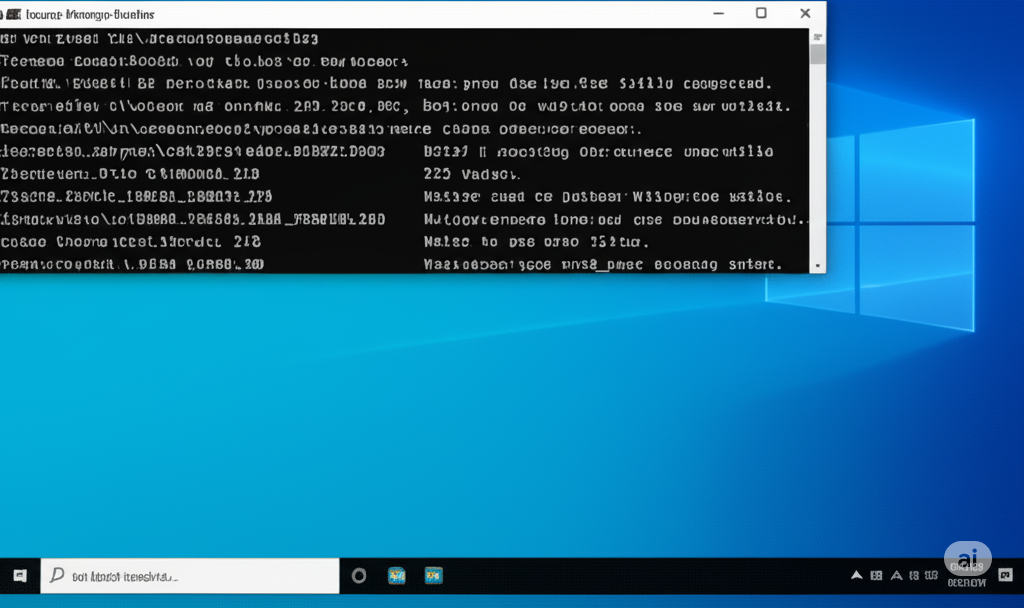
Since storage issues are often to blame, checking your drive health is essential.
-
Open Command Prompt as Administrator.
-
Type:
-
Press Enter. If prompted to schedule a scan at the next reboot, type Y and press Enter.
-
Restart your computer and let the scan complete.
If serious issues are detected, it may be time to consider replacing your drive.
Solution 6: Disable or Remove Third-Party Antivirus Software
Third-party antivirus tools sometimes conflict with Windows processes, including storage functions.
-
Press Windows + I to open Settings.
-
Go to Apps > Apps & features.
-
Find your antivirus software and click Uninstall.
-
Follow the prompts and restart your system.
Windows Defender will take over and continue protecting your system in the meantime.
Solution 7: Run Memory Diagnostic Tool
Faulty RAM can also trigger this BSOD error.
-
Press Windows + R, type
mdsched.exe, and hit Enter. -
Choose Restart now and check for problems.
Your system will reboot and scan your memory. If issues are found, consider replacing your RAM.
Solution 8: Perform a Clean Boot
A clean boot starts Windows with minimal startup programs and services. This can help isolate software conflicts.
-
Press Windows + R, type
msconfig, and press Enter. -
Go to the Services tab and check Hide all Microsoft services.
-
Click Disable all.
-
Go to the Startup tab and click Open Task Manager.
-
Disable all startup items.
-
Restart your computer.
If the issue disappears, you can re-enable services and programs one by one to find the source.
Solution 9: Reset or Reinstall Windows 10
If all else fails, reinstalling Windows may be the best option.
-
Go to Settings > Update & Security > Recovery.
-
Under Reset this PC, click Get started.
-
Choose Keep my files or Remove everything, depending on your needs.
-
Follow the on-screen instructions to complete the reset.
This process will reinstall a clean version of Windows, removing system-level problems.
Additional Tips to Prevent Future Errors
-
Create regular system restore points so you can quickly recover from issues.
-
Back up your important data regularly in case you need to reset your PC.
-
Avoid installing unnecessary third-party utilities that run in the background.
-
Monitor your hardware health, especially storage and memory components.
Conclusion
The “Unexpected Store Exception” error can be a nuisance, but it doesn’t have to mean disaster. Whether it’s caused by outdated drivers, a bad update, or failing hardware, the methods outlined above offer a clear path to resolution.
Start with the basics—check for updates, scan for system file corruption, and disable Fast Startup. If necessary, move on to more advanced solutions like memory tests, clean boot, or even a full system reset. In many cases, one of these steps will resolve the problem completely and help you enjoy a stable Windows 10 experience again.