


Windows 11: How to Fix Installation Error 0xC1900101
If you’ve attempted to upgrade or install Windows 11 and encountered the dreaded Error Code 0xC1900101, you’re not alone. This error is one of the most common Windows installation errors and usually indicates a driver conflict or a hardware-related issue preventing the setup process from completing.
Understanding what this error means and how to resolve it can help you successfully complete your upgrade without compromising your system. This guide will walk you through a series of practical solutions that address both common and complex causes of the error.
What Is Error 0xC1900101?
Error 0xC1900101 is generally associated with driver-related issues during a Windows installation or upgrade process. Microsoft categorizes it under a class of errors that happen when an installation is interrupted due to outdated, incompatible, or corrupt drivers.
This error can occur during:
-
Windows Update-based upgrades
-
Installation using ISO or Media Creation Tool
-
System reboots during the setup process
Common messages accompanying this error include:
-
“Installation failed in the SAFE_OS phase”
-
“Installation failed in the FIRST_BOOT phase”
-
“ROLLBACK occurred during installation”
What Causes Error 0xC1900101?
Here are the most common causes of this error:
-
Incompatible or outdated device drivers
-
Faulty hardware (RAM, storage drives, peripherals)
-
Antivirus or third-party software interference
-
Insufficient disk space
-
Corrupted Windows system files
-
BIOS or firmware issues
Fortunately, there are several solutions available.
Fix 1: Disconnect All External Devices
Before jumping into more technical solutions, start with the basics. Unplug all unnecessary external devices, including:
-
USB flash drives
-
External hard drives
-
Printers and scanners
-
Game controllers
Conflicting USB drivers are a well-known cause of the 0xC1900101 error. Restart your system and retry the update or installation.
Fix 2: Update All Device Drivers
Outdated or incompatible drivers are the most common culprits. Here’s how to make sure yours are updated:
Steps:
-
Press Windows + X and select Device Manager.
-
Look for any devices with a yellow triangle or exclamation mark.
-
Right-click the device and choose Update driver > Search automatically.
Alternatively, visit your hardware manufacturer’s website (such as Intel, NVIDIA, AMD, or your laptop brand) and download the latest drivers manually.
Don’t forget to update essential drivers like:
-
Graphics card
-
Network adapter
-
Chipset
-
Storage controllers
Fix 3: Free Up Disk Space
Windows 11 requires adequate storage space to install updates or upgrades.
To check available space:
-
Open Settings > System > Storage.
-
Ensure you have at least 30–50 GB of free space on your system drive (usually C:).
To free up space:
-
Use Disk Cleanup (Search for it in Start Menu).
-
Delete temporary files and previous Windows installations.
-
Empty the Recycle Bin.
Fix 4: Disable Third-Party Antivirus and Firewalls
Security software like Avast, Norton, or McAfee can interfere with Windows updates or installations.
Steps:
-
Right-click the antivirus icon in the system tray.
-
Choose Disable protection temporarily.
-
Also check for any third-party firewalls or VPN services and disable them.
After the installation, you can re-enable your protection software.
Fix 5: Run Windows Update Troubleshooter
Windows includes a built-in troubleshooter to detect and resolve update issues.
To use it:
-
Go to Settings > System > Troubleshoot > Other troubleshooters.
-
Click Run next to Windows Update.
-
Follow the on-screen instructions.
This tool checks for inconsistencies in update settings, corrupted files, and more.
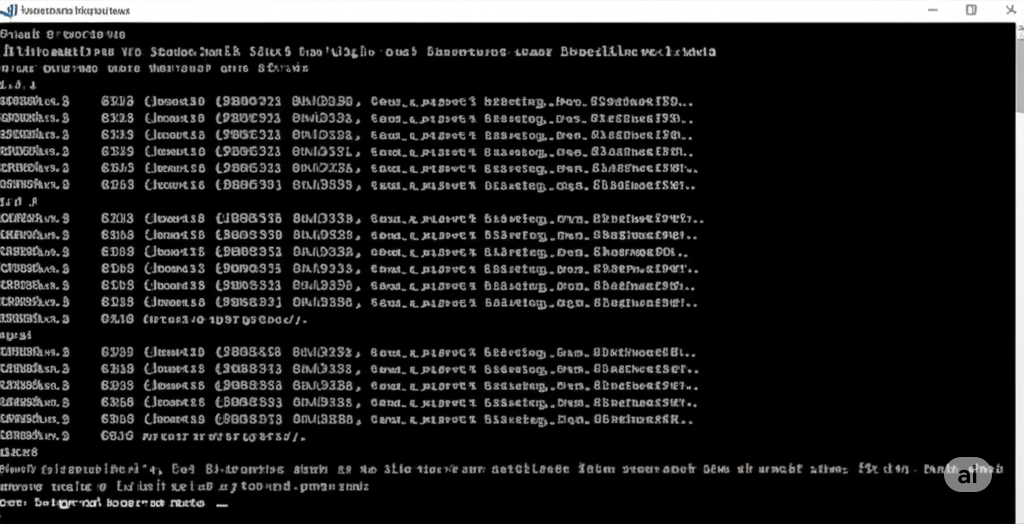
Fix 6: Check and Repair System Files
Corrupt system files can also prevent successful installation. You can fix them using the System File Checker (SFC) and Deployment Imaging and Servicing Management (DISM) tools.
Run SFC and DISM:
-
Open Command Prompt as Administrator.
-
Type the following command and press Enter:
-
Once finished, run:
-
Restart your computer after both commands finish.
Fix 7: Update BIOS or UEFI Firmware
An outdated BIOS can cause compatibility problems during major OS upgrades.
To update BIOS:
-
Find your motherboard or laptop model.
-
Visit the manufacturer’s support website.
-
Download and carefully follow instructions for your specific BIOS version.
Caution: A failed BIOS update can cause your system to become unbootable. Follow all instructions carefully.
Fix 8: Perform a Clean Boot
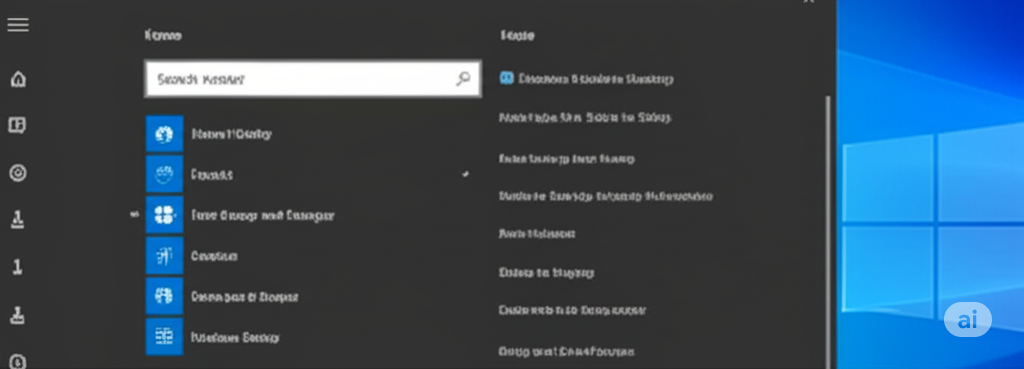
A clean boot helps eliminate software conflicts during the update.
How to perform a clean boot:
-
Press Windows + R, type
msconfig, and press Enter. -
Go to the Services tab and check Hide all Microsoft services, then click Disable all.
-
Go to the Startup tab and click Open Task Manager.
-
Disable all startup items.
-
Reboot your PC and try the update again.
This ensures no third-party service interferes with the installation.
Fix 9: Use Media Creation Tool for Upgrade
If standard update methods fail, using the Media Creation Tool is a reliable workaround.
Steps:
-
Download the Media Creation Tool from Microsoft’s official site.
-
Select Upgrade this PC now.
-
Follow the on-screen prompts.
This tool offers a more stable and flexible way to upgrade without encountering driver errors.
Fix 10: Perform a Clean Install
If all else fails, a clean install ensures that you’re starting fresh without old drivers or corrupted files.
What you’ll need:
-
A USB drive with at least 8 GB storage.
-
Windows 11 ISO from Microsoft.
Use the Rufus tool or the Media Creation Tool to create a bootable USB. Boot from it and follow the instructions to install Windows 11.
Make sure to back up your files before proceeding.
Conclusion
The 0xC1900101 error on Windows 11 might seem intimidating, but in most cases, it’s caused by a driver or hardware issue that can be resolved with the right steps.
Here’s a quick recap:
-
Disconnect unnecessary hardware.
-
Update drivers.
-
Free up disk space.
-
Disable antivirus.
-
Use tools like SFC, DISM, and BIOS updates as needed.
-
If necessary, opt for a clean install.
By carefully working through these fixes, you can get past this error and complete your Windows 11 installation successfully.