


Troubleshooting Error 0xC0000035 in Windows Event Viewer
If you’ve checked the Event Viewer on your Windows PC and encountered “Error Code: 0XC0000035” with a Kernel Event Tracing warning, you might be wondering whether it’s something to worry about — and more importantly, how to fix it.
This error, while not always critical, can be an indicator of underlying issues related to network configuration, logging settings, or even driver conflicts. In this guide, we’ll explore what causes this error, how to identify its root, and offer detailed steps to fix it.
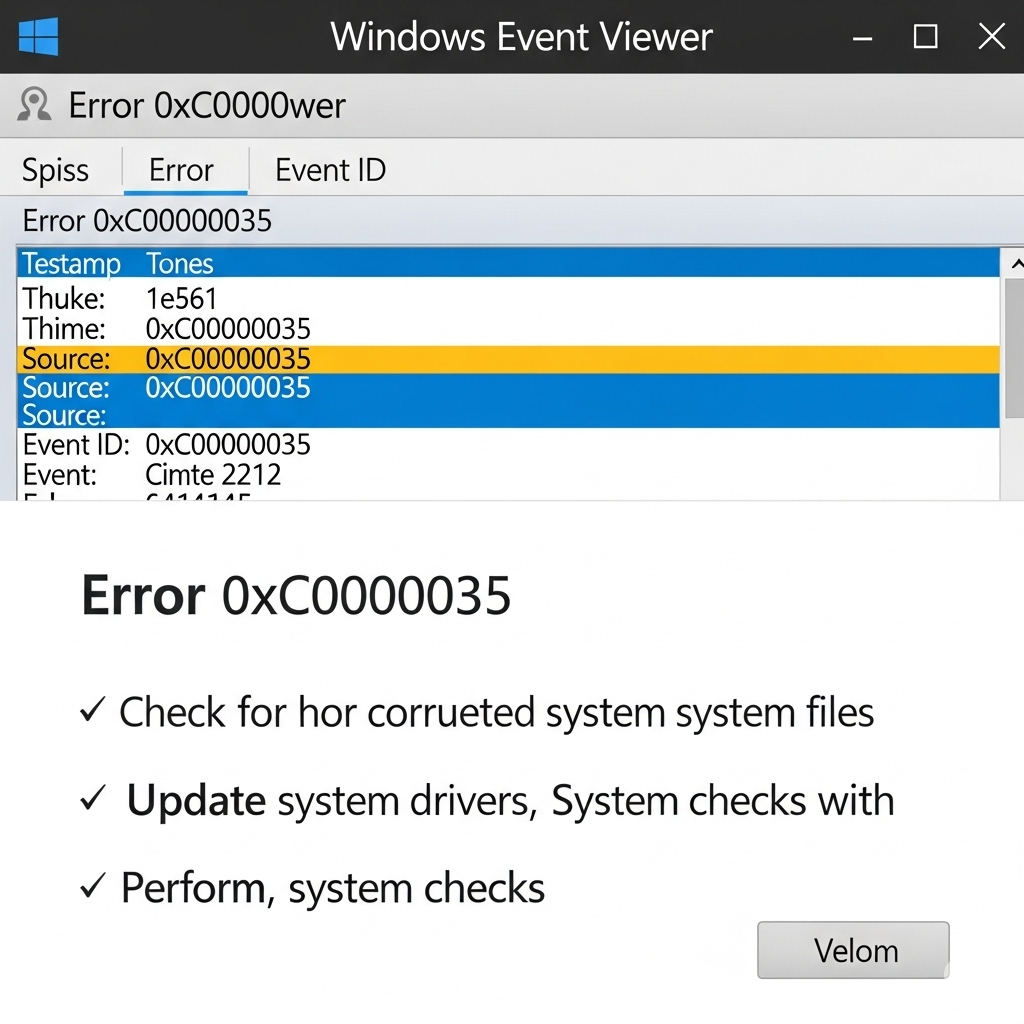
What Is Kernel Event Tracing Error 0XC0000035?
The “Error Code: 0XC0000035” typically appears in the Windows Event Viewer and is tied to the Kernel-EventTracing source. You may find logs with a description like this:
Session “Circular Kernel Context Logger” stopped due to the following error: 0xC0000035
This error doesn’t usually trigger a blue screen or cause your system to crash, but it may contribute to:
-
System performance drops
-
Unlogged crashes or freezes
-
Problems during boot or shutdown
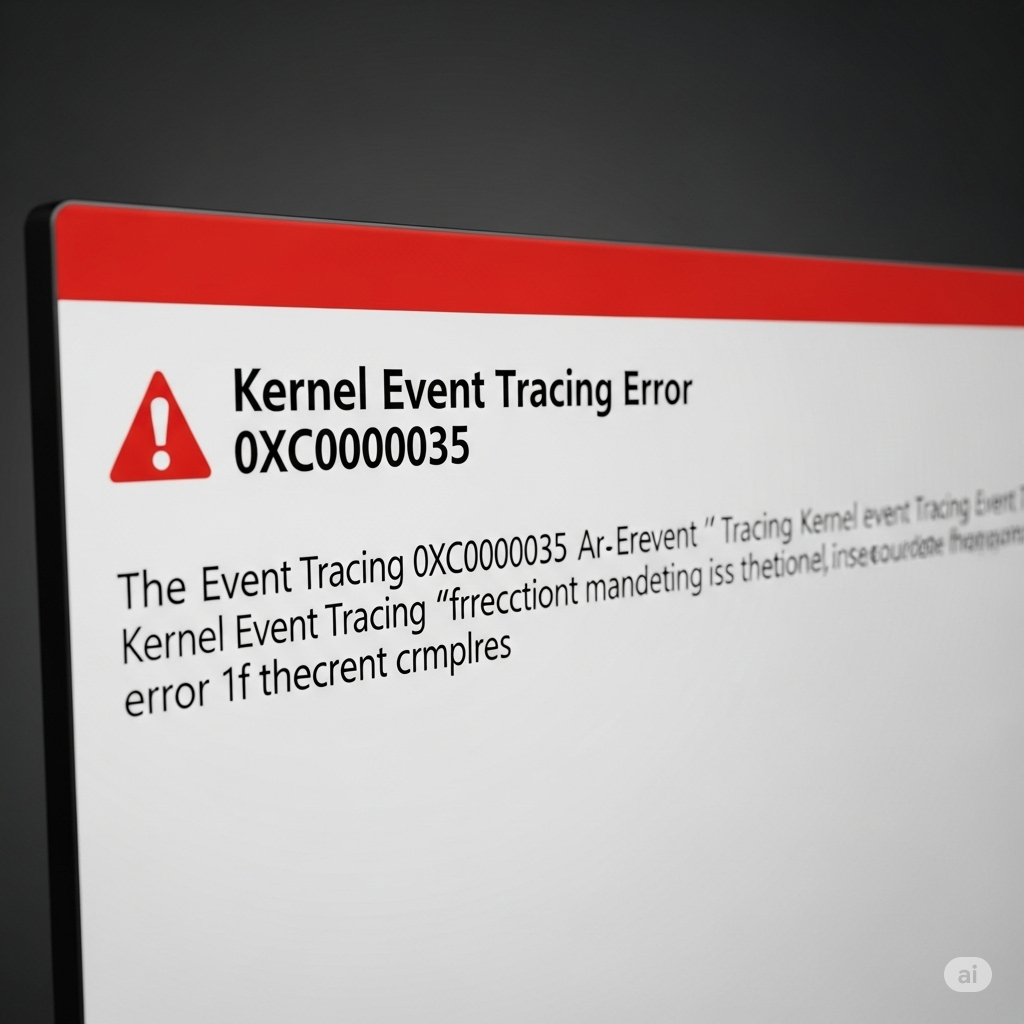
What Causes Error 0XC0000035?
Here are the most common triggers for this error:
-
Duplicate or corrupted logging sessions already running in the background
-
Faulty or outdated network drivers
-
Misconfigured group policy or system settings
-
Third-party software interfering with diagnostic or performance logs
-
Windows updates or changes that affect kernel-level logging services
How To Check for the Error
Before jumping into fixes, here’s how to verify the presence of the error:
Steps:
-
Press Windows + X and choose Event Viewer.
-
In the left pane, expand Windows Logs > System.
-
Click Find in the right Actions pane and search for:
-
Look for entries with the Event ID 2 and error code 0xC0000035.
Now let’s dive into how to fix it.
Fix 1: Delete and Recreate the Logging Session
A corrupted or duplicated logging session is the most common reason for this error.
Steps:
-
Open Command Prompt as Administrator.
-
Run the following command:
-
Then run:
-
Restart your computer.
-
Open Event Viewer again to check if the error has stopped appearing.
This method removes the problematic session and resets it to default.
Fix 2: Update Network and System Drivers
Outdated or incompatible drivers, especially network adapters, can cause kernel-level logging issues.
To update drivers:
-
Press Windows + X and choose Device Manager.
-
Expand Network adapters.
-
Right-click your primary adapter and select Update driver > Search automatically.
For best results, also visit the official site of your PC or motherboard manufacturer and download the latest versions of:
-
Network card drivers
-
Chipset drivers
-
BIOS/UEFI updates (if available)
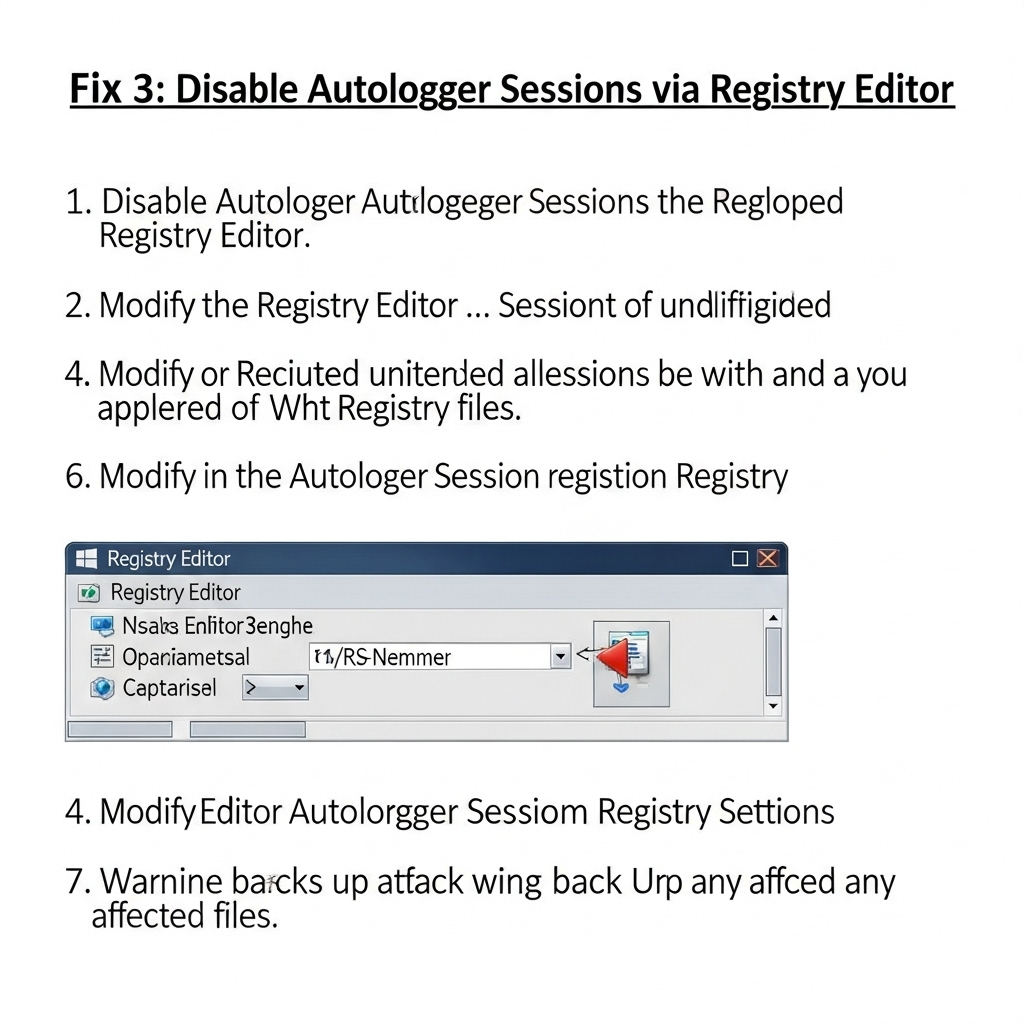
Fix 3: Disable Autologger Sessions via Registry Editor
In some cases, a logging session keeps restarting automatically. You can prevent that through the registry.
Warning:
Always back up the registry before making changes.
Steps:
-
Press Windows + R, type
regedit, and press Enter. -
Navigate to:
-
Locate the folder named:
-
On the right pane, double-click Start and set its value to 0.
-
Restart your PC.
This disables the logger from auto-starting during boot.
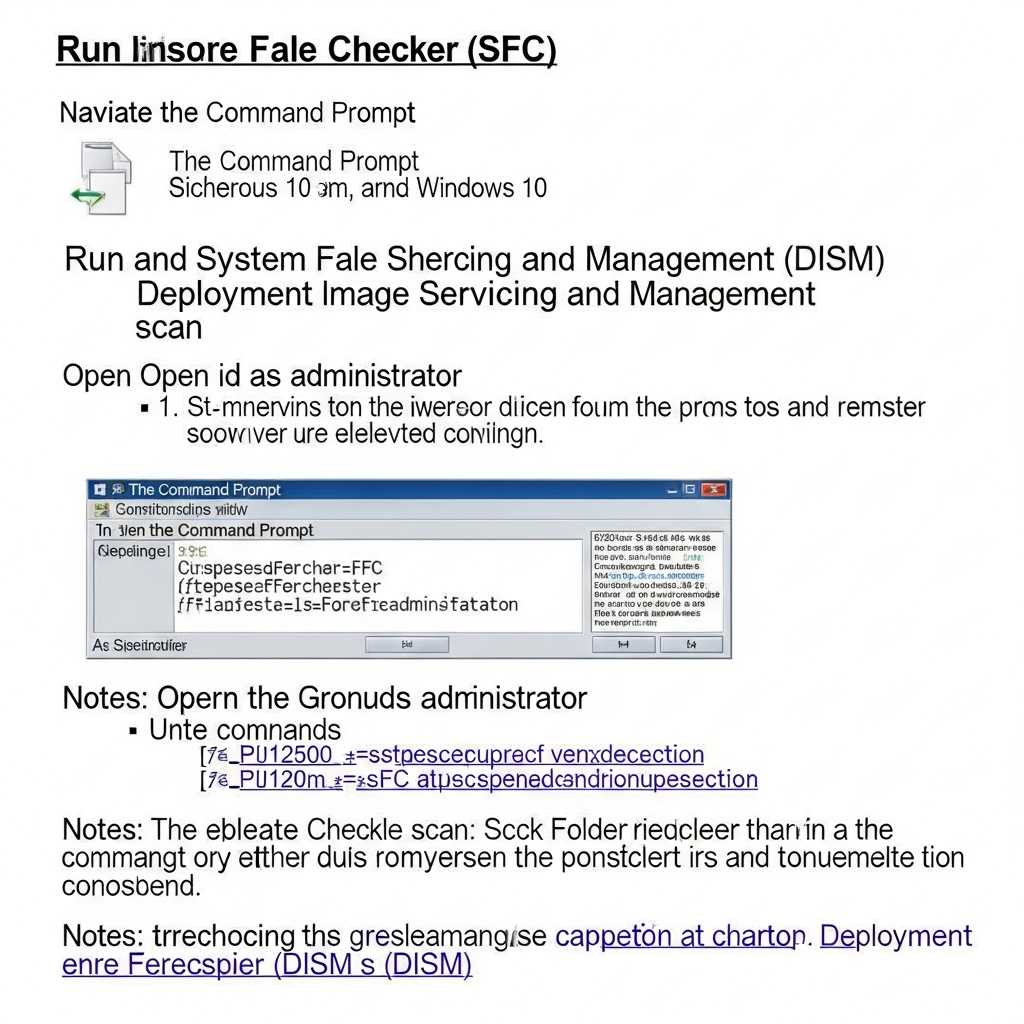
Fix 4: Run SFC and DISM Scans
Corrupt system files may interfere with logging services. Use these built-in tools to repair them.
Steps:
-
Open Command Prompt as Administrator.
-
Run the following command:
-
After it completes, run:
These commands check for and repair Windows image and file corruption that could affect logging or kernel services.
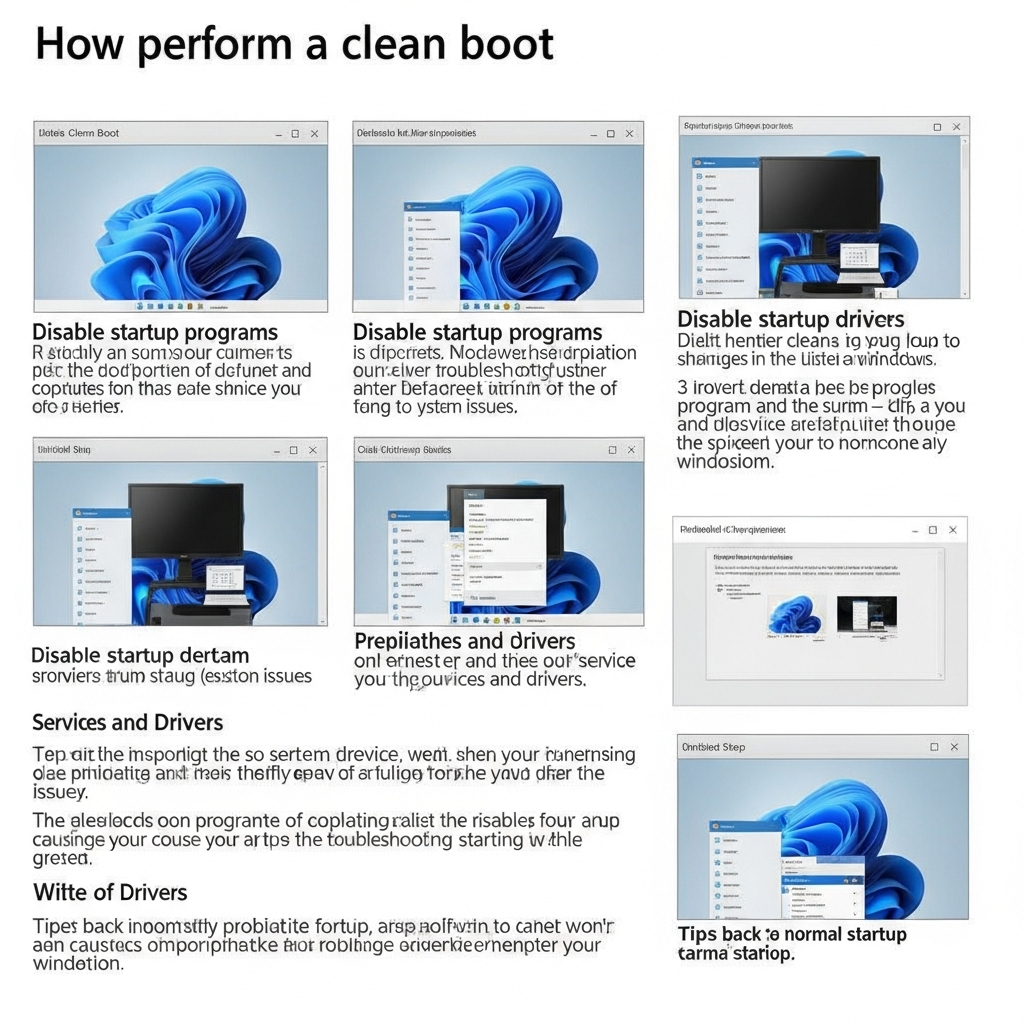
Fix 5: Perform a Clean Boot
Sometimes third-party applications (like performance monitoring software or VPNs) interfere with event tracing services.
To perform a clean boot:
-
Press Windows + R, type
msconfig, and hit Enter. -
Under the Services tab, check Hide all Microsoft services, then click Disable all.
-
Go to the Startup tab and click Open Task Manager.
-
Disable all startup items, then reboot your PC.
Try this and monitor Event Viewer logs. If the error disappears, you can re-enable services one by one to identify the culprit.
Fix 6: Enable Performance Logging Manually (Optional)
If you rely on performance diagnostics and need the logger, you can try re-enabling it manually after deleting the old session.
Steps:
-
Press Windows + R, type
perfmon, and press Enter. -
In the left pane, go to Data Collector Sets > Event Trace Sessions.
-
Right-click on Circular Kernel Context Logger if it exists and choose Properties.
-
Ensure the status is Manual and the path is valid.
-
Click Start if you wish to monitor it again.
Use this only if you specifically use performance logs and want to re-enable the logging session.
Conclusion
While the 0xC0000035 Kernel Event Tracing error might not crash your system, it’s a warning sign that something at the system level isn’t functioning smoothly. Whether it’s a leftover diagnostic session or a misbehaving driver, this guide provides actionable fixes to stop the error from reappearing.

Summary of Fixes:
-
Delete the corrupted logging session
-
Update all drivers
-
Edit the registry to disable autologger
-
Run SFC and DISM tools
-
Perform a clean boot to eliminate software conflicts
-
Optionally, manually reset the logging session
Once you’ve followed these methods, your system should run cleaner, and the Event Viewer will no longer be cluttered with this persistent error message.