


MySQL Crashed Suddenly? Steps to Fix It
If you’re working with MySQL and suddenly encounter the message “MySQL shutdown unexpectedly”, you’re not alone. This is a common problem faced by developers and website administrators, especially those using tools like XAMPP, WAMP, or MAMP on Windows or macOS. The error typically occurs when MySQL fails to start due to corruption, incorrect configuration, or port conflicts.
Fortunately, the issue is usually solvable with the right steps. In this guide, we’ll explain what causes this error, how to diagnose it, and walk you through several ways to fix it—whether you’re running MySQL as a standalone server or through a local server environment.
What Causes the “MySQL Shutdown Unexpectedly” Error?
There are multiple potential causes behind this frustrating issue. Some of the most common include:
-
Unexpected system shutdowns or crashes while MySQL was running
-
Corrupted log or database files
-
Port conflicts, usually with port 3306
-
Misconfigured my.ini files
-
Incorrect permissions or security settings
-
Outdated or incompatible software
Depending on the cause, the solution can vary. Below are several tested methods that should help resolve the issue.
Fix 1: Rename or Delete the Data Folder
The most widely used and effective solution is to temporarily remove or rename the current data folder and restore a clean version of it.
Steps:
-
Stop MySQL in your control panel (e.g., XAMPP or WAMP).
-
Navigate to the MySQL installation directory. In XAMPP, it’s typically:
-
Locate and rename the data folder to something like
data_old. -
Copy the contents of the backup folder (usually located in
mysql\backup) and paste it into a new folder named data. -
Restart MySQL from the control panel.
If MySQL starts successfully, you can try restoring your databases by copying individual folders (excluding the mysql, performance_schema, etc.) from data_old to the new data folder.
Fix 2: Check and Reconfigure the my.ini File
A syntax error or incorrect path in the my.ini file can prevent MySQL from running correctly.
Steps:
-
Open your MySQL configuration file. In XAMPP, this is usually located at:
-
Check that the following paths are correct:
-
Ensure slashes (
/) are used consistently, and paths do not contain any special characters or typos. -
Save the file and try restarting MySQL.
Even a misplaced quotation mark or wrong directory name can cause MySQL to fail.
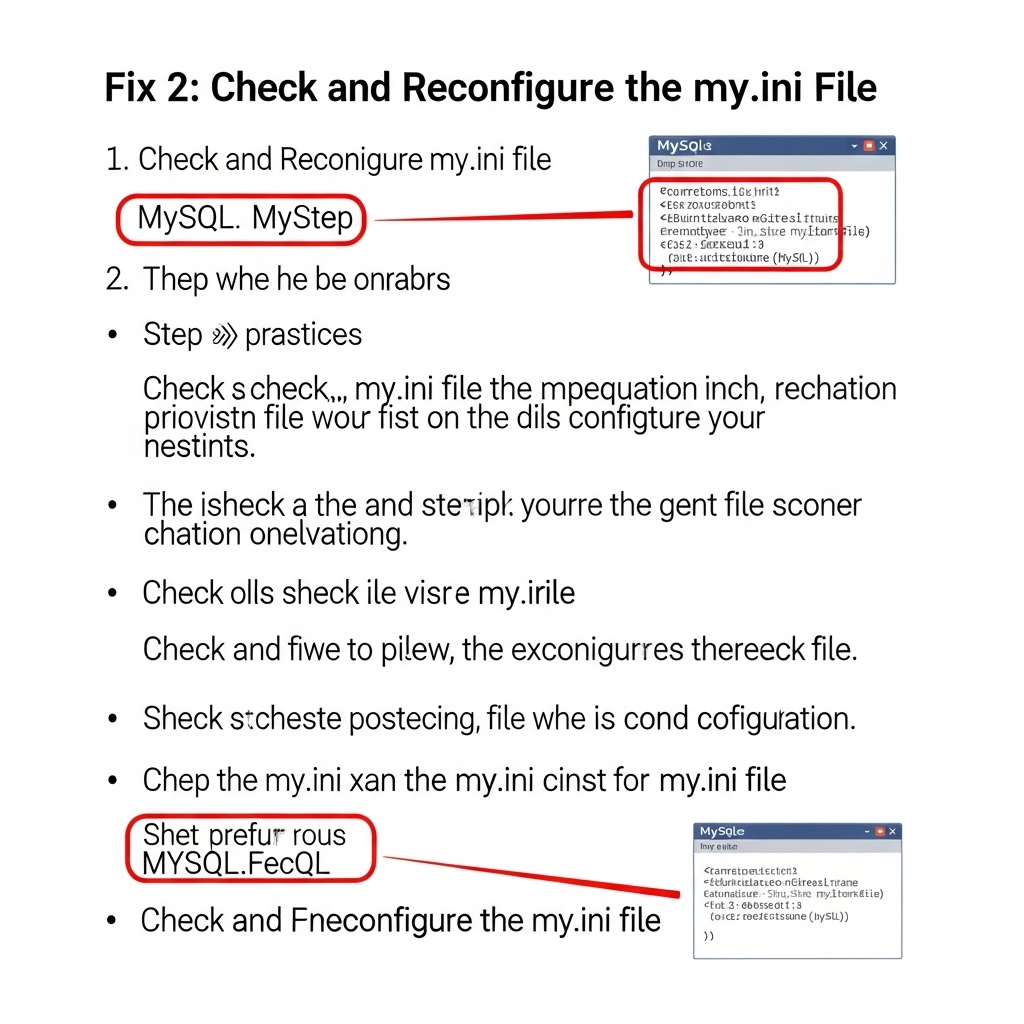
Fix 3: Clear ib_logfile0 and ib_logfile1
Corruption in the InnoDB log files is another common source of failure.
Steps:
-
Stop the MySQL service.
-
Go to your MySQL data directory, typically:
-
Locate and delete the following files:
-
ib_logfile0 -
ib_logfile1
-
-
Do not delete the
ibdata1file unless you’re performing a full reset (you’ll lose data). -
Start MySQL again.
These log files are automatically regenerated and may fix the crash if they were corrupted.
Fix 4: Change the MySQL Port
MySQL may not start if another application is already using port 3306.
Steps:
-
Open XAMPP Control Panel.
-
Click Config next to MySQL and select my.ini.
-
Search for:
-
Change it to something else like
3307or3308. -
Save the file and restart MySQL.
Also, update the port in any application or tool that connects to your MySQL server.
Fix 5: Restore a Backup
If none of the above methods work, and you have a recent backup of your databases, restoring it may be the best option.
Steps:
-
Delete the existing corrupted data folder.
-
Reinstall MySQL or reset the server environment.
-
Use your backup
.sqlfiles or database folder (if it was exported manually) to restore data using phpMyAdmin or the MySQL command line.
Having regular backups can save you from data loss in situations like this.
Fix 6: Reinstall MySQL or XAMPP
As a last resort, a clean reinstallation can resolve persistent issues.
Steps:
-
Back up your
htdocsandmysql\datafolders if needed. -
Uninstall XAMPP or MySQL from your system.
-
Delete any leftover files in the installation directory.
-
Restart your system.
-
Reinstall the server software and restore any needed files.
Be careful to choose the same version as your backup files were created with, especially if using ibdata or InnoDB-specific files.
Tips to Prevent Future MySQL Crashes
Once you’ve resolved the error, follow these best practices to avoid seeing it again:
-
Shut down MySQL properly via control panel before shutting off your PC
-
Avoid forced shutdowns of your computer
-
Perform regular backups of your databases
-
Keep MySQL and PHP updated
-
Ensure no other applications are using port 3306
Conclusion
The “MySQL shutdown unexpectedly” error can be alarming, especially when you’re in the middle of development or working on a live website. Thankfully, most of the time it can be fixed without losing data by applying the right troubleshooting steps.
Whether it’s deleting corrupted log files, fixing configuration issues, or renaming folders, the fixes listed above will help you get your MySQL service up and running again. If you’re still facing issues, consider switching to a more stable production environment or using a cloud-based database solution for critical projects.