


How to Resolve Omegle’s “Error Connecting to Server” Issue
Omegle is a popular online chat platform that allows users to communicate with strangers via text or video. However, many users occasionally encounter a frustrating message: “Error Connecting to Server. Please Try Again.” This error can prevent you from accessing the service entirely, often with no clear explanation.
If you’ve experienced this issue, you’re not alone. In this article, we’ll explore the possible reasons behind the error and walk you through step-by-step solutions that can help you get back online quickly.
Why Does the Omegle Server Error Happen?
Before diving into the fixes, it’s helpful to understand the common reasons why this error might appear:
-
Network or connectivity issues
-
Browser-related problems
-
IP bans or restrictions
-
DNS server conflicts
-
Corrupted cookies or cache
-
Firewall or antivirus interference
-
VPN conflicts
Now that you know the causes, let’s look at how to resolve the error.
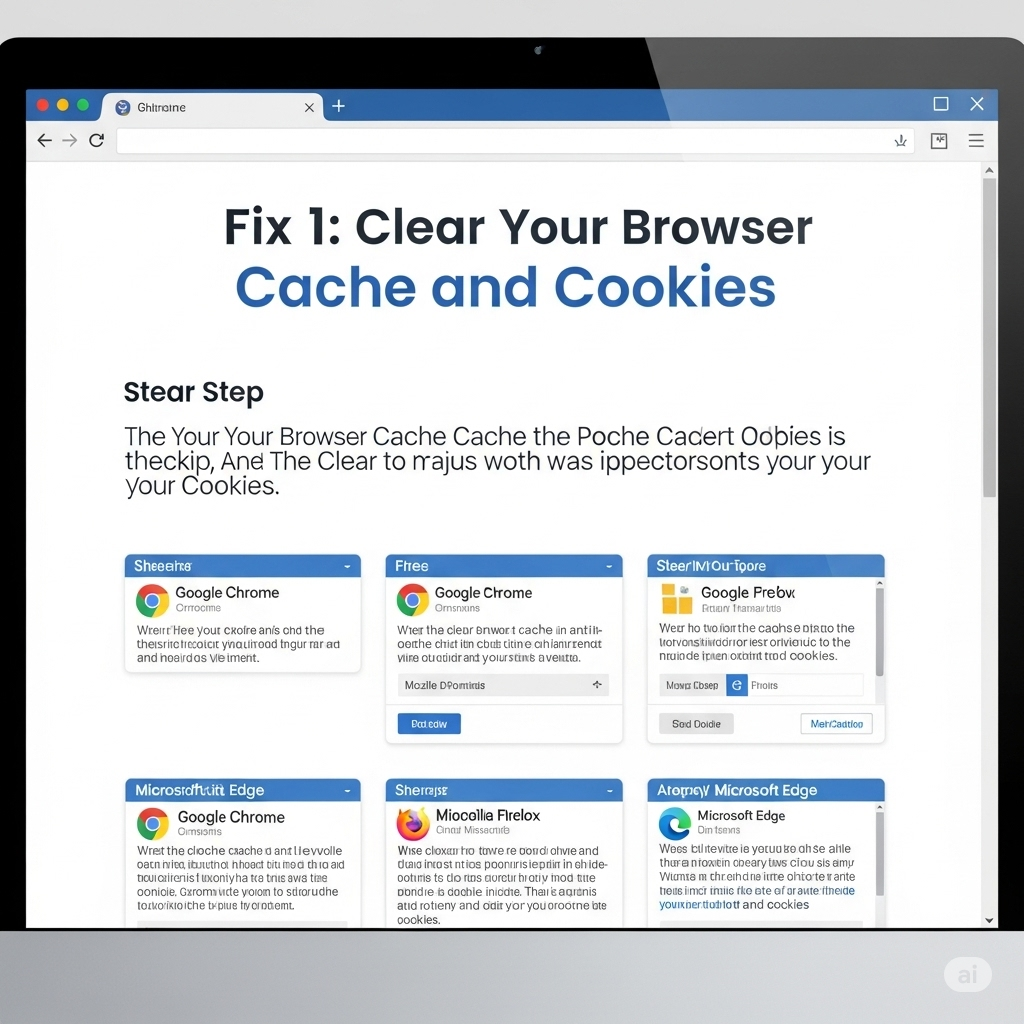
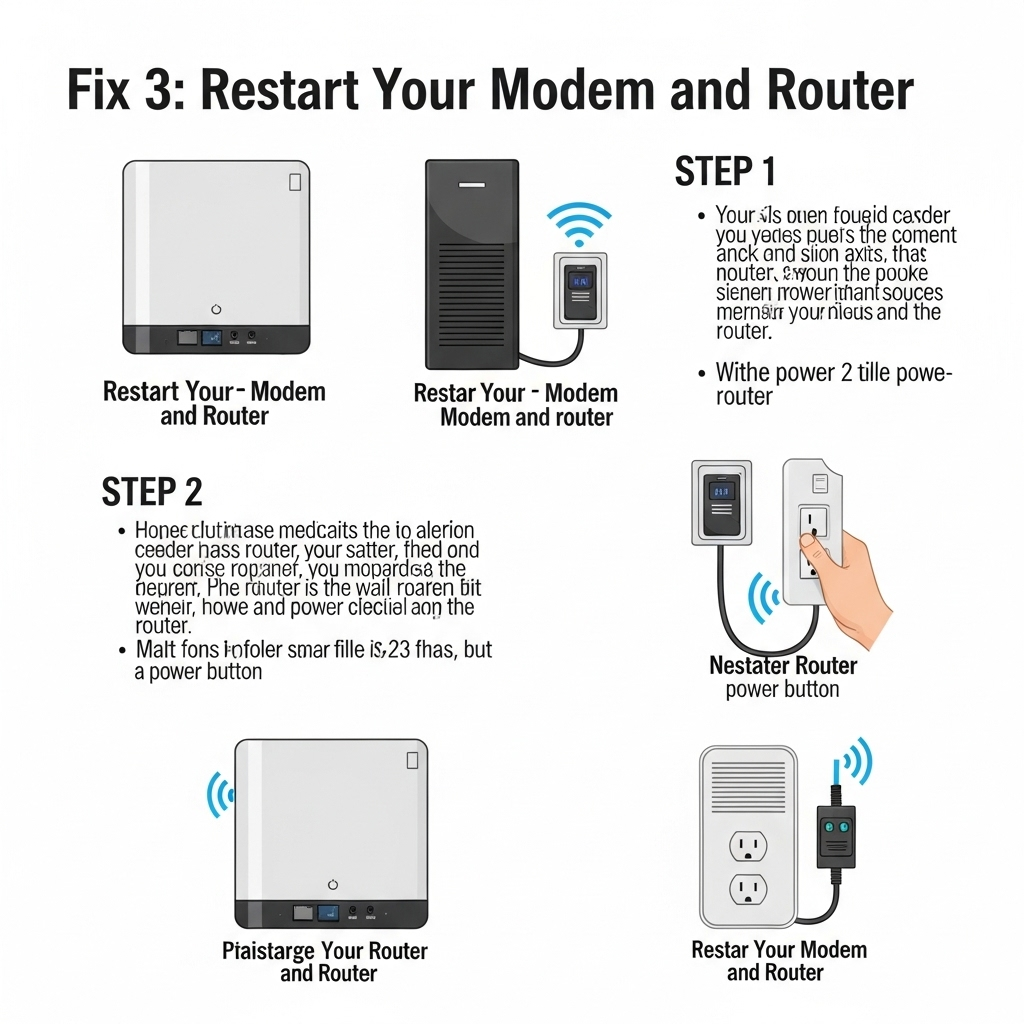
Fix 1: Clear Your Browser Cache and Cookies
Corrupt or outdated cache and cookies are among the most common reasons for Omegle connection issues.
Steps for Google Chrome:
-
Open Chrome and click the three-dot menu in the top right.
-
Navigate to Settings > Privacy and security > Clear browsing data.
-
Select Cookies and other site data and Cached images and files.
-
Choose a Time range (e.g., “All time”).
-
Click Clear data.
After clearing, try accessing Omegle again. Repeat similar steps if you’re using Firefox, Edge, or another browser.
Fix 2: Try a Different Browser
If clearing cookies didn’t work, try using a different web browser. For example:
-
If you’re using Chrome, switch to Firefox, Opera, or Microsoft Edge.
-
Omegle may work in one browser even if it’s not working in another.
This helps determine whether the issue is browser-specific.
Fix 3: Restart Your Modem and Router
Sometimes, a simple network reset can fix temporary connectivity issues.
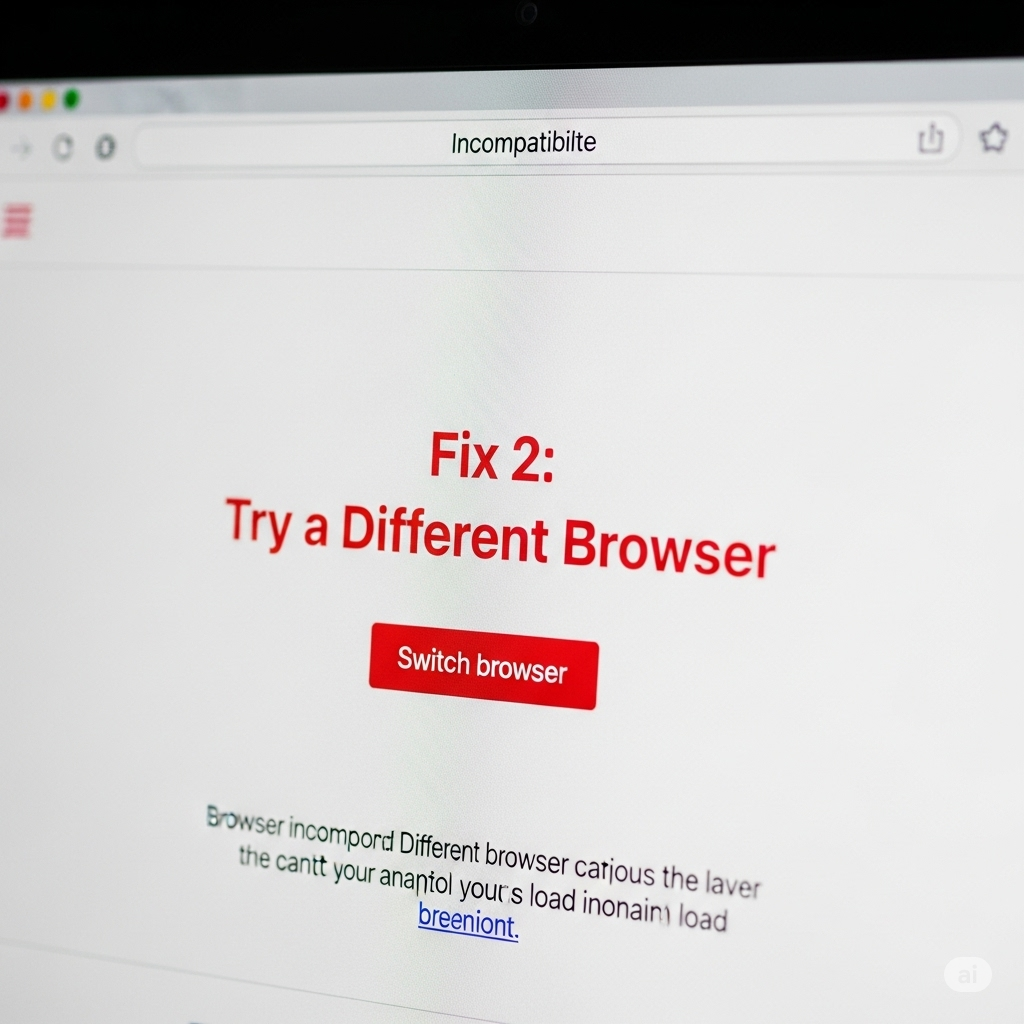
To restart your network devices:
-
Turn off your modem and router.
-
Wait at least 30 seconds.
-
Power them back on and wait for them to fully reconnect.
-
Try accessing Omegle again.
This can help resolve network-related glitches that prevent server connections.
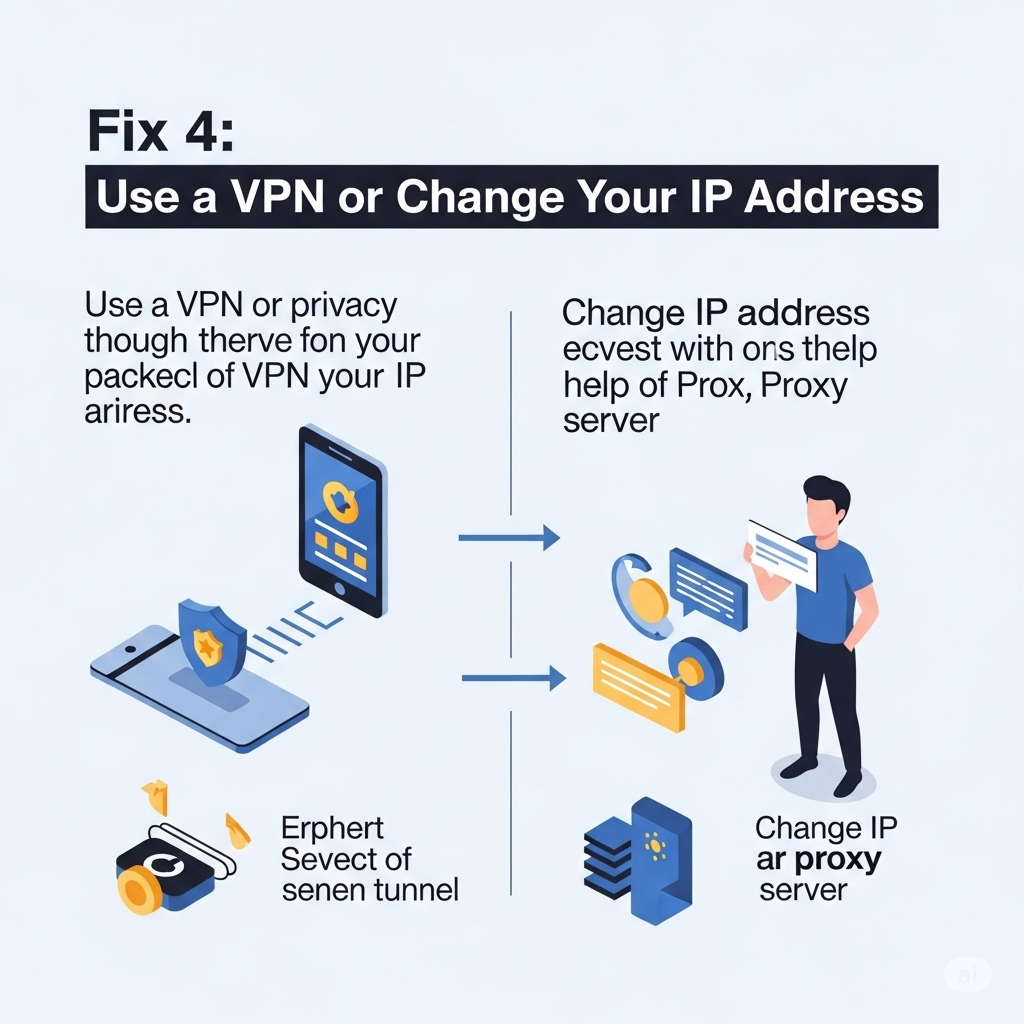
Fix 4: Use a VPN or Change Your IP Address
Omegle sometimes bans IP addresses—either temporarily or permanently—if it detects suspicious activity or multiple disconnections. You can bypass this by changing your IP.
Option 1: Use a VPN
-
Install a trusted VPN such as NordVPN, ExpressVPN, or ProtonVPN.
-
Connect to a different country or region.
-
Try visiting Omegle again.
Option 2: Reboot Your Router
If your ISP provides dynamic IPs, rebooting your router may assign a new IP.
-
Unplug your router for 5–10 minutes.
-
Plug it back in and reconnect.
-
Check your new IP at sites like
whatismyip.com.
Note: If your ISP uses a static IP, this method won’t work without contacting them.
Fix 5: Flush DNS and Reset Network Settings
DNS issues may prevent proper communication between your browser and Omegle’s servers.
To flush your DNS:
-
Press
Windows + R, typecmd, and hit Enter. -
In the Command Prompt, type:
-
Press Enter.
To reset network settings (optional but recommended):
-
In the same Command Prompt window, type:
-
Restart your PC.
Try launching your browser and accessing Omegle again.
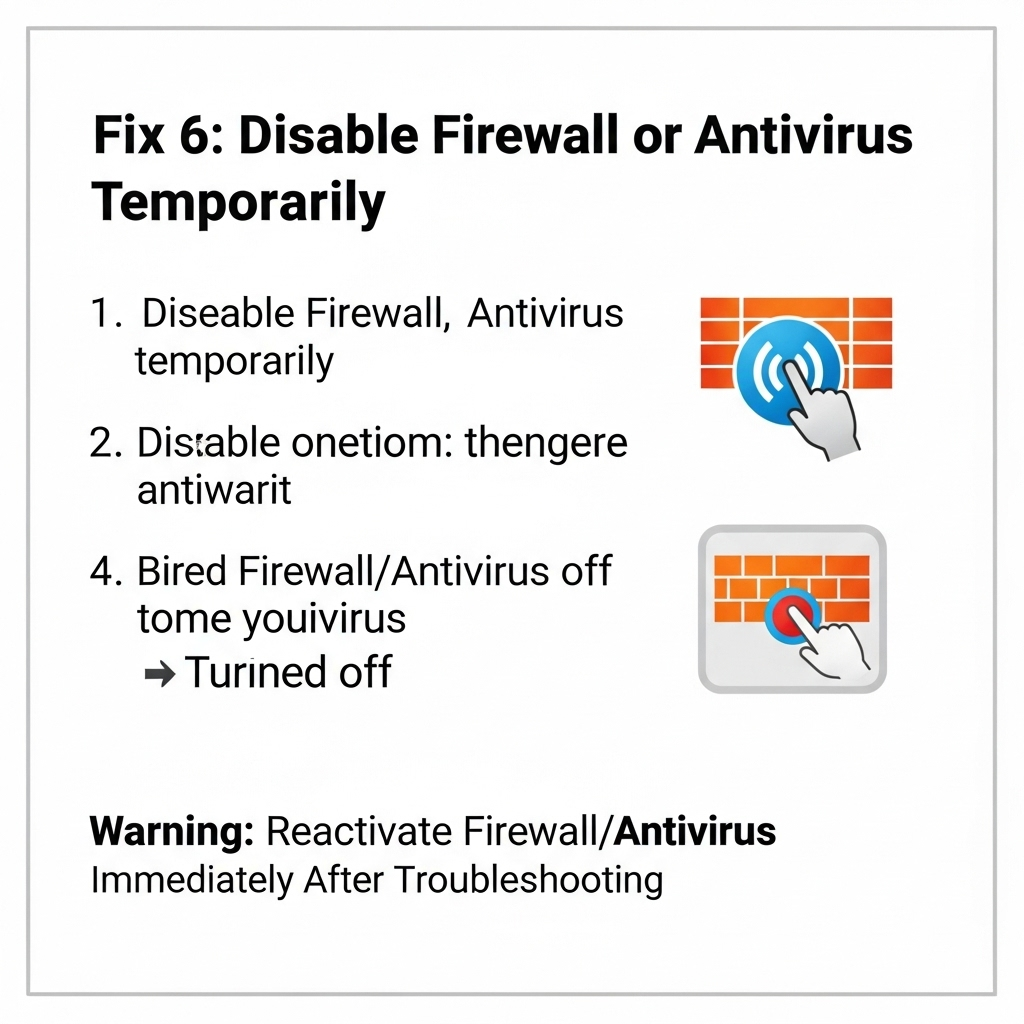
Fix 6: Disable Firewall or Antivirus Temporarily
Some firewall or antivirus settings may block Omegle or its necessary ports.
Steps:
-
Open your Windows Security settings.
-
Go to Firewall & network protection.
-
Temporarily turn off the firewall.
-
Also disable real-time protection from your antivirus (if applicable).
-
Open Omegle and test the connection.
If it works, adjust the firewall to allow traffic from Omegle instead of keeping it off permanently.
Fix 7: Try Omegle in Incognito or Private Mode
Opening your browser in private or incognito mode disables extensions, uses temporary cookies, and often bypasses issues caused by stored data.
-
In Chrome:
Ctrl + Shift + N -
In Firefox:
Ctrl + Shift + P
Visit Omegle directly in this private session and test your connection.
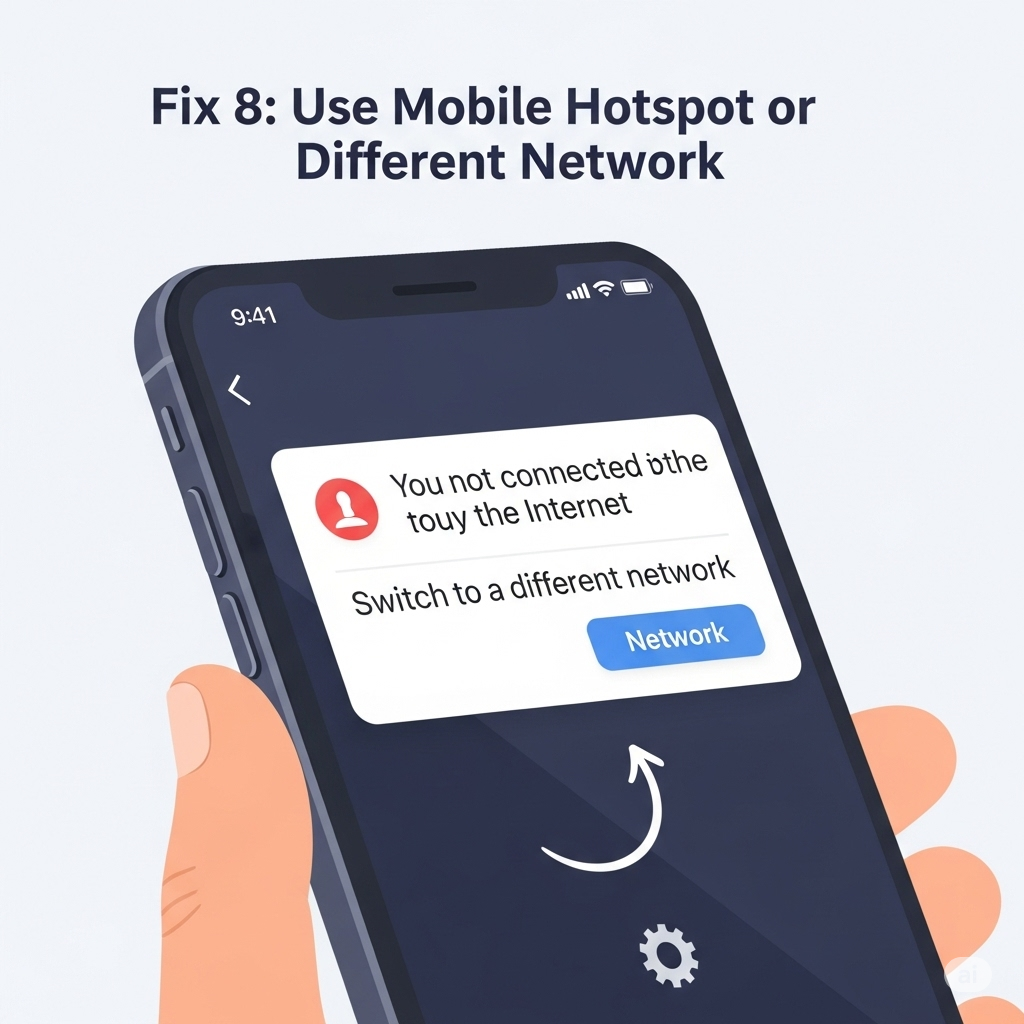
Fix 8: Use Mobile Hotspot or Different Network
To test if the issue is related to your current network or ISP, try switching to:
-
A mobile hotspot
-
A public Wi-Fi connection
-
A friend’s network
If Omegle works on a different network, it’s likely your original IP or provider is being blocked or restricted.
Fix 9: Contact Your ISP or Omegle (If Necessary)
If you’ve tried all the fixes and still can’t connect, it’s possible your IP has been permanently banned or restricted at the ISP level.
-
Contact your ISP and request a new IP if you’re on a static address.
-
Omegle has limited direct support, but you can try reporting issues through feedback forms or support communities.
Conclusion
Omegle’s “Error Connecting to Server. Please Try Again” message can be frustrating, but it’s usually solvable with a few troubleshooting steps. Whether it’s clearing your browser data, switching networks, or using a VPN, you can often get back online within minutes.
If you regularly use Omegle, consider taking precautions to prevent IP bans and maintain consistent, secure connections. And remember—when all else fails, sometimes just waiting a few hours and trying again later can do the trick.