


How to Capture Full-Page Screenshots in Windows 10/11
Taking a screenshot is one of the easiest ways to save information displayed on your computer. However, standard screenshots can only capture the visible portion of your screen. If you need to save an entire webpage, a lengthy document, a chat conversation, or a spreadsheet, a regular screenshot isn’t enough. That’s where scrolling screenshots become incredibly useful.
A scrolling screenshot captures content that extends beyond the visible screen by combining multiple sections into a single image. While Windows 10 and Windows 11 do not include a built-in scrolling screenshot feature for all applications, there are several reliable ways to capture long pages using web browsers, third-party software, and specialized tools.
In this guide, you’ll learn multiple methods for taking scrolling screenshots on Windows 10 and Windows 11, along with tips for choosing the best option for your needs.
What Is a Scrolling Screenshot?
A scrolling screenshot is a single image that captures an entire page or document, including the portions that are not currently visible on your screen.
Instead of taking multiple screenshots and stitching them together manually, a scrolling capture automatically scrolls through the content and combines everything into one continuous image.
Common uses include:
- Capturing full webpages
- Saving long articles
- Recording chat conversations
- Sharing software settings
- Capturing lengthy Excel spreadsheets
- Saving PDF pages
- Documenting troubleshooting steps
- Creating tutorials
Scrolling screenshots are especially useful when you need to preserve the complete context of the information.
Can Windows 10 and Windows 11 Take Scrolling Screenshots?
Windows includes several screenshot tools, such as:
- Snipping Tool
- Snip & Sketch (Windows 10)
- Print Screen
- Xbox Game Bar
However, none of these tools currently provide a universal scrolling screenshot feature for desktop applications.
Fortunately, you can still capture scrolling screenshots using browser features or trusted third-party applications.
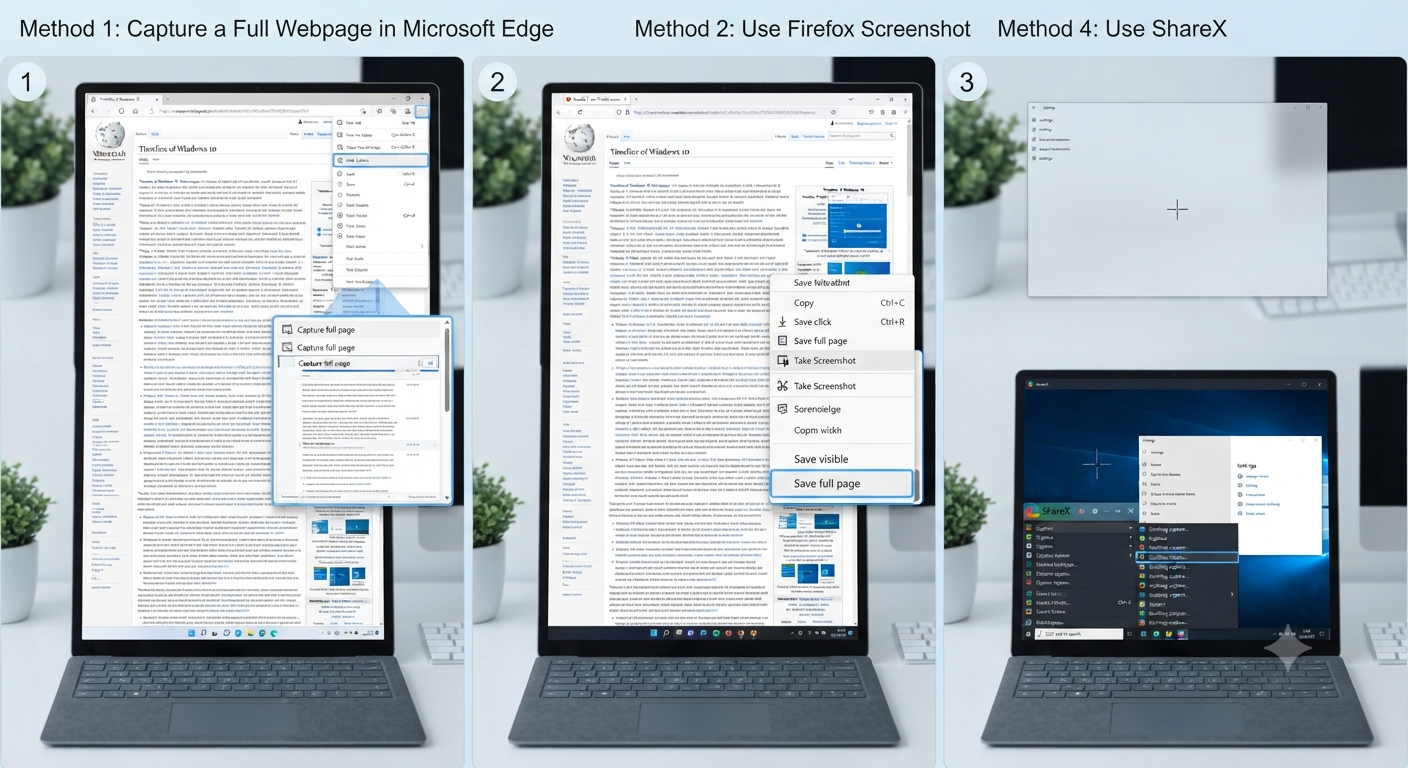
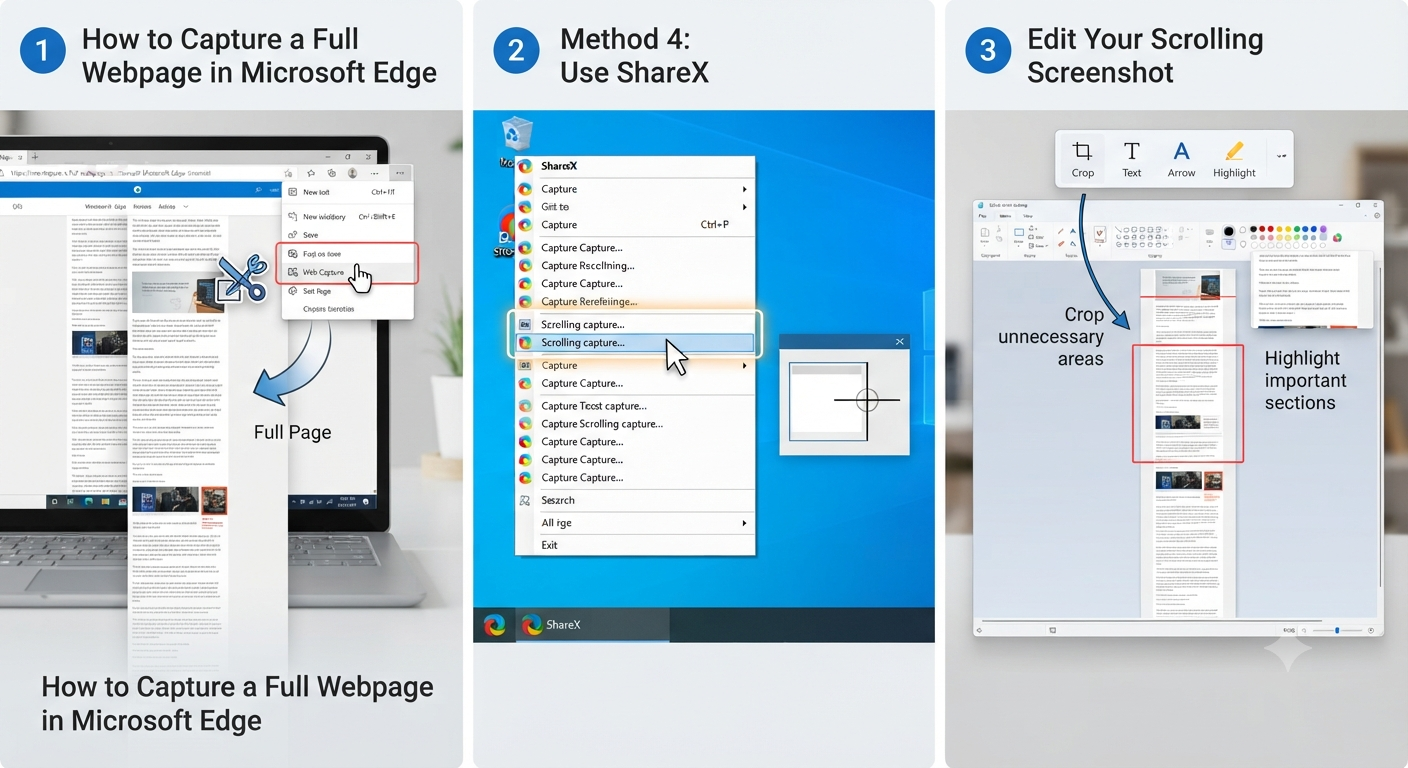
Method 1: Capture a Full Webpage in Microsoft Edge
Microsoft Edge includes a built-in feature called Web Capture, which allows you to save an entire webpage without installing additional software.
Step 1: Open the Webpage
Launch Microsoft Edge and navigate to the webpage you want to capture.
Step 2: Open Web Capture
Click the three-dot menu in the upper-right corner.
Select:
Web Capture
Alternatively, press:
Ctrl + Shift + SStep 3: Choose Full Page Capture
Select:
Capture full page
Edge automatically scrolls through the webpage and creates a complete image.
Step 4: Save the Screenshot
You can:
- Save the image
- Copy it to the clipboard
- Share it
Image: Microsoft Edge Web Capture feature.
This is one of the simplest methods for capturing long webpages.
Method 2: Use Firefox Screenshot Tool
Mozilla Firefox also supports full-page screenshots.
How to Capture a Full Page
- Open Firefox.
- Visit the webpage.
- Right-click anywhere on the page.
- Select Take Screenshot.
- Choose Save Full Page.
Firefox automatically captures the complete webpage without requiring scrolling.
This feature works well for online articles, documentation, and blogs.
Method 3: Use Google Chrome Extensions
Google Chrome does not include a native scrolling screenshot feature, but several reputable extensions can add this functionality.
Popular options include extensions designed for:
- Full-page webpage capture
- Long screenshot creation
- Webpage archiving
After installing a trusted extension from the Chrome Web Store, you can typically capture an entire webpage with a single click.
Before installing any extension, review its permissions and developer information to ensure it comes from a reliable source.
Method 4: Use ShareX
ShareX is a free and feature-rich screenshot utility for Windows that supports scrolling captures in many applications.
How to Capture a Scrolling Screenshot
- Install and open ShareX.
- Select Capture.
- Choose Scrolling Capture.
- Click the target window.
- Follow the prompts to begin automatic scrolling.
- Save the completed image.
Image: ShareX scrolling capture.
ShareX also includes features such as:
- Image editing
- OCR (Optical Character Recognition)
- Annotation tools
- Automatic file naming
- Multiple export options
It is a popular choice among power users and IT professionals.
Method 5: Use PicPick
PicPick is another Windows application that supports scrolling screenshots.
To use it:
- Open PicPick.
- Select Scrolling Window.
- Click the desired application or webpage.
- Let PicPick scroll automatically.
- Save the finished screenshot.
PicPick also provides built-in editing tools, making it easy to add arrows, highlights, text, and shapes.
Method 6: Capture Long Documents in PDF Readers
Some PDF readers include their own snapshot or export features.
If available, you can:
- Export pages as images
- Save the document as a PDF
- Capture selected page ranges
These options often produce better results than traditional screenshots.
Method 7: Capture Long Excel Worksheets
Large spreadsheets are difficult to capture with normal screenshots.
Instead of taking multiple images, consider:
- Printing to PDF
- Exporting the worksheet
- Using a scrolling capture tool that supports Excel windows
This approach creates a cleaner and more readable result.
Edit Your Scrolling Screenshot
After capturing the image, you may want to improve its appearance.
Useful edits include:
- Cropping unnecessary areas
- Highlighting important sections
- Adding arrows
- Inserting text labels
- Blurring sensitive information
- Resizing the image
Many screenshot tools include basic editing capabilities, or you can use applications such as Microsoft Paint or Paint.NET.
Save Screenshots in the Right Format
Choosing the correct file format depends on how you plan to use the screenshot.
Common options include:
PNG
Best for:
- Documentation
- Tutorials
- Text-heavy screenshots
PNG preserves image quality without noticeable compression.
JPEG
Best for:
- General sharing
- Smaller file sizes
JPEG files are more compact but may lose some image quality.
Ideal for:
- Reports
- Documentation
- Sharing multi-page information
Some tools allow you to export scrolling captures directly as PDF files.
Common Problems and Solutions
Scrolling Capture Doesn’t Work
Not every application supports automatic scrolling.
If the capture fails:
- Update the screenshot software.
- Try running the application as Administrator.
- Use another supported tool.
- Test the feature in a web browser.
Image Is Cut Off
Some applications load content dynamically as you scroll.
Allow the page to finish loading before starting the capture.
You may also need to slow the scrolling speed if the software offers that option.
The Screenshot Looks Blurry
Use PNG format whenever possible.
Also avoid resizing the image repeatedly after capturing it.
Protected Applications Prevent Capture
Some secure applications intentionally block screenshots for security reasons.
Examples may include:
- Banking software
- Certain streaming services
- DRM-protected content
In these cases, scrolling screenshots may not be possible.
Tips for Better Scrolling Screenshots
To produce cleaner results:
- Maximize the application window before capturing.
- Close unnecessary sidebars or pop-ups.
- Zoom out slightly if it improves readability.
- Wait for all content to load before starting.
- Save in PNG format for sharper text.
- Crop unnecessary margins after capturing.
These simple steps can improve the quality and usability of your screenshots.
When Should You Use a Scrolling Screenshot?
Scrolling screenshots are useful in many situations, including:
- Creating software tutorials
- Saving online receipts
- Recording long conversations
- Capturing coding documentation
- Sharing technical support information
- Archiving webpages
- Saving research materials
- Documenting application settings
Instead of stitching together multiple screenshots manually, a scrolling capture provides a complete and professional-looking image.
Frequently Asked Questions
Does Windows 10 include a built-in scrolling screenshot feature?
No. Windows 10 includes tools like Snipping Tool and Snip & Sketch, but they do not support universal scrolling screenshots. You can use browser features or third-party software to capture long pages.
Can Windows 11 take scrolling screenshots?
Windows 11 also does not provide a built-in scrolling screenshot tool for all applications. However, Microsoft Edge includes Web Capture, which can save an entire webpage as a single image.
Which browser supports full-page screenshots?
Microsoft Edge and Mozilla Firefox both offer built-in tools for capturing full webpages. Google Chrome requires an extension or another compatible solution to achieve similar functionality.
What is the best file format for scrolling screenshots?
PNG is generally the best choice because it preserves image quality and keeps text sharp. JPEG may be suitable when you need smaller file sizes, while PDF is useful for sharing documents.
Can I capture scrolling screenshots in desktop applications?
Yes, but you’ll usually need third-party software such as ShareX or PicPick. Support varies depending on the application, and some programs may not allow automatic scrolling capture.
Conclusion
Although Windows 10 and Windows 11 do not include a universal scrolling screenshot feature, capturing an entire webpage, document, or conversation is still easy with the right tools. Built-in browser features like Microsoft Edge Web Capture and Firefox’s screenshot tool are excellent for webpages, while applications such as ShareX and PicPick provide flexible scrolling capture options for many desktop programs.